 ## What Meeting Notes Does
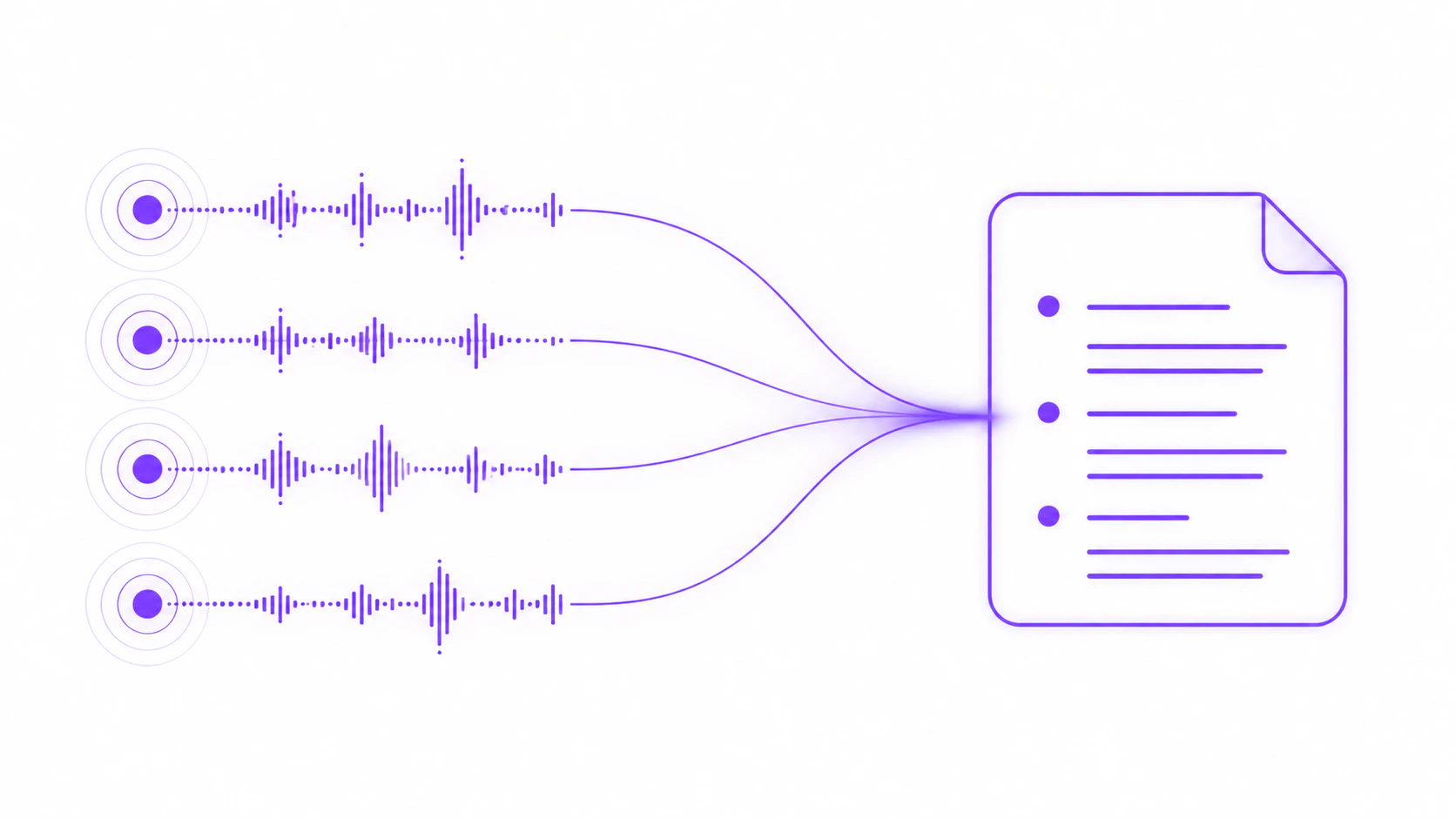
Meeting Notes records system audio (what others say) and your microphone (what you say) during any meeting or call. After the meeting, it:
* Transcribes the full conversation
* Generates an AI-powered summary
* Identifies speakers (with supported models)
* Extracts action items and key decisions
**No bot joins the call.** No banner appears to other participants. It works with any app that produces audio: Zoom, Teams, Meet, Slack Huddles, Discord calls, and more.
## Requirements
* **macOS:** Screen Recording permission granted (for system audio capture)
* **Windows:** No special permissions needed
* An [AI provider](/ai-features/ai-setup) configured (required for summarization)
* A cloud transcription model (required for [diarization](/meeting-notes/diarization), recommended for accuracy)
## Quick Start
1. Grant Screen Recording permission if you haven't already (macOS only)
2. Configure an AI provider in [Settings > AI Setup](/ai-features/ai-setup)
3. Open the **Notes** page and adjust recording settings from the gear icon at the top right if needed (see below)
4. Click **Start Taking Notes** in the top right to begin, or start from the tray/menu bar icon, or use the Start Notes shortcut (`Cmd+Shift+N` on macOS / `Alt+N` on Windows by default; enable or rebind it in [Settings > Shortcuts](/features/shortcuts))
5. Have your meeting
6. Stop recording when done. Vowen transcribes and summarizes automatically.
## Recording Settings
Adjust these settings from the gear icon at the top right of the Notes page before you start a recording:
* **Microphone** — the input device used to capture your voice
* **Transcription model** — the speech-to-text model that processes audio
* **Language** — the spoken language, or auto-detect
* **Identify Speakers** — toggle [diarization](/meeting-notes/diarization) on or off (Pro, supported models only)
* **AI Summary Model** — the AI provider that generates the summary
* **Summary Template** — the structure of the summary. Create multiple [custom templates](/meeting-notes/summaries#custom-templates) (Pro) or use the built-in **Meeting Notes** template
Your selections are remembered for the next recording, so you only need to adjust them when something changes. These options, your summary templates, and your integrations are organized into a tabbed settings modal with **Settings**, **Templates**, and **Integrations** tabs.
## What Meeting Notes Does
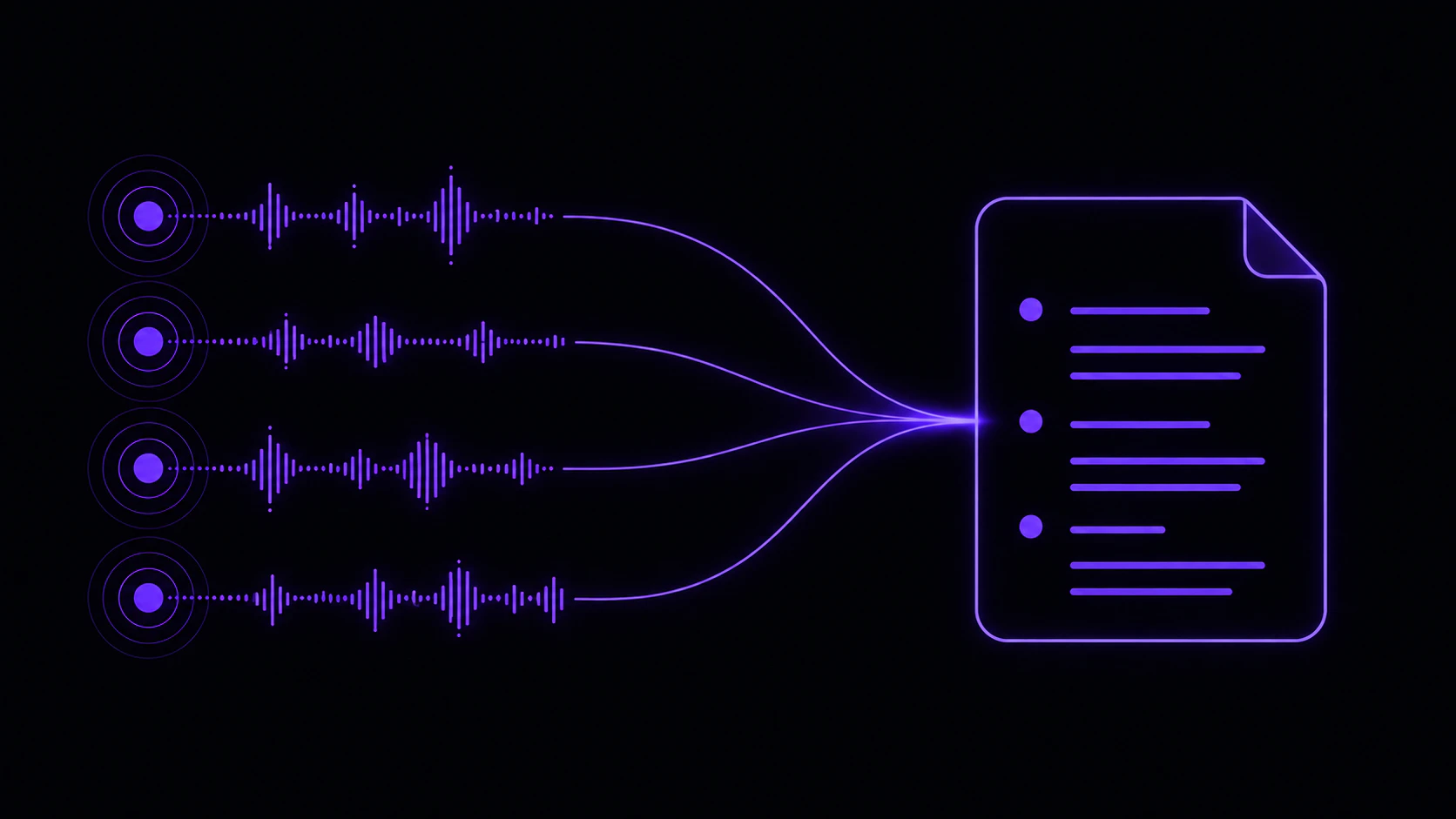
Meeting Notes records system audio (what others say) and your microphone (what you say) during any meeting or call. After the meeting, it:
* Transcribes the full conversation
* Generates an AI-powered summary
* Identifies speakers (with supported models)
* Extracts action items and key decisions
**No bot joins the call.** No banner appears to other participants. It works with any app that produces audio: Zoom, Teams, Meet, Slack Huddles, Discord calls, and more.
## Requirements
* **macOS:** Screen Recording permission granted (for system audio capture)
* **Windows:** No special permissions needed
* An [AI provider](/ai-features/ai-setup) configured (required for summarization)
* A cloud transcription model (required for [diarization](/meeting-notes/diarization), recommended for accuracy)
## Quick Start
1. Grant Screen Recording permission if you haven't already (macOS only)
2. Configure an AI provider in [Settings > AI Setup](/ai-features/ai-setup)
3. Open the **Notes** page and adjust recording settings from the gear icon at the top right if needed (see below)
4. Click **Start Taking Notes** in the top right to begin, or start from the tray/menu bar icon, or use the Start Notes shortcut (`Cmd+Shift+N` on macOS / `Alt+N` on Windows by default; enable or rebind it in [Settings > Shortcuts](/features/shortcuts))
5. Have your meeting
6. Stop recording when done. Vowen transcribes and summarizes automatically.
## Recording Settings
Adjust these settings from the gear icon at the top right of the Notes page before you start a recording:
* **Microphone** — the input device used to capture your voice
* **Transcription model** — the speech-to-text model that processes audio
* **Language** — the spoken language, or auto-detect
* **Identify Speakers** — toggle [diarization](/meeting-notes/diarization) on or off (Pro, supported models only)
* **AI Summary Model** — the AI provider that generates the summary
* **Summary Template** — the structure of the summary. Create multiple [custom templates](/meeting-notes/summaries#custom-templates) (Pro) or use the built-in **Meeting Notes** template
Your selections are remembered for the next recording, so you only need to adjust them when something changes. These options, your summary templates, and your integrations are organized into a tabbed settings modal with **Settings**, **Templates**, and **Integrations** tabs.