> ## Documentation Index
> Fetch the complete documentation index at: https://docs.vowen.ai/llms.txt
> Use this file to discover all available pages before exploring further.
# How Transcription Works
Understand the recording and transcription pipeline.
 ## Recording Modes
Vowen offers two ways to record:
### Push-to-Talk (Default)
Hold your shortcut to record, release to transcribe. This is the fastest way to dictate short phrases and sentences.
| Platform | Default Shortcut |
| -------- | ---------------- |
| macOS | `Fn` |
| Windows | `Ctrl + Shift` |
## Recording Modes
Vowen offers two ways to record:
### Push-to-Talk (Default)
Hold your shortcut to record, release to transcribe. This is the fastest way to dictate short phrases and sentences.
| Platform | Default Shortcut |
| -------- | ---------------- |
| macOS | `Fn` |
| Windows | `Ctrl + Shift` |
You can pick your own shortcut. See different setups [here](/features/shortcut-patterns).
### Hands-Free
Toggle recording on or off without holding a key. Ideal for longer dictation sessions.
| Platform | Default Shortcut |
| -------- | ---------------- |
| macOS | `Fn + Control` |
| Windows | `Ctrl + H` |
You can pick your own shortcut. See different setups [here](/features/shortcut-patterns).
Hands-free recording can be stopped by:
* Pressing the shortcut again
* Clicking the stop button in the indicator
* Auto-deactivate on mouse or keystroke (optional setting)
All of these stop the recording and send your audio through transcription. To **cancel** instead, press `Escape` while recording. A notification appears with an **Undo** button for a few seconds in case you cancelled by mistake. Click Undo to resume the same session with the audio you already recorded. If the notification dismisses without action, the audio is discarded and nothing is transcribed.
Pro tip: beyond dictation, Vowen can run voice-triggered actions like compressing images, merging PDFs, opening apps, setting timers, and translating text.
See Command Mode →
## Recording Indicator
When you start recording, a small pill-shaped indicator appears on your screen showing that Vowen is listening.
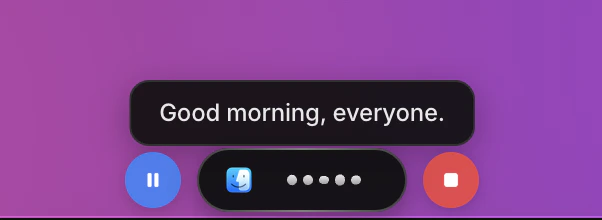 The indicator shows:
* **Active app icon:** which app will receive your transcription
* **Waveform animation:** pulses while you speak
* **Pause and stop controls:** appear in hands-free mode only
You can move the indicator to the **top** or **bottom** of your screen, or **hide** it entirely, from **Settings > Recording > Recording Indicator Position**. See the [Settings overview](/get-started/settings) for more configuration options.
## The Transcription Pipeline
```
┌──────────┐ ┌──────────────┐ ┌───────────────┐ ┌──────────┐
│ Record │───>│ Transcribe │───>│ AI Enhance │───>│ Paste │
│ Audio │ │ (STT Model) │ │ (Optional) │ │ Text │
└──────────┘ └──────────────┘ └───────────────┘ └──────────┘
```
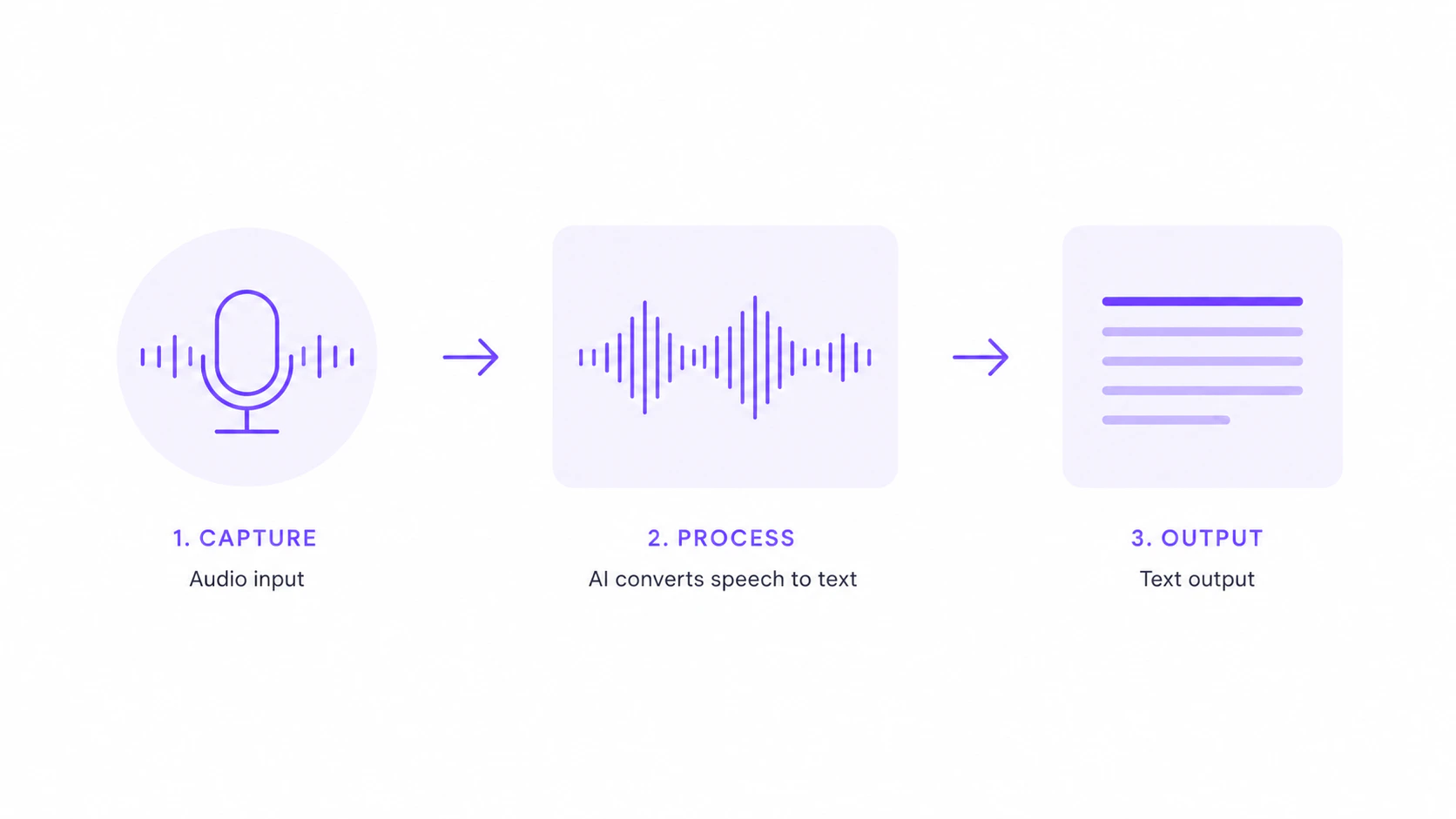
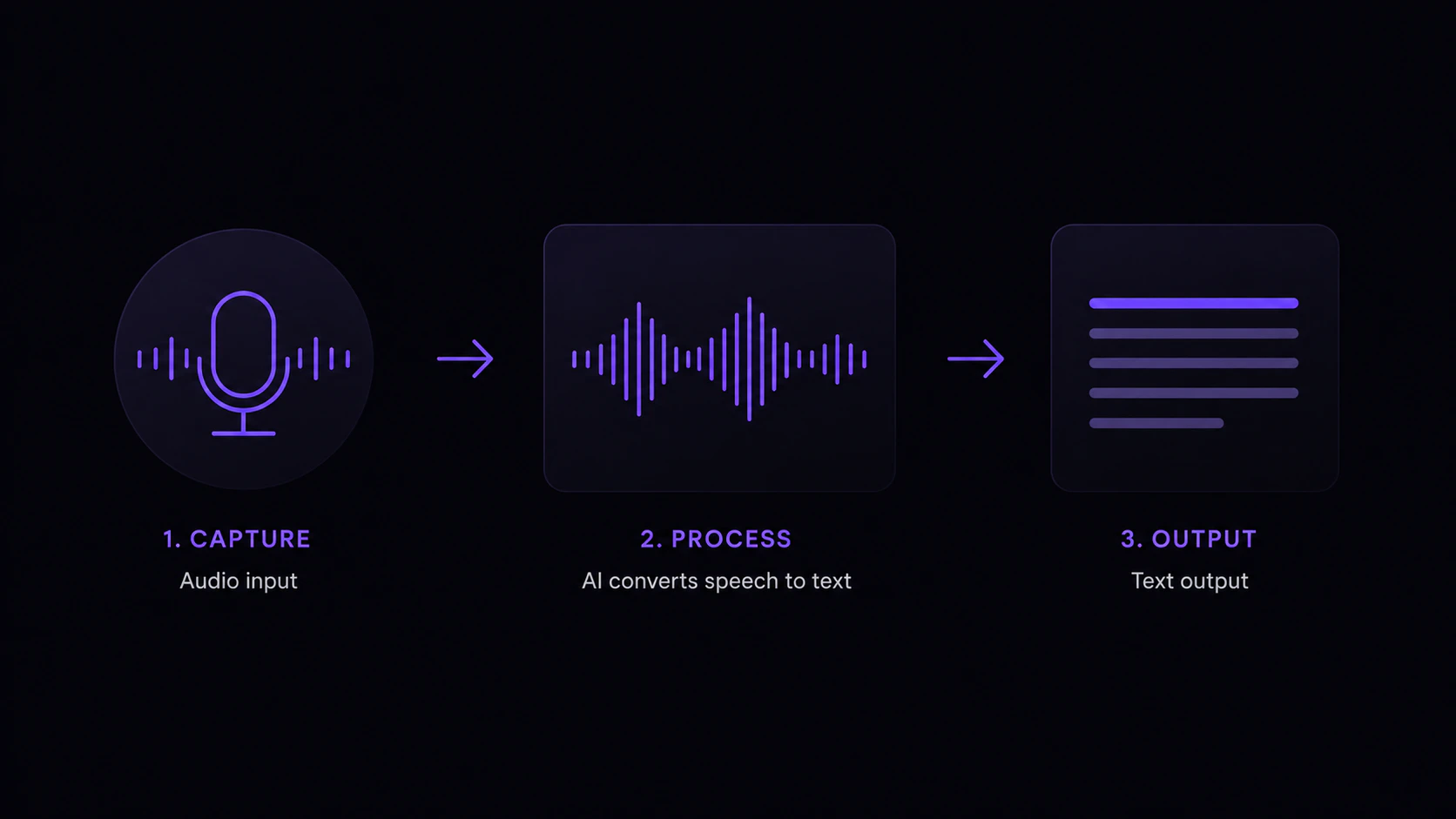
Your microphone captures audio while the shortcut is held. Voice Activity Detection (VAD) automatically removes silence for faster processing.
The audio is sent to your chosen transcription model, either a [local model](/transcription/models#local-models-offline) running on your machine or a [cloud model](/transcription/models#cloud-models).
Filler words are removed. Snippet replacements (Threads) are applied. Workflow triggers are checked.
The transcribed text is sent to your configured AI provider for grammar cleanup, formatting, and polish. You bring your own [API key](/ai-features/ai-setup) from any of 10+ supported providers; Vowen never charges you for AI usage.
The final text is delivered to the focused field using either the **paste method** (default) or **direct insertion**. See [Text Insertion Methods](#text-insertion-methods) below for the difference.
## Text Insertion Methods
Vowen offers two ways to deliver the final transcription into the focused field. The choice matters for clipboard behaviour and for keyboard layouts.
### Paste method (default)
Vowen copies the transcription to your clipboard and simulates a `Cmd+V` (macOS) or `Ctrl+V` (Windows) keystroke to paste it. This is the fastest path and works well on standard QWERTY layouts.
Side effect: your original clipboard content is overwritten by the transcription. Enable **Restore clipboard after paste** in **Settings > General** to have Vowen save your prior clipboard contents and put them back after the paste completes.
### Direct insertion method
Vowen types each character of the transcription as if you were pressing the keys yourself. The clipboard is never touched, so whatever you had on it stays exactly as it was.
Use this method when:
* You use a non-QWERTY layout (AZERTY, QWERTZ, Dvorak, and others) where the paste keystroke does not map cleanly to the "V" key
* The target app blocks standard paste (some remote desktops, sandboxed terminals, virtual machines)
* You want clipboard preservation without enabling a separate setting
Switch methods anytime in **Settings > General > Text Insertion Method**. See the [Settings overview](/get-started/settings) for related options.
## Voice Activity Detection (VAD)
Vowen uses the Silero VAD model to detect speech in your recording. This:
* Removes silence before and after speech
* Reduces processing time for local models
* Prevents "hallucinations" on silent recordings (e.g., the model outputting "Thank you" when nothing was said)
VAD runs automatically. No configuration needed.
## Sound Effects
By default, Vowen plays a subtle sound when recording starts and stops. Disable this in **Settings > General > Sound Effects**.
The indicator shows:
* **Active app icon:** which app will receive your transcription
* **Waveform animation:** pulses while you speak
* **Pause and stop controls:** appear in hands-free mode only
You can move the indicator to the **top** or **bottom** of your screen, or **hide** it entirely, from **Settings > Recording > Recording Indicator Position**. See the [Settings overview](/get-started/settings) for more configuration options.
## The Transcription Pipeline
```
┌──────────┐ ┌──────────────┐ ┌───────────────┐ ┌──────────┐
│ Record │───>│ Transcribe │───>│ AI Enhance │───>│ Paste │
│ Audio │ │ (STT Model) │ │ (Optional) │ │ Text │
└──────────┘ └──────────────┘ └───────────────┘ └──────────┘
```
Your microphone captures audio while the shortcut is held. Voice Activity Detection (VAD) automatically removes silence for faster processing.
The audio is sent to your chosen transcription model, either a [local model](/transcription/models#local-models-offline) running on your machine or a [cloud model](/transcription/models#cloud-models).
Filler words are removed. Snippet replacements (Threads) are applied. Workflow triggers are checked.
The transcribed text is sent to your configured AI provider for grammar cleanup, formatting, and polish. You bring your own [API key](/ai-features/ai-setup) from any of 10+ supported providers; Vowen never charges you for AI usage.
The final text is delivered to the focused field using either the **paste method** (default) or **direct insertion**. See [Text Insertion Methods](#text-insertion-methods) below for the difference.
## Text Insertion Methods
Vowen offers two ways to deliver the final transcription into the focused field. The choice matters for clipboard behaviour and for keyboard layouts.
### Paste method (default)
Vowen copies the transcription to your clipboard and simulates a `Cmd+V` (macOS) or `Ctrl+V` (Windows) keystroke to paste it. This is the fastest path and works well on standard QWERTY layouts.
Side effect: your original clipboard content is overwritten by the transcription. Enable **Restore clipboard after paste** in **Settings > General** to have Vowen save your prior clipboard contents and put them back after the paste completes.
### Direct insertion method
Vowen types each character of the transcription as if you were pressing the keys yourself. The clipboard is never touched, so whatever you had on it stays exactly as it was.
Use this method when:
* You use a non-QWERTY layout (AZERTY, QWERTZ, Dvorak, and others) where the paste keystroke does not map cleanly to the "V" key
* The target app blocks standard paste (some remote desktops, sandboxed terminals, virtual machines)
* You want clipboard preservation without enabling a separate setting
Switch methods anytime in **Settings > General > Text Insertion Method**. See the [Settings overview](/get-started/settings) for related options.
## Voice Activity Detection (VAD)
Vowen uses the Silero VAD model to detect speech in your recording. This:
* Removes silence before and after speech
* Reduces processing time for local models
* Prevents "hallucinations" on silent recordings (e.g., the model outputting "Thank you" when nothing was said)
VAD runs automatically. No configuration needed.
## Sound Effects
By default, Vowen plays a subtle sound when recording starts and stops. Disable this in **Settings > General > Sound Effects**.