
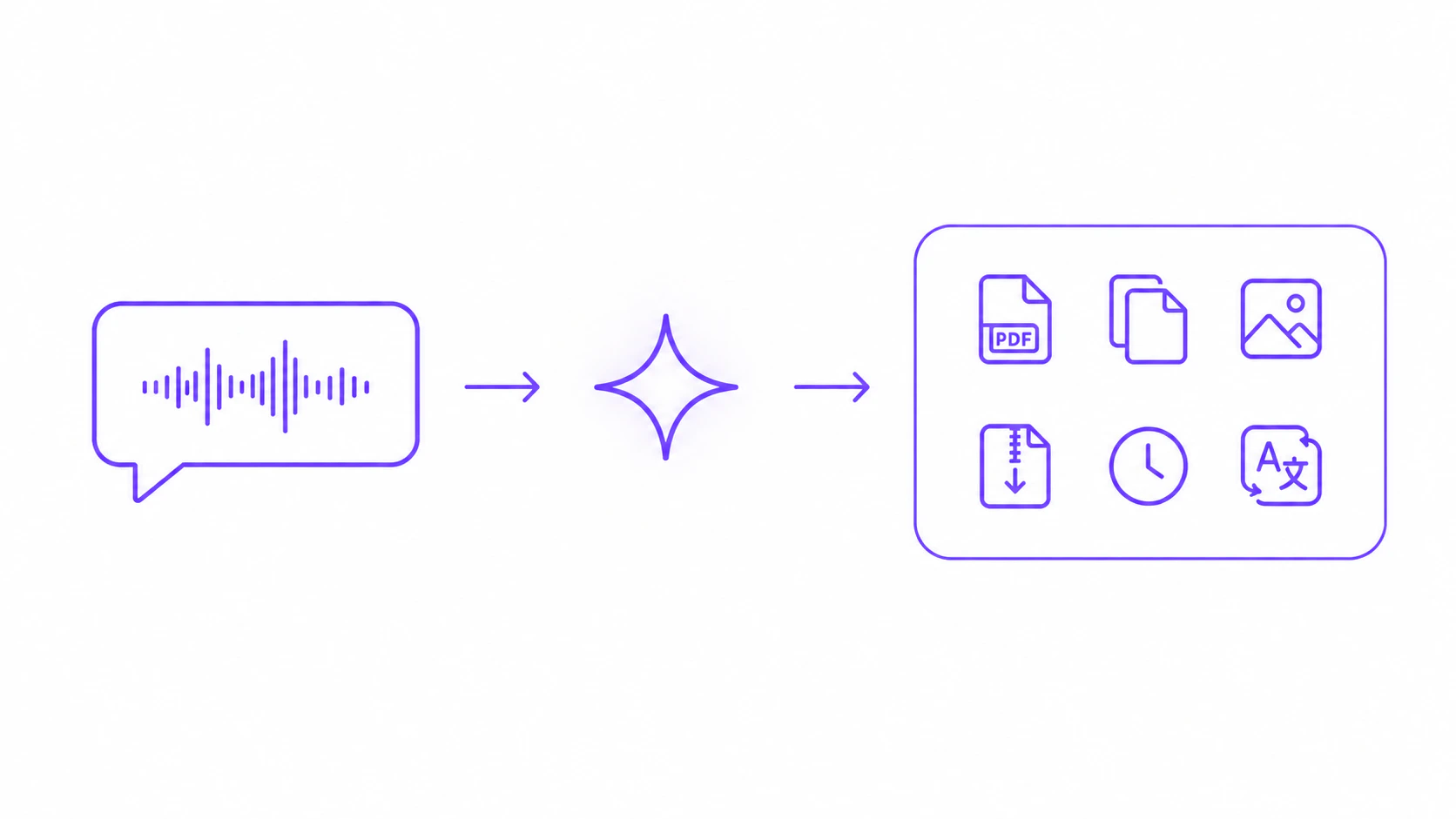
What is Command Mode?
Command Mode lets you speak instructions to an AI model instead of transcribing your words verbatim. It handles two kinds of work:- Text transformations on selected text. Summarize, rewrite, translate, fix grammar, adjust tone, draft replies, format as lists, and more.
- Real actions on files and your system. Convert images, audio, video, config files, text and Markdown. Zip and unzip archives. Merge PDFs. Compress images. Set timers. Extract color palettes from your screen. Open apps, websites, editors, and macOS settings panels.
Alt + Shift on both macOS and Windows.
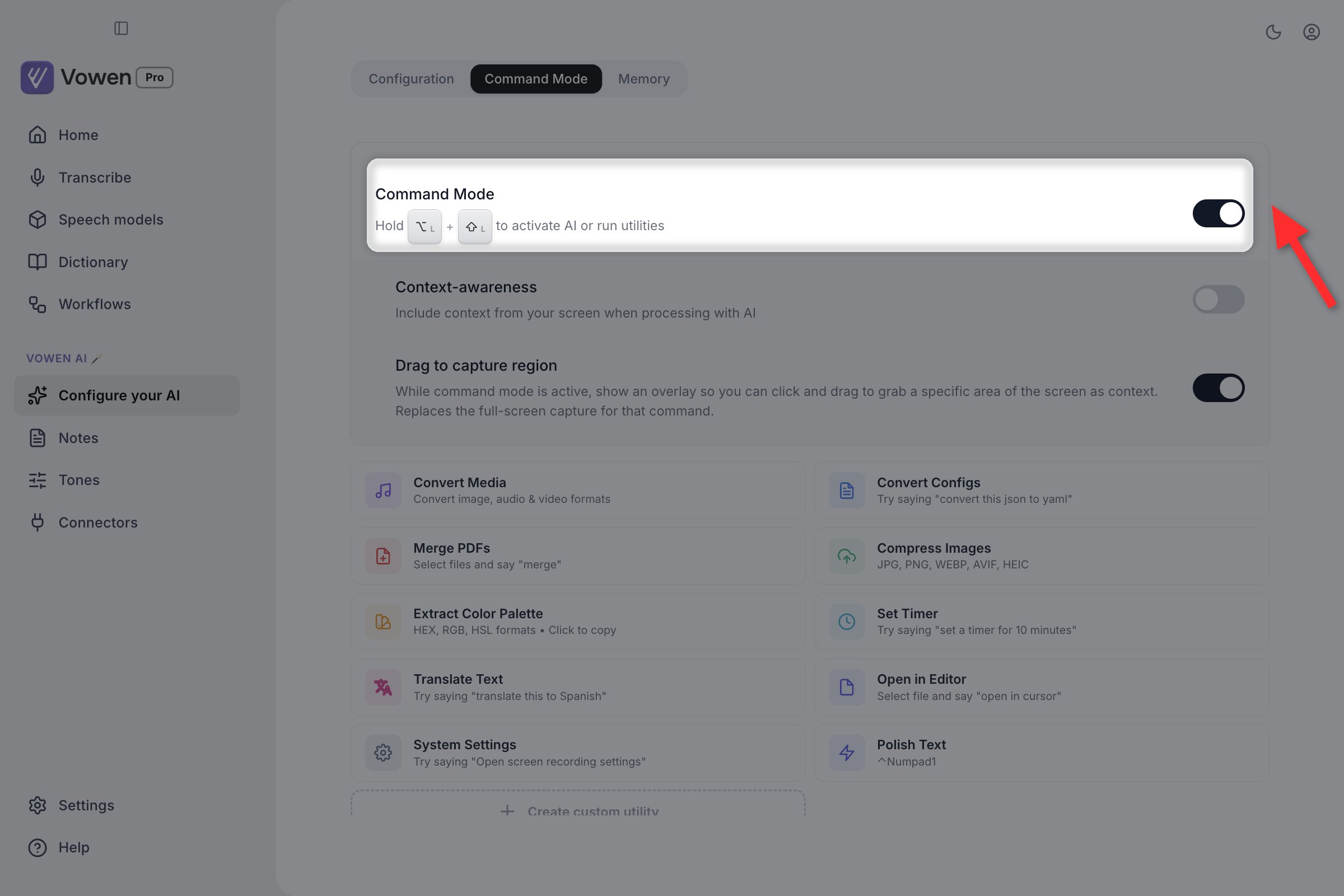
This is the checkbox that has to be ticked. It sits at the very top of the Command Mode tab, above every other control.
Turning it on
Open Configure your AI
Connect a provider on the Configuration tab
Tick Command Mode on the Command Mode tab
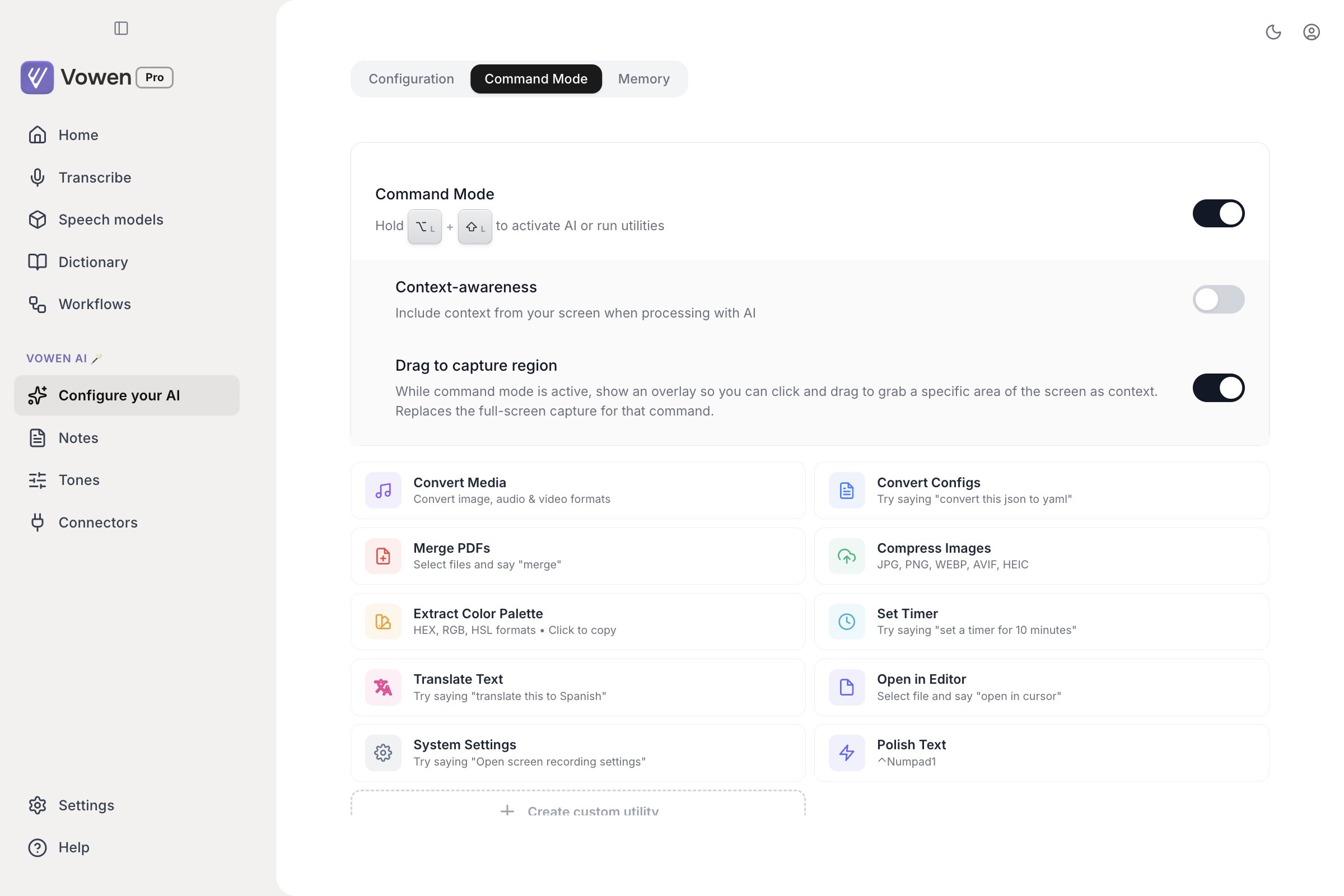
The whole Command Mode tab: master toggle at the top, Context-awareness and Drag to capture region nested beneath it, then the utility cards.
How it works
Start the recording
Alt + Shift (or your own binding). See Ways to start a command for the alternatives.Speak your instruction
Release
Ways to start a command
Hold-to-talk is the default, but it is not the only trigger.Reviewing and refining the result
For text results, Command Mode shows a confirmation banner before anything is pasted, so you can review the output, copy it, refine it, or discard it.- Paste: press
Tabto paste the result into your focused app - Copy everything: click the copy button in the banner’s action bar
- Copy part of it: select any portion of the response text inside the banner and press
Cmd+C(macOS) /Ctrl+C(Windows). Only the highlighted text is copied; with nothing selected, your clipboard is left untouched - Dismiss: press
Escto close the banner without pasting
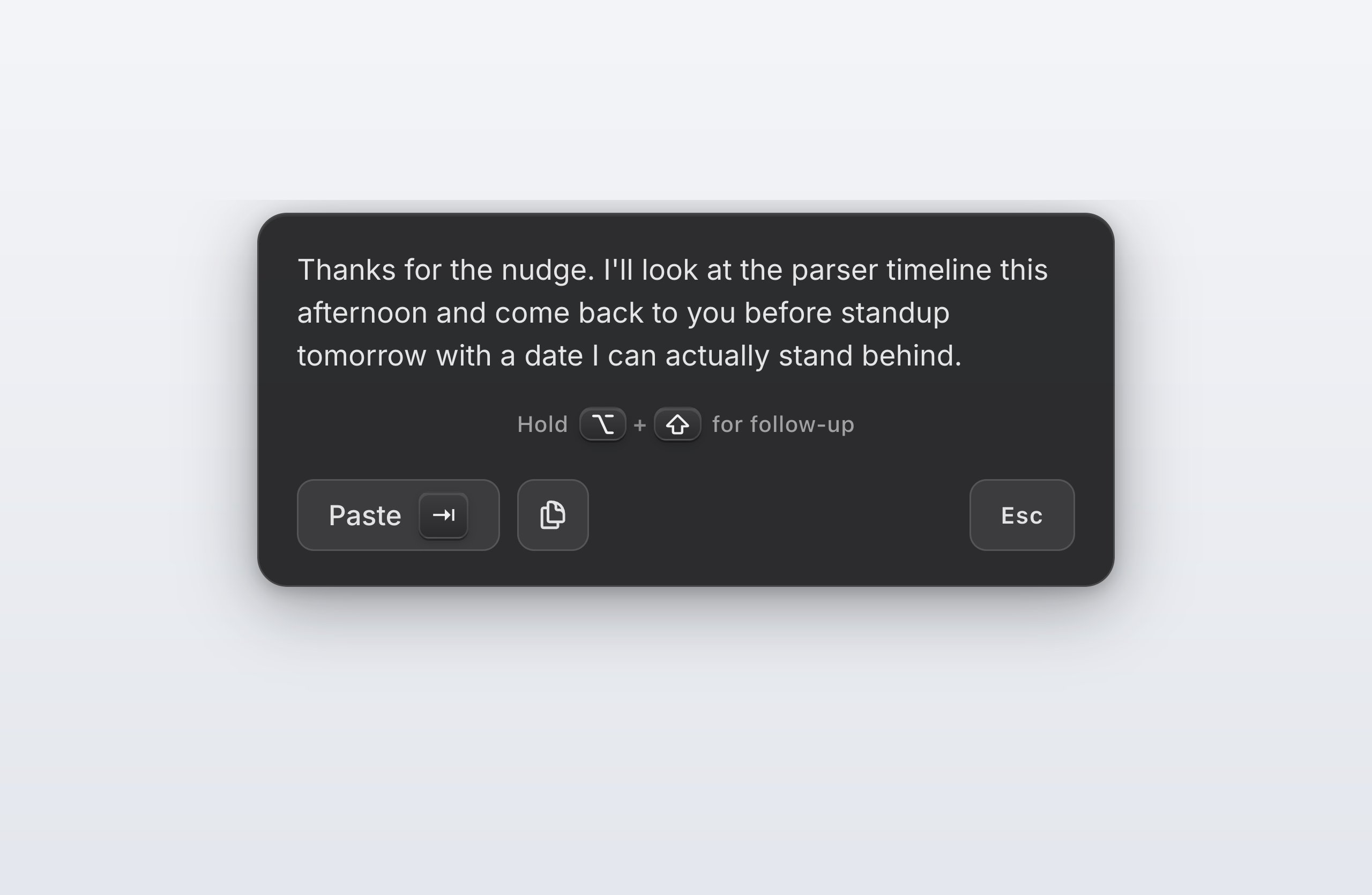
Nothing is pasted until you press Tab. The copy button sits beside it, and Esc on the right closes the banner and discards the result.
Follow-up questions
You don’t have to start over to refine a result. While the banner is open, hold the Command Mode shortcut again and speak a follow-up like “make it shorter” or “more formal.” Vowen sends your follow-up along with the original request and previous response as context, reuses the same selected text, screenshot, and tone (nothing is re-captured), and replaces the banner with the updated version.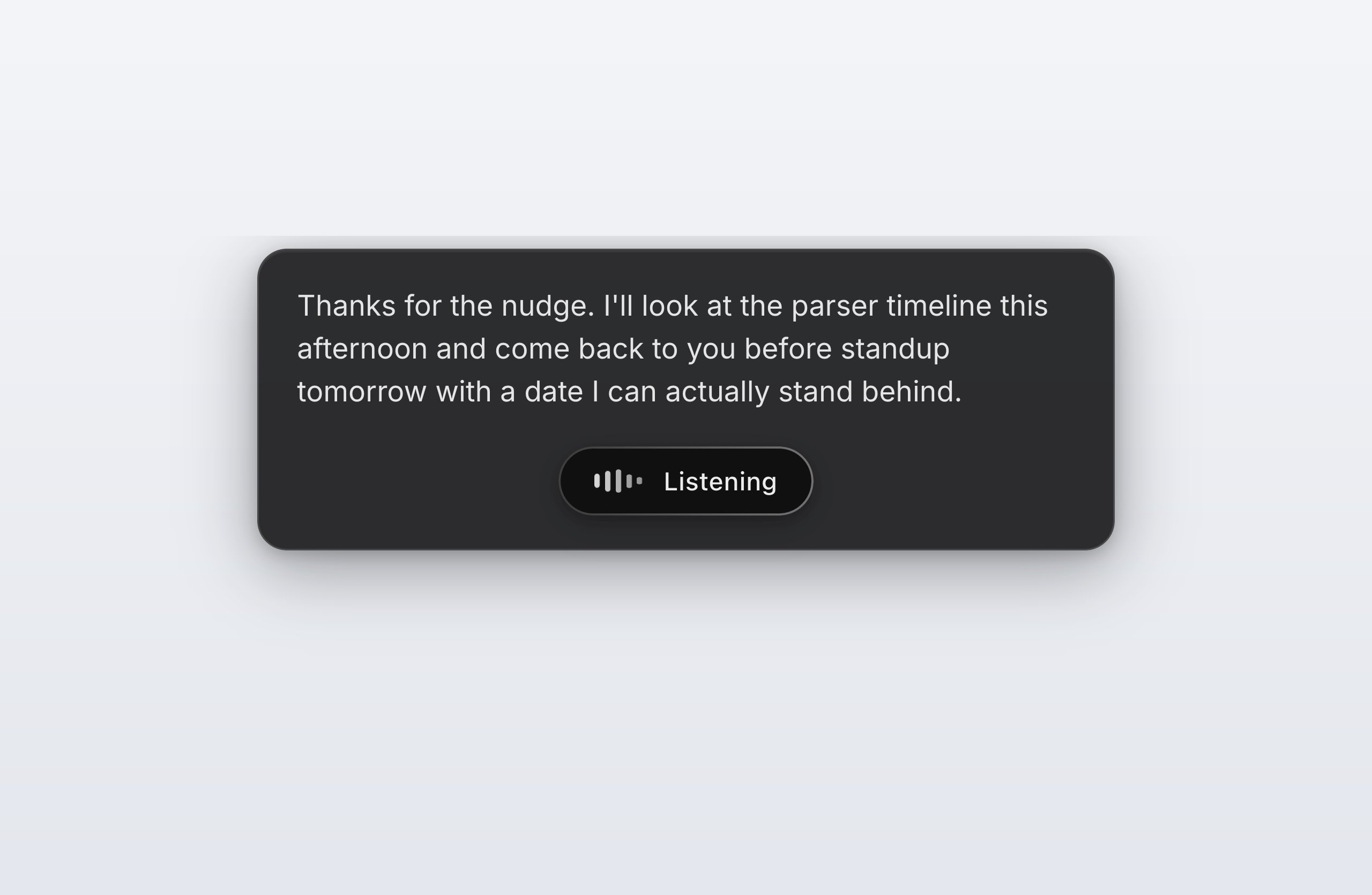
While you hold the shortcut, the banner's action bar is replaced by a Listening pill. Speak the refinement and release.
- A
Hold [shortcut] for follow-uphint appears in the banner whenever a Command Mode shortcut is assigned - Once you have two or more versions, a version pager (
1/2, with prev/next arrows) appears so you can cycle back through earlier versions.Tabpastes whichever version you’re currently viewing, not necessarily the newest - While a follow-up is processing (
Thinking), pressEscto cancel it. The banner reverts to the previous reply and stays open; pressEscagain to dismiss it
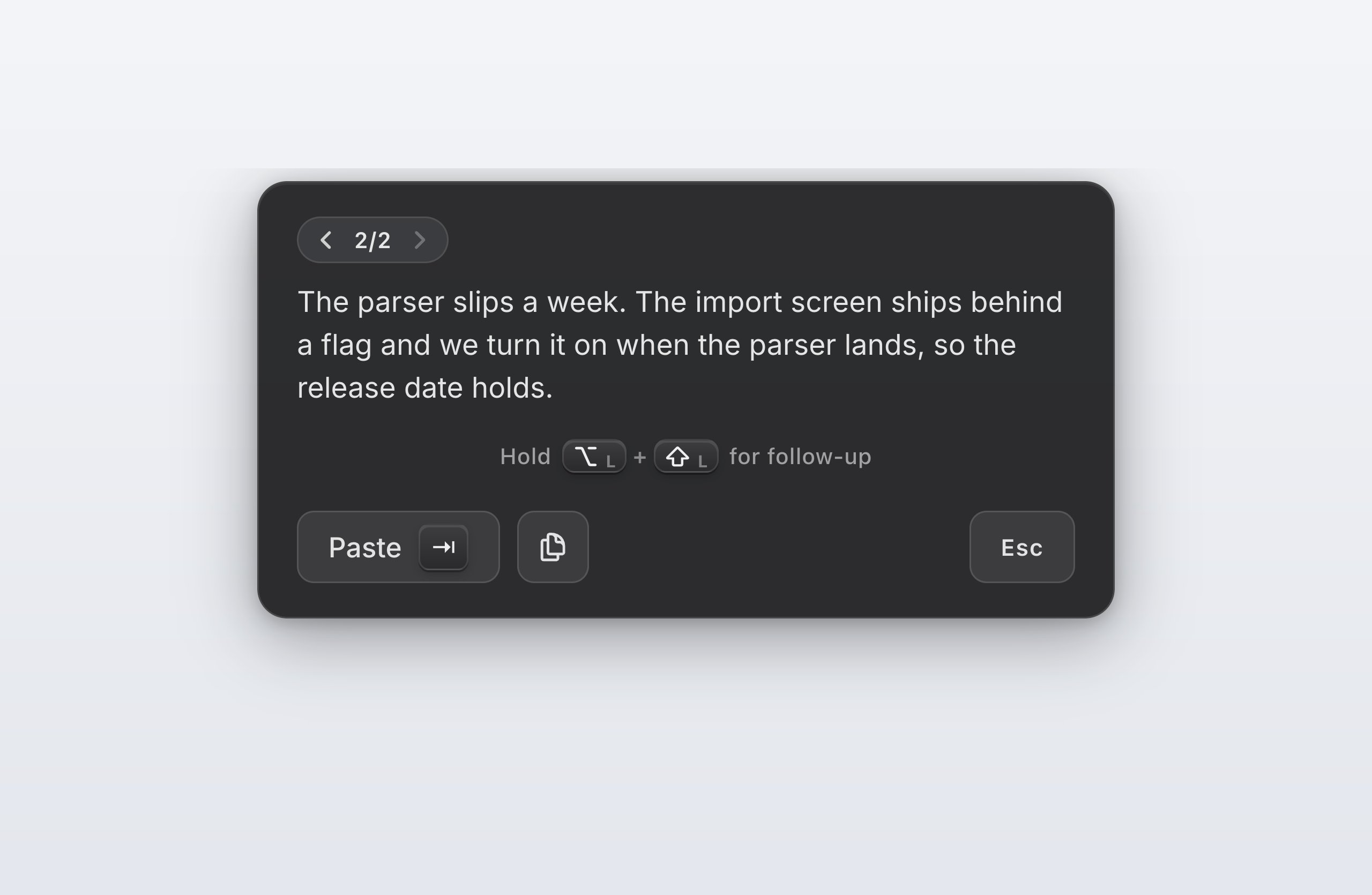
Check the pager before you press Tab. It tells you which version you are looking at, and that is the one that gets pasted.
- Each follow-up sends the original request plus the latest reply, not the whole thread. Refinements build on the most recent version, so a detail you dropped three versions ago is gone.
- The saved thread caps at 30 request/response pairs. Past that, the oldest turns drop off the stored entry.
- Follow-ups produce plain-text refinements only. If a follow-up triggers a tool call (a file action, a timer, and so on), the refinement session ends.
Switching models on failure
If a Command Mode run or a custom utility fails, including when a provider returns a rate-limit error, the banner shows a “Switch to:” row with a chip for each of your other configured AI providers. Click one to retry the same request against a different model. The retry reuses the original prompt (so a moved selection or clipboard won’t break it), and the provider you pick becomes your new default.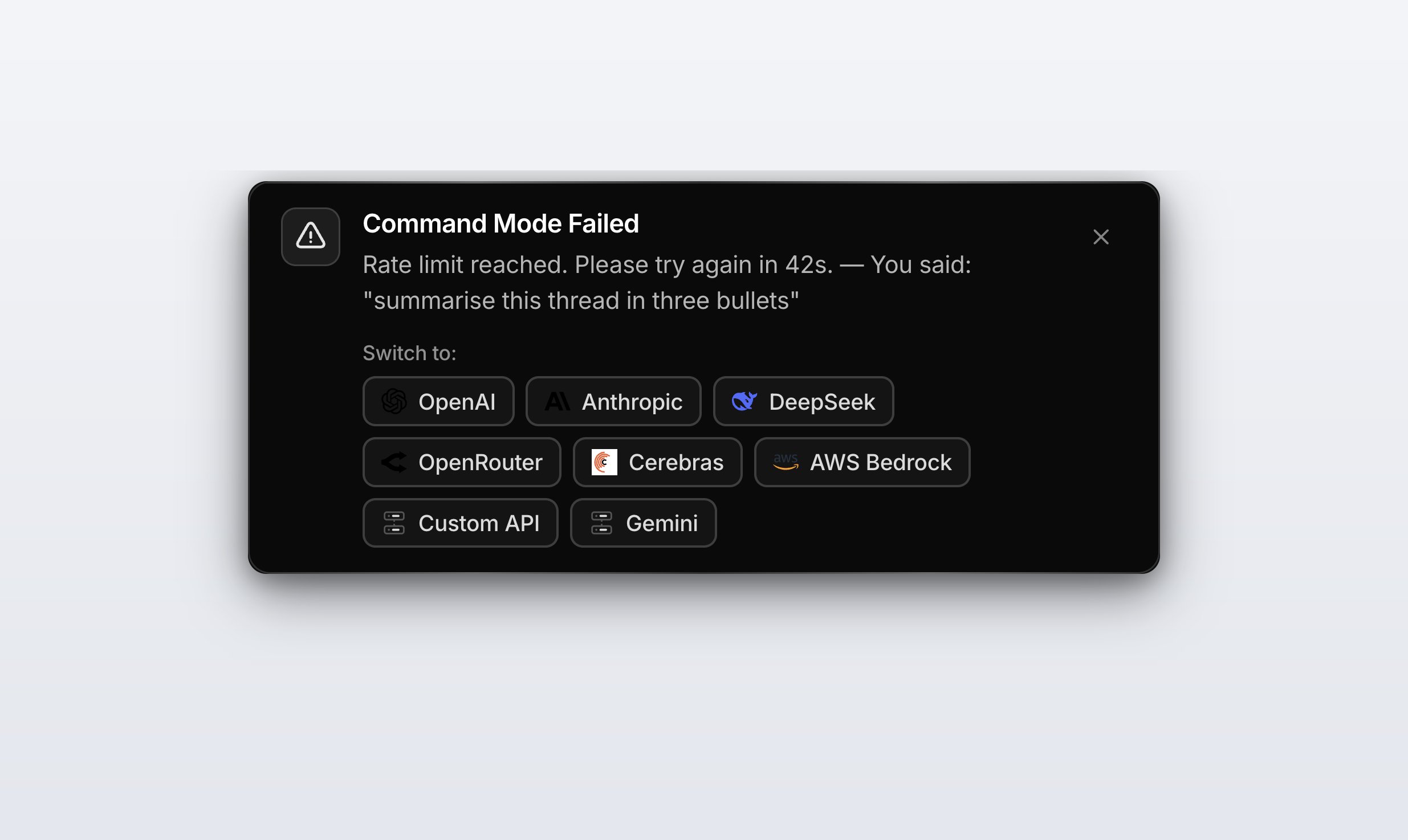
The failure banner quotes what you said and lists every other provider you have configured. One click re-runs the same request on the model you choose.
Context awareness
Command Mode automatically pulls context from several places so the AI knows what you’re talking about without you having to spell it out.Selected text
If you have text selected on screen when you activate Command Mode, that selection is included as context. Phrases like “this”, “it”, “the text” automatically refer to the selection. This is the most common way to give the AI something to operate on. Example workflow:- Select a paragraph of text in any app
- Hold
Alt + Shift - Say “Make this more concise”
- Release, then press
Tabto paste the rewrite over your selection.
Selected files
If you have one or more files selected (in Finder on macOS, Explorer on Windows), Command Mode passes the filenames to the AI. This is what unlocks the file-action tools below (compress this image, merge these PDFs, zip these, convert to webp, and so on).Screen context
Command Mode can capture a screenshot and send it to the AI for visual context. This requires two things:- Screen Recording permission granted to Vowen (macOS only)
- Configure your AI > Command Mode > Context-awareness toggled on
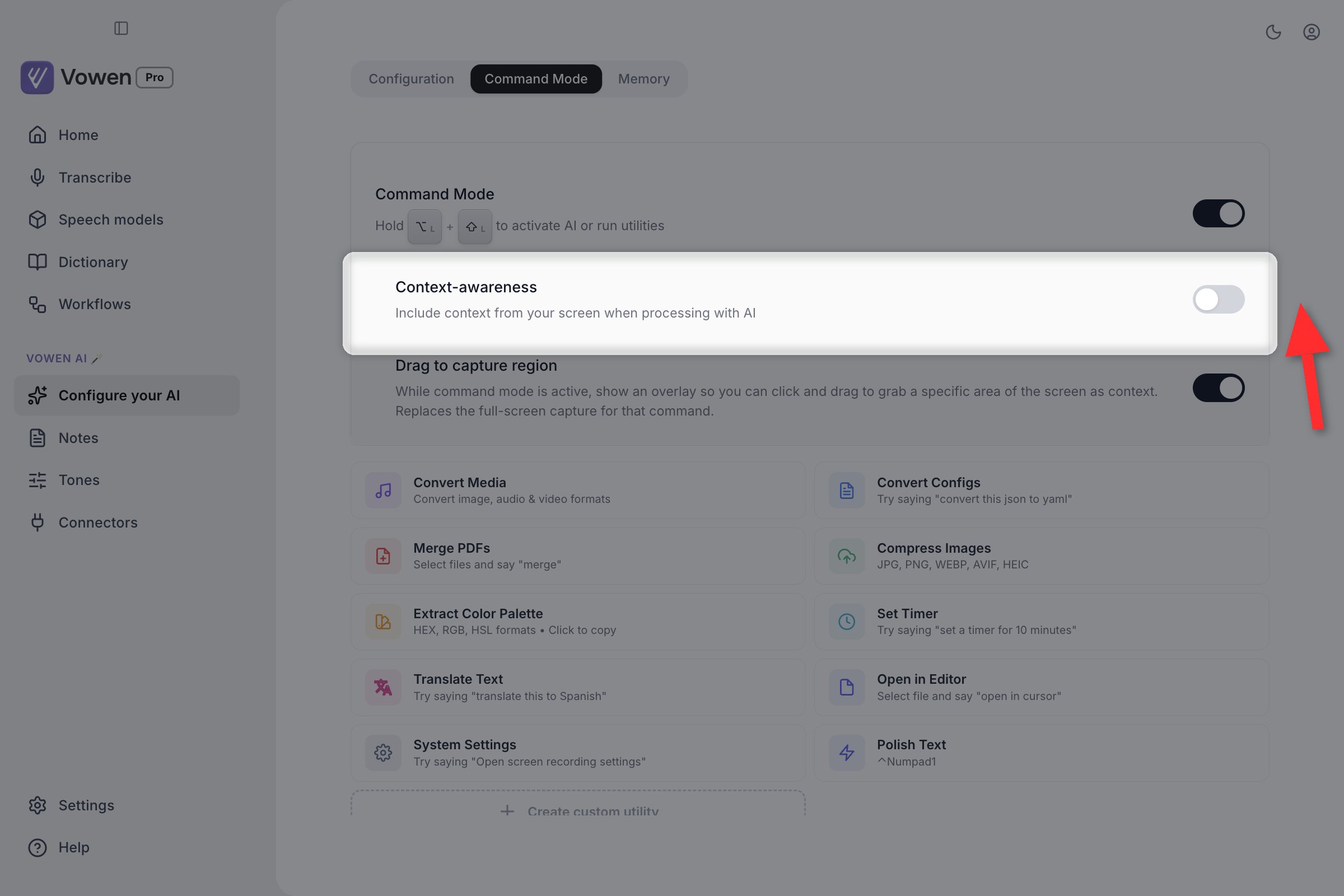
Context-awareness is the screenshot toggle, nested directly under the Command Mode master switch. It is off until you turn it on.
Drag to capture a region
By default the screenshot captures your whole screen. To pick exactly what the AI sees, turn on Drag to capture region, directly beneath Context-awareness on the same tab. With it enabled, starting a Command Mode recording shows a transparent overlay. Click and drag to select one or more rectangles.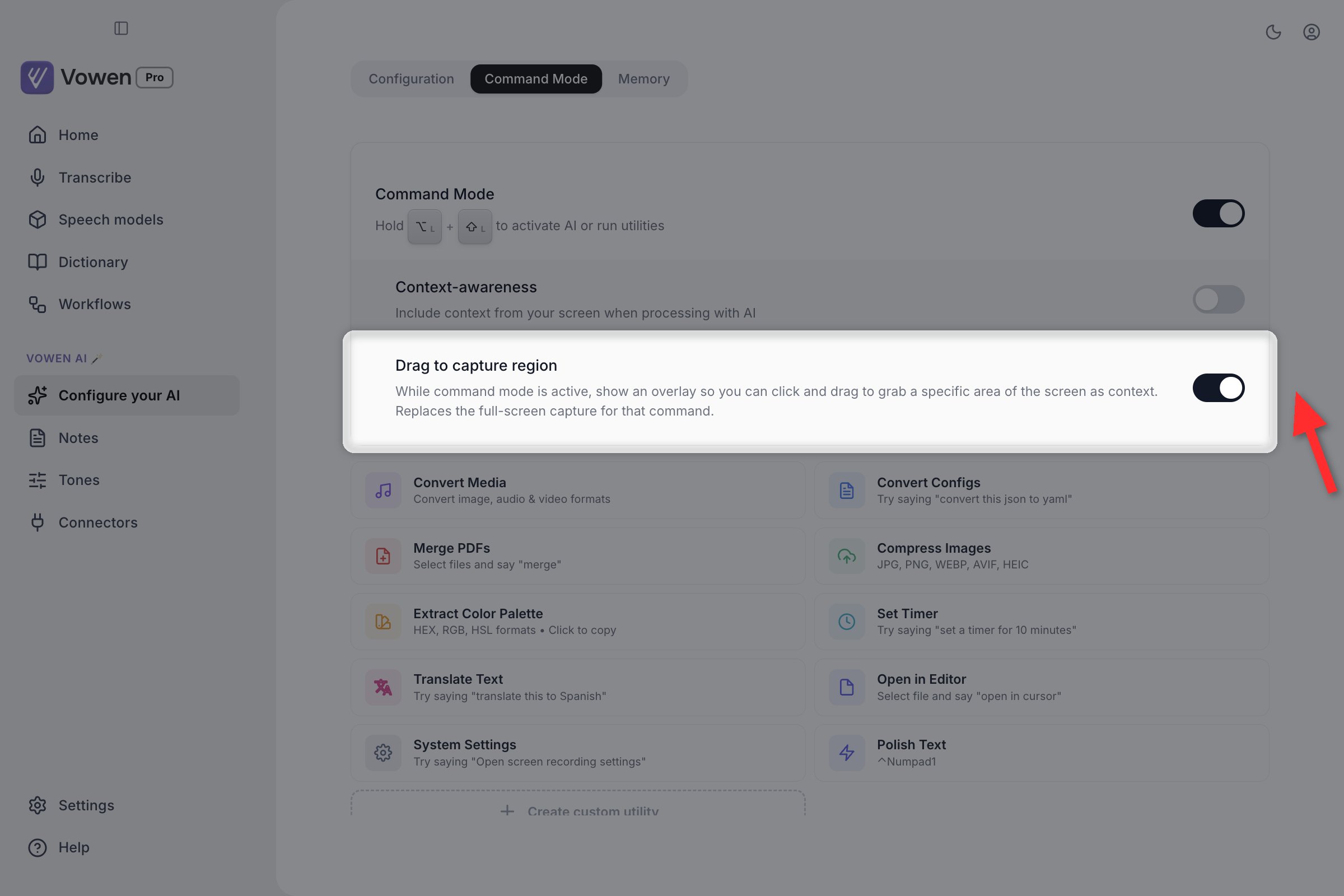
Drag to capture region is the row immediately below Context-awareness. Its own description spells out that it replaces the full-screen capture.
Esc.
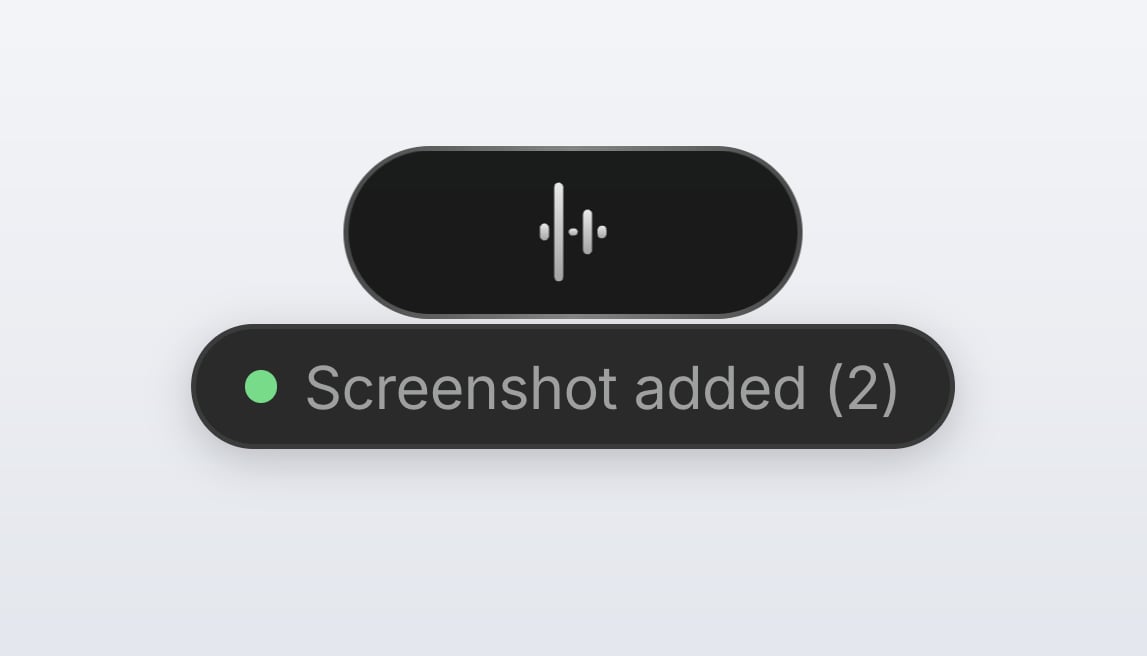
Each rectangle you drag is confirmed under the recording indicator, with a running count so you can tell how many regions the command will carry.
Memory
Your saved Memory notes are automatically included as context. Example: if you have a “My Writing Style” note in Memory, say “Rewrite this in my style” and the AI will reference it.Connectors
If you’ve linked any Connectors (Pro, experimental), Command Mode can read from them while it works, for example looking up a Linear issue or a Notion page.Other automatic context
Command Mode also passes the following to the AI on every call:- The 10 most recently added vocabulary entries from your Dictionary, so the AI spells your domain terms correctly. The selection is by recency, not by any ranking. The store is sorted alphabetically, so taking “the top 10” would only ever show the model the start of the alphabet.
- Active app name and the matching Tone directive (if Tones match), so output adapts to the app you’re working in
- Language code from your transcription settings, so the AI responds in your language
Actions
Beyond text manipulation, Command Mode ships 17 tools it can call. Speak any of these naturally and Vowen runs the matching one. Every file tool operates on whatever you have selected in Finder or Explorer.Image conversion
Config file conversion
Audio conversion
Video conversion
Merge PDFs
Image compression
Zip files
Unzip files
Text to Markdown
Markdown to PDF
Open in an editor
Open an app
Vowen resolves app names differently on each platform, which matters if a launch fails:macOS
macOS
Windows
Windows
.exe on PATH, so none of the above can find them. When every direct attempt fails, Vowen falls back to searching the Start Menu for an app whose name contains what you said, then launches it by its AppUserModelID through the shell Apps folder. This is what makes Store-installed apps reachable by voice.Linux
Linux
.desktop entry through gtk-launch, falling back to running the bare command name.Open a website
Timer

The timer becomes a floating countdown pill that stays on screen over whatever you are working in.
Translation
Open macOS settings
Color palette
Custom utilities
Custom utilities are voice-free AI shortcuts. Each one is a saved prompt bound to its own keyboard shortcut. Press the shortcut and Vowen runs that prompt against whatever you have selected (or on your clipboard), without recording anything. They live on the same Configure your AI > Command Mode tab, below the built-in utility cards.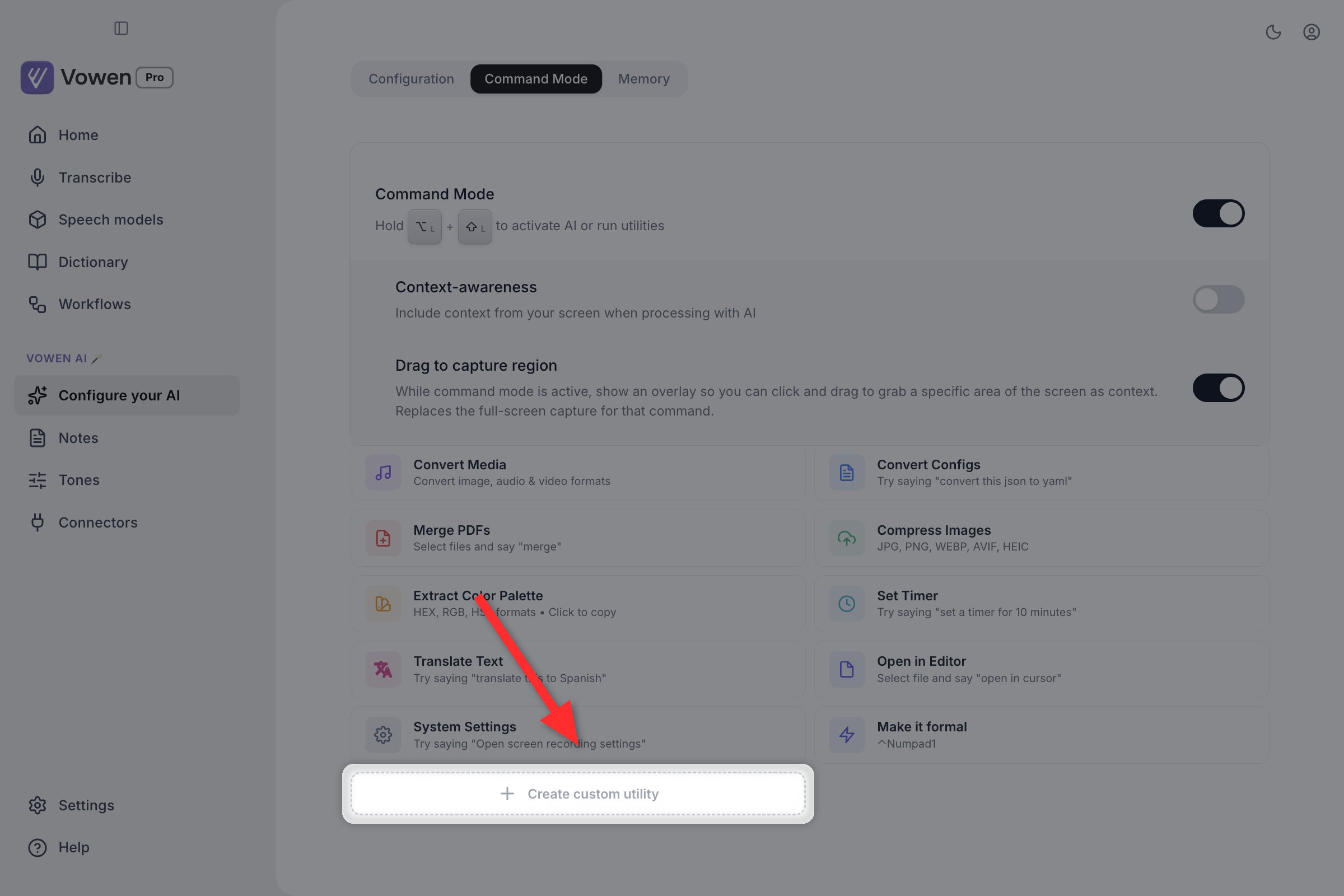
Your own utilities sit in the same grid as the built-in ones, each showing its shortcut. The dotted Create custom utility card closes the grid.
Click Create custom utility
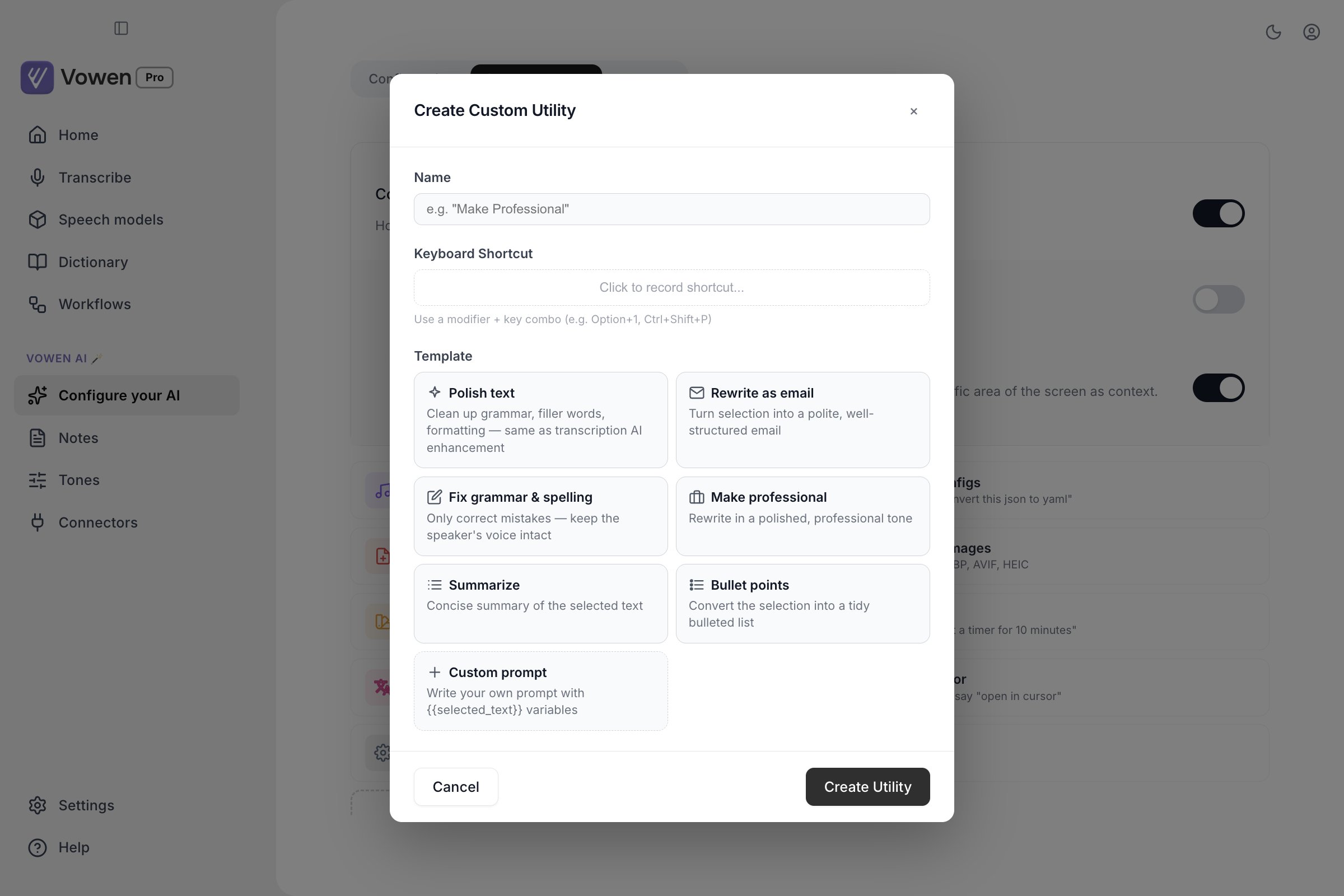
Create Custom Utility: a name, an optional shortcut, and a starting template. Custom prompt is the free-form option.
Name it
Pick a template
Record a shortcut
Option+1 or Ctrl+Shift+P). Vowen refuses a combination already used by another utility, a tone, or a built-in shortcut.Prompt variables
Custom prompts support two variables, both captured automatically every run:What happens to the result
The result appears in the paste confirmation banner, exactly as a Command Mode result does. There is one output path and no setting to change it.Tab pastes it, Cmd+C / Ctrl+C copies a selection from it, Esc dismisses it. Nothing is written anywhere until you accept it, so a utility can never overwrite your selection behind your back.
Esc also cancels a run in flight, and a result that arrives after you canceled is discarded rather than shown.
Text-only commands
For pure text transformations (no files or actions), select text in any app and speak the instruction.• Product launch on track
• Engineering bugs resolved
• Marketing preparing press kit
• Support tickets down 20%
• Sarah leads launch coordination
• Confirm the venue
• Book the catering
• Send the invites
• Finalize the agenda
• Prepare the slides
Apologies for the oversight. I’ll add the customer retention section and send the updated report by end of day.
Thanks for catching that!
Multilingual support
Command Mode works in every language Vowen’s transcription supports. Speak a command in Spanish, Hindi, French, or Japanese and Command Mode understands the instruction and runs the task in that language. File conversions, timers, translations, formatting, and drafting replies all work regardless of the language you spoke. For best results on non-English commands:- Pair a multilingual speech model (Whisper Large v3, Groq Whisper, or any of the cloud providers) with a capable multilingual AI model such as Claude Sonnet 4.6, GPT-5.4, or Gemini 3.5 Flash
- The smallest, fastest models can struggle to follow instructions in low-resource languages
- Translation commands auto-detect both source and target languages
Requirements
- An AI provider must be configured
- Command Mode must be switched on at Configure your AI > Command Mode. It is off until you enable it, and the shortcut is silent until then
- Use a model that follows instructions and emits clean JSON reliably. Good picks from the shipping catalogs: GPT-5.4 Mini or GPT-5.4 (OpenAI), Claude Sonnet 4.6 (Anthropic), Gemini 2.5 Flash or Gemini 3.5 Flash (Google), GPT-OSS 120B (Groq or Cerebras) if you want a free option
- Context-awareness and Drag to capture region additionally need Screen Recording permission on macOS