
Most of the patterns below rely on assigning multiple shortcuts (or alternative modifiers) to the same action. The free plan supports one shortcut per action; multiple shortcuts and the patterns that depend on them require Pro.
Slide into hands-free without releasing your hand
If your push-to-talk and hands-free shortcuts share a common prefix, you can start dictating with one finger and “upgrade” mid-sentence by tapping the extra modifier. Release everything afterwards and Vowen stays in hands-free.
Why it works: Vowen waits 500ms before deciding which shortcut you intended, so the longer combo wins if it arrives within that window. Use it when you don’t know yet how long a thought will run.
The macOS defaults already nest this way. The Windows defaults do not: push-to-talk is
Ctrl + Shift and hands-free is Ctrl + H, and neither is a prefix of the other. To get the same behavior on Windows, rebind hands-free to something that extends push-to-talk, such as Ctrl + Shift + Space.
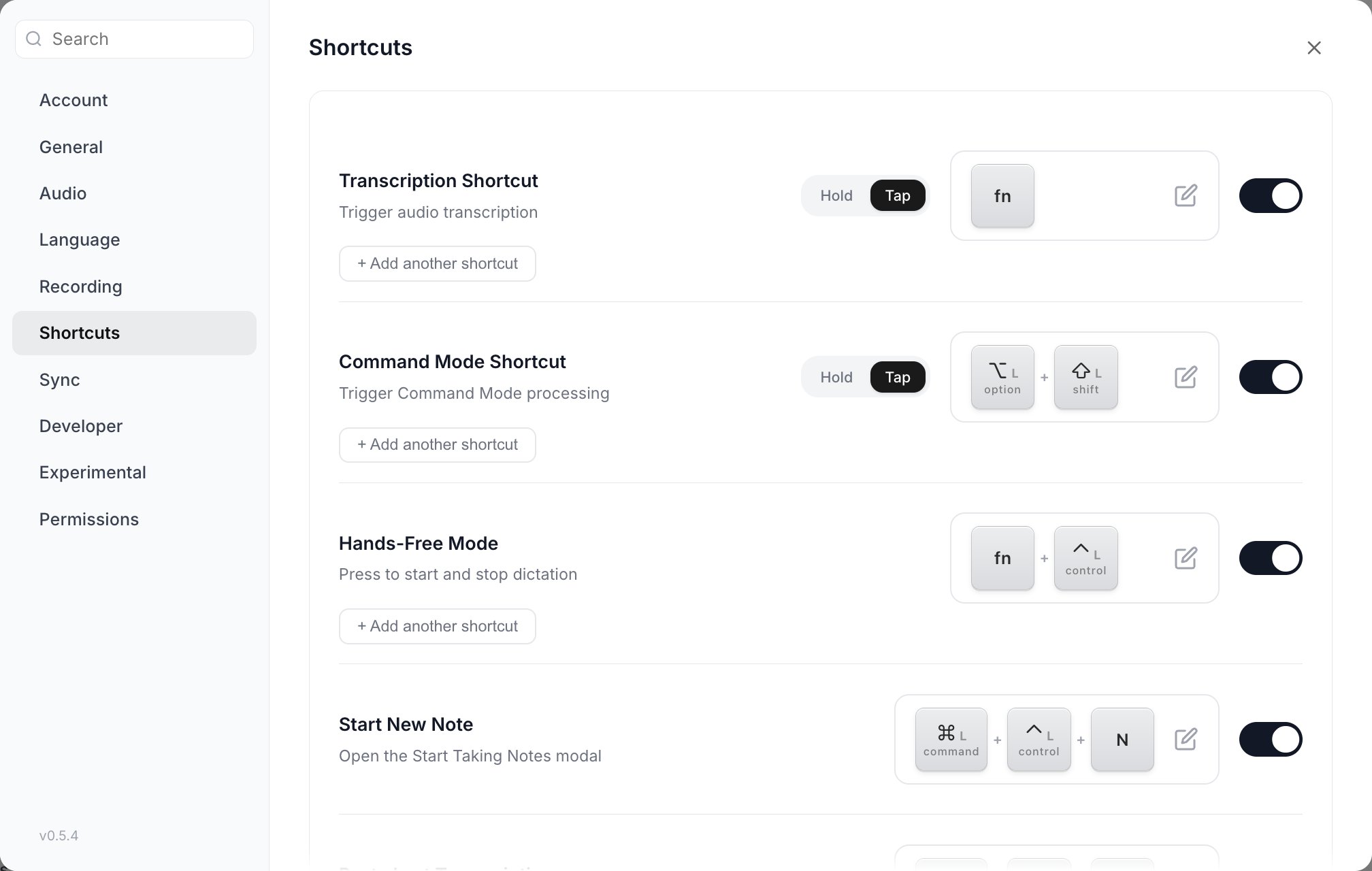
The macOS defaults, nested: Transcription is Fn, Hands-Free Mode is Fn + Control. Every row carries its own keys, its own Hold/Tap pill and its own Add another shortcut.
Separate raw and polished onto two adjacent shortcuts
If you toggle AI Enhancement on and off through the day, give it its own shortcut instead of opening settings every time. Most useful when you alternate between dictating into code editors or AI prompts (where you want raw words) and writing emails or docs (where you want polish).
The AI chip only exists on alternative shortcuts, so the pairing is always “primary plus an alternative”, never two primaries. Add the alternative, then flip its chip to Enhance with AI (new alternatives start with AI off).
Fn for terminal commands, Cursor prompts, and replies that need exact phrasing. Fn + Shift when you’re drafting prose.
Put dictation on a mouse button
When your hand is already on the mouse, reaching back to the keyboard breaks flow. This one is for designers in Figma, video editors, and anyone working in a graphics-heavy app. Vowen binds mouse buttons natively, so there is no vendor software step. Open Settings > Shortcuts, click the key display for the action you want, and click the button instead of pressing a key. Middle, M4, M5, M6, M7 and M8 are all bindable.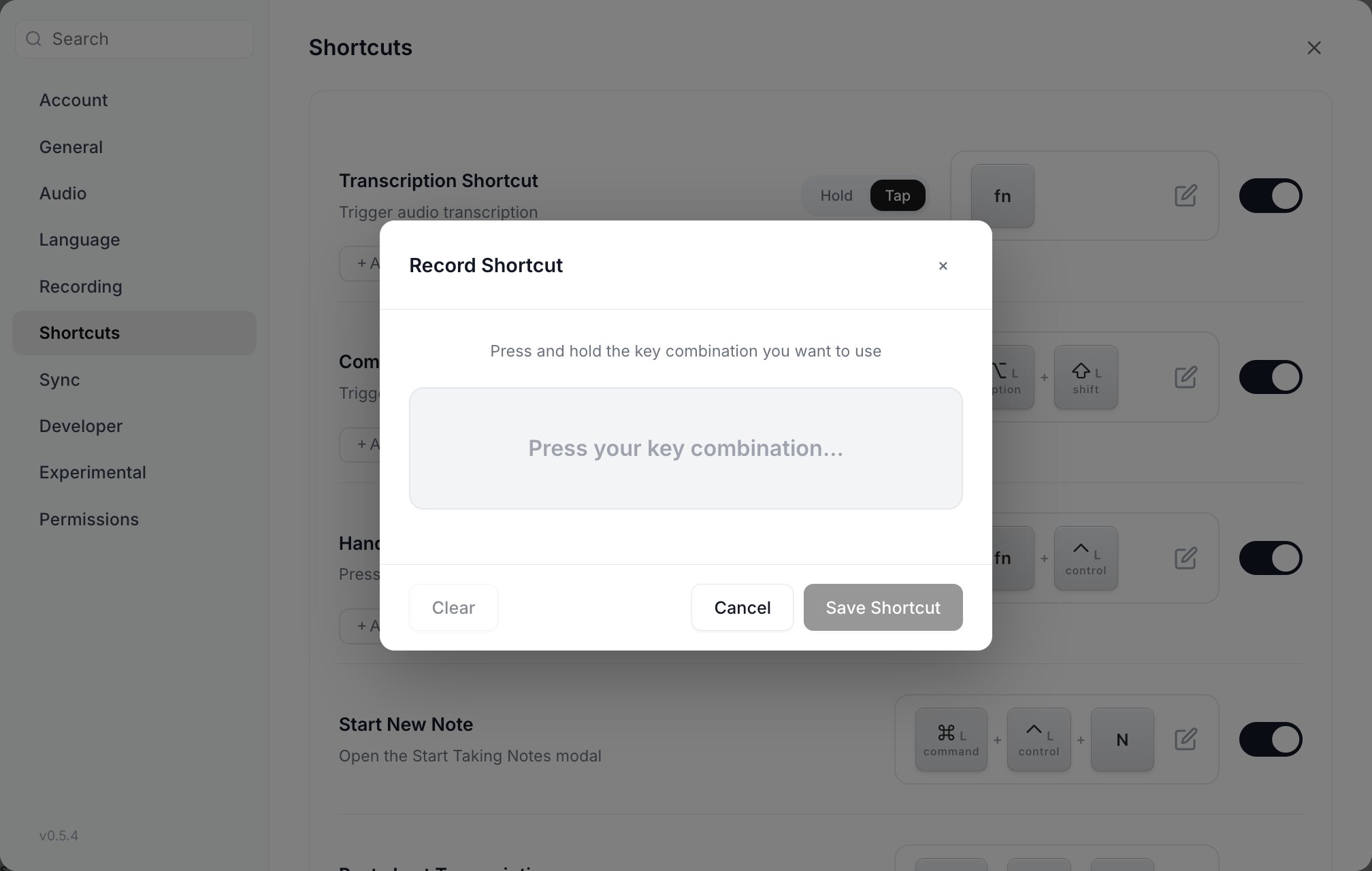
The recorder waits for input rather than reading one key at a time. Click a mouse button here instead of pressing keys and it binds the button.
Pair left and right modifiers for two-thumb operation
Your thumbs already reach forAlt + Space (or Cmd + Space) regularly. Use left and right variants to do different things without learning a new finger pattern.
Left to dictate. Right to ask the AI to act on whatever’s selected. The keys are identical, the side decides the behavior.
Give a long shortcut a Tap mode instead of a second finger
Holding a chord for a two-minute thought is uncomfortable. Rather than adding a hands-free binding, switch the Transcription or Command Mode row to Tap with the Hold/Tap pill next to the key display. One tap starts, one tap stops. Alternatives carry their own pill, so you can keep the primary on Hold and put a Tap-mode alternative next to it.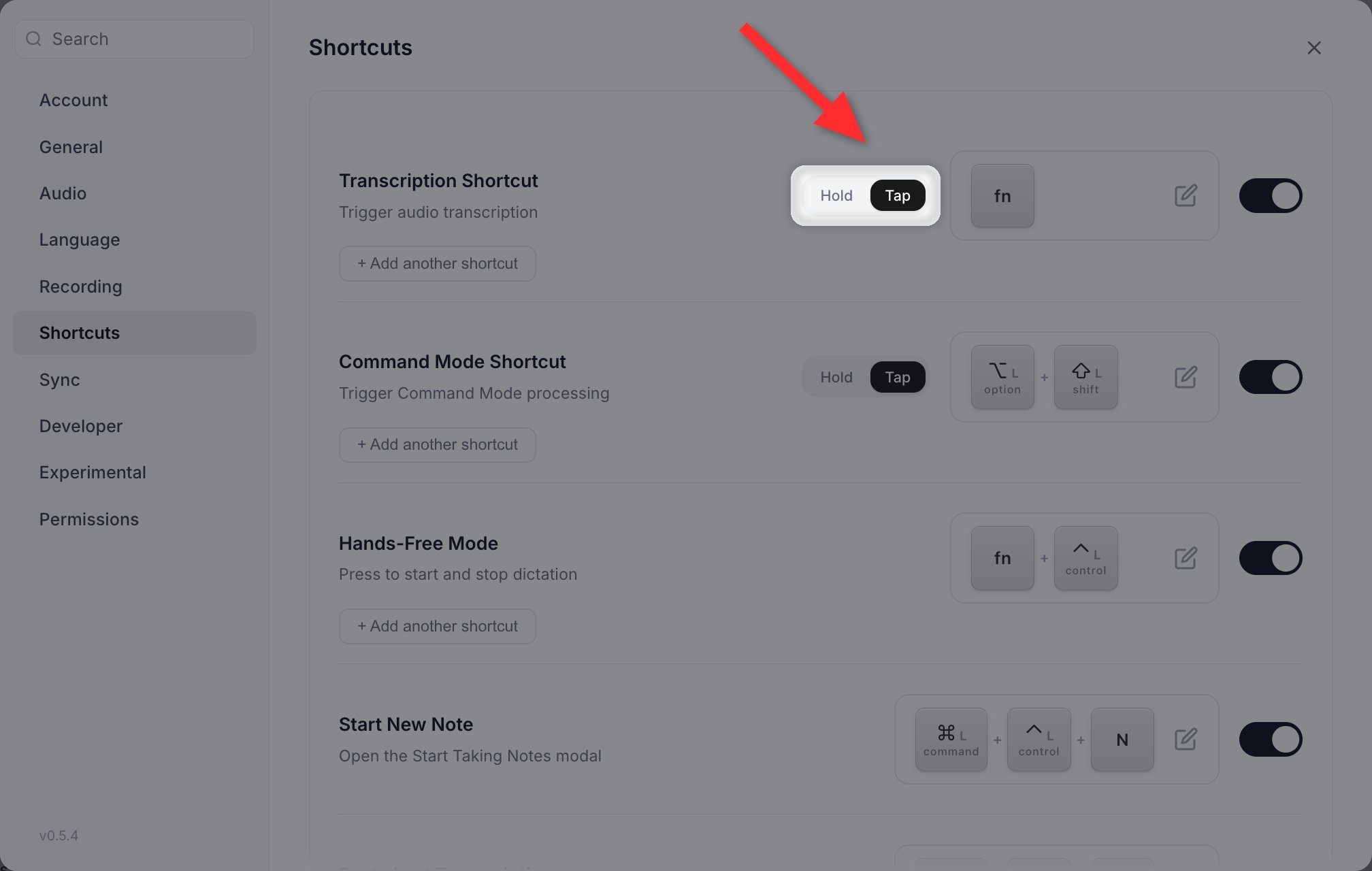
The Hold and Tap pill sits between the action name and its keys. Each shortcut, including each alternative, carries its own.
Turn on Start New Note before you need it
The Start New Note shortcut is off by default, so most people don’t think about it until they’re already in a meeting. Flip it on in Settings > Shortcuts with the defaultCmd + Shift + N (macOS) / Alt + N (Windows) or your own combo. Then it’s ready the first time a call unexpectedly turns into something worth recording.