
Choose the right model
Model choice is the single biggest factor in accuracy. See the Models guide for the full comparison. Rules of thumb:- English, offline: Parakeet V2 is the default and is genuinely good. Nemotron EN (macOS) matches it and gives a punctuated live preview.
- Professional work: Whisper Large v3 Turbo locally, or a cloud model.
- Non-English: Parakeet V3 for European languages, Whisper Large v3 on Groq for everything else.
- Fast or accented speech: cloud models generally cope better than small local ones.
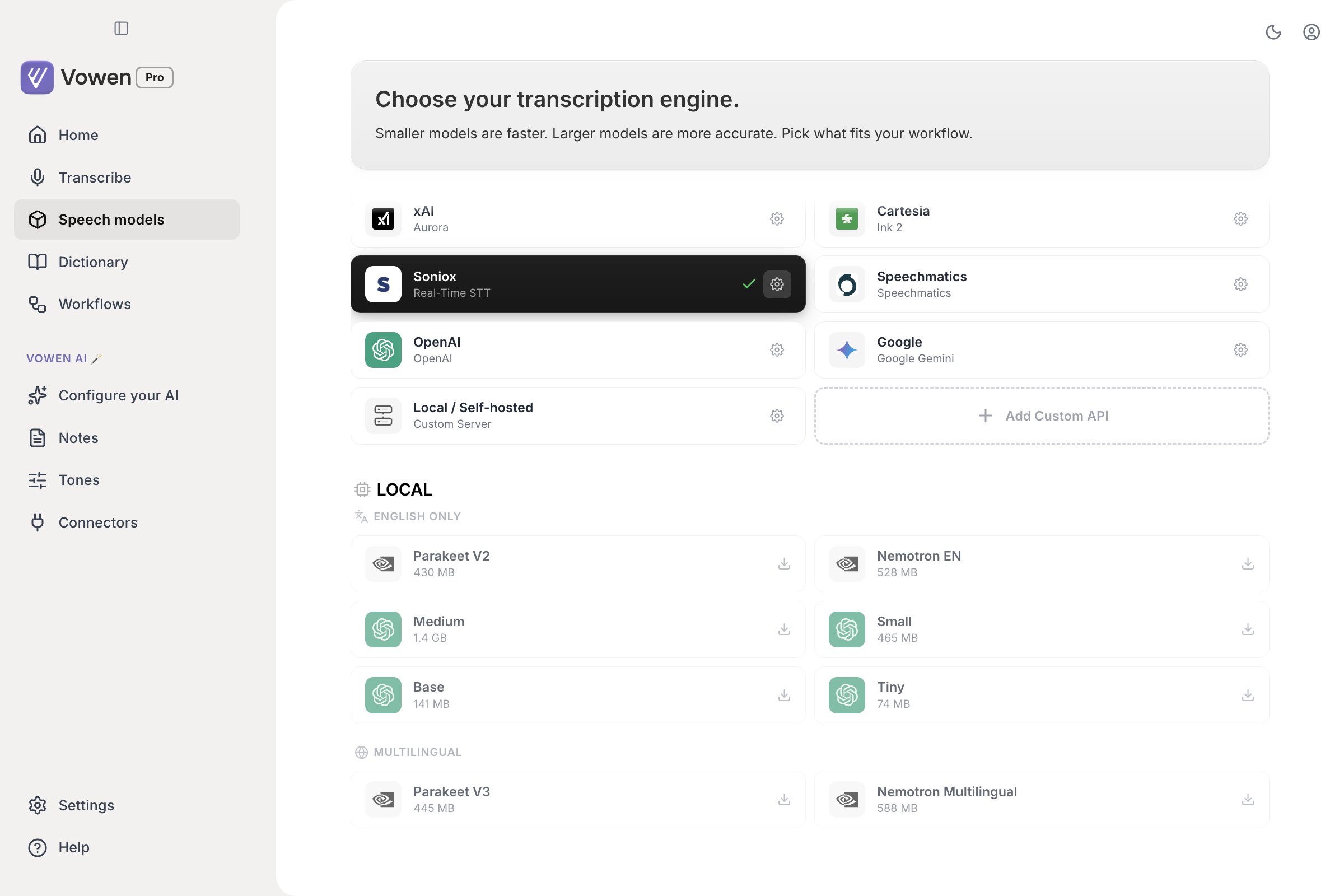
Speech models in the left sidebar. Cloud providers at the top, downloadable local models underneath with their sizes.
Microphone tips
- Use a dedicated microphone when possible. Even basic earbuds beat a laptop mic at arm’s length.
- Minimize background noise. Vowen has noise suppression, but a quieter room helps more.
- Keep a consistent distance from your microphone.
- Check your input device in Settings > Audio to make sure the right mic is selected.
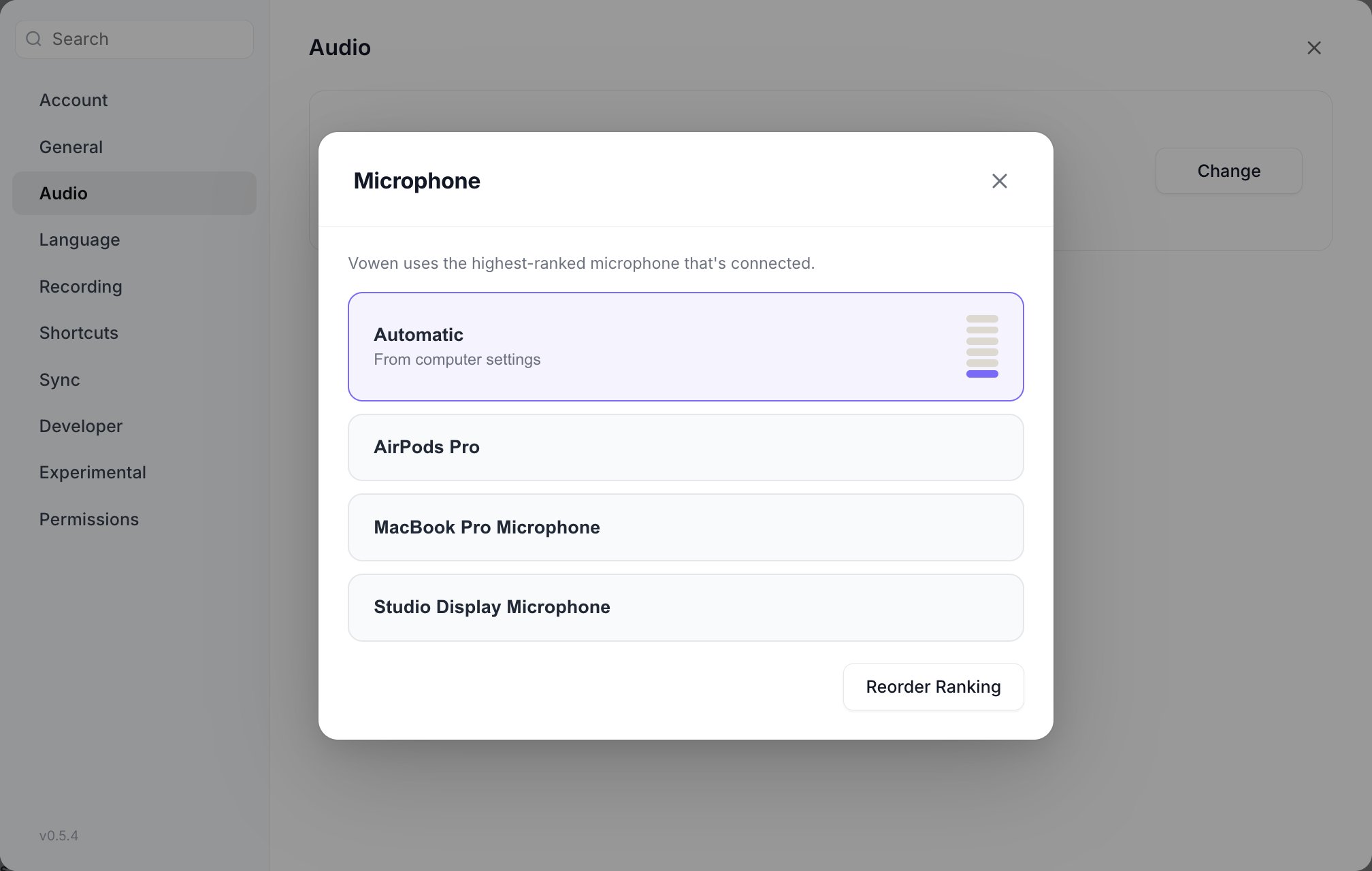
Settings > Audio > Change. The microphone in use carries a live level meter, so you can confirm it is hearing you before you dictate.
Speaking tips
- Speak at a natural pace. Rushing makes words blend together.
- Pause briefly before and after speaking so the first and last words are not clipped.
- Enunciate technical terms and unusual names.
- Say punctuation explicitly if you need it: “period”, “comma”, “new line”. With AI enhancement, punctuation is added for you.
Use your Dictionary
Add terms the model gets wrong: product names, technical jargon, proper nouns, acronyms, colleagues’ names.1
Open Dictionary
Click Dictionary in the left sidebar. It is a top-level page, not a settings tab.
2
Add a word
Click Add Word in the toolbar and type the term as you want it spelled.
3
Add its mishearings (optional)
List the ways the recognizer gets it wrong: “cuber netties” for “Kubernetes”, “github” for “GitHub”. See below.
How vocabulary actually reaches each model
There is no single answer. Some engines steer recognition towards your terms and use your Dictionary well. Some take them only as a loose hint. Several take nothing at all, and on those your Dictionary does not affect transcription.
The engines that get nothing:
When your list is longer than a provider’s cap, Vowen does not cut it alphabetically. Terms are ranked by how often you have said them, then by how recently, so the words that matter to you survive the trim.
Mishearing aliases
A Dictionary entry biases the recognizer, which is a hint, not a guarantee. A mishearing is the deterministic half. It is an exact phrase that gets rewritten to the entry’s correct spelling after transcription, every time. Open any Dictionary word and list the forms you keep seeing:
Matching ignores case, so listing
github under GitHub fixes capitalization alone. This works with every model, including Parakeet and Nemotron, because it runs on the text after transcription.
Auto-learning from your corrections
Auto-add to Dictionary is a Pro feature, marked Beta, available on macOS and Windows. It also requires at least one AI provider to be connected.
Both routes ask before changing anything, and a refusal is remembered. Decline a suggestion and Vowen will not raise it again.
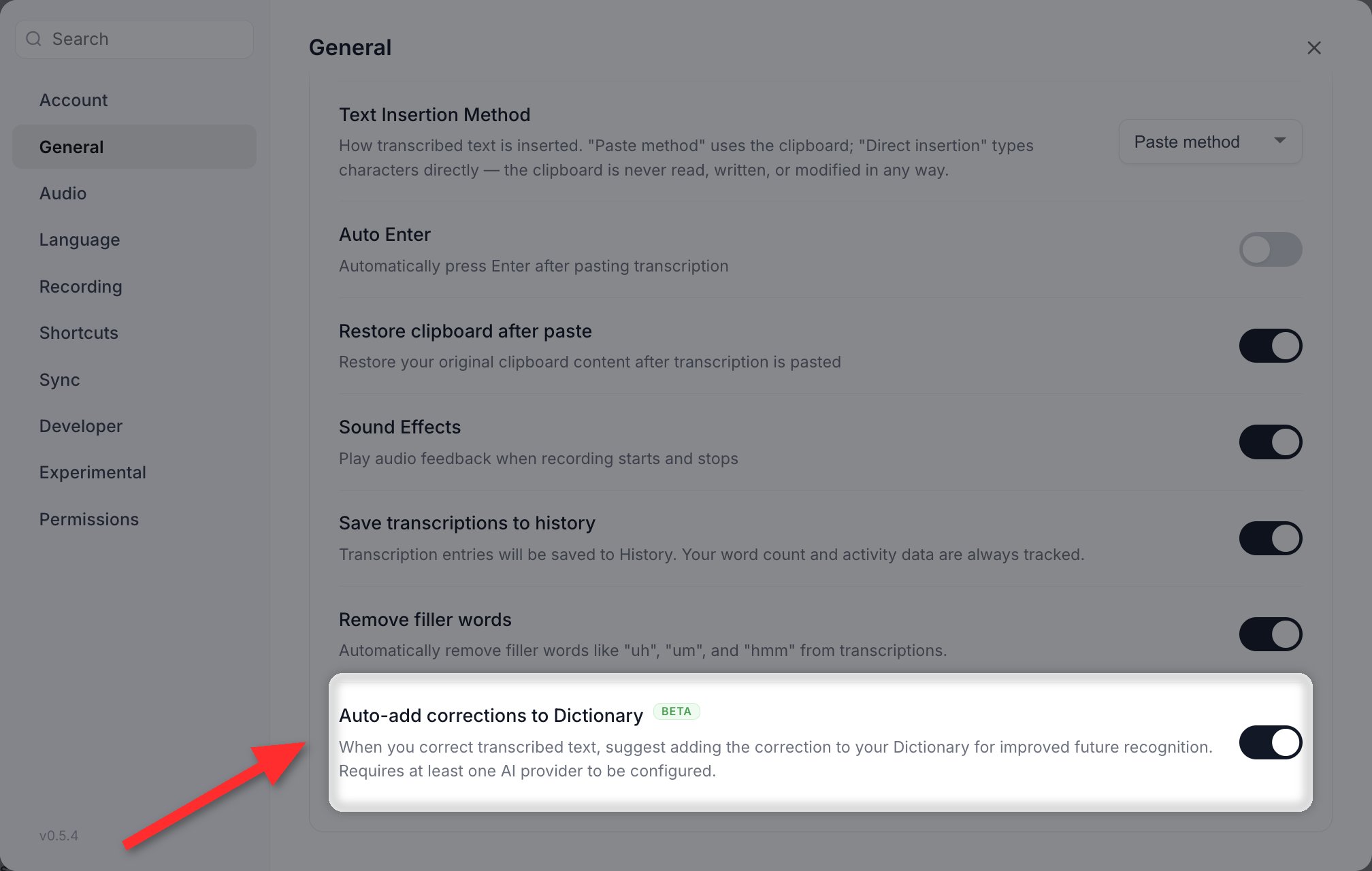
Auto-add corrections to Dictionary, at the bottom of Settings > General.
Pass screen as context
Screen context is macOS only, marked Beta, and off by default. The toggle only appears once AI enhancement is on and an AI provider is connected, because the feature works by adding names to the enhancement request.
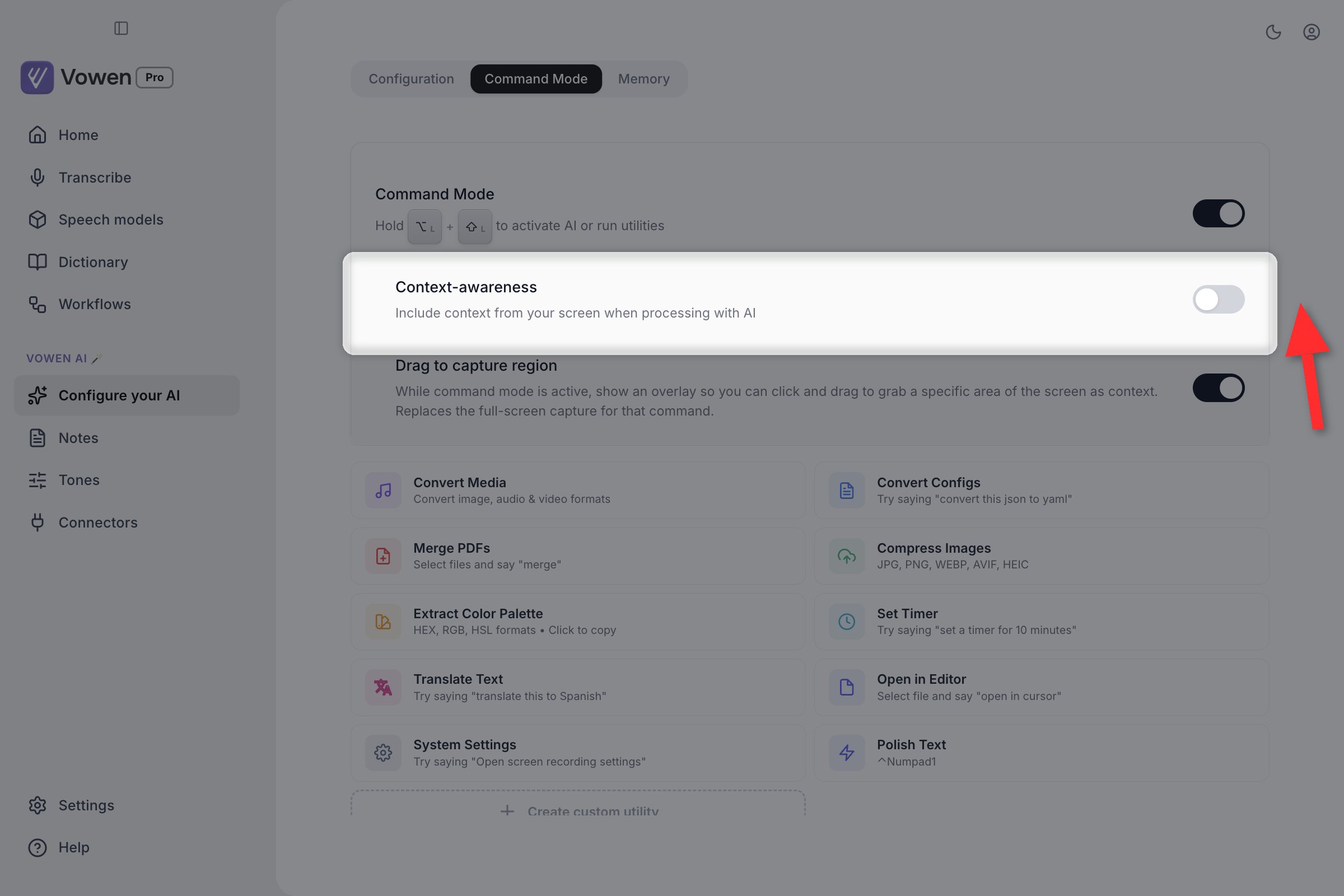
Context-awareness, on the Command Mode tab of Configure your AI.
- It reads the Accessibility tree of the focused window. It is not screen recording and takes no screenshots.
- The capture starts when your dictation starts and never blocks it. If the reading is not ready when the transcript is, the dictation goes without it.
- It only runs when AI enhancement will run. No enhancement means no capture at all.
- The candidate names ride along with the enhancement request you are already making. There is no second model call.
- It is strictly opt-in. Until you turn it on, nothing from your screen is read or sent.
Use Threads for long-form phrases
If you dictate the same long phrase repeatedly (a university name, a mailing address, a signature, a project tag), set it up as a Thread. Speak a short trigger and Vowen inserts the full text.- Open Dictionary in the sidebar and switch to the Threads tab.
- Add a trigger (what you say) and a replacement (what gets inserted).
- For example: say “my university” and Vowen inserts “Stanford University, Stanford, CA”.
Enable AI Enhancement
For polished output, turn on AI Enhancement. It:- Fixes remaining spelling and grammar issues.
- Adds proper punctuation and capitalization.
- Formats numbers correctly, so “three thousand” becomes “3000”.
- Applies spoken commands like “new paragraph”.
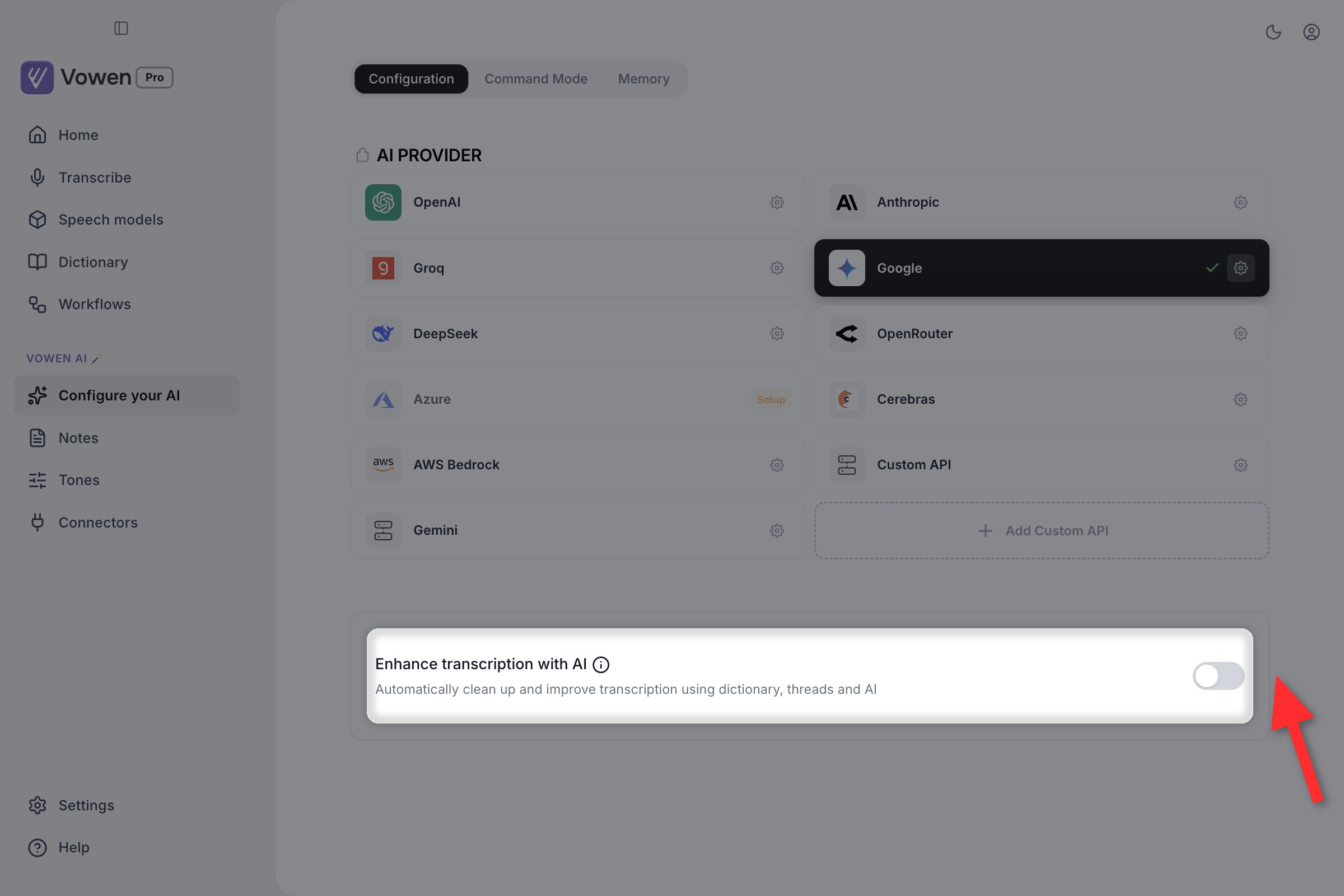
Enhance transcription with AI sits under the provider grid in Configure your AI.
Filler word removal
Vowen strips fillers like “um”, “uh”, “like” and “you know” before the text reaches AI Enhancement. This is on by default and works whether or not you have an AI provider connected. Toggle it in Settings > General > Remove filler words. ElevenLabs Scribe v2 can also do this server-side: see the Remove filler words and false starts toggle in Per-model options.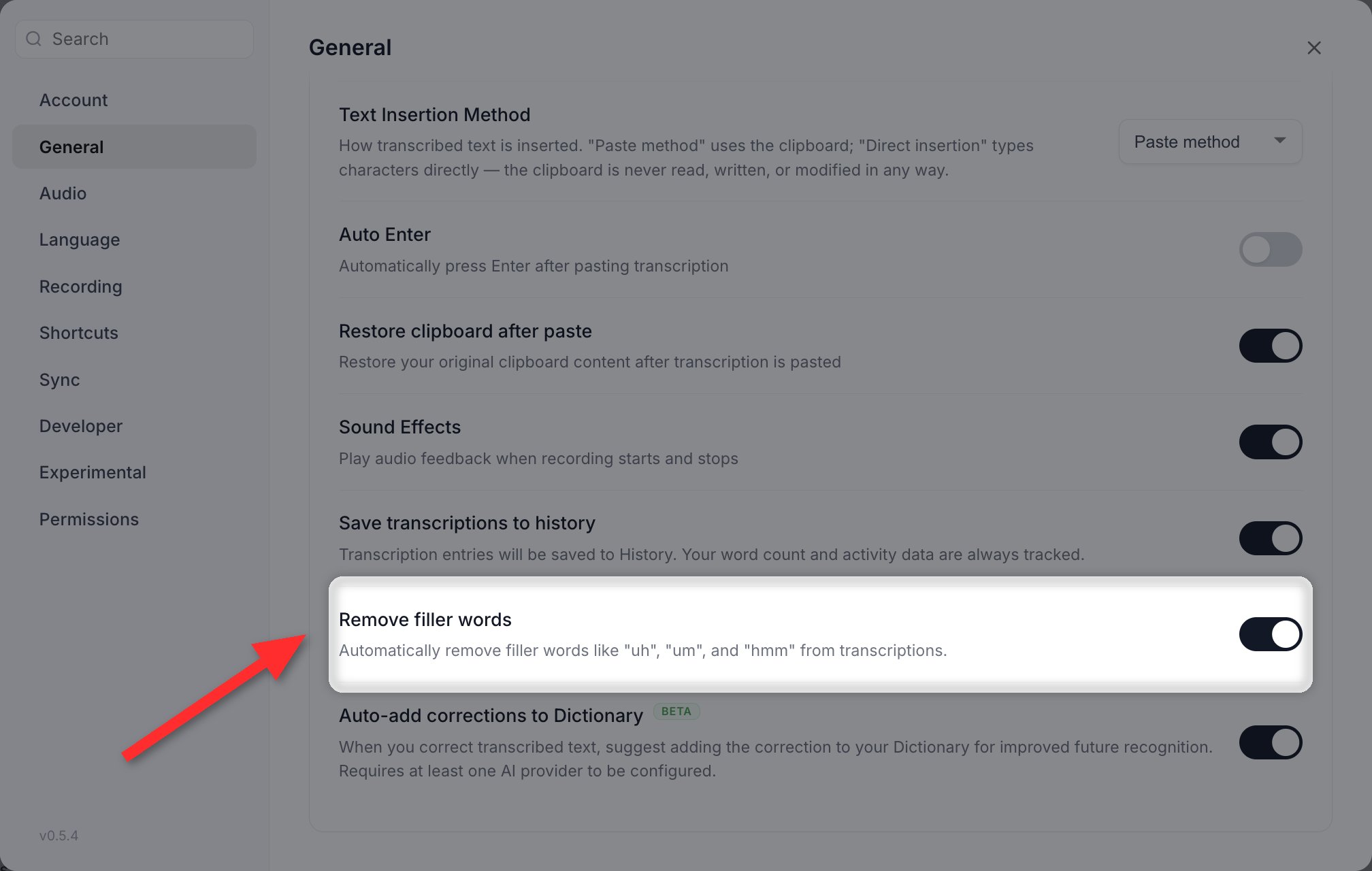
Remove filler words, in Settings > General. On by default, and it runs with or without an AI provider.
British spelling without an AI instruction
If your transcripts come back with American spellings, do not write an AI instruction for it. Set Settings > Language > English spelling to British English. It is a native, on-device converter that runs with or without AI enhancement. See Languages.Backing up your Dictionary
Your Dictionary and Threads travel together in Import / Export Data, at the bottom of Settings > Account. Use it to move your terms between machines or keep a backup.Import / Export Data is a Pro feature.
Running into accuracy issues? See the Accuracy FAQ.