The intro
A full-screen animation of the Vowen mark plays over your desktop, then the setup card scales into place. Press any key to skip it.The card toolbar
Three buttons sit in the top-right corner of the card on every step:- Change language: switches the interface language for setup and the rest of the app. See Interface language.
- Mute music: silences the background music that plays during setup. It appears only while sound effects are on.
- Switch to dark mode / Switch to light mode: toggles the theme.
The steps
1
Welcome
Click Get started. Continuing means you accept Vowen’s Privacy Policy, which is linked under the button.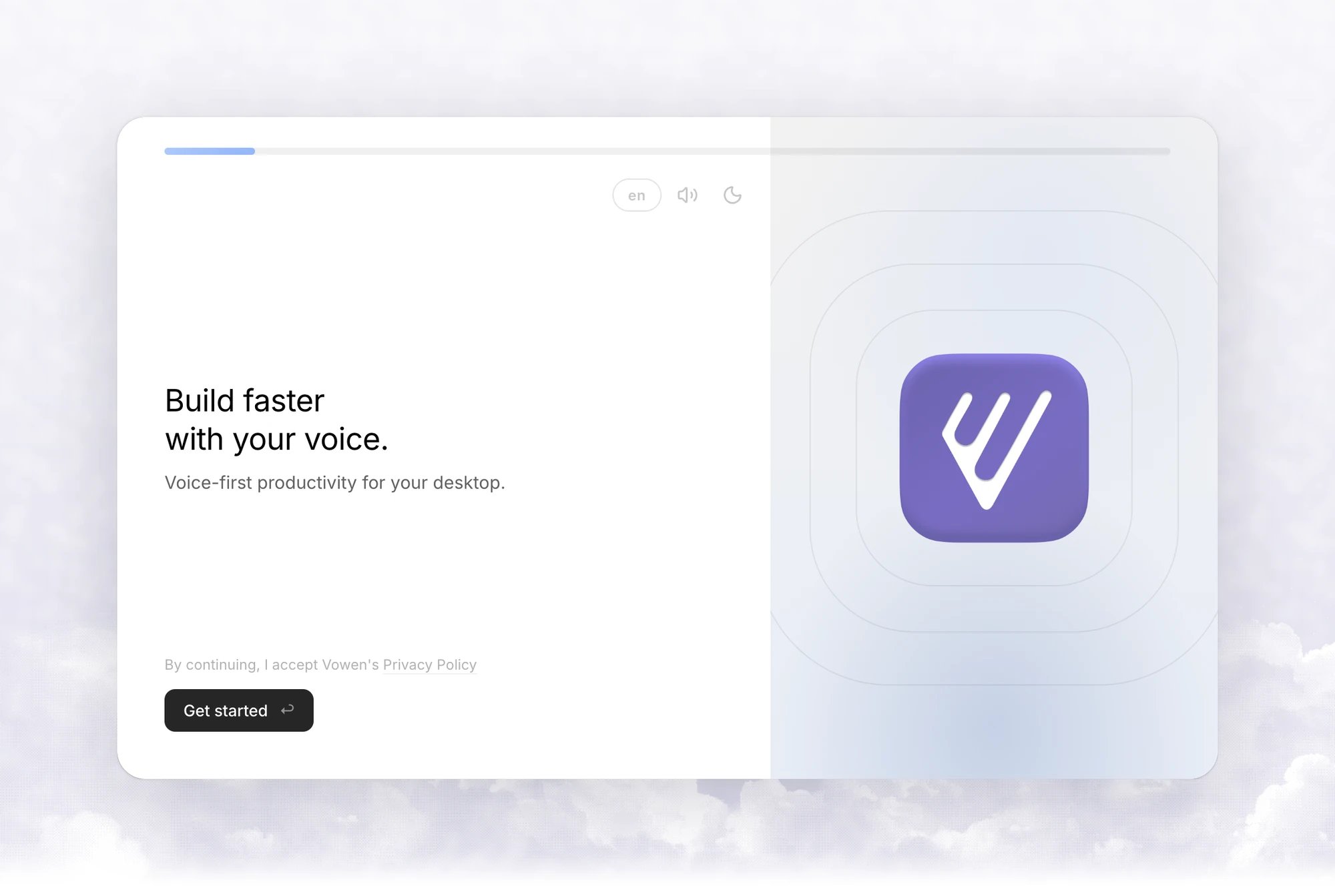
2
Personalize your experience
Enter your name. It is required and must be at least two characters. Vowen uses it to greet you across the app.Email is optional and used only for major updates. You can also pick what you plan to use your voice for: Writing documents, Drafting emails, Sending messages, Coding with AI, Chatting with AI, Taking notes, Meeting summaries, Automating tasks or Something else.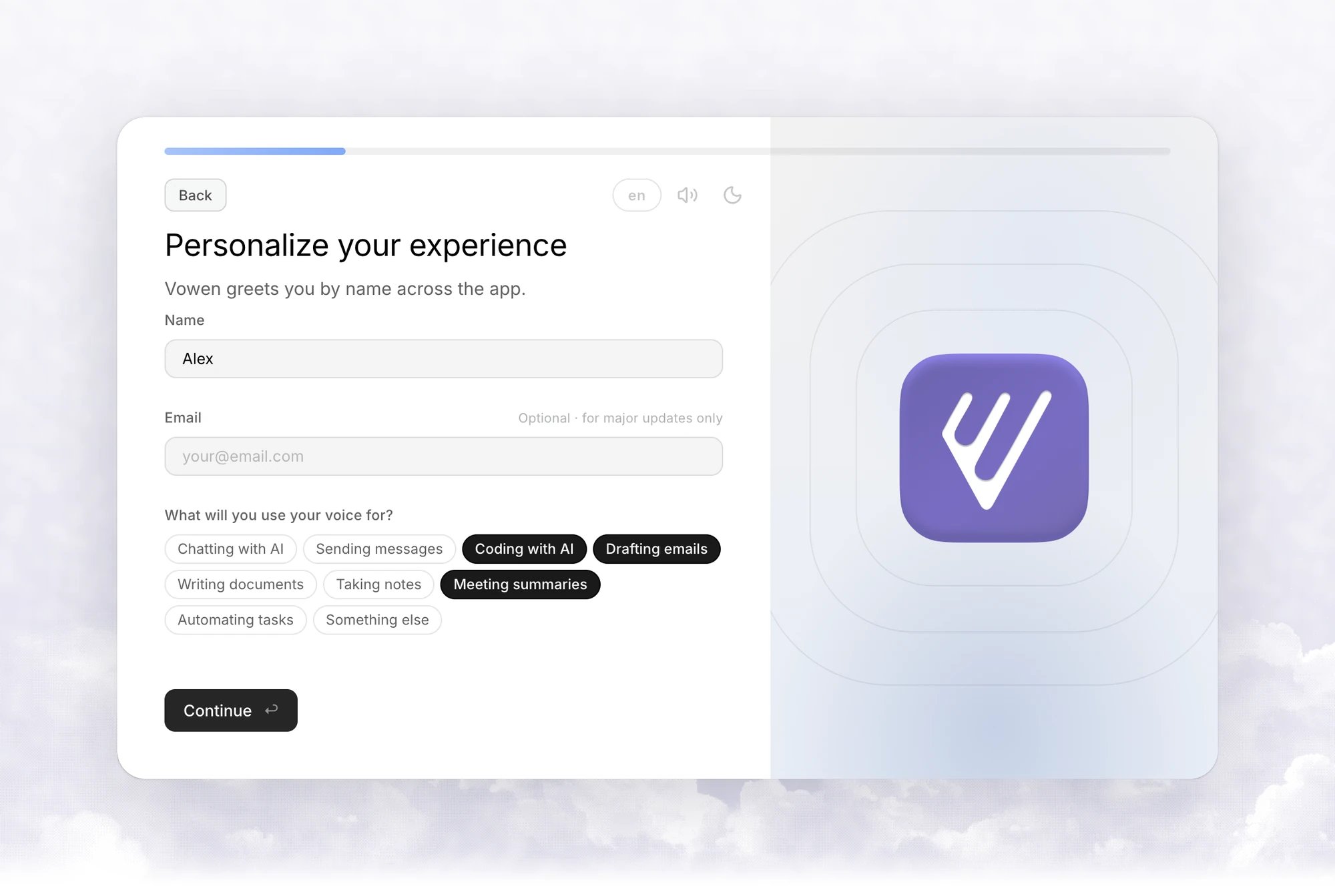
3
Private by design
A summary of what runs on your device and what is optional. Click Continue. See Privacy and data for the details.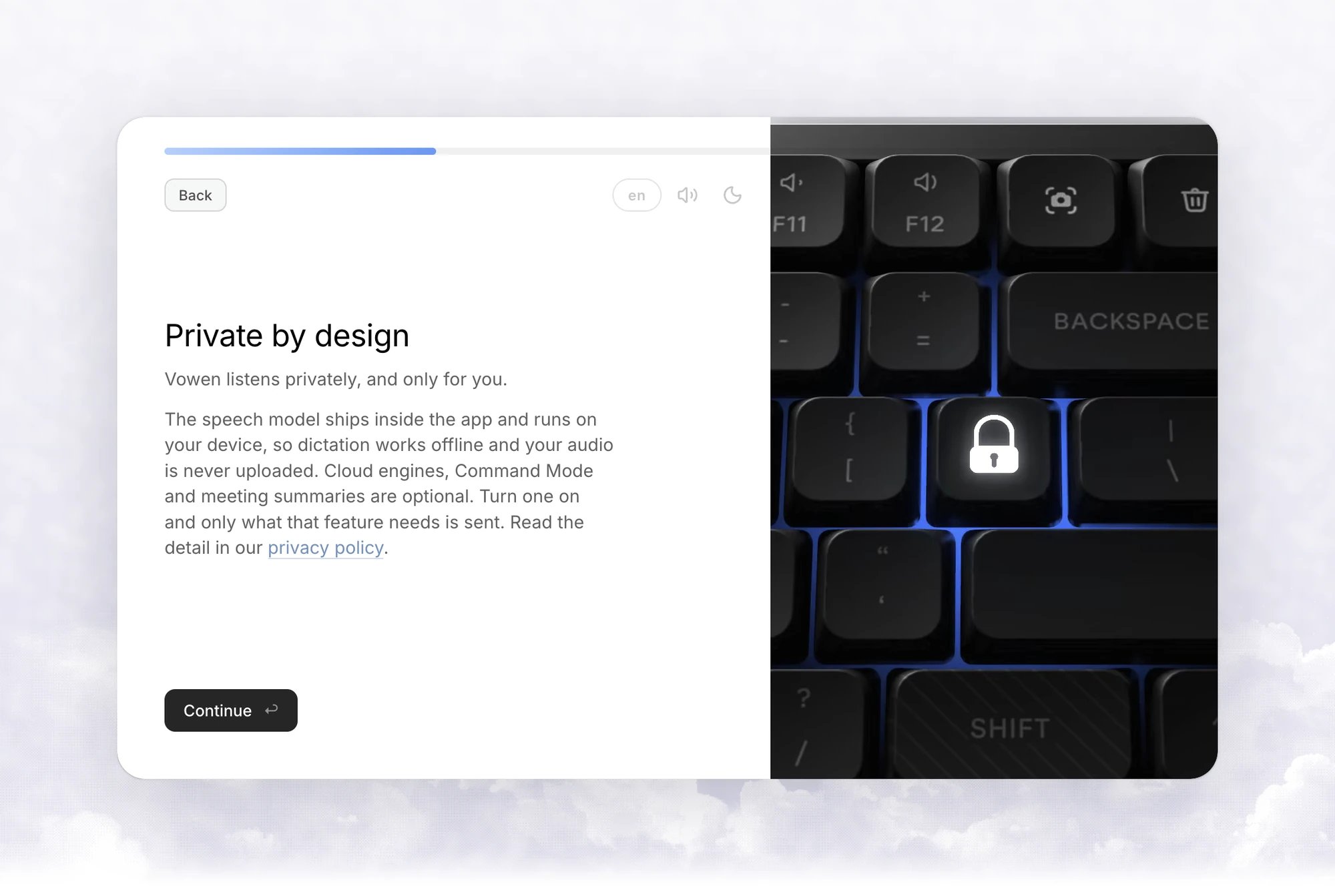
4
Grant permissions
Click Grant beside each permission: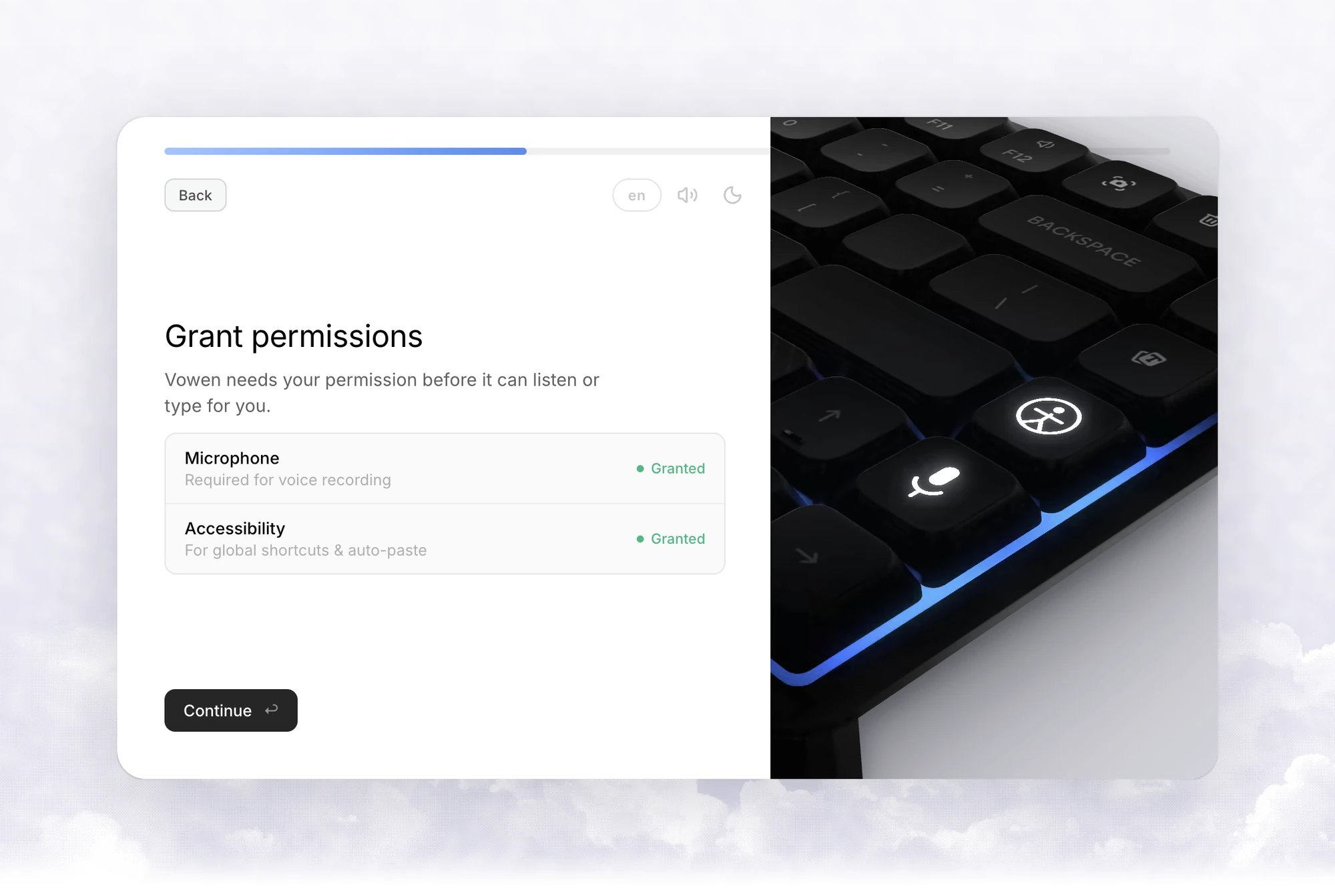
- Microphone, required for voice recording.
- Accessibility (macOS only), for global shortcuts and auto-paste.
5
Your local AI
Pick a speech model and click Download model. It runs on your device, so dictation works offline.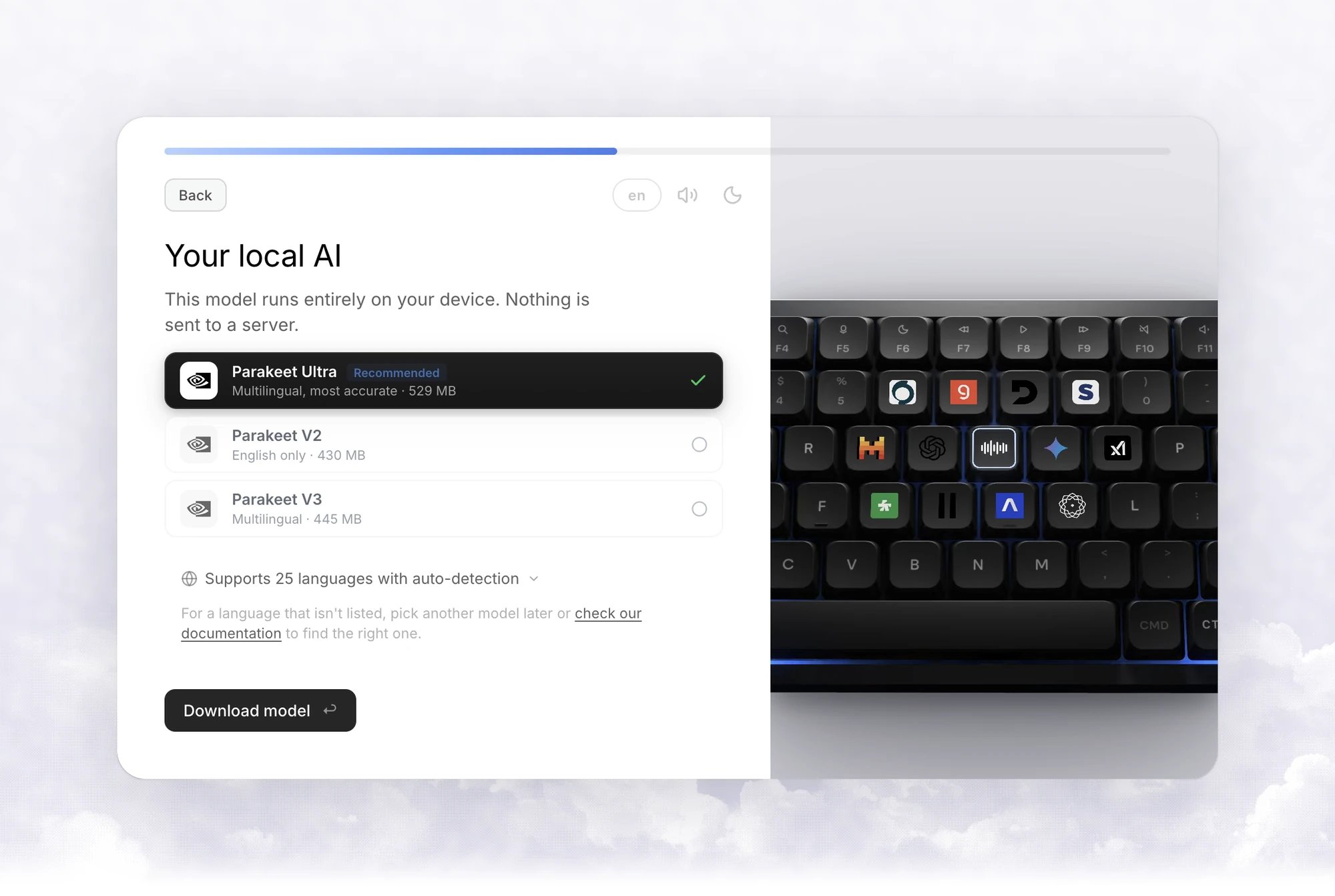
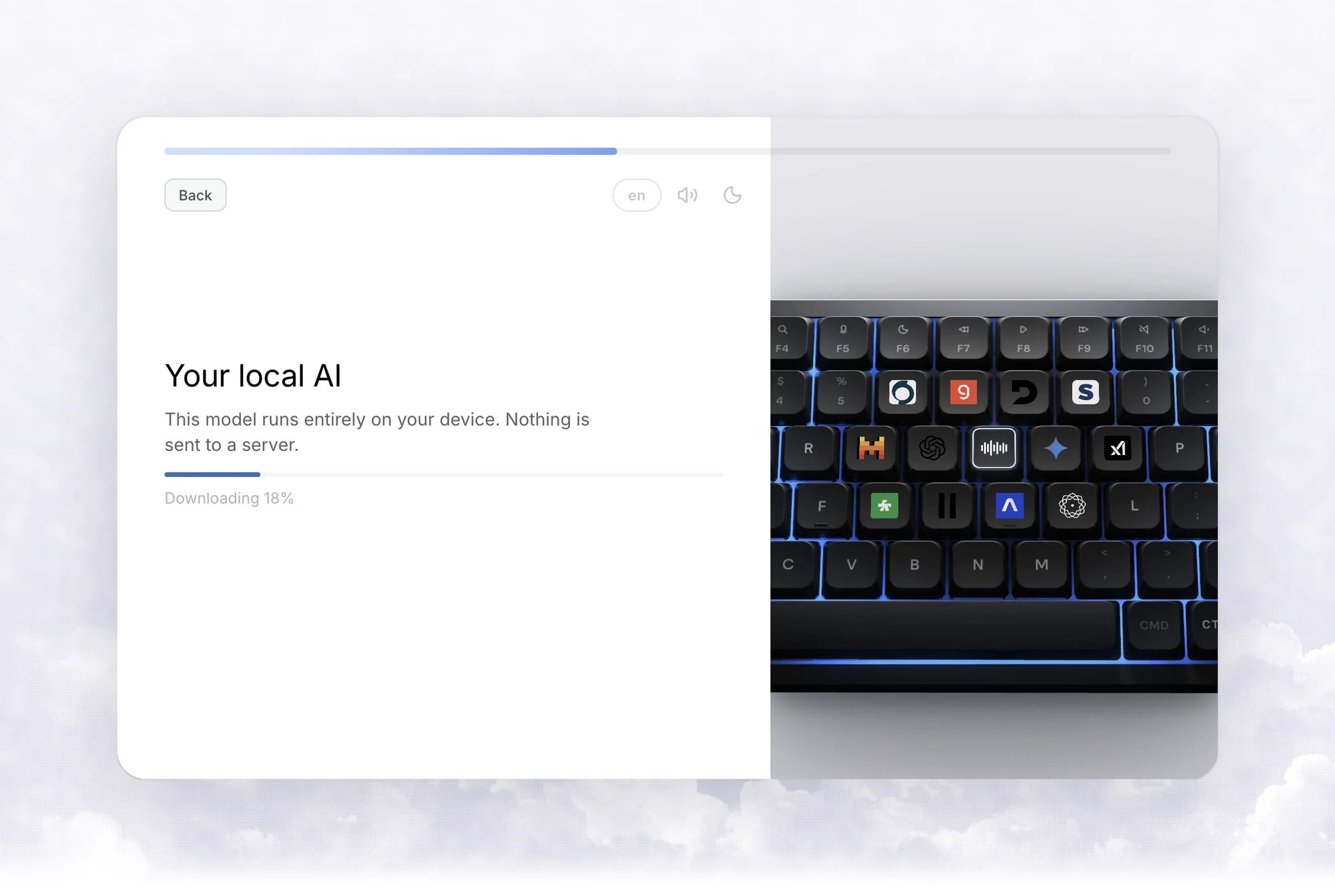
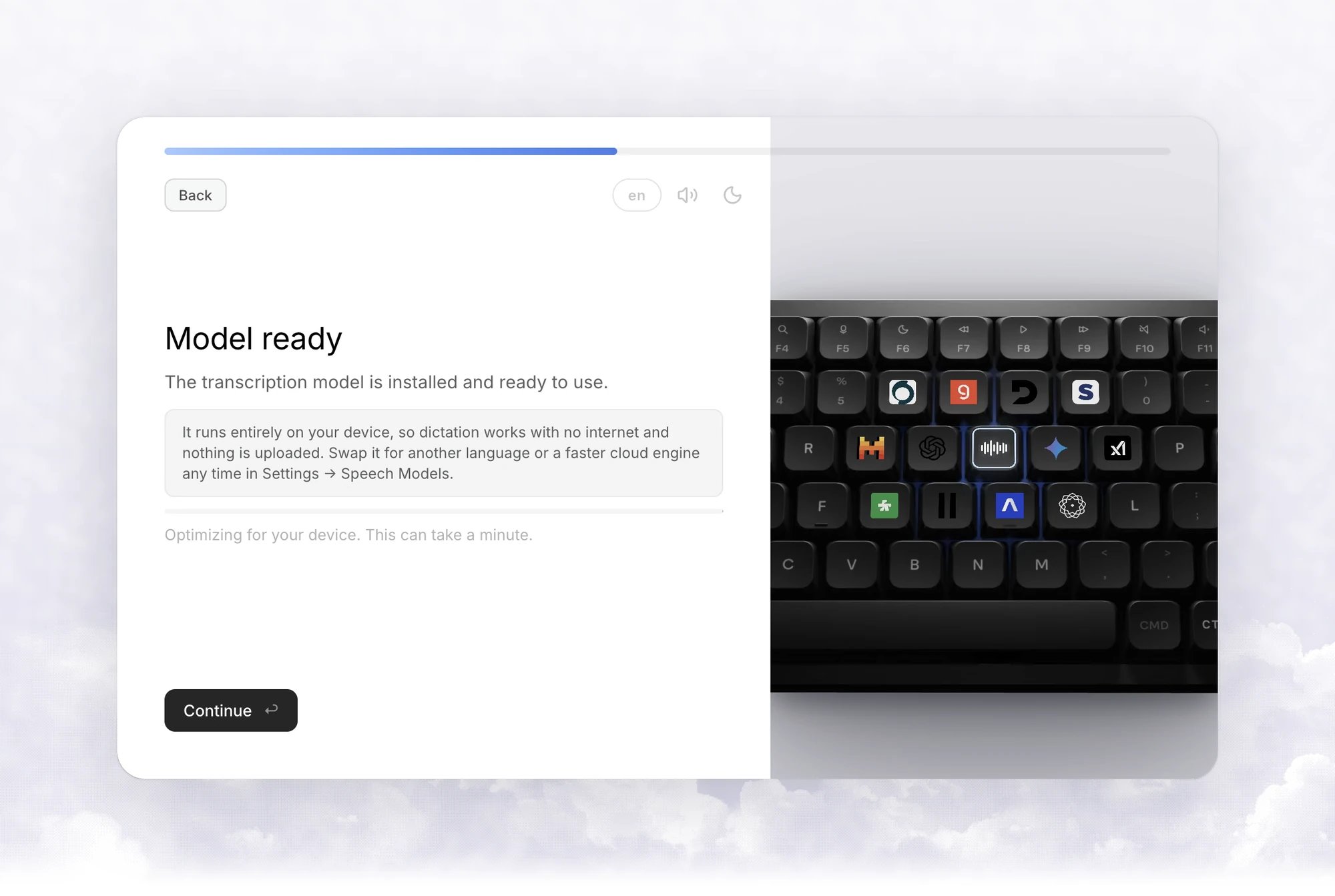
After the download, Vowen optimizes the model for your device. This can take up to 30 seconds. Continue appears once the title changes to Model ready.You can switch to another local model or a cloud engine later in Speech models. See Models.
6
Try your voice
Click the text box, then press and hold your transcription shortcut and speak. The default is Fn on macOS and Ctrl + Shift on Windows.To use a different key, click Change shortcut. If the keys on screen don’t light up when you press them, click Restart app to restart the keyboard listener.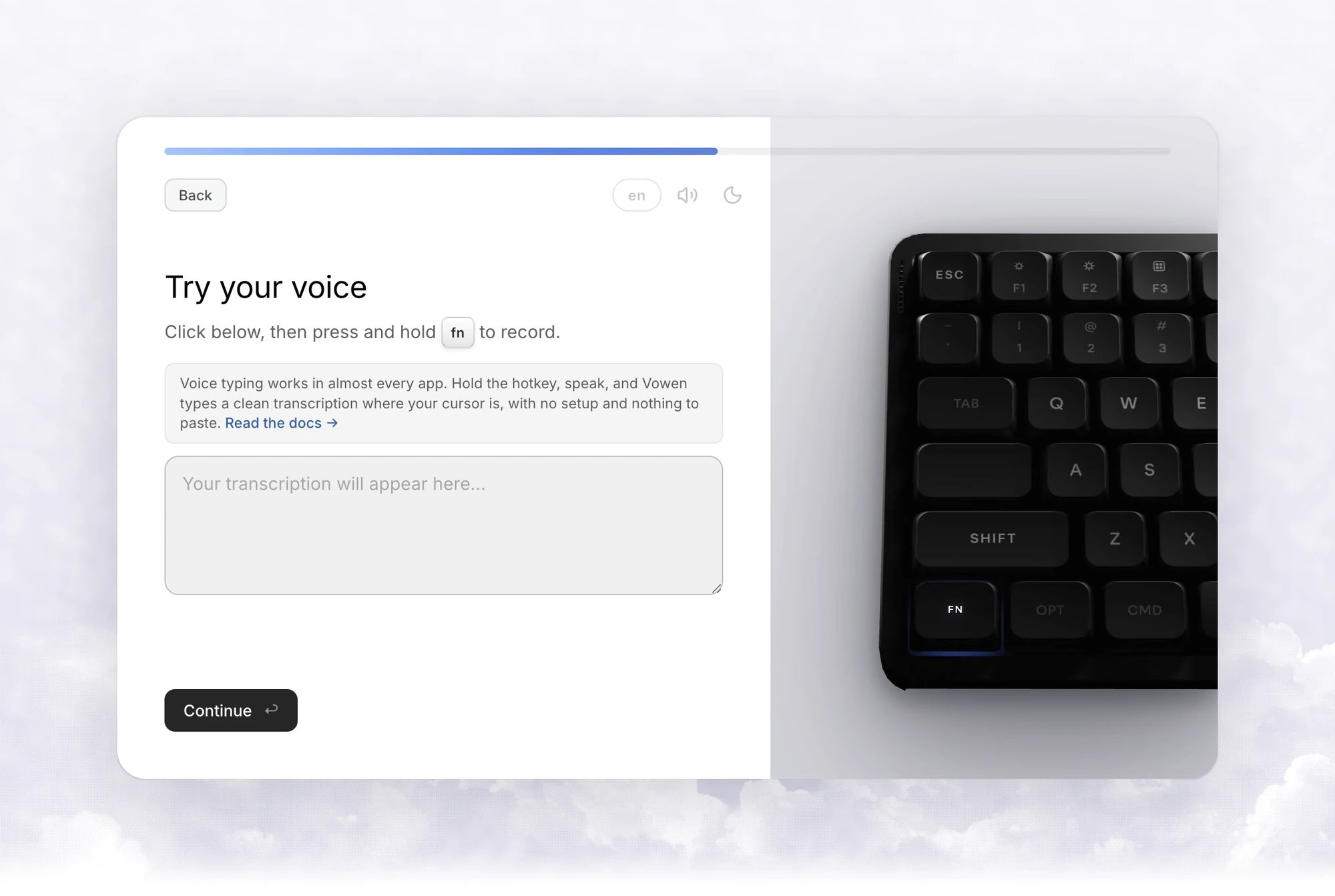
7
Try a voice shortcut
Hold the shortcut and say one of the phrases on screen, such as “Google weather today”, “YouTube steak recipes” or “Open Downloads”. See Voice shortcuts.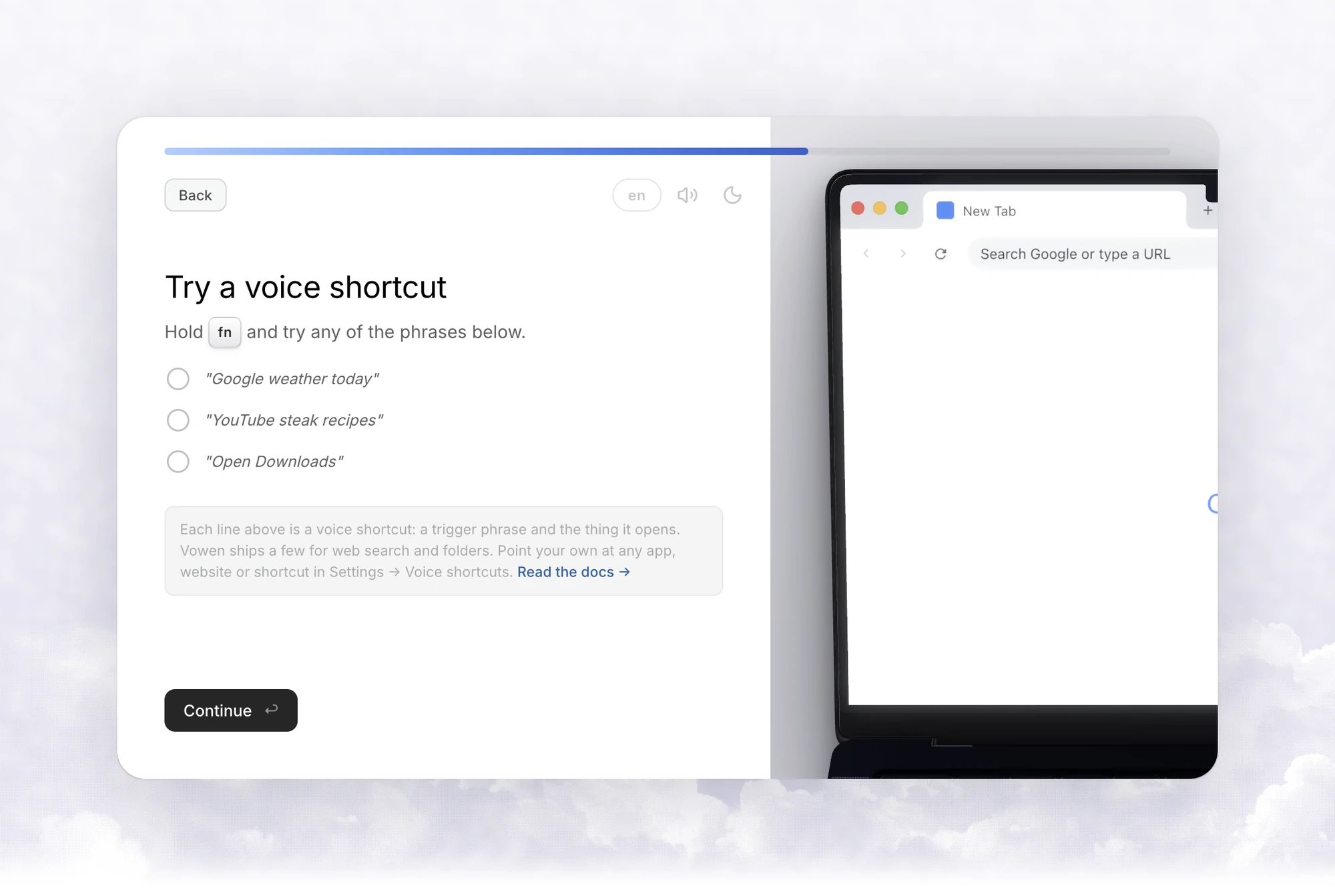
8
Try an expansion
Type a trigger such as 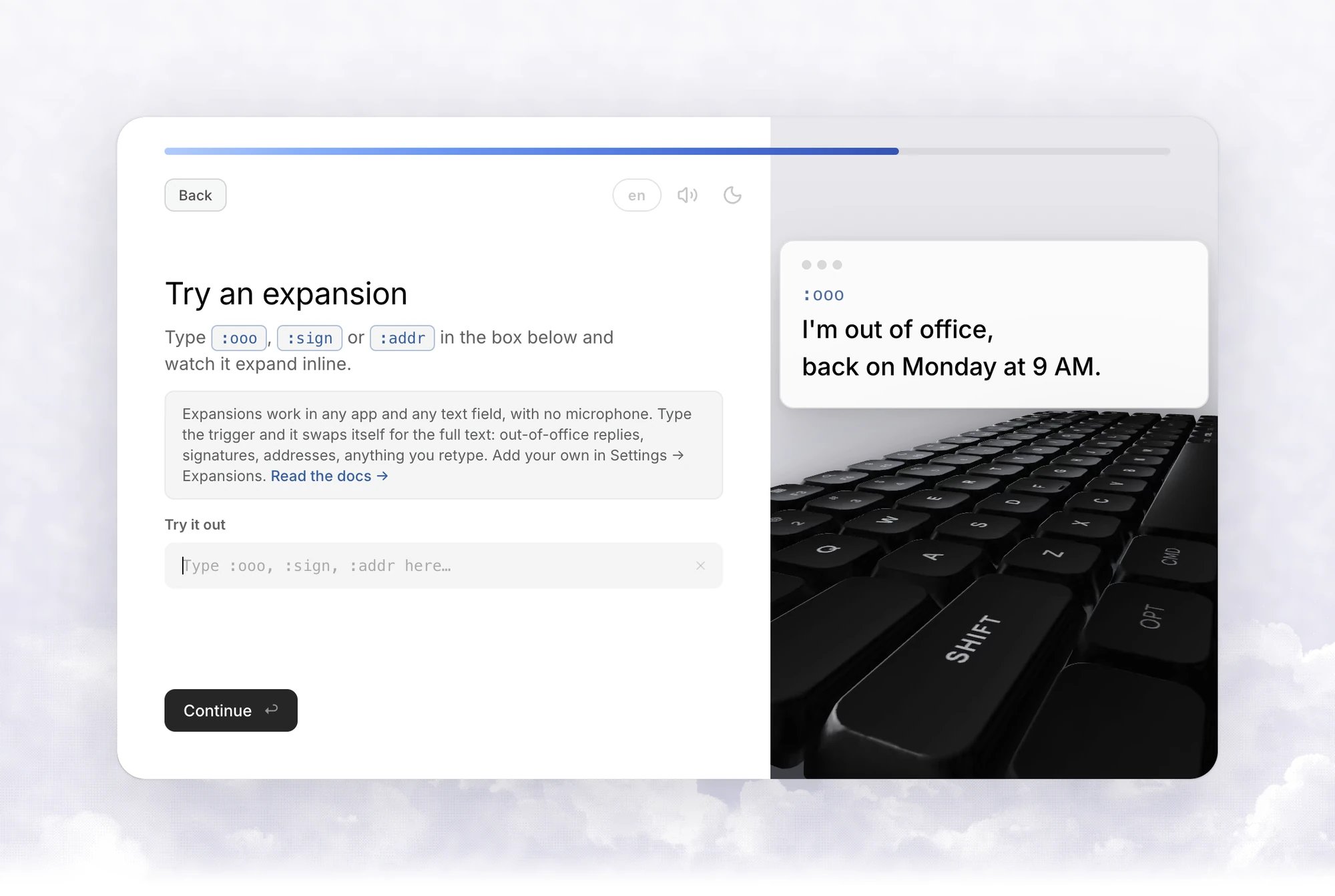
:ooo, :sign or :addr into the box and watch it expand. No microphone needed. See Text expander.9
Try threads
A thread is a saved value you speak instead of type. Hold the shortcut, read the sentence on the card and Vowen replaces the trigger words with the saved values. See Threads.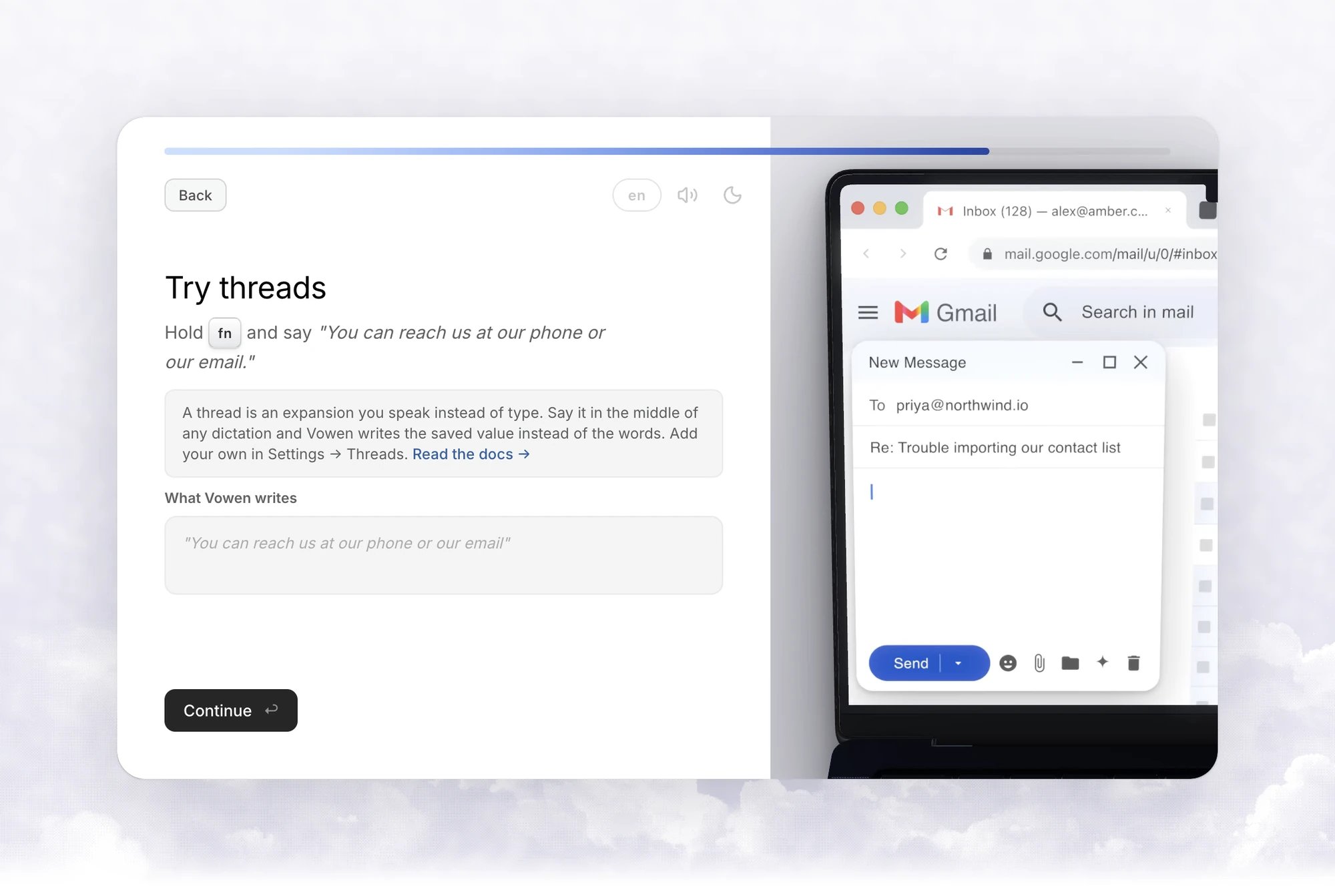
10
Try a command
Hold the Command Mode shortcut (Option + Shift / Alt + Shift) and say one of the example commands. This step is a demo. Real commands need an AI provider, which you add later in Language models. See Command Mode.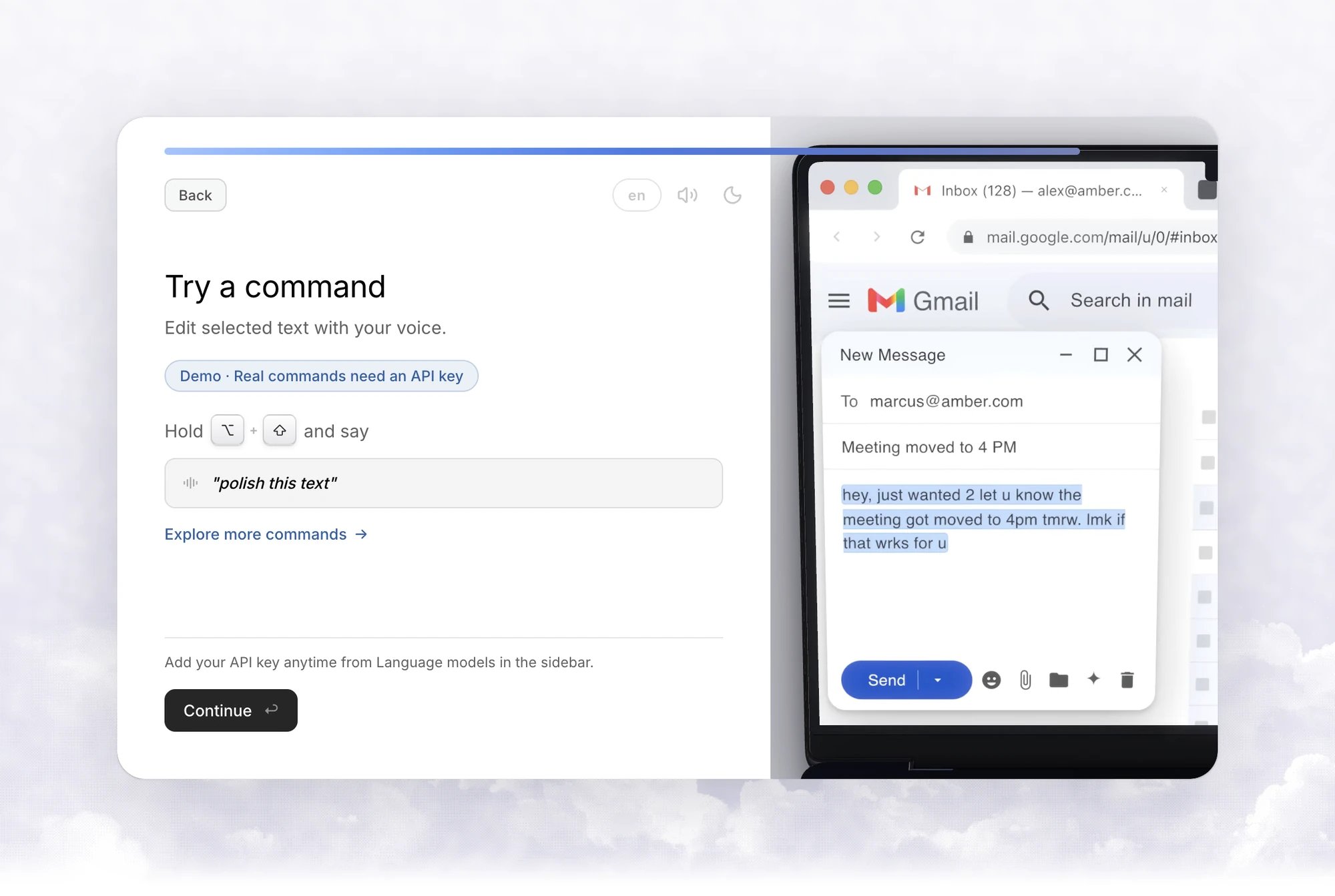
11
Capture notes
An introduction to meeting notes. Click Start using Vowen to finish. See Meeting notes.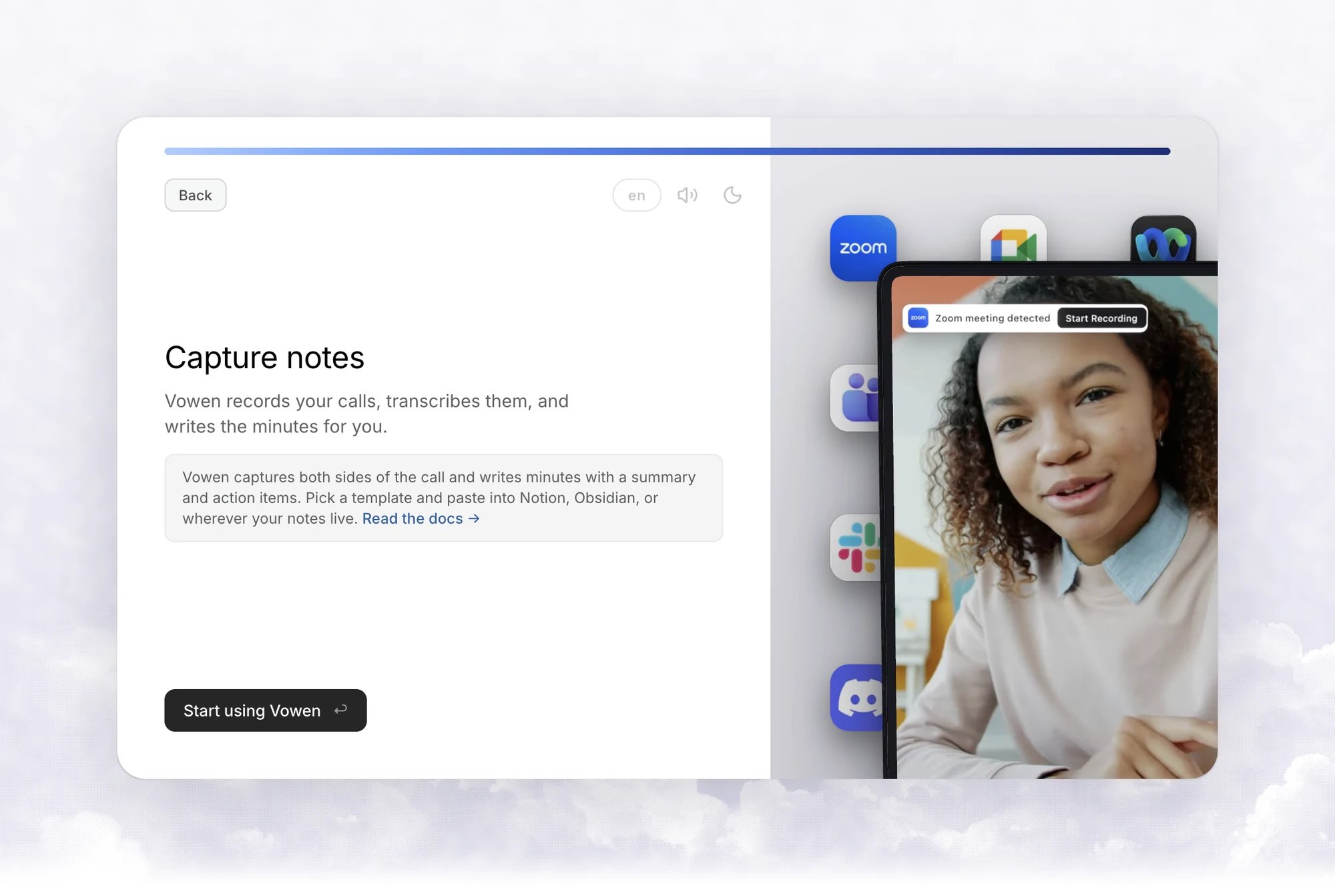
Free vs Pro
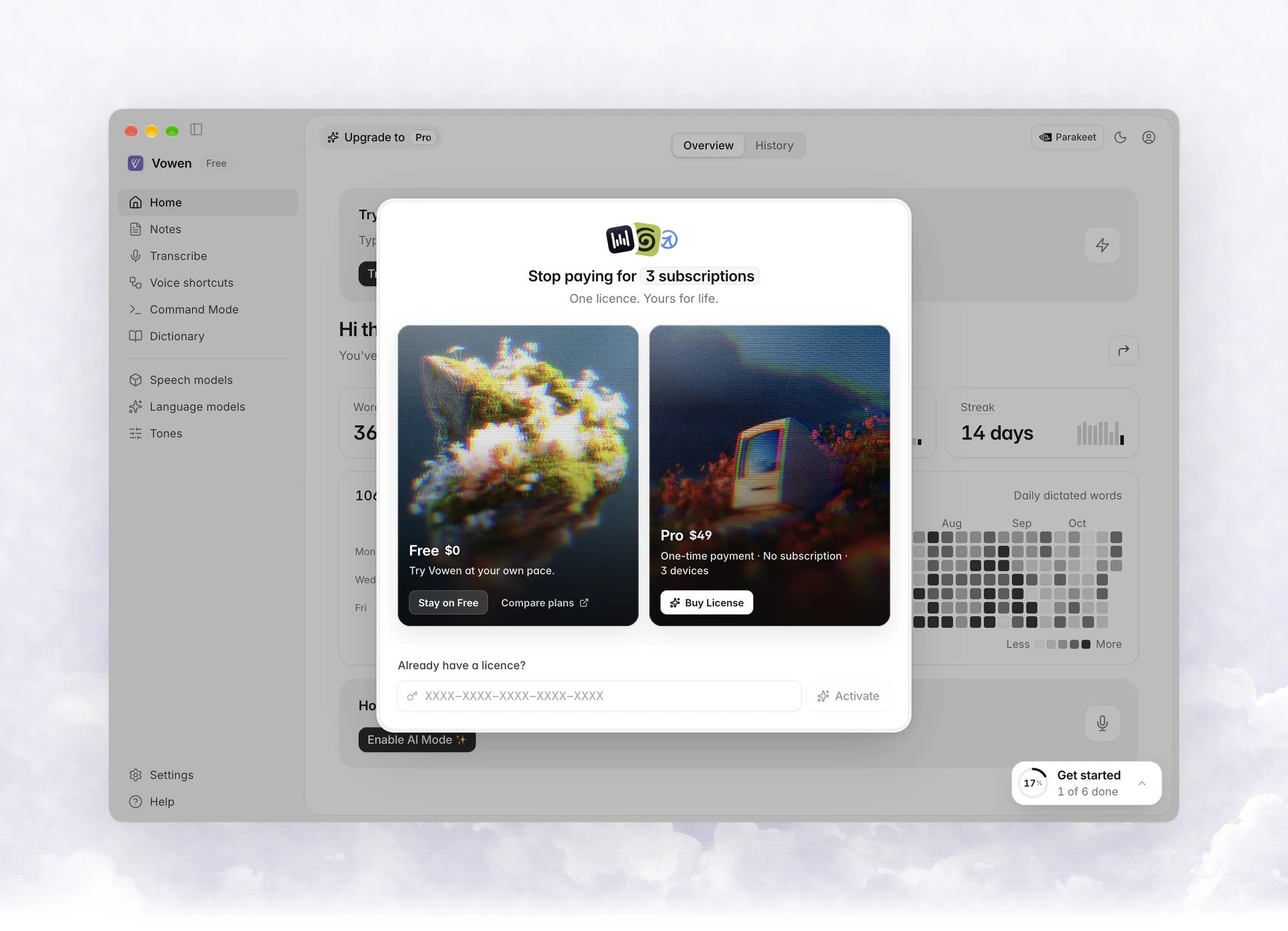
If you are on the Free plan, a dialog comparing Free and Pro opens once, right after setup. Pro is a one-time payment with no subscription, for up to 3 devices. The dialog offers three choices:- Stay on Free closes it.
- Compare plans opens the pricing page in your browser.
- Buy License opens the purchase page.