Coming in the next update.
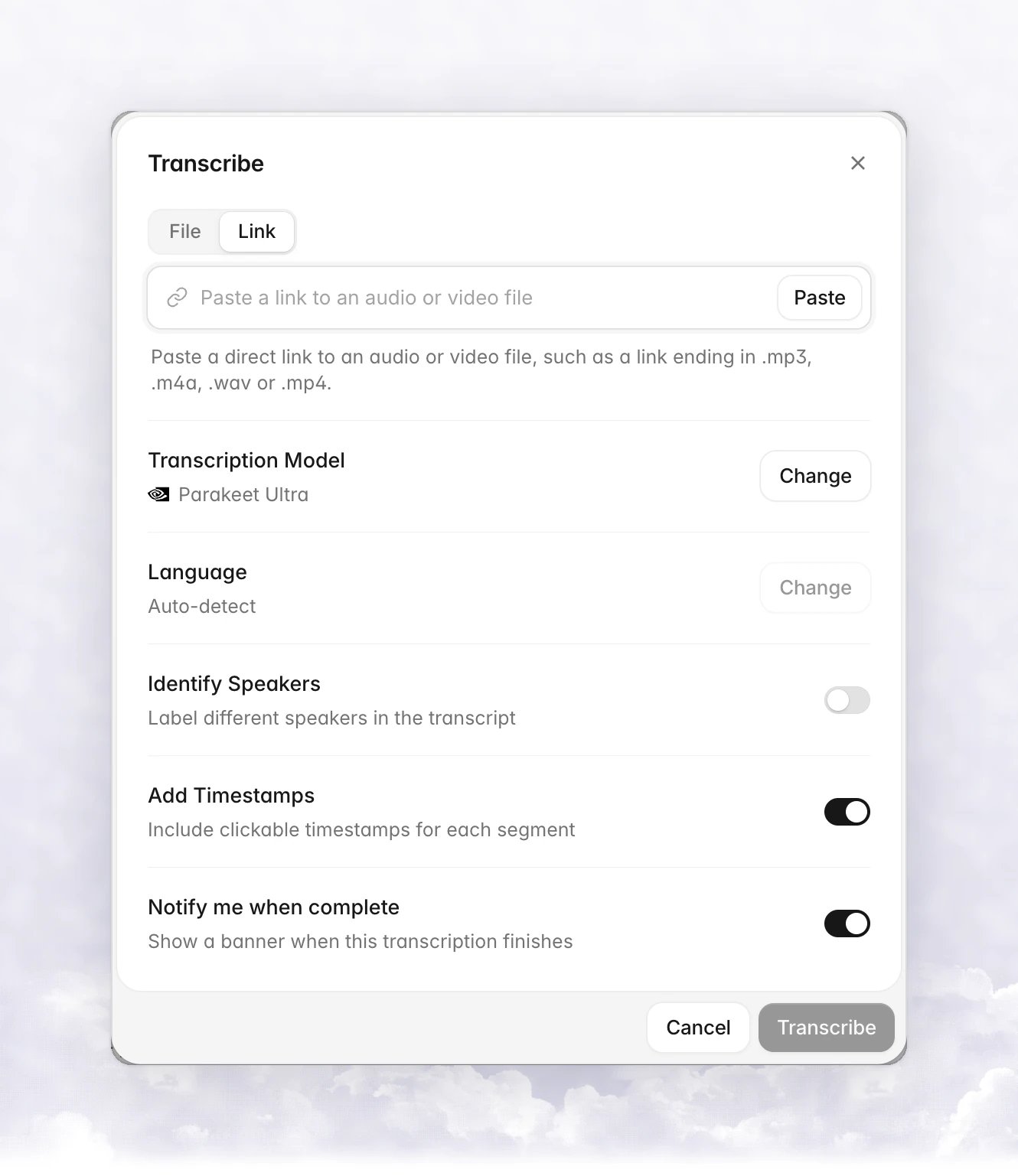
If a recording is online, you don’t have to download it first. Paste a link to the file in the Transcribe dialog and Vowen downloads it and transcribes it like any other file. Transcribing from a link is a Pro feature, available on macOS and Windows. The Transcribe dialog on the Link tab with a Paste a link to an audio or video file field, a Paste button, and the Transcription Model, Language, Identify Speakers, Add Timestamps and Notify me when complete rows Vowen accepts direct links to an audio or video file: the address ends in the file name, for example https://example.com/podcast/episode-42.mp3. Links to web pages, including video sites, and streaming playlists are not supported. The file can be up to 2 GB.
1

Open the Link tab

On the Transcribe page, click Transcribe, then choose Link.
2

Paste the link

Click Paste, or paste into the field. Vowen shows Checking link…, then a card with the file’s name and size, and its length when the site reports it.
3

Set the options

Choose the Transcription Model, Language, Identify Speakers and the other options as you would for a file.
4

Click Transcribe

The new row shows Downloading … % while the file downloads, then transcribes as usual. The row shows the site the file came from.
The downloaded file is saved in the Imports folder inside your recordings folder, so the transcription keeps its audio for playback and regenerating. When you bring Vowen to the front with a direct audio or video link on your clipboard, a banner asks Transcribe the link you copied?. Click Transcribe to open the dialog with the link already filled in. Each link is offered once on each computer, whether you accept or dismiss it.

Retry a failed download

If the download fails, the row stays in the list. Use Retry transcription on the row to download the link again.

Errors