
These keys work inside the Vowen window: jumping between pages, searching lists, going back, switching note tabs. They are fixed and are not configurable.For the global shortcuts that start and stop recording from any app, see Keyboard Shortcuts. Those are rebindable.
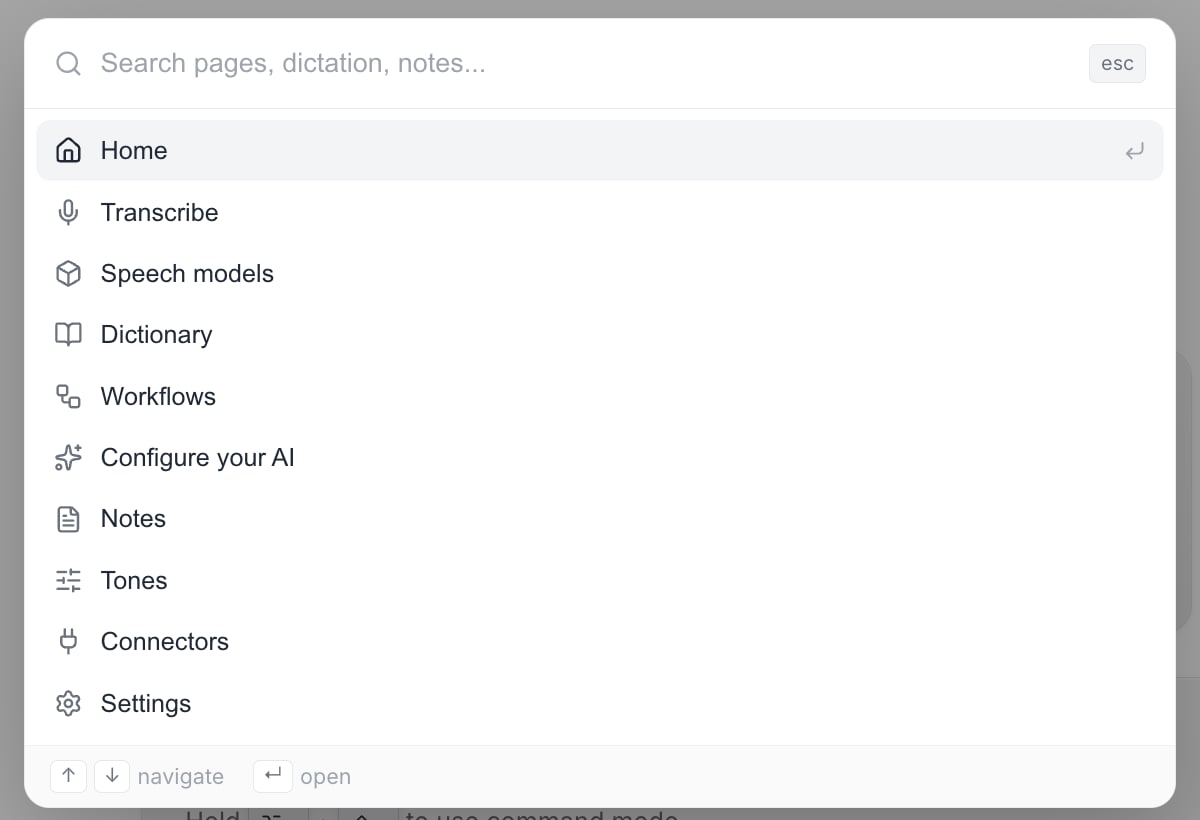
Cmd + K opens the command palette from anywhere in the window. It is the fastest way to reach any page.
Quick reference
Focusing the search box
Cmd + F (Ctrl + F on Windows and Linux) or a bare / focuses the search box on the page you are looking at and selects whatever is already in it, so a second search overwrites rather than appends. It works on six surfaces:- Home (the Voice Log tab)
- Transcribe
- Notes
- Dictionary > Dictionary
- Dictionary > Threads
- Dictionary > Expansions
- / is ignored while your cursor is already in a text field. Otherwise you could never type a slash into the box it just focused.
- Cmd + F works from a text field, matching what you expect from a browser. Shift is allowed with /, because several keyboard layouts need it to produce the character at all.
Back and forward
Vowen keeps a browser-style history of where you have been in the window. On macOS the chords are Cmd + ← and Cmd + →. On Windows and Linux they are Alt + ← and Alt + →, matching the browser and File Explorer gesture. Detail pages also show a back arrow that does the same thing. A location is a page (with its sub-tab where there is one) or one of the two full-screen detail views, a note or a transcription. The settings modal is deliberately not in the history. It is a dialog with its own Escape, and putting it in would make Back reopen dialogs. The history holds the last 10 locations. If a note or transcription you visited has since been deleted, Back skips over it rather than landing you on an empty detail view.The chord is ignored while your cursor is in a text field or a rich-text editor, and while any modal is open. On macOS Cmd + ← means “move the caret to the start of the line”, and stealing that would break editing a note title or a summary.
Note tabs
With a note open, Cmd + 1 / 2 / 3 (Ctrl on Windows and Linux) jumps straight to Summary, Transcript and Ask AI. The digits map to fixed tabs, not to positions. The optional My Notes tab sits between Transcript and Ask AI, so if the chords followed position, the same keystroke would do different things from one note to the next. Unlike back and forward, these stay live while your cursor is in the title, the summary editor or the Ask AI composer. The chord is not a text-editing gesture on any platform, so there is nothing to steal. It does stand down while a modal is open.Selecting a range of rows
On the Notes and Transcribe lists, click one checkbox and then shift-click another to fill in everything between them.How the fill is decided
How the fill is decided
The range takes the state of the row you shift-clicked. Shift-clicking an unchecked box checks the whole range; shift-clicking a checked box unchecks it.
Rows outside the range are left alone
Rows outside the range are left alone
These are checkboxes, not Finder icons. A range fill never wipes rows you ticked somewhere else in the list, for example in a different date group.
The anchor does not move
The anchor does not move
A second shift-click re-ranges from the same starting row instead of chaining onto the last one, so you can widen or narrow a range without starting over. A plain click moves the anchor.
If the anchor disappears
If the anchor disappears
If the row you first clicked has since been filtered out or deleted, the shift-click falls back to a plain toggle.
Escape
Escape is unified across the app. Whatever is on top gets it, and only that.1
The top-most overlay closes
Open dialogs form a stack, and only the one on top responds. Closing a model picker that you opened on top of a settings modal leaves the settings modal open behind it.
2
Unsaved editor changes prompt first
In the voice shortcut editor, the tone editor and the expansion editor, Escape with unsaved changes asks before discarding instead of closing.
3
A list selection is cleared
If nothing is open and you have rows selected on Notes or Transcribe, Escape clears the selection. It is only bound while something is actually selected, so Escape stays available to everything else the rest of the time.
4
A find bar closes
Escape dismisses the summary or transcript find bar even if your cursor has since moved into the text.
Escape is also the default binding for the global Cancel Recording shortcut, which is enabled out of the box. That one is rebindable in Settings > Shortcuts. See Keyboard Shortcuts.
Related
Command palette
What Cmd + K opens and everything it searches.
Keyboard Shortcuts
The rebindable global shortcuts for recording.