
Watch folders are a Pro feature. They are not available on the Free plan.
Overview
A watch folder is a directory on your machine that Vowen keeps an eye on. Drop an audio or video file into it and Vowen picks it up and runs it through one of two pipelines, depending on what kind of folder it is:Transcription folders
The file becomes a manual transcription, exactly as if you had dropped it into the Transcribe
dialog. Rules fall back to your Transcribe > Defaults.
Meeting note folders
The file becomes a full meeting note: transcribed, summarized with a template you pick, tagged,
and pushed through your Obsidian and webhook integrations like a live recording.
A folder’s kind is fixed by where you added it. There is no destination switch inside the folder
editor, so each list stays homogeneous. To change a folder’s kind, remove it from one list and add
it again from the other.
Where they live
Each modal lists only its own kind of folder.
Adding a folder
1
Open the Watch folders tab
Use the table above to open the right one for the kind of folder you want.
2
Click Add Folder
A native folder picker opens. Pick the directory you want watched. The same path cannot be
watched twice, even across the two lists.
3
Set the folder's rules
Vowen drops you straight into the folder’s editor. Everything here is optional, and anything you
leave alone follows your defaults. Use the back button in the modal header when you are done.
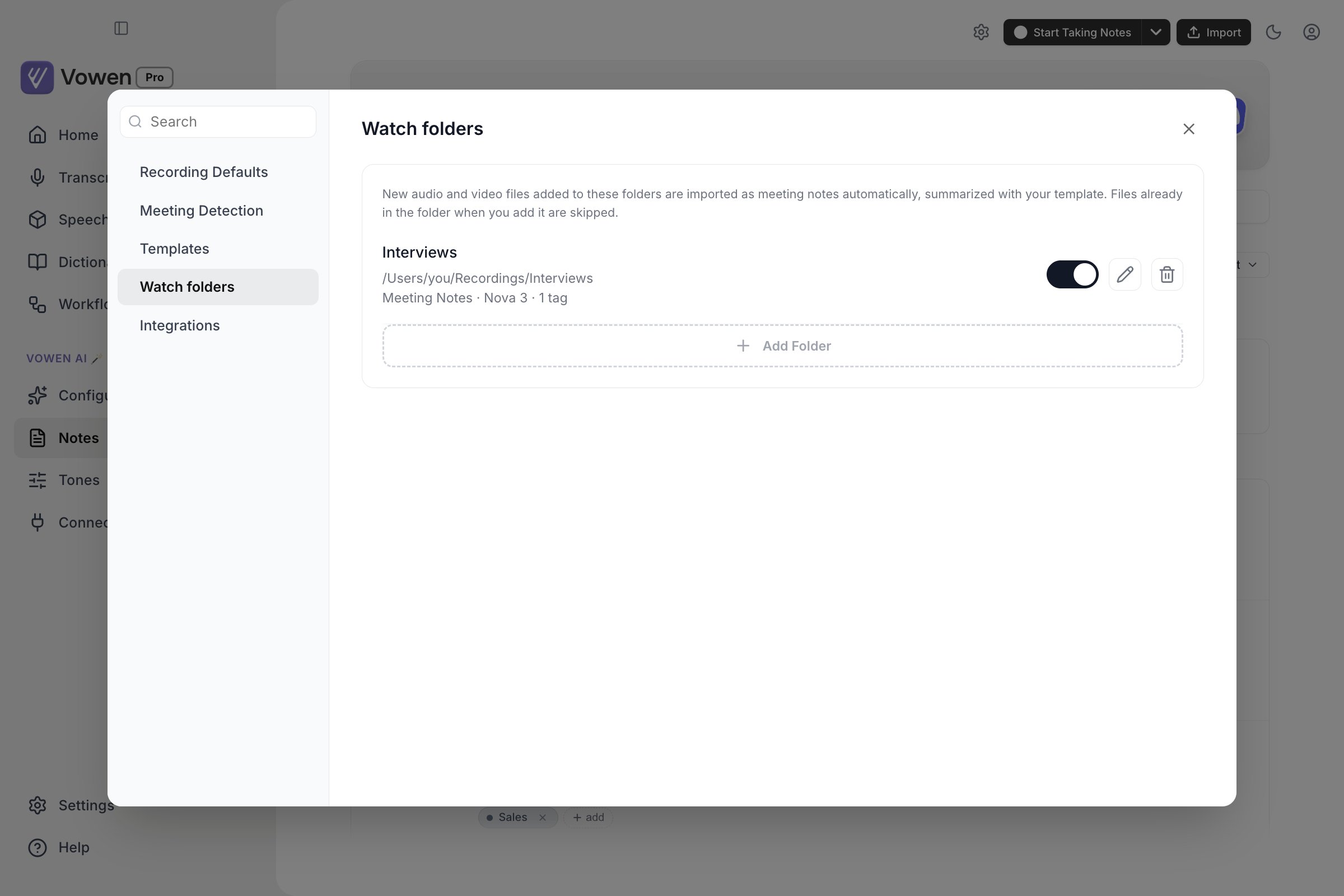
Each watched folder carries its own template, model and tags. Add Folder appends another.
Which files are picked up
- Audio:
mp3,wav,m4a,aac,ogg,flac,wma,opus - Video:
mp4,mov,avi,mkv,webm,flv,wmv,mpeg,mpg
Vowen watches only the files directly inside the folder. Subfolders are not scanned, so nesting a
directory inside a watch folder does nothing.
Vowen marks a file as handled the moment it is queued, before the job runs. If a job fails, the
failed entry stays visible so you can retry it by hand. It is not re-queued automatically on the
next scan.
Per-folder rules
Open a folder’s editor with the pencil icon. Every row shows its effective value, so a rule you have not set reads asNotes default (Parakeet V2) or Transcription default (Auto-detect) rather
than as blank.
Transcription model
Transcription model
Which speech model transcribes files from this folder. Unset means the folder follows your
default, which for a transcription folder is the Transcribe > Defaults model and for a
meeting note folder is your meeting notes model.
Language
Language
Auto-detect, or a specific language. The list of choices depends on the model the folder resolves
to, so changing the model can change what is offered here.
Summary template
Summary template
Meeting note folders only. The template used to summarize every note this folder produces. It
also names the folder that gets written to Obsidian. Unset means the folder uses whatever your
default template currently is.
Identify speakers
Identify speakers
Runs speaker diarization on files from this folder. Only shown when
the folder’s model supports it.
Number of speakers
Number of speakers
Auto-detect, or a fixed count from 2 to 6. Only shown when speaker identification is on and the
resolved model honours a speaker count.
Add timestamps
Add timestamps
Transcription folders only, and only while speaker identification is off. Meeting notes always
keep segment timings, because the transcript in a note is clickable.
Notify me when complete
Notify me when complete
Shows a banner when the job finishes. On meeting note folders this is on by default, because
the banner is how you find out the automation ran at all.
How inheritance works
A rule that is unset inherits, and the two kinds of folder inherit from different places:- Transcription folders resolve against
transcribeDefaults, which is the Transcribe > Defaults tab: model, language, identify speakers, number of speakers, timestamps and notify. The auto-export settings on the Auto-export tab apply too, so a watched-folder transcription can write a.txt,.srtor.vttalongside itself if you have that turned on. - Meeting note folders resolve against your meeting notes preferences, the same chain the Import dialog uses: model, language, diarization, AI provider and summary template.
What a meeting note folder produces
A note from a watch folder is a full note, not a stripped-down one. It is transcribed, summarized with the folder’s template, and then fires the same Obsidian and webhook integrations a live recording does. The note appears in your Notes list immediately as a processing placeholder, already carrying the folder’s tags and the template’s tags. It is not tagged later once the summary lands.Quotas and gating
- Disabling the watch folders feature, or losing Pro, stops every folder. Nothing is queued while the entitlement is off.
- Transcription folders still count against the lifetime manual-transcription quota. Once you are at the limit, new files are skipped rather than queued.
- Meeting note folders go through the same import gate as the Import button, which is also Pro.
- A file that already has a history entry or an existing note with the same source path is skipped, so importing something by hand first does not produce a duplicate.
Disabling versus removing
Neither action touches transcriptions or notes that have already been created.Troubleshooting
Nothing happens when I drop a file in
Nothing happens when I drop a file in
Check the file extension is on the supported list, that the file is directly in the folder rather
than in a subfolder, and that the folder’s checkbox is ticked. A very large file being copied
across a slow network can also still be inside its stability window.
The folder row says Folder not found
The folder row says Folder not found
The path no longer exists, usually because an external drive is unmounted or the folder was
renamed. Vowen skips it silently until the path is back. Remove the folder and add it again if
the path has permanently changed.
I added a folder full of recordings and nothing was transcribed
I added a folder full of recordings and nothing was transcribed
That is the intended behavior. Existing files are seeded as already handled the first time the
folder is registered. Transcribe them manually, or move them out and back in.
A file failed and was never retried
A file failed and was never retried
Files are marked handled when they are queued, not when they succeed, so a failure does not loop
forever on every scan. Retry it from the transcription entry or the note itself.