
Vowen is mostly invisible. It runs in the background and puts a window on your screen only when one is useful. Each surface below is named alongside the setting that controls it.
The main window
One window, with a sidebar down the left and a toolbar across the top.Sidebar
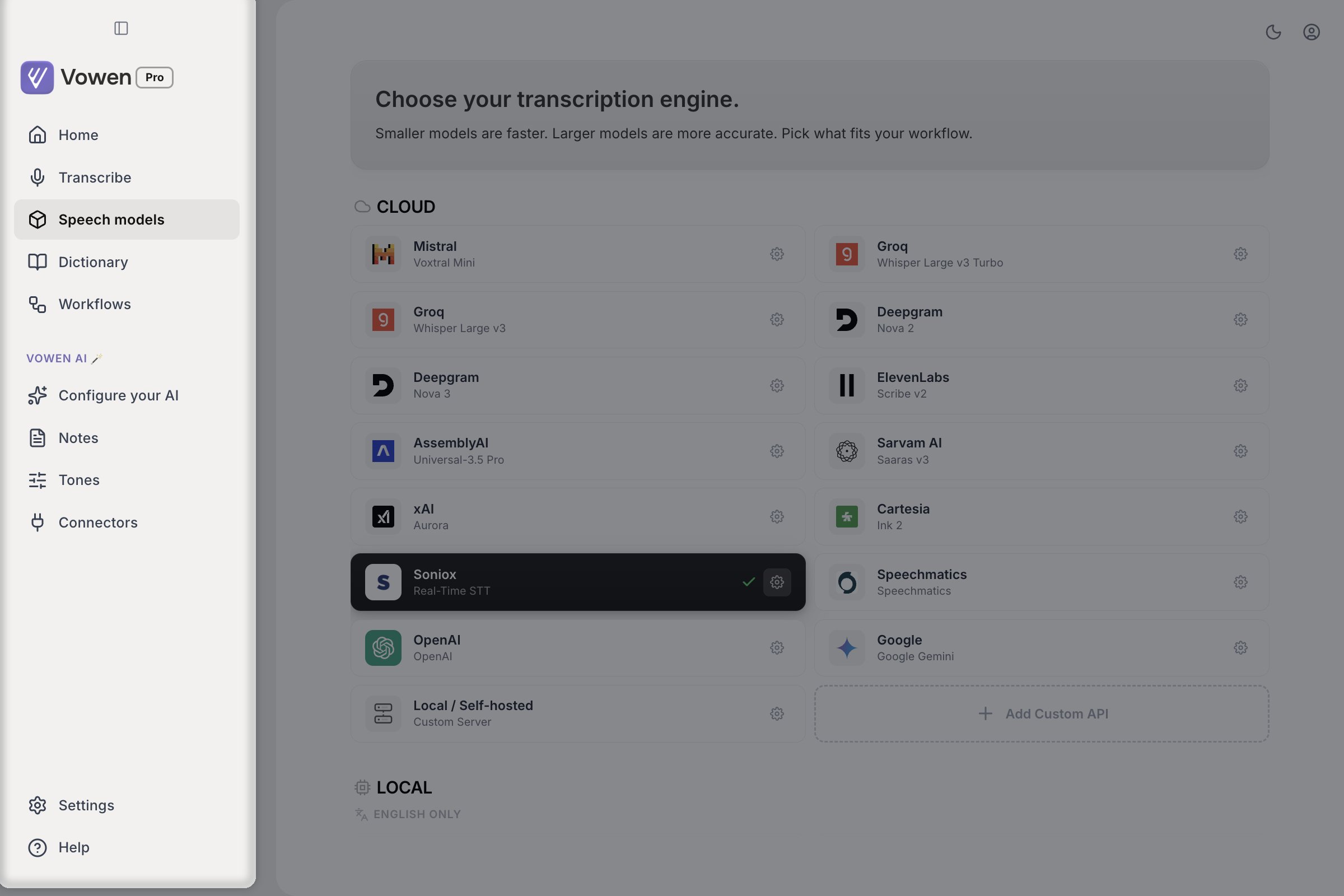
The sidebar runs down the left edge of the window and is always visible.
The Vowen AI group
Below the primary items, under a “Vowen AI” heading: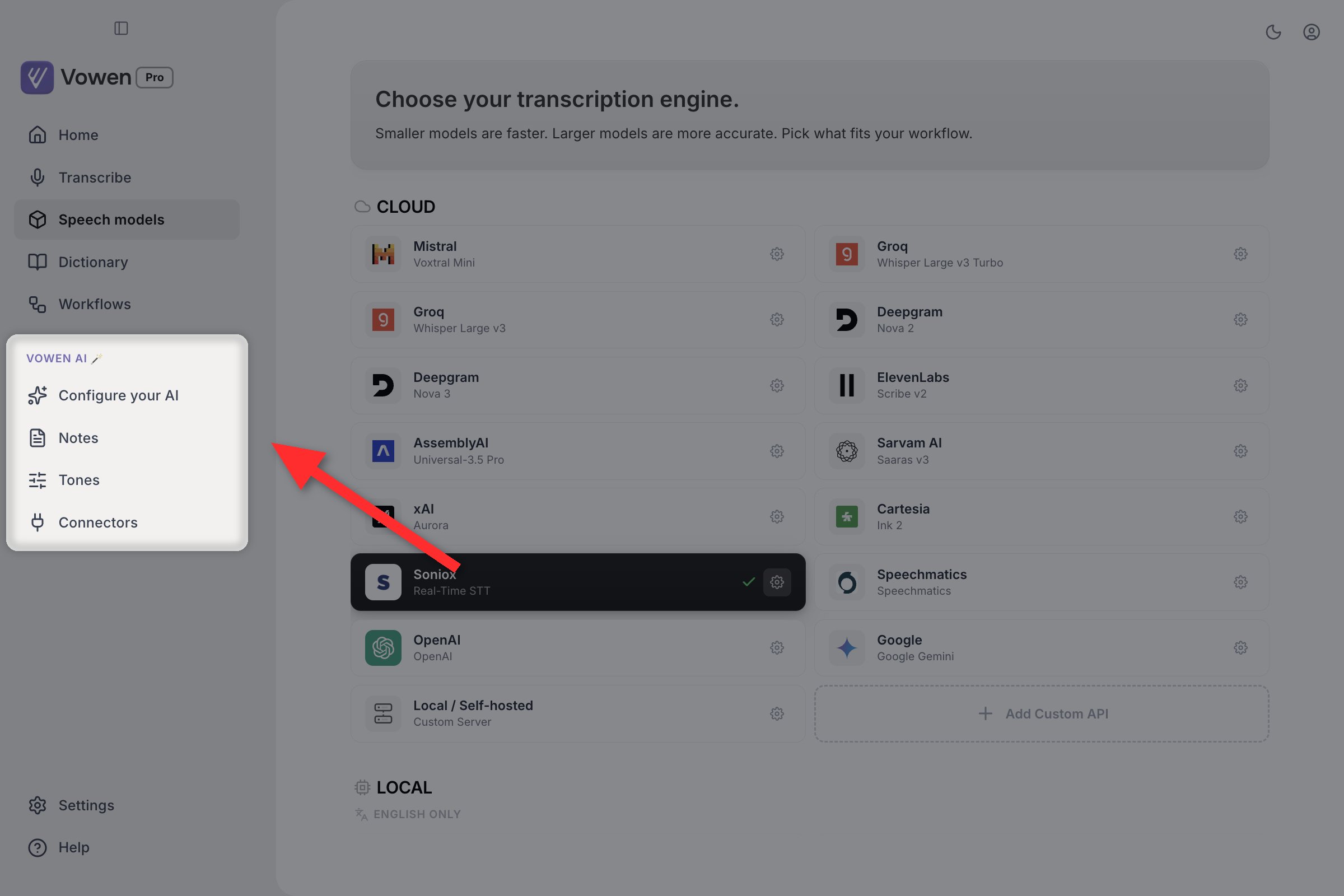
The Vowen AI group sits below the primary pages, under its own heading.
Footer and toolbar
The footer has Settings and Help. Help opens the contact form in your browser. The toolbar in the top right has the active AI provider (click it to jump to Configure your AI), a sun/moon button that toggles light and dark mode, and an account button. PressCmd+K / Ctrl+K anywhere in this window for the command palette.
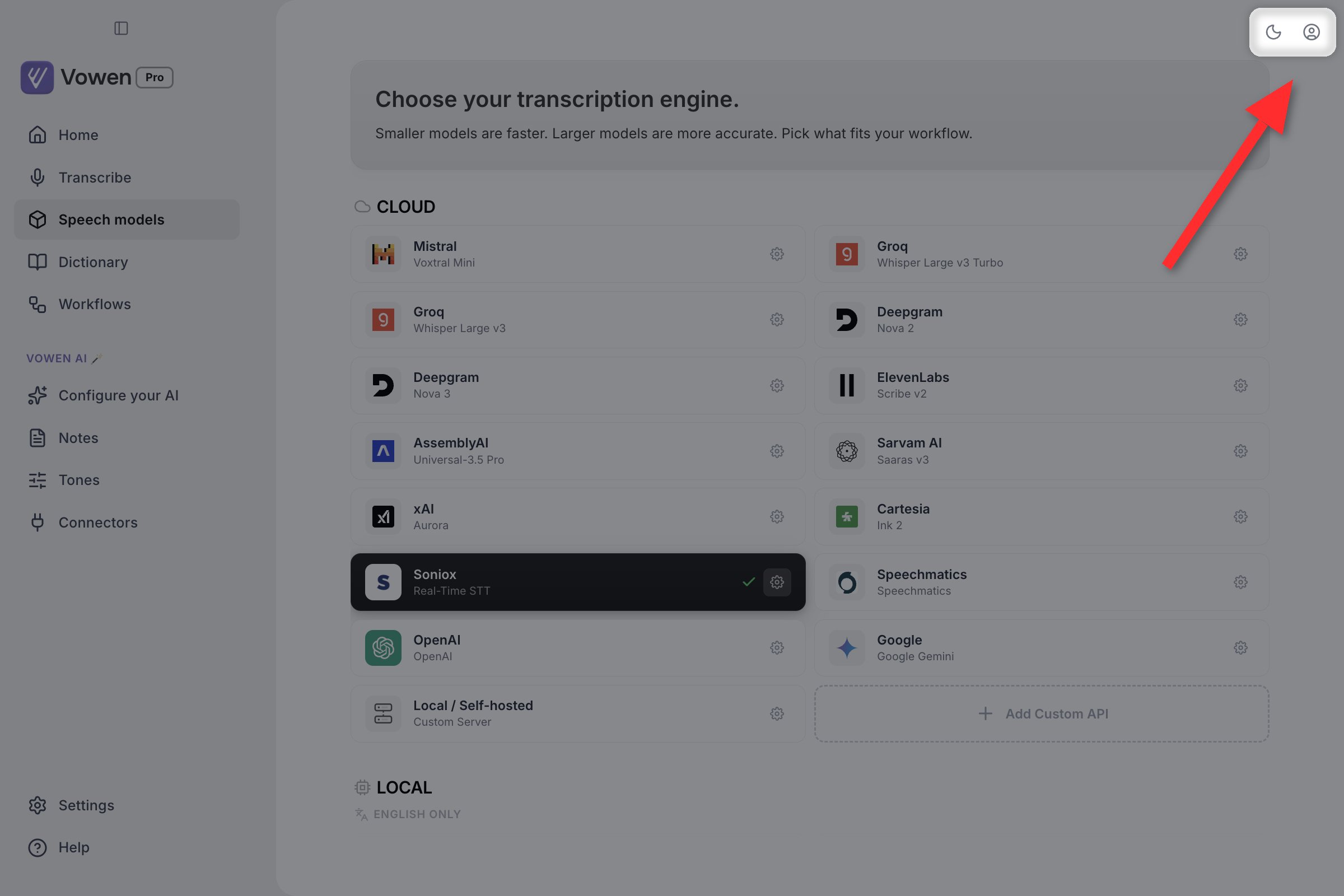
The toolbar sits in the top right: active providers, the theme toggle, and your account.
The Settings modal
Clicking Settings in the sidebar footer opens a modal over the main window with ten sections of its own: Account, General, Audio, Language, Recording, Shortcuts, Sync, Developer, Experimental, Permissions. A search field sits above the section list.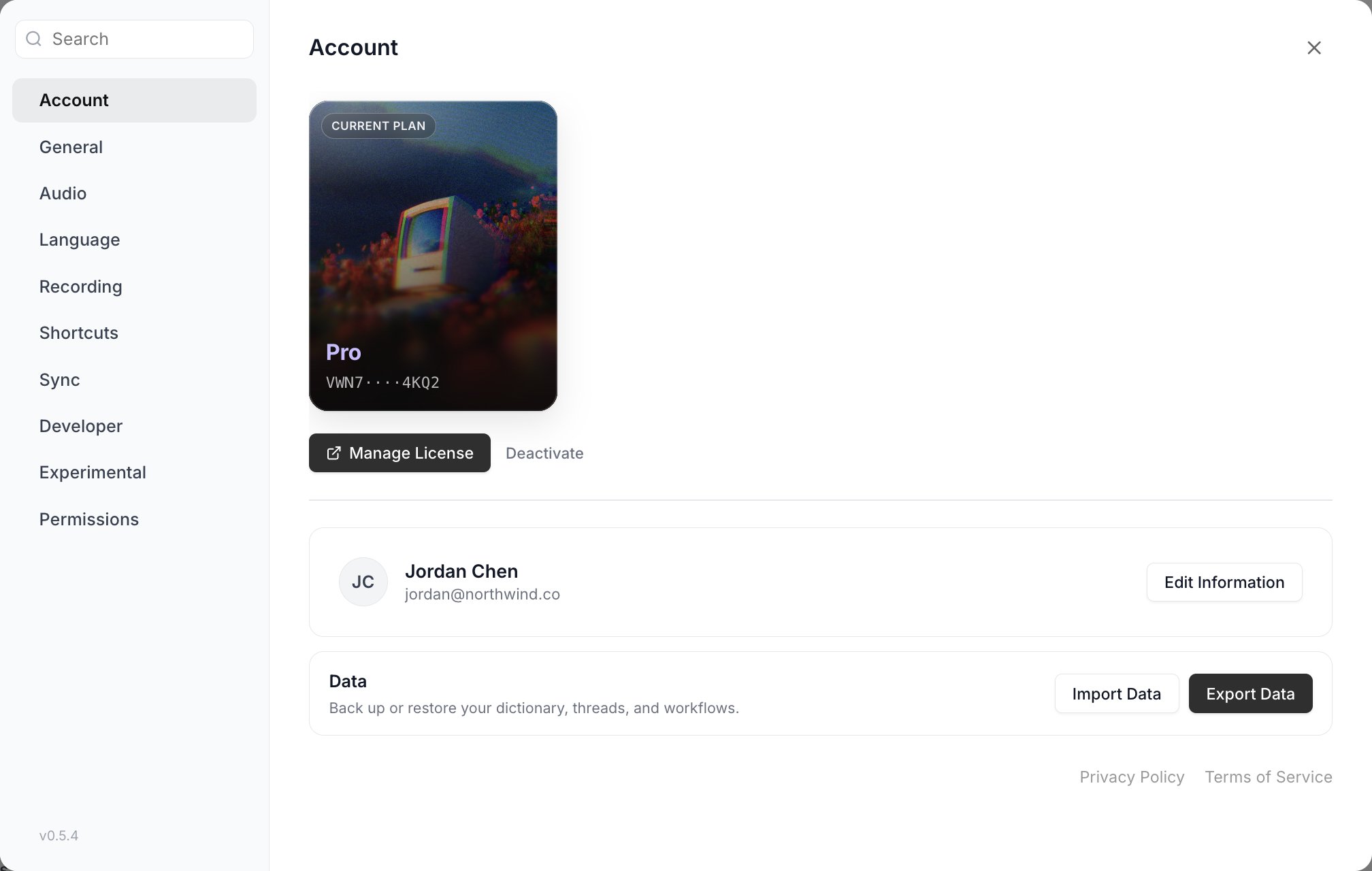
The Settings modal opens over the window, with its own sidebar of sections.
The menu bar and tray
Vowen’s icon lives in the macOS menu bar and the Windows system tray. The menu is a full control surface. It switches models, languages, and microphones, starts and stops meeting notes, opens any sidebar page, and copies your last transcription. The icon itself changes while recording. See Settings for the full menu.Windows Vowen can show
Recording indicator
Recording indicator
A small floating pill that appears while you dictate. It shows a live audio waveform and controls, and it is where errors, the live transcription preview, expansion picker, and various banners appear.On by default, anchored to the top of the screen. Change it in Settings > Recording > Recording Indicator Position, which offers Top, Bottom, or Don’t show.See Recording indicator.
Notch indicator (macOS)
Notch indicator (macOS)
An alternative to the pill that hangs the indicator from the notch area instead of floating over your work. It is a native panel rather than a web view, so it draws its own toasts and menus.Opt-in. Switch to it in Settings > Recording > Indicator style. Macs without a physical notch get an equivalent bar centered at the top.
Idle pill
Idle pill
A minimized bar pinned to the edge of your screen while you are not recording. Hover it and it expands so you can start a dictation, pick a tone, or start a note without touching a shortcut.Off by default. Turn on Show idle pill in Settings > Recording. It shares a window with the recording indicator, so it hides as soon as you start recording.
Meeting indicator
Meeting indicator
A floating card that appears while a meeting note is recording. Compact by default, it expands on hover to show the note in progress, with pause, resume, and mark-important controls. Drag it anywhere; Vowen remembers where you put it.On by default while recording notes. Turn it off in the notes settings, under Recording Defaults.See Recording meetings.
Meeting panel
Meeting panel
A wide card with Ask, Notes, and Transcript tabs, opened with
Cmd+\ on macOS or Ctrl+\ on Windows while a meeting is recording. It is content-protected, so it does not appear if you are sharing your screen.Available whenever the meeting indicator is enabled. Press the shortcut again or Esc to close it.See Meeting panel.Region capture overlay
Region capture overlay
A full-screen overlay that appears when you start Command Mode, letting you click and drag to grab a specific area of the screen as context instead of sending your whole display. It stays open so you can grab several regions, and it punches holes around the recording indicator and the meeting pill so those stay clickable.Off by default. Turn on Drag to capture region in Configure your AI. Press
Esc to dismiss it.See Command Mode.Fill-in prompt
Fill-in prompt
A small input window that appears when you trigger a text expansion containing
{{variable}} placeholders. Fill in the values and the finished text is inserted where you were typing.It appears only for expansions you have written variables into. Esc cancels and leaves your typed trigger alone.See Text expander.Timer
Timer
A small draggable pill with a countdown, controls to pause and stop, and a chime when it finishes. It appears when you ask for a timer by voice through Command Mode, and tears itself down a few seconds after the countdown ends.See Voice Shortcuts.
Banners and prompts
These do not get their own window. They appear inside the recording indicator or the main window.Related
Settings
Every section of the Settings modal
Recording indicator
Position, style, and what it shows
Shortcuts
Every shortcut Vowen listens for
Privacy and data
What leaves your machine