Choose an input device, rank your microphones so Vowen falls through to the next one, and give meetings their own order.
Vowen stores a ranked list of microphones rather than a single pick. At the start of every recording it opens the highest-ranked microphone that is actually connected.
Settings > Audio has a single Microphone row. The line underneath it shows the microphone a recording started right now would actually use, and the Change button opens the picker.
Audio is one row. The line under it names the microphone a recording would actually use right now.
The picker opens in select mode:
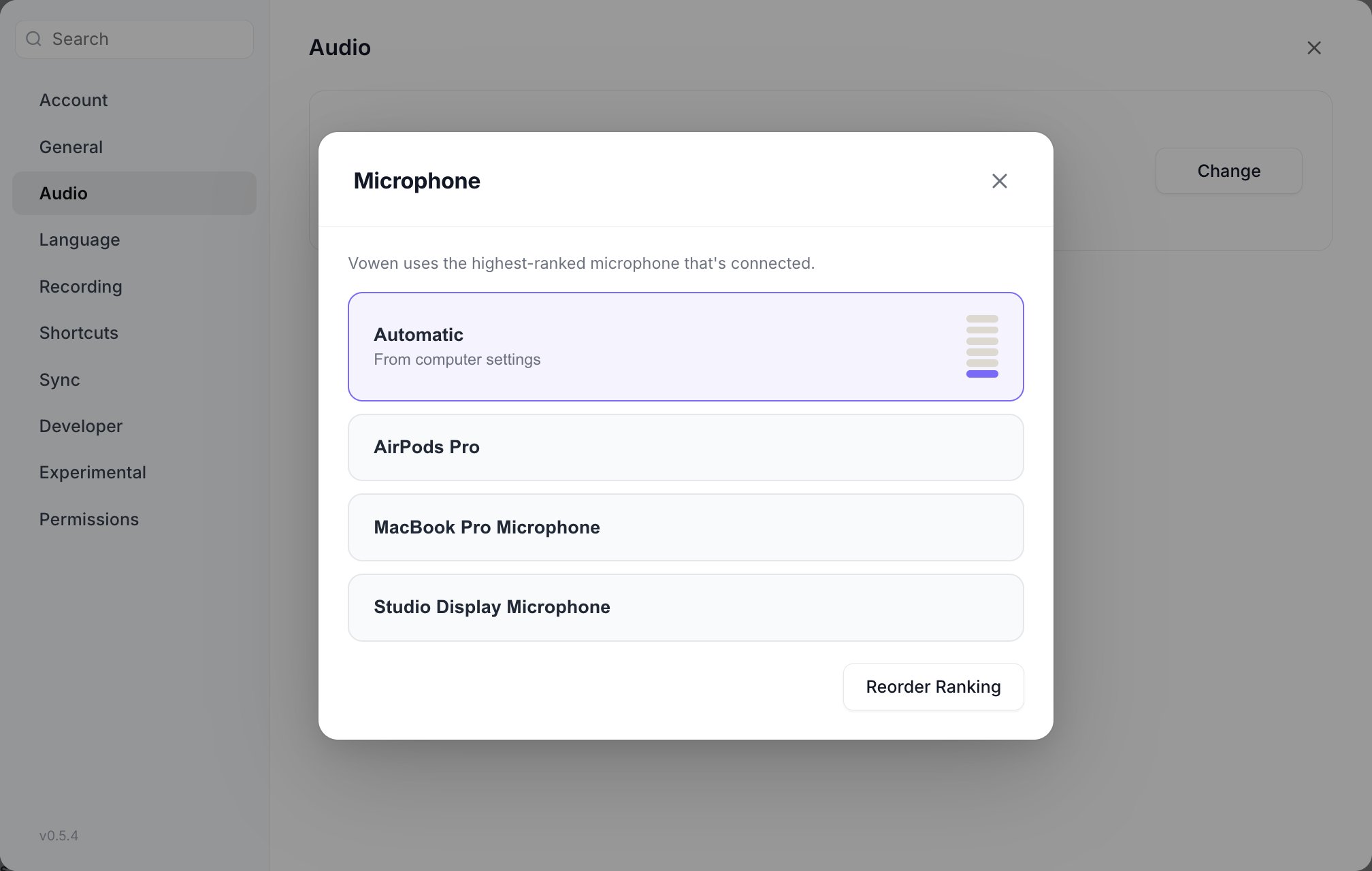
It lists your ranked microphones in order, plus an Auto-detect row.
Only microphones that are currently plugged in are listed. A mic you own but have not connected is hidden here, so you can only pick hardware that is really there.
The row Vowen would use right now is highlighted and shows a live input meter, which is the quickest way to test a microphone. Speak and watch the segments light up. Selecting a different row moves the meter to it, so you can compare devices before committing.
Tapping a row makes that microphone your top choice. It does not wipe the rest of your ranking. Everything else keeps its relative order underneath, and microphones that happen to be unplugged right now keep their ranks too.
Change opens the picker. The row Vowen would use right now carries a live level meter.
Click Reorder Ranking in the picker footer to switch to reorder mode. The button is only enabled once there are at least two rows to order.
1
Open the editor
Settings > Audio > Change, then Reorder Ranking.
2
Put them in order
Drag rows by the handle, or use the up and down arrows on each row. The top row is your first choice.
3
Remove mics you no longer own
Reorder mode also shows every microphone you have ever ranked, including disconnected ones, greyed out. Those rows carry a delete button. Connected microphones cannot be deleted, because they would immediately reappear on the next device scan.
4
Commit
Click Done Editing. Edits are held in a draft until then, so an abandoned drag never lands in your settings.
Reorder mode. Solid rows are connected; greyed rows are microphones you have ranked before that are not plugged in right now, and only those carry a delete button.
At the start of every capture, Vowen walks the ranking from the top and takes the first entry that is available.
Auto-detect is a row, not a mode
Auto-detect means “if nothing above this is connected, let the operating system choose”. Because letting the OS choose always succeeds, Auto-detect terminates the chain, and anything ranked below it can never be reached. The reorder editor shows it as an ordinary draggable row for exactly this reason, so you can see what it cuts off.
If none of your ranked mics is connected
When the ranking contains no Auto-detect row and none of the ranked microphones is present, Vowen falls back to the single microphone you had picked before you built a ranking. If that is missing too, the usual “device not found” handling takes over.
If the ranking is empty
An empty ranking uses your saved single pick. Every user starts here, and nothing changes until you commit an order in the editor.
If Vowen cannot see your devices
An empty device list means “unknown”, not “nothing plugged in”. Device enumeration legitimately comes back empty while the audio recorder is restarting, or when a USB hub is re-enumerating. Vowen never reads that as “your microphone is gone” and never rewrites your ranking because of it.
The chain is handed down, not just resolved once
Vowen passes the whole ordered list to the audio recorder, which checks it against its own fresh device scan when it opens the stream. A microphone that disappears in the moments between resolution and opening still falls through to the next rank instead of silently landing on the system default.
Reordering takes effect on the next recording. Nothing switches devices in the middle of a session.
Microphones are matched by the device name your operating system reports. Two devices that report the same name are indistinguishable to the ranking.
Meetings normally follow the same ranking as everything else, but they can have their own.The control is in the Notes settings, under Recording Defaults, on the Microphone row. While meetings are inheriting, the row shows the microphone in effect labeled as the global default, with a single Customize button.
While meetings inherit, the Microphone row names the mic in effect and marks it as the global default.
1
Customize
Clicking Customize forks a copy of your global order for meetings. The picker then shows a standing note saying the list was copied from your global order and that later changes to the global list will not affect meetings.The button is disabled until Vowen has finished scanning your audio devices, so the fork can never capture an empty list.
2
Edit order
Once meetings own a ranking, the row offers Edit order instead. It opens the picker straight into reorder mode, scoped and titled for meetings, so disconnected entries are visible and deletable.
3
Use global
Use global hands meetings back to the global ranking. It asks for confirmation first, because your custom meeting order is discarded.
Once meetings own a ranking, the single Customize button becomes two: Edit order and Use global.
The meetings preference stores one of two things, and they are never collapsed together:
Stored value
Meaning
Nothing (null)
Meetings follow the global ranking, live. Editing the global list changes what meetings use.
A list
Meetings use their own ranking. The global list no longer affects them, even if the two lists happen to be identical.
The two-step UI exists to keep those states apart. A copy that currently matches your global order diverges from it the moment you edit the global list, so “follows global” has to stay a different state from “a copy that looks the same today”.
An empty meetings ranking is a real override, not an absence. It means “let the operating system choose for meetings”. Reverting to the global order clears the preference entirely rather than saving an empty list.
Once meetings own a ranking, there is no fallback to your old single microphone pick. The meetings chain resolves against its own entries only.