
- Share a note as a file you drag into another app, or as a public link anyone can open.
- Export a summary, transcript or audio recording to a file in the format you choose.
- Export several items at once into a single ZIP file.
Exporting and public links are Pro features. On the free plan, the share and export sheets show Upgrade to Pro instead.
The share sheet
Coming in the next update.
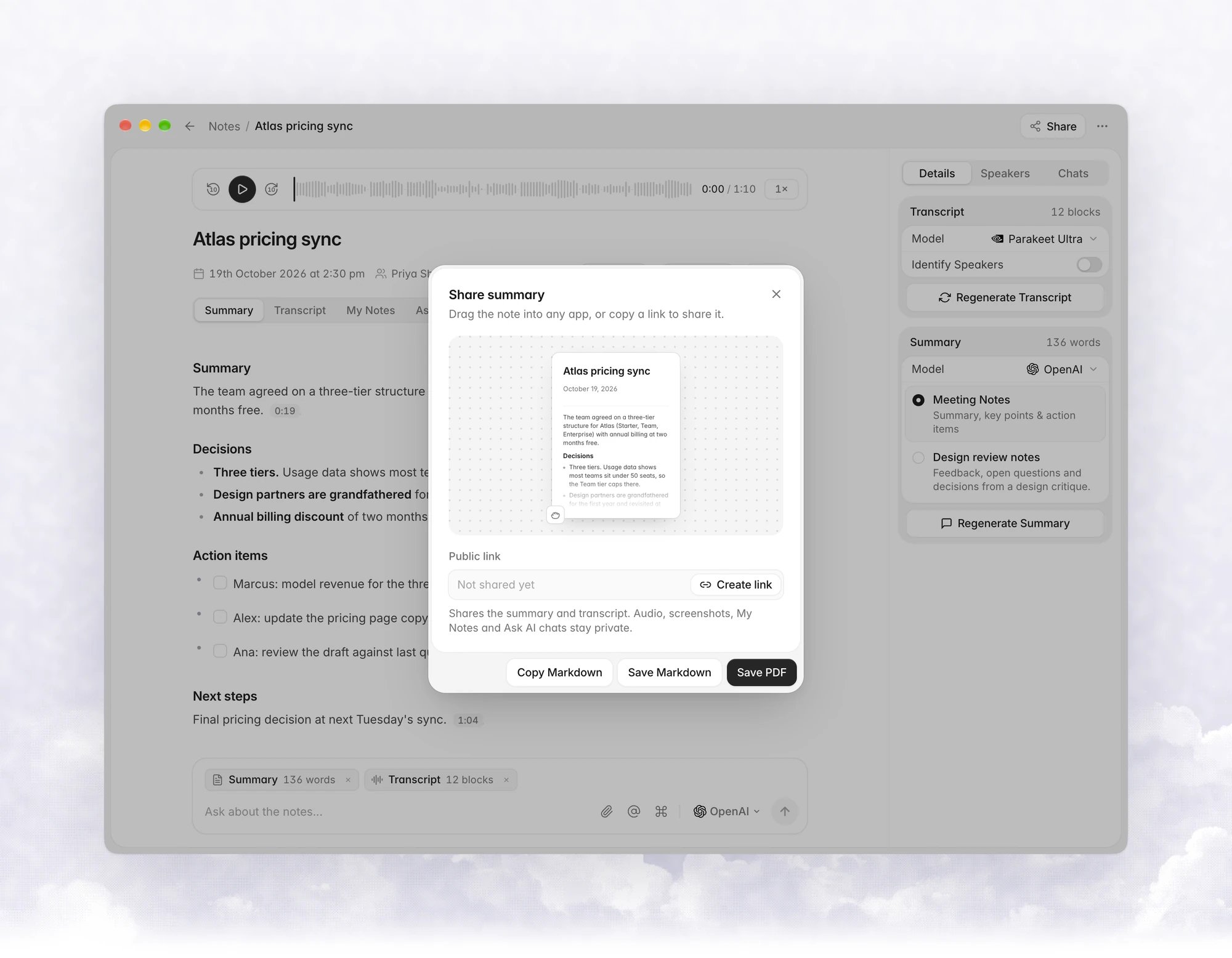
- Drag the card into any app (Mail, Slack, Finder, a document) to drop the note in as a PDF. If the PDF can’t be prepared, the sheet says “Couldn’t prepare the PDF. You can still save it below.”
- Copy Markdown copies the note as Markdown.
- Save Markdown and Save PDF save it as a file.
Public links
A public link publishes a note as a web page athttps://share.vowen.ai/n/<id>. Anyone with the link can read it. They don’t need Vowen or an account.
The page shows the note’s title, date, length and speakers, then the summary and the transcript in two tabs. Visitors can copy the link, copy the text, and switch between light and dark. Search engines are told not to index it.
How to create a public link
Until the next update, Share opens a dialog titled Share this note that lists what gets shared, and the button reads Create public link. The steps are otherwise the same.
1
Open the note
Go to Notes and open the note you want to share.
2
Click Share
The share sheet opens. The Public link field reads Not shared yet.
3
Click Create link
Vowen publishes the note, copies the link to your clipboard, and shows “Public link created and copied”.
What is published
Only these parts of a note are sent:
The sheet sums this up as “Shares the summary and transcript. Audio, screenshots, My Notes and Ask AI chats stay private.” The server checks the same list again before it stores anything.
Update a shared note
A note keeps one link for its whole life. Edits you make in the app don’t reach the page on their own. After you edit the summary, rename a speaker or change tags, open the share sheet and click Update. The same link shows the new version straight away.Delete a link
Click Delete link, then click again to confirm (Click again to confirm). The sheet closes and Vowen shows “Public link deleted”. The note and its preview image are removed from the server immediately. The link then shows “This link was deleted”. After 30 days the record is removed entirely. If you share the same note again later, it gets a new link. The old link stays dead. Deleting a link doesn’t change the note in Vowen. Live links don’t expire. They stay up until you delete them.Across your devices
The link is stored with the note and travels with Cloud Sync, so a note you shared on one computer shows as Shared on another. Each time you open the share sheet, Vowen checks whether the link is still live. If you deleted it from another device, the note stops showing it.Limits
Export a note or transcription
Open a note or transcription, open More options (…) and choose Export. The sheet starts with What to export:- Notes: Summary, Transcript and Audio recording.
- Transcriptions: Transcript only.
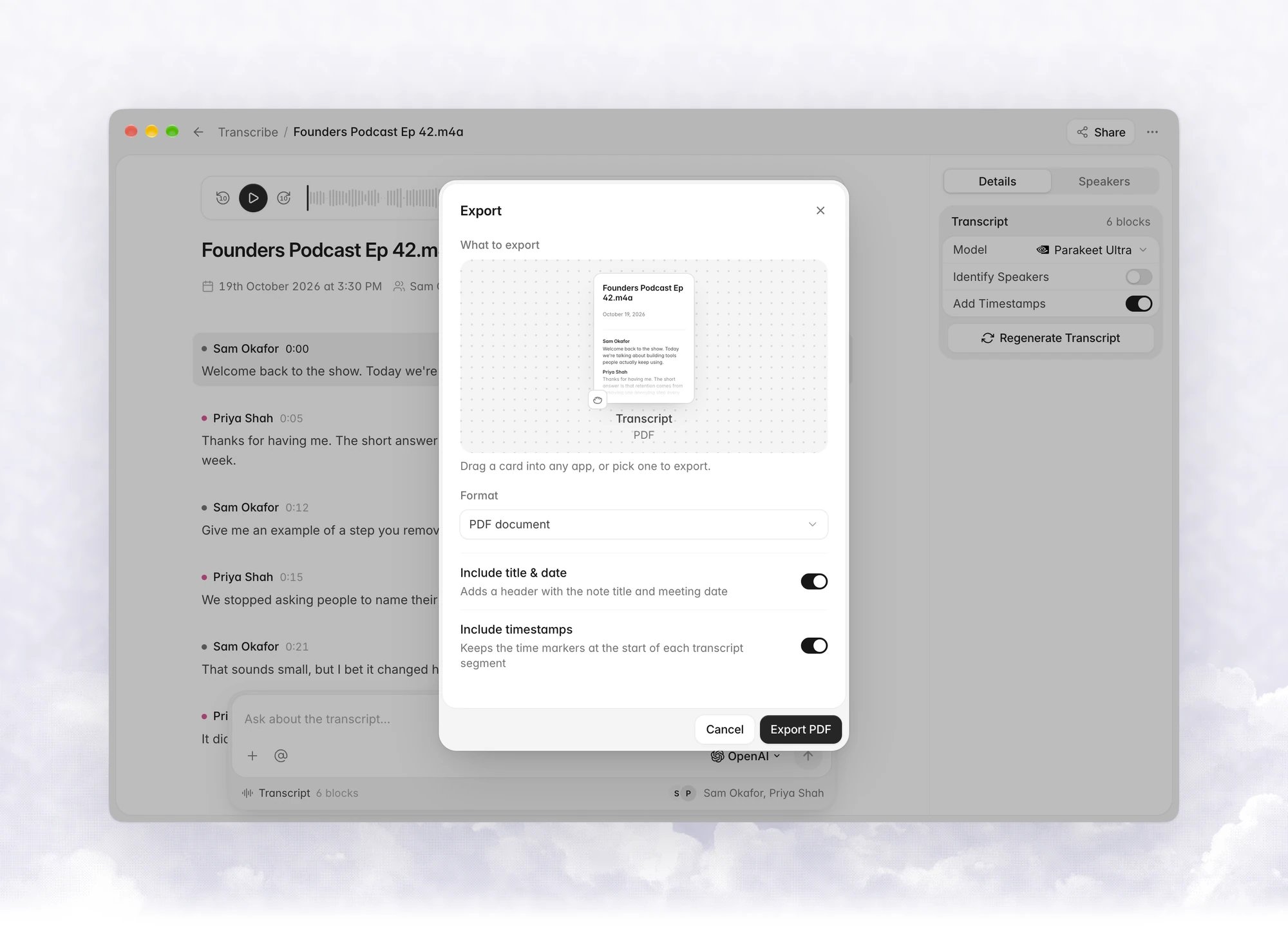
Formats
Subtitle formats appear only when the transcript has per-segment timing. Each spoken segment becomes one caption, with the speaker’s name when there is one.
Options
Audio
The Audio recording card exports the note’s recording as MP3, M4A (AAC) or WAV (lossless). For MP3 and M4A, choose a Quality: High — 256 kbps or Standard — 128 kbps. The sheet shows the length and an estimated file size.Drag a card instead
Coming in the next update.
Export several items
On the Notes or Transcribe page, select items with their checkboxes, then click Export in the bar at the bottom.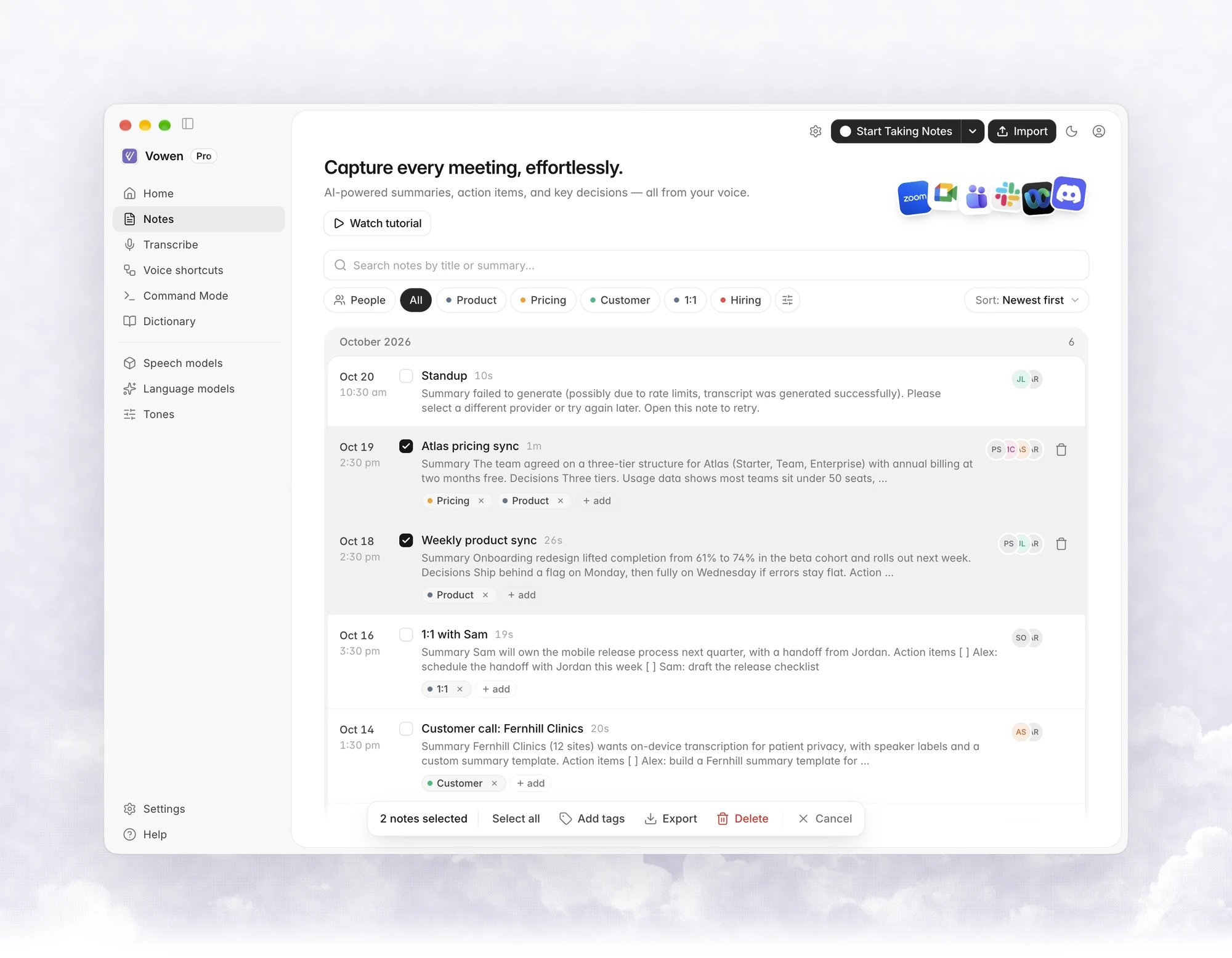
- Notes: choose Summary, Transcript or both.
- Transcriptions: the full transcript of each one.
- Format: Markdown (.md), Plain text (.txt) or PDF document. SubRip and WebVTT are offered when at least one selected item has timing. Items without timing are skipped: “Only of selected … have timestamps — the rest will be skipped.”
- Include timestamps keeps or removes the time markers in transcripts.
Coming in the next update: each card in the bulk sheet can be dragged out as a ZIP of just that part. PDF cards can’t be dragged for more than 25 items.
Export all notes
To save every note at once, open Notes › Notes settings › Integrations and click Export… on Export all notes (“Save every note as a ZIP archive”). Choose Summary (summary.md), Transcript (transcript.md) or both, then export.
More options on a note
The More options menu on a note also holds Open Recording, Show in Finder, Copy, and Delete, plus Send to webhook and Sync with Obsidian when those integrations are set up. See Webhooks and Obsidian.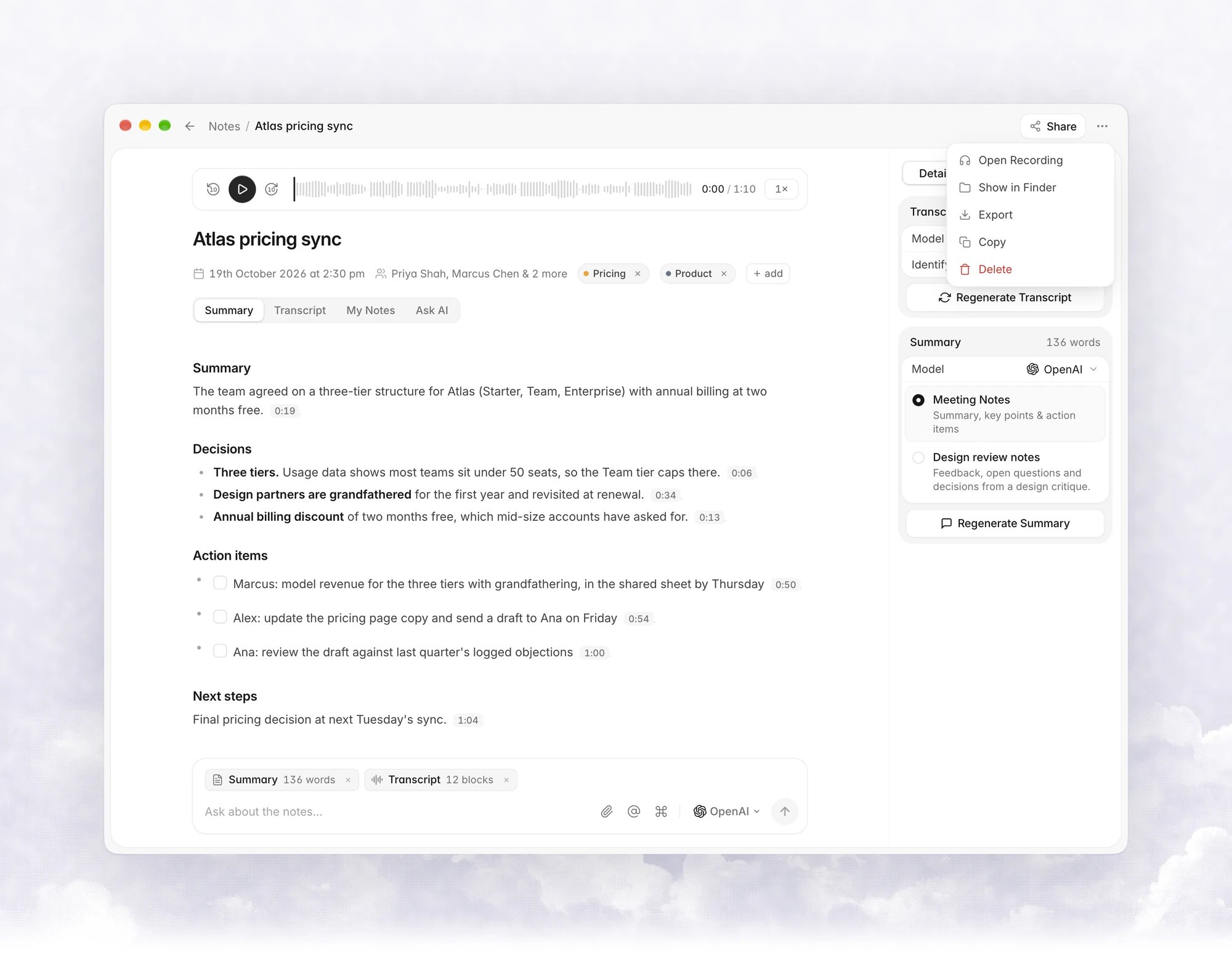
Troubleshooting
"No active licence found" or "Your licence could not be verified"
"No active licence found" or "Your licence could not be verified"
Open Settings › Account and check that your licence is active, then try again.
"Could not check your licence right now"
"Could not check your licence right now"
The licence check failed for a moment. Wait and try again. Nothing was published.
A link preview in Slack or iMessage shows a generic card
A link preview in Slack or iMessage shows a generic card
Vowen makes a preview image for each note. If it couldn’t be made, the page uses a generic Vowen image. Click Update to try again.
SRT and VTT aren't in the Format list
SRT and VTT aren't in the Format list
The transcript has no per-segment timing. Regenerate it with a model that returns timestamps.