
Coming in the next update.
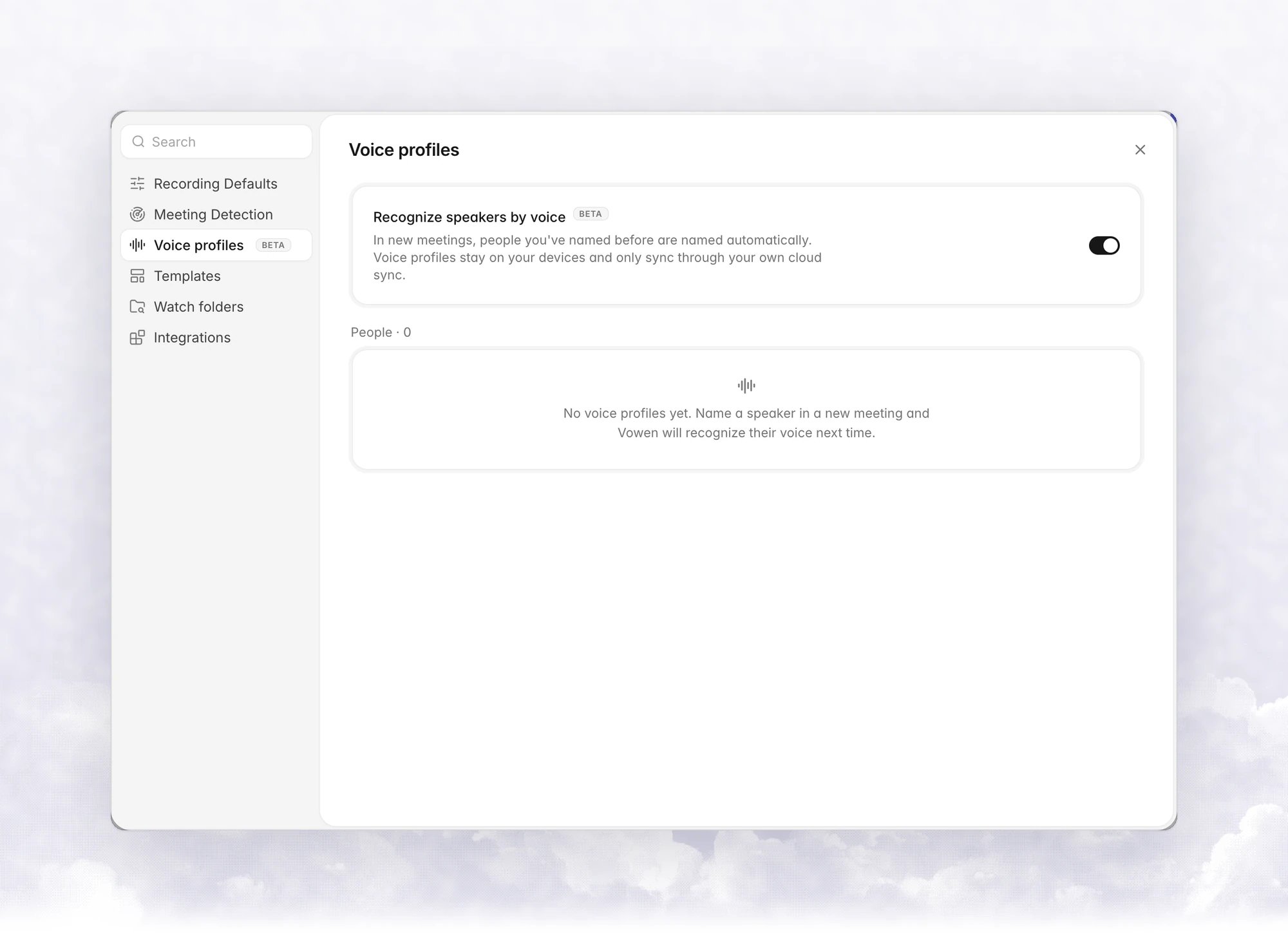
Turn it on
Open Notes › Notes settings › Voice profiles and turn on Recognize speakers by voice. It is on by default for Pro users. Only notes and transcriptions made after the feature is on take part. Older items are left as they are.Teach Vowen a voice
1
Record or transcribe with speakers on
Use Identify Speakers in a meeting note or on the Transcribe page.
2
Name the speakers
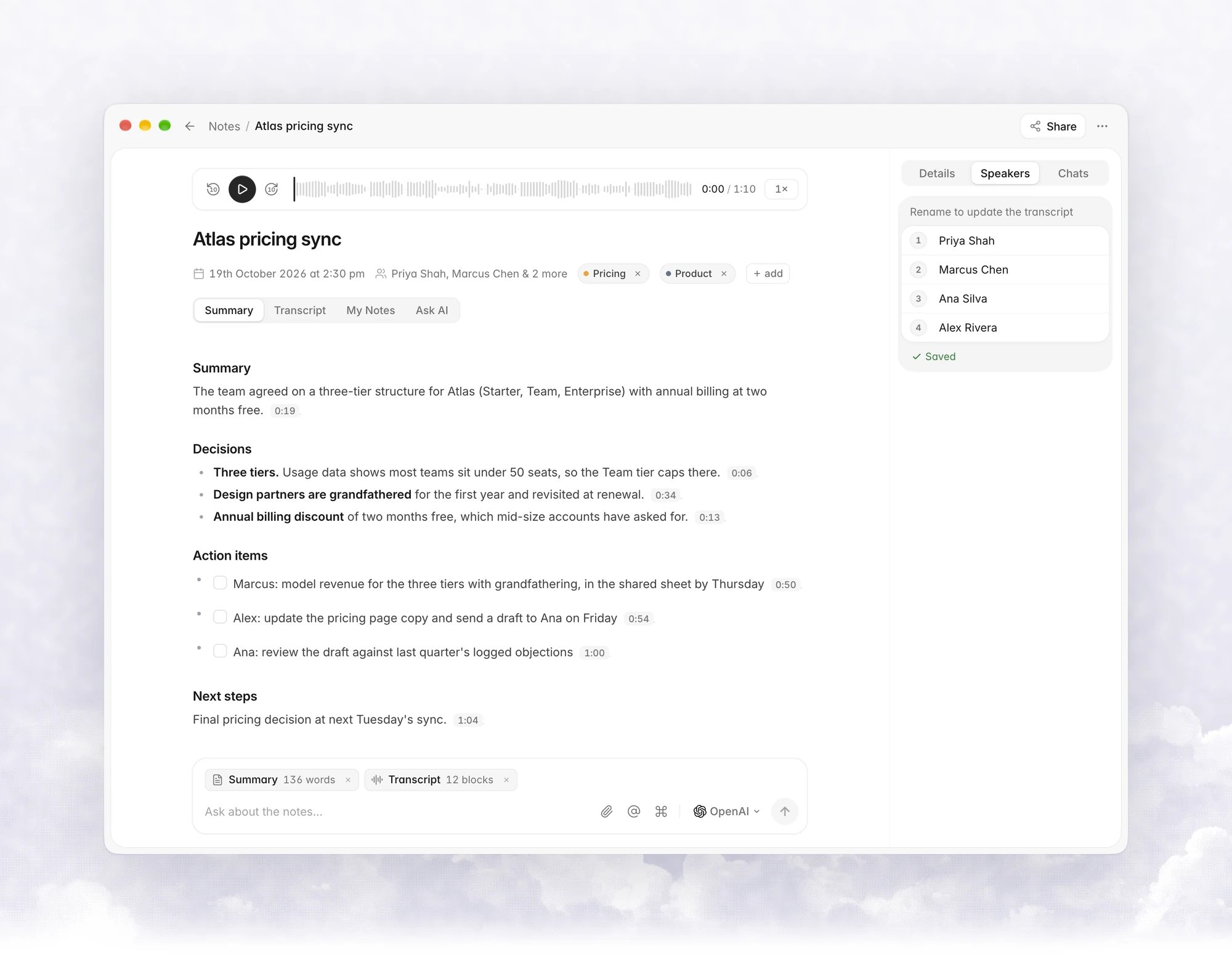
On the inspector’s Speakers tab, type each person’s name and click Save Changes.
3
Vowen learns the voice
A speaker needs at least 6 seconds of speech in that recording to be learned.
In a new meeting
After the transcript is ready, the Speakers tab shows Recognizing voices… while Vowen compares each speaker with your profiles.- Named automatically: when the match is strong, the name is filled in. A voice icon next to it reads “Recognized by voice. Rename if it’s someone else.”
- Suggested: when the match is weaker, the speaker shows a ”?” chip. Click the check (“Yes, this is ”) to accept or the X (“Not ”) to reject. A rejected name is not suggested for that speaker again.
- Not matched: the speaker keeps its
Speakerlabel.
Manage people
The People list under the toggle shows everyone Vowen has a profile for, with how many meetings they appear in and when they were last heard. Three bars show how well Vowen knows each voice:
Click a name to see the meetings its voice was learned from. Each shows whether it was recognized automatically or named by you, and on another device when the item is not on this computer. Click Not on an automatic match, or Remove on one you named, to take that sample out of the profile.
The … menu on each person has:
- Rename: changes the profile’s name.
- Merge into…: combines two profiles of the same person. Their voice samples are combined, and speakers still named after the first profile in recent meetings take the second name.
- View meetings: same as clicking the name.
- Delete profile: Vowen stops recognizing that person. Names already in your notes stay.