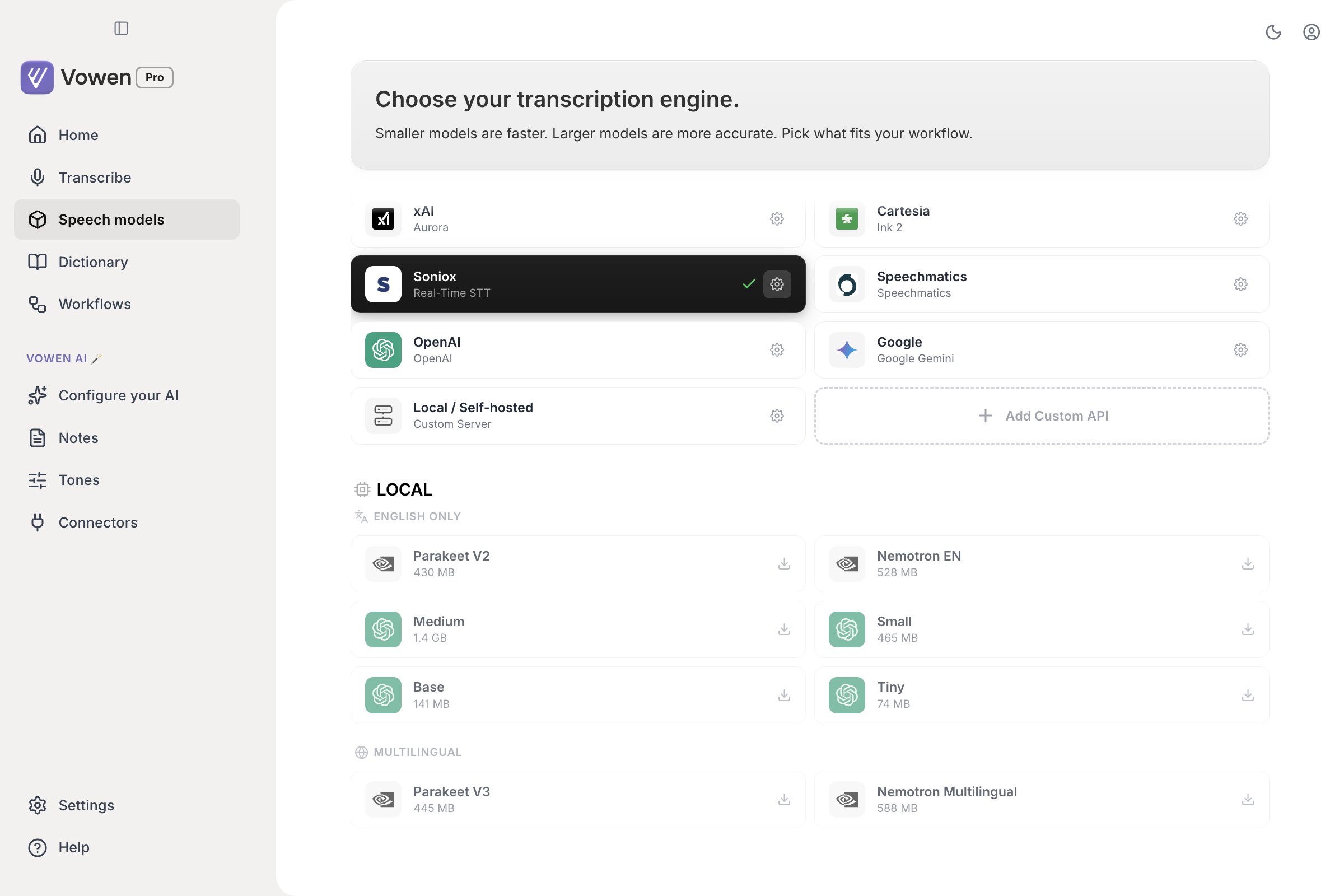
Vowen offers you a model to download during onboarding.
Platform
Offered
Default
macOS
Parakeet V2 or Parakeet V3
Parakeet V2, marked Recommended
Windows
Parakeet V2 or Parakeet V3
Parakeet V2, marked Recommended
Linux
Whisper models
Base
Parakeet V2 is English-only and the fastest of the family. If you speak anything other than English, expand the Parakeet V3 card in the same step and pick that instead: it auto-detects across 25 European languages.You can change your mind at any time from the Speech models page in the sidebar.
Click Speech models in the left sidebar. Local models are listed under English Only and Multilingual.
2
Browse
Each card shows the model’s name and download size. A card you do not have yet carries a download arrow on the right.
3
Download
Click the card. The whole card is the button, and the download starts straight away, so there is no confirmation step to catch a mis-click. Progress replaces the logo with a ring.
Clicking a model card you have not installed begins the download immediately. On Large v3 that is 1.5 GB. Check the size on the card before you click.
While a model downloads, a progress ring replaces its logo. Click the square in the middle to cancel.
4
Start using it
The model is selected automatically once the download finishes.
The Local section, split into English Only and Multilingual. Installed models show a tick or a delete icon; the rest show a download arrow.
On corporate or restricted networks, in-app downloads can fail with a certificate error. See Manual Model Installation for how to download models in your browser and install them yourself.
The first time a Parakeet or Nemotron model runs on your Mac, it is optimized for your specific chip. This is a one-time cost per model, and it is why an otherwise instant model appears to hang the first time.
It takes roughly 20 seconds, and noticeably longer the very first time you ever run one.
While it runs, the indicator shows “Optimizing Parakeet model — first-run optimization for your device.”
A dictation you start during optimization is saved, not transcribed. Vowen keeps the audio and adds a row to your Voice Log reading “Transcription pending — model is optimizing”. Once optimization finishes, open that entry’s menu and choose Retry transcript. Nothing is lost, but the text will not appear in your app until you do.
After the first run the model stays warm in a background service, so ordinary dictations pay no load cost at all.
If you use Parakeet on macOS, there is a model in your models folder you never asked for.Parakeet V2 and V3 need a separate end-of-utterance streaming model to power the live transcription preview. It is about 200 MB, and Vowen downloads it quietly in the background after the batch model finishes. It is deliberately kept out of the visible download progress so the bar reflects the model you actually picked.
It is shared. V2 and V3 use the same weights, so having both installed does not download it twice.
It is removed automatically when you uninstall your last Parakeet model.
Parakeet Japanese and Mandarin do not use it, so installing only those never pulls it down.
It is macOS only.
If you are auditing disk use and find a parakeet-eou-streaming folder you do not recognize, that is what it is.
Click the delete icon on a downloaded model’s card to free up disk space. You can re-download it later.The icon only appears on models you are not currently using, so the active model cannot be deleted by accident. To remove the one you are on, switch to another model first and the delete icon appears on the old one.
Add roughly 200 MB on top if you have any Parakeet V2 or V3 installed on macOS, for the streaming model above.
Parakeet ships a different build on each platform, which is why the download sizes differ. Parakeet Japanese, Parakeet Mandarin and both Nemotron models are macOS only and do not appear on the Windows list at all.
Local Whisper transcription on Windows can be accelerated with an NVIDIA GPU.Requirements:
Windows only. Macs need nothing extra; Linux is not supported.
An RTX 2000 series or newer NVIDIA GPU. AMD and Intel GPUs are not supported.
About 631 MB of disk for the CUDA module. You do not need to install the CUDA toolkit separately.
1
Find the card
Scroll to the bottom of the Speech models page. The GPU Acceleration section only appears when Vowen detects a supported GPU, so if you cannot see it, your card is not eligible.
2
Download
Click the download button on the NVIDIA CUDA card. The card shows progress in MB and can be canceled.
3
Restart Vowen
The card then reads GPU active · RTX 2000+. You can remove the module later with the delete button next to it.
With GPU acceleration, even Whisper Large v3 responds in a couple of seconds.
On a constrained machine, enable Resource Efficient Mode at the bottom of Settings > General. Vowen then runs the model as a one-shot process instead of keeping it resident: lower memory use, slightly slower transcription.The row is hidden when it cannot do anything. That means with a cloud model selected, and with Parakeet on macOS, which has no one-shot path.
Cloud models need no download and use no local disk. Sign up with the provider, generate an API key, and paste it into Vowen.
1
Pick a provider
Open Speech models and choose one from the Cloud section.
2
Get an API key
Use the link in the panel to open the provider’s dashboard. Groq, Deepgram, AssemblyAI, Gemini and others have free tiers that cover ordinary use.
3
Connect
Paste the key and save. The model is ready immediately.
Connect as many providers as you like and switch between them at any time. See Models & Engines for what each one offers.Have a question about downloading or connecting models? See the Models FAQ.