
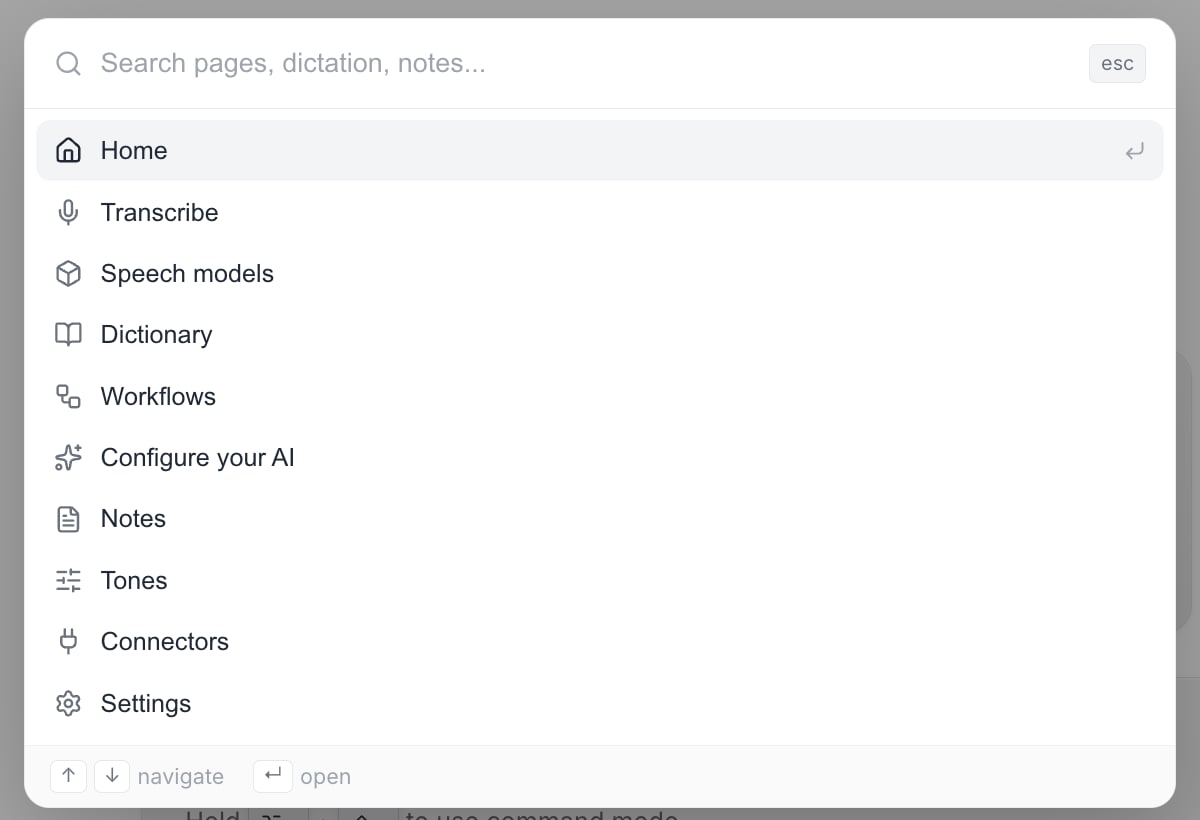
With the box empty, the palette lists every page in the app. Arrow keys move, Enter opens.
Jumping to a page
Open the palette and press Enter on any row, or use ↑ and ↓ to move first. With nothing typed, every page in the app is listed: Home, Transcribe, Speech models, Dictionary, Voice Shortcuts, Configure your AI, Notes, Tones, Connectors, Settings. Two rows are conditional. Connectors only appears when you have turned Connectors on in Settings > Experimental. Choosing Settings opens the settings modal rather than a page.Aliases
Each page carries a list of aliases, so typing what you actually call the thing finds it even when that is not the sidebar label.
So typing
api key finds Configure your AI, and typing voice log finds Home.
Page rows are ranked in three bands: a page whose label starts with what you typed comes first, then a page whose label merely contains it, then an alias-only match. That is why typing no puts the Notes page above any individual note.
Searching your content
Once there is a query, three more groups can appear below Pages:Dictation
Dictation
Everything in your voice log. Matches against the final text and the original pre-enhancement text. Command Mode entries are matched across every refinement turn in the thread, not just the last one, so a phrase you later refined away still finds the conversation. Meeting notes are excluded from this group, because they have a group of their own.
Notes
Notes
Your meeting notes. Matches the note title, the summary, and the full transcript.
Transcribe
Transcribe
Files you transcribed from the Transcribe page. Matches the filename and the transcribed text. Files still processing are skipped.
acoustic echo finds an entry containing both words without needing the exact phrase. Every result shows you the words you typed, highlighted in the snippet.
Within a group, a hit in a title-like field outranks a hit in the body, and results are otherwise newest first. Each row shows a snippet centered on the first match, plus a compact date stamp on the right: a time for today, “Yesterday”, a weekday for the last week, then a date.
The palette searches your dictation history, meeting notes and uploaded transcriptions. It does not search dictionary entries, threads, expansions, voice shortcuts or tones.
The per-group cap and “Show more”
Each content group shows a maximum of 5 rows. The group header carries the real total, and when there are more than five a row appears at the bottom of the group reading Show N more in Dictation (or Notes, or Transcribe). Selecting that row closes the palette, opens that group’s page, and drops your query into that page’s own search box, where the full result set is waiting. Nothing is silently truncated. The Pages group is not capped.What happens when you pick a result
A note
A note
Opens the Notes page and takes you straight into that note’s detail view.
A transcription
A transcription
Opens the Transcribe page and takes you straight into that transcription’s detail view.
A dictation entry
A dictation entry
The voice log has no detail view, so Vowen opens Home > Voice Log instead, seeds the search box with your query, resets the type filter to All so nothing hides the match, then scrolls to the matching entry and flashes it.
A Show more row
A Show more row
Opens that group’s page with your query already in its search box.
Performance and privacy
Nothing is pre-indexed. A palette you never open costs nothing and stores nothing. Opening it just to jump between pages reads nothing from disk, and your content is only searched once you start typing.Keys inside the palette
Hovering the mouse over a row also selects it.
Related
In-app shortcuts
Every keyboard shortcut for moving around inside the Vowen window.
Voice Log
The history the Dictation group searches.