
Overview
A summary template decides what a meeting note turns into. It carries the prompt the AI is given, and a handful of settings that apply to every recording made with it: which tags the note gets, whether system audio is recorded at all, which language the summary is written in, and whether a summary is generated at all. Vowen ships with one built-in template, Meeting Notes, which everyone gets. On top of that there is a library of 44 ready-made templates you can install and edit, and you can write your own from scratch. Templates live in Notes in the left sidebar, then the gear icon in the toolbar, then the Templates tab.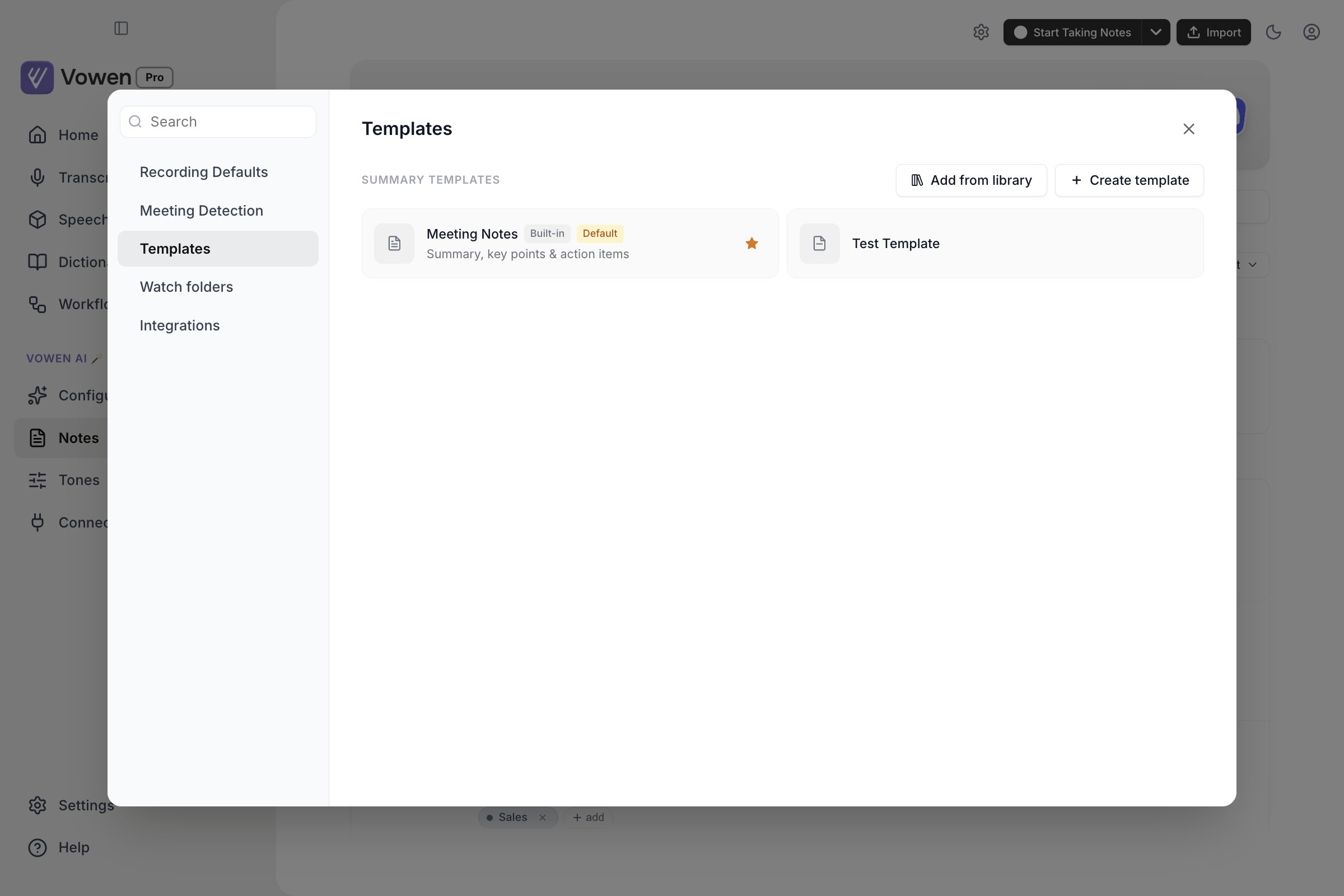
The Templates tab. The built-in Meeting Notes template is marked Default; the star sets which one new notes use.
The template library
Browsing the library is free. Adding a template from it is a Pro feature.
1
Find a template
Search by name, description or section heading. Typing “action” finds the templates with an
Action items section, not just the one called Action Items Only.
2
Preview it
Click any card to see its full section list, each section’s instruction, any caveat the template
carries, and, under View full prompt, the exact prompt it will send.
3
Add it
Click Add to my templates, or Add on the card itself. The template is copied into your
own list, where it is yours to rename and rewrite. Nothing stays linked to the library copy.
What is in the library
The 44 templates cover nine areas:
Some carry their own caveats in the preview. Follow-Up Email Draft writes a ready-to-send email
rather than notes. Clinical Note (SOAP), Therapy Session (DAP) and Legal Client Intake all
say to review the output before using it, because Vowen is not a medical, clinical or legal record
system.
Four of them record your microphone only, with system audio off: In-Person Meeting,
One-on-One, Voice Journal and Doctor’s Appointment. That is flagged in the preview.
Custom templates
Creating your own template is a Pro feature, as is editing one you installed from the library. Everyone can edit the built-in Meeting Notes template.
Writing the prompt
Write the prompt as if the transcript is already in front of the model, because it is. Vowen assembles the request as the title contract, then any context you typed during the recording, then any moments you marked as important, then the transcript, then your prompt under the headingYOUR TASK:. Your
prompt fully replaces the built-in instructions, so it needs to say everything you want.
Every per-template setting
Name and description
Name and description
The name is what you see in the template list, the default-template picker and the meeting
detection banner. The description is a one-line hint shown under it. Names are capped at 60
characters, descriptions at 100.
Capture system audio
Capture system audio
On by default. It records what you hear, meaning the other people on the call, alongside your
microphone. Turn it off for a microphone-only template.This is not a summary setting, it changes what is recorded. Use it for in-person meetings, one on
ones in a room, voice journalling, or anything where capturing your speakers would pick up the
wrong thing. The choice is read when the recording starts, from whichever template that session
is using.
Generate AI summary
Generate AI summary
On by default. Turn it off and recordings with this template save the transcript only, with no
call to your AI provider at all. The prompt box and the summary language row disappear while it
is off, and the template is badged Transcript only in the list.You can still generate a summary by hand on any such note afterwards.
Summary language
Summary language
Three states. Left alone it inherits your global summary language, and the button reads “Use
global default”. Set to Auto-detect it writes the summary in whichever language the
transcript is in. Set to a specific language it always writes that language, whatever was
spoken.Useful for a template you use for calls in one language but need summarized in another.
Prompt
Prompt
The instructions sent with the transcript. Only shown when Generate AI summary is on. See the
warning above about
TITLE:.Citations
Citations
Summary citations are off globally by default and are Pro. A template
can additionally opt out of them, in which case its summaries never carry citations even when the
global switch is on. The only shipped template that opts out is Follow-Up Email Draft, where
timestamp pills in a draft email would be wrong. There is no per-template switch for this in the
editor.
The built-in Meeting Notes template
The built-in template is editable by everyone, but it works slightly differently from a custom one. You cannot replace its prompt. Instead there is a Custom instructions toggle that appends your extra instructions to the built-in prompt, and that toggle is Pro. Its tags, system-audio, generate-summary and summary-language settings are all free and behave exactly as described above.Choosing which template gets used
Your default template
Every template card has a star. Clicking it makes that template your default, and the card is badged Default. Deleting your default template resets the default back to the built-in Meeting Notes. The default is what gets used by the toolbar Start button, the tray, the start shortcut, the idle pill and any watch folder that has not overridden it.The split button on the Notes page
The Start Taking Notes button on the Notes page is a split button. The left half starts a recording with your current default. The chevron on the right opens a list of every template. The chevron menu also has a Manage templates entry at the bottom, which jumps straight to the Templates tab.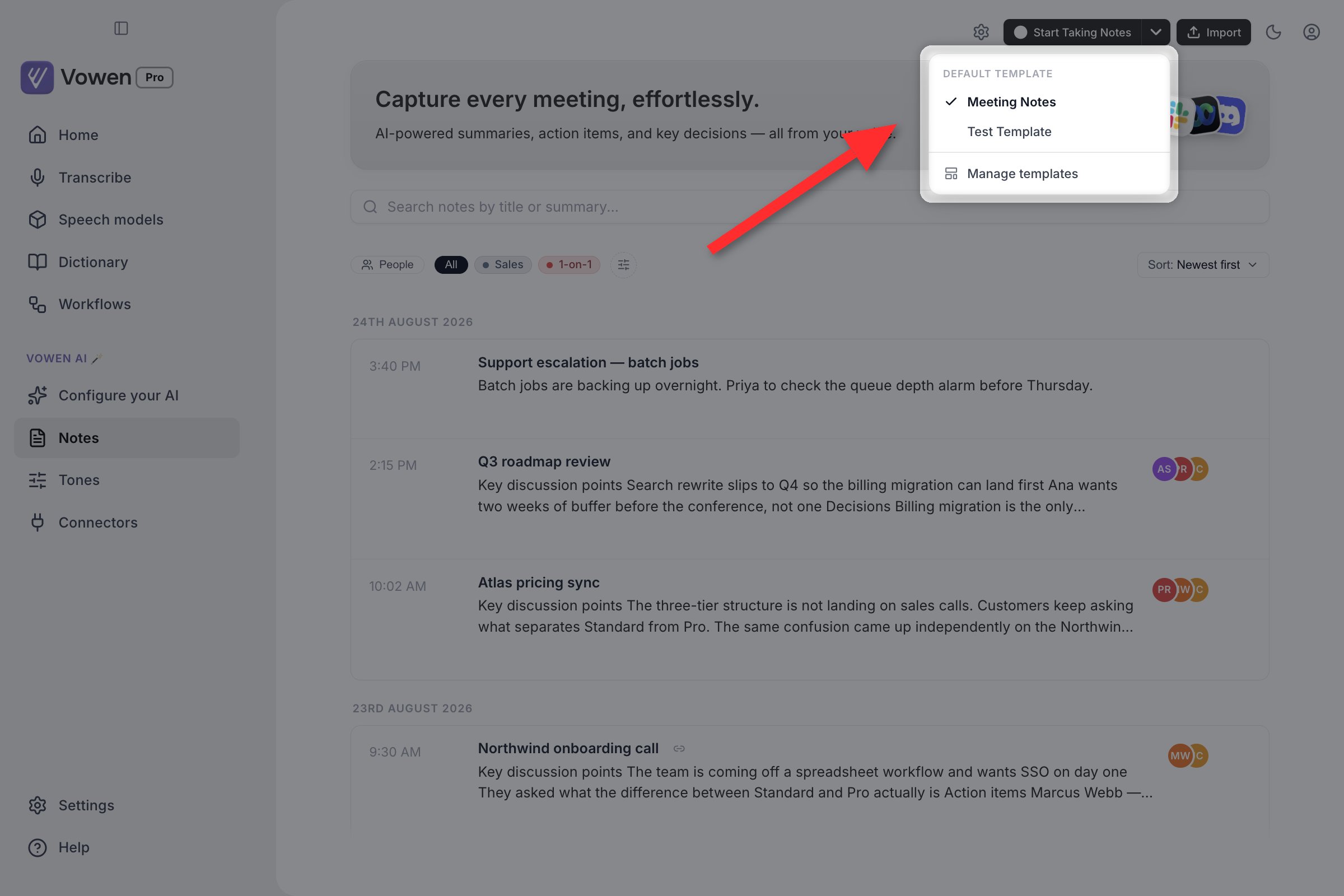
The chevron menu is headed Default template, with a tick on the current one. Picking a row rewrites the default rather than starting a recording.
One-off overrides
When Vowen detects a meeting and shows its banner, that banner’s Start button is also a split button. The pop-over there lists your templates and picks one for that session only. Your default is left alone. You can also change a note’s template after the fact by regenerating its summary. See Summaries.Deleting a template
Click the bin icon on a template card, then click the tick to confirm. The built-in template cannot be deleted. Removing a library template from inside the library modal does the same thing, and the entry becomes available to add again.Deleting a template does not touch notes that were created with it. Their summaries stay as they
are.