
Recording modes
Vowen offers two ways to record.Push-to-talk (default)
Hold your shortcut to record, release to transcribe. This is the fastest way to dictate short phrases and sentences.Hands-free
Toggle recording on or off without holding a key. Ideal for longer dictation sessions.
You can pick your own shortcut for either mode. See Shortcut patterns for setups people actually use.
Hands-free recording stops when you press the shortcut again, or when you click the stop button in the recording indicator. Both send your audio through transcription.
Cancelling a recording
To throw the audio away instead of transcribing it, do one of these:- Press
Escapewhile recording. - Press and hold the stop button in the indicator for about a second. A ring fills around the button as you hold; when it completes, the recording is discarded. Releasing early just stops the recording normally.
The recording indicator
While you record, a small indicator appears on screen showing that Vowen is listening: the icon of the app that will receive your text, a waveform that pulses while you speak, and pause and stop controls in hands-free mode. On macOS you can choose between two looks in Settings > Recording > Indicator style:- Pill. A floating rounded bar at the top or bottom of the screen.
- Notch. The indicator lives inside the MacBook notch. On Macs without a notch, a centered synthetic notch hangs from the menu bar instead.
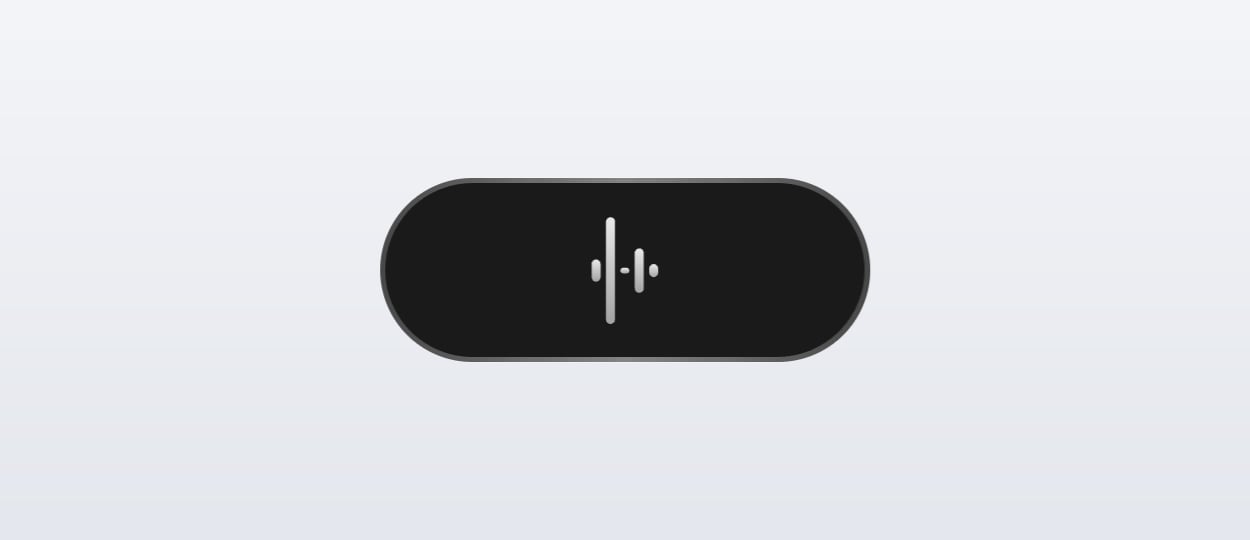
The pill while you speak. It floats above whatever you are typing into and never takes focus from it.
Real-time preview
If your model can stream, Vowen can show the transcription forming under the indicator while you speak, instead of only after you stop. Turn it on in Settings > Recording > Real-time transcription preview. The row is greyed out until your active model supports streaming. Models & Engines lists which models qualify. On macOS, Nemotron’s preview arrives already punctuated and capitalized; the other models’ partials firm up as each utterance completes.Real-time preview is a Pro feature.
The transcription pipeline
1
Audio capture
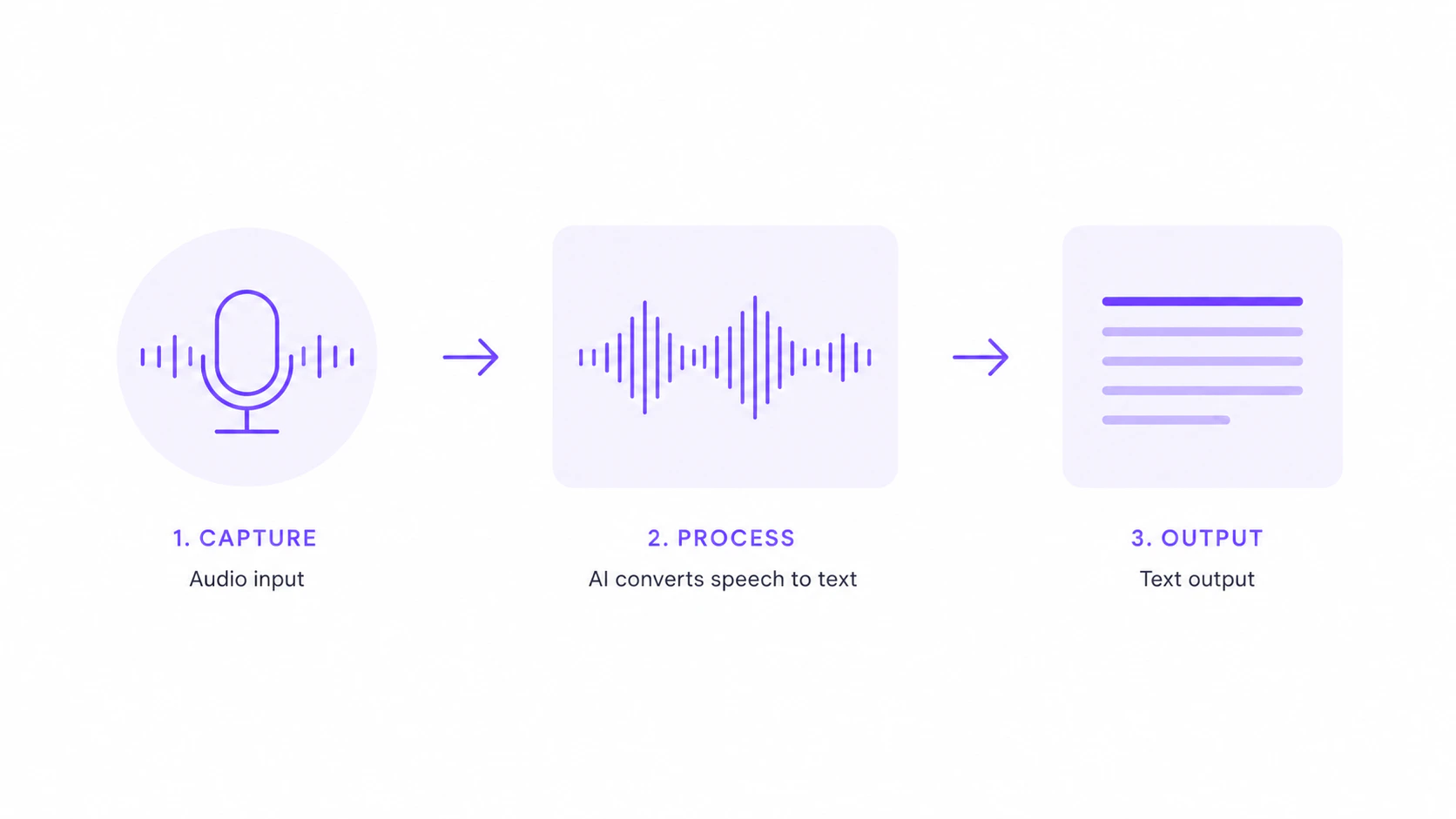
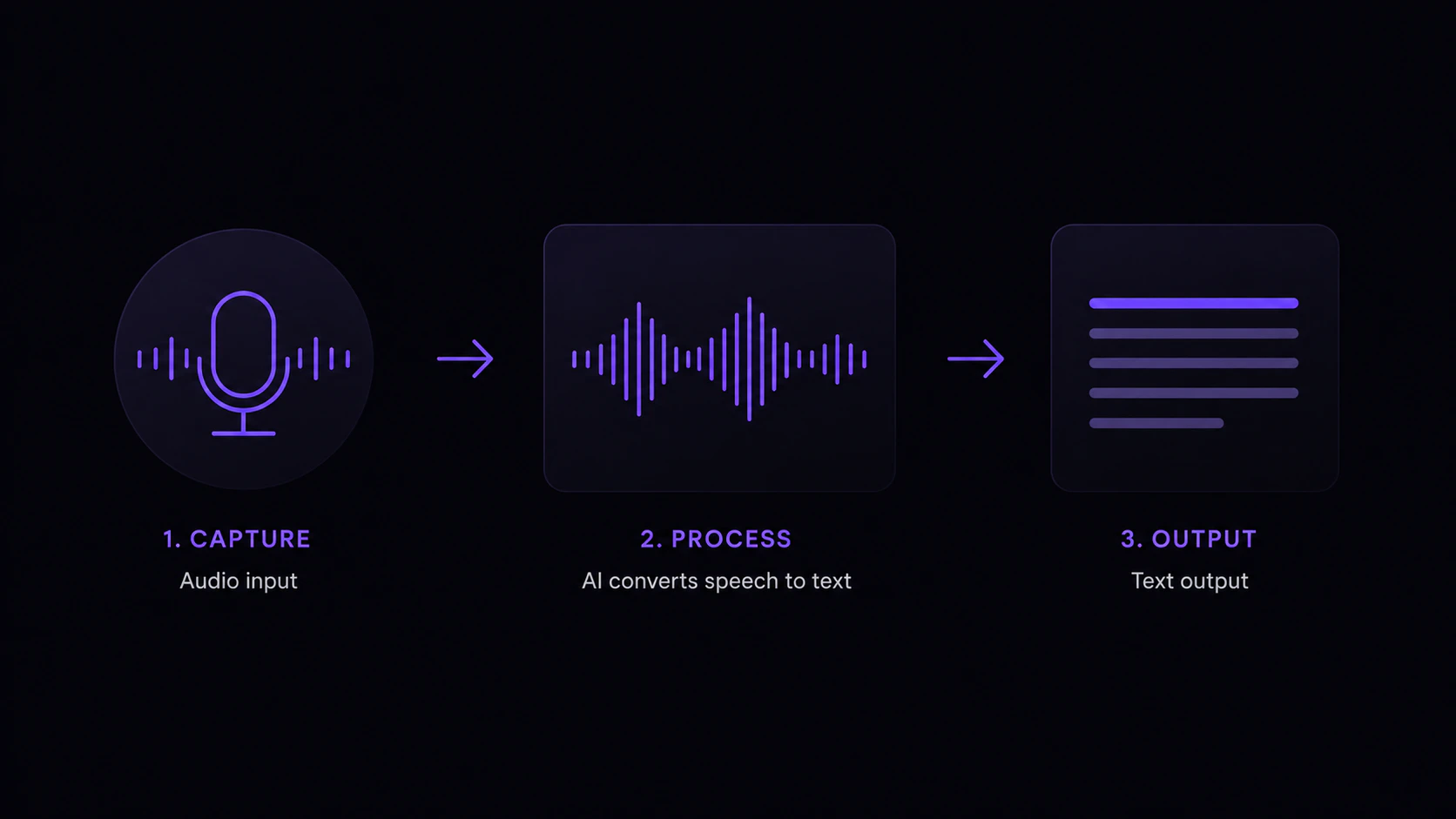
Your microphone captures audio while the shortcut is held. Voice Activity Detection removes silence so there is less for the model to chew through.
2
Transcription
The audio goes to your chosen model, either a local model running on your machine or a cloud model.
3
Post-processing
Filler words are removed. Dictionary mishearings are corrected. Snippet replacements (Threads) are applied. Voice Shortcut triggers are checked.
4
AI enhancement (if enabled)
The text is sent to your configured AI provider for grammar cleanup, formatting, and polish. You bring your own API key; Vowen never charges you for AI usage.
5
Smart Spacing and Capitalization
Vowen reads the text immediately around your caret and fits the dictation into it. Always on, no setting. See below.
6
Text insertion
The final text is delivered to the focused field using either the paste method (default) or direct insertion. If nothing can accept text, you get the drag-to-insert fallback instead.
Smart Spacing and Capitalization
A dictation rarely lands in an empty field. It lands next to words you already typed, and pasted raw it reads like a blob dropped into the middle of a sentence. Smart Spacing fixes that. Just before inserting, Vowen reads the characters on either side of your caret and adjusts four things: In the examples below,^ marks where your caret is.
- Leading space. Caret at
Hello^world, you dictate “friend”. Result:Hello friend world. - Trailing space. Caret at
^Hello, you dictate “Hi there”. Result:Hi there Hello. - Casing. Caret at
I went to the^, you dictate “Store today”. Result:I went to the store today. - Trailing punctuation. Caret at
The store^, yes, you dictate “is closed.” Result:The store is closed, yes.
Text insertion methods
Vowen offers two ways to deliver the final transcription into the focused field. They differ in clipboard behavior and in how they handle keyboard layouts.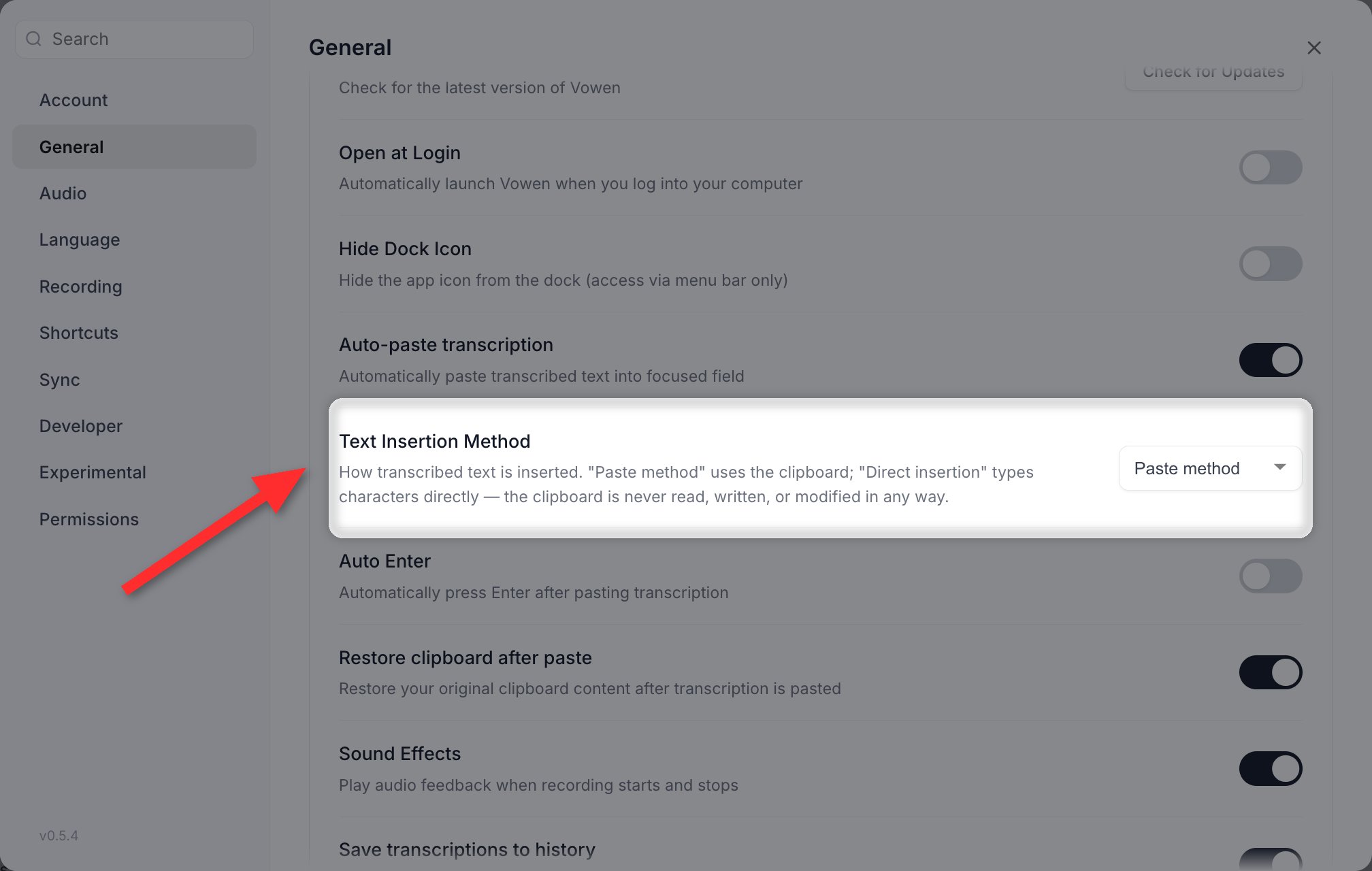
Text Insertion Method in Settings > General. Paste method uses the clipboard; Direct insertion types each character.
Paste method (default)
Vowen copies the transcription to your clipboard and simulatesCmd+V (macOS) or Ctrl+V (Windows). This is the fastest path and works well on standard QWERTY layouts.
Your original clipboard content is put back afterwards: Restore clipboard after paste in Settings > General is on by default. Turn it off only if you want the transcription to stay on the clipboard.
Direct insertion method
Vowen types each character of the transcription as if you were pressing the keys yourself. The clipboard is never touched. Use this method when:- You use a non-QWERTY layout (AZERTY, QWERTZ, Dvorak, and others) where the paste keystroke does not map cleanly to the “V” key.
- The target app blocks standard paste, as some remote desktops, sandboxed terminals and virtual machines do.
When there is nowhere to put the text
Sometimes a dictation finishes and there is no editable field to receive it. You were looking at a Finder window, or a web page with nothing focused, or Vowen could not insert text because Accessibility permission was never granted. Rather than pasting blind or silently losing the text, Vowen shows a Drag to insert card near the recording indicator. The card holds your transcript and you can:- Drag it straight into any app, dropping the text where you want it.
- Copy it to the clipboard with the copy button.
- Dismiss it. The transcript is still in your Voice Log either way.
The drag-to-insert fallback is macOS only. On other platforms Vowen pastes as before. Anything short of clear evidence that no field is focused results in a normal paste, because a wrongly shown card would interrupt a flow you use hundreds of times a day.
Voice Activity Detection
Vowen uses the Silero VAD model to detect speech in your recording. It:- Removes silence before and after speech.
- Reduces processing time for local models.
- Prevents “hallucinations” on silent recordings, such as the model outputting “Thank you” when nothing was said.