Control how the on-screen recording indicator looks, where it sits, and what the idle pill can do.
The recording indicator is the small on-screen surface that shows Vowen is listening. Everything on this page lives in Settings > Recording.
Meeting Notes has its own separate recording indicator with pause, stop, live transcript, Ask AI, and screenshot controls. That surface is documented at Meeting notes recording and is configured in the Notes settings, not here.
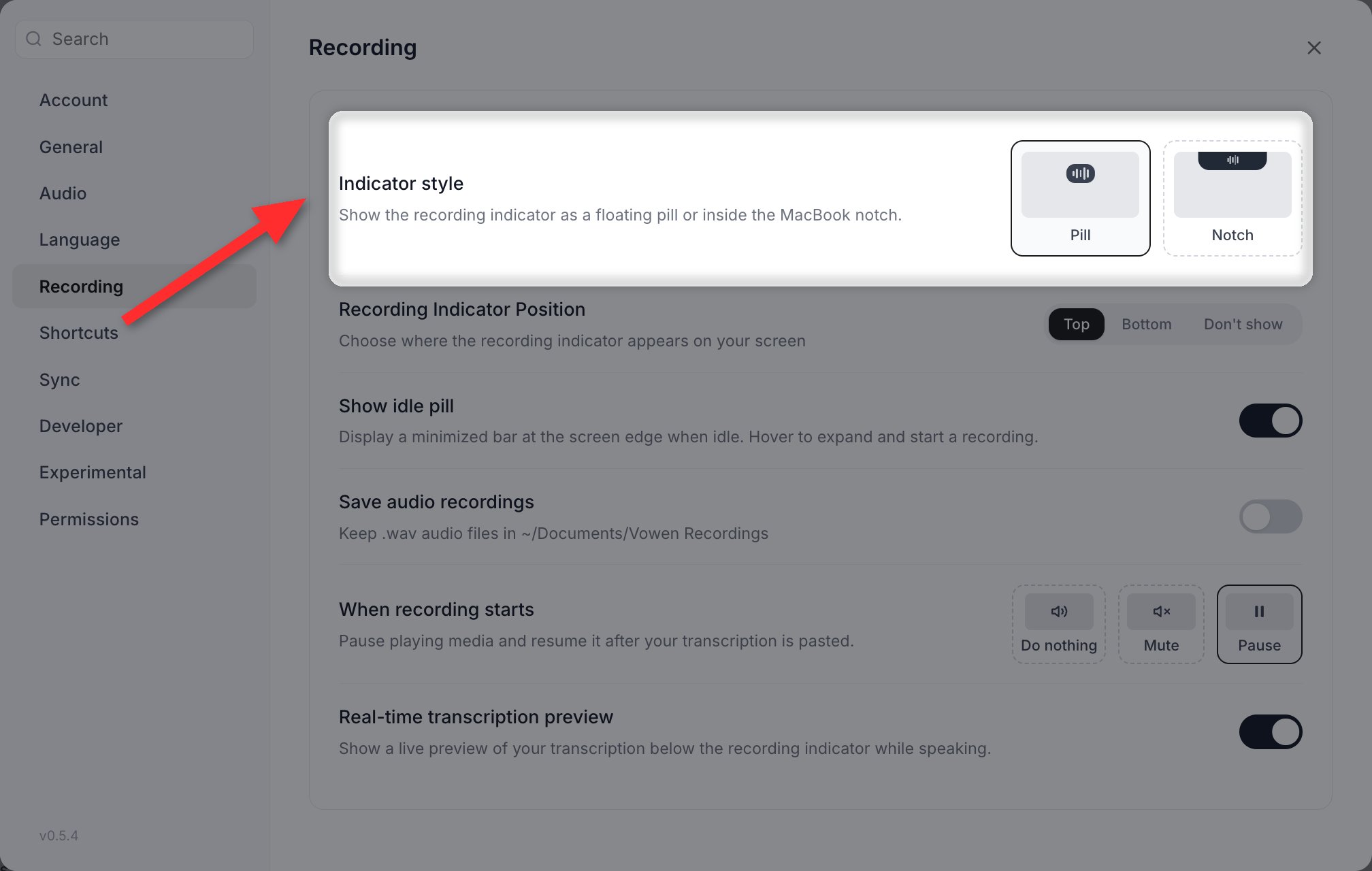
The Indicator style setting only appears on macOS. On Windows and Linux the indicator is always the pill.
Pick one of two styles, shown as picture cards:
Pill
The default. A rounded bar rendered in Vowen’s own overlay window, floating over whatever you are working in. It can sit at the top or the bottom of the screen.
Notch
macOS only. Instead of the floating pill, the indicator is drawn by a small native helper that owns a panel hanging from the MacBook notch, so it lines up with the hardware cut-out exactly. It is a separate process from the app window, which is why it can paint over the menu bar area.Notch style is offered on every Mac. On a Mac with no physical notch, the helper draws a synthetic notch bar centered at the top of the menu bar instead.Because the bar is native rather than DOM, a few recording-time confirmations (for example the “screenshot added” chip) are drawn natively underneath the bar rather than as an on-screen pill.
Indicator style in Settings > Recording: a floating Pill, or the bar hung from the notch. macOS only.
Settings > Recording > Recording Indicator Position offers three choices:
Option
Behavior
Top
Default. The pill sits at the top edge of the screen.
Bottom
The pill sits at the bottom edge. Banners and menus flip to match.
Don’t show
No pill is drawn at all. Recording still works normally.
The indicator follows your cursor: when you move the pointer to another display, the indicator moves with it. It also repositions itself when a display changes resolution or scale, or when a monitor is connected or disconnected.Position applies to the pill. In Notch style the bar always sits at the notch, so the setting has no visible effect on it.
Choosing Don’t show removes the indicator entirely. This also disables the idle pill, since the idle pill lives in the same overlay. Hotkeys, sound effects, transcription, and pasting are all unaffected.
The pill changes appearance as a dictation moves through its stages:
Starting
Three animated dots and no waveform. The audio device is still opening. This is normal for the first recording after a cold start.
Starting: three dots, no waveform yet.
Recording
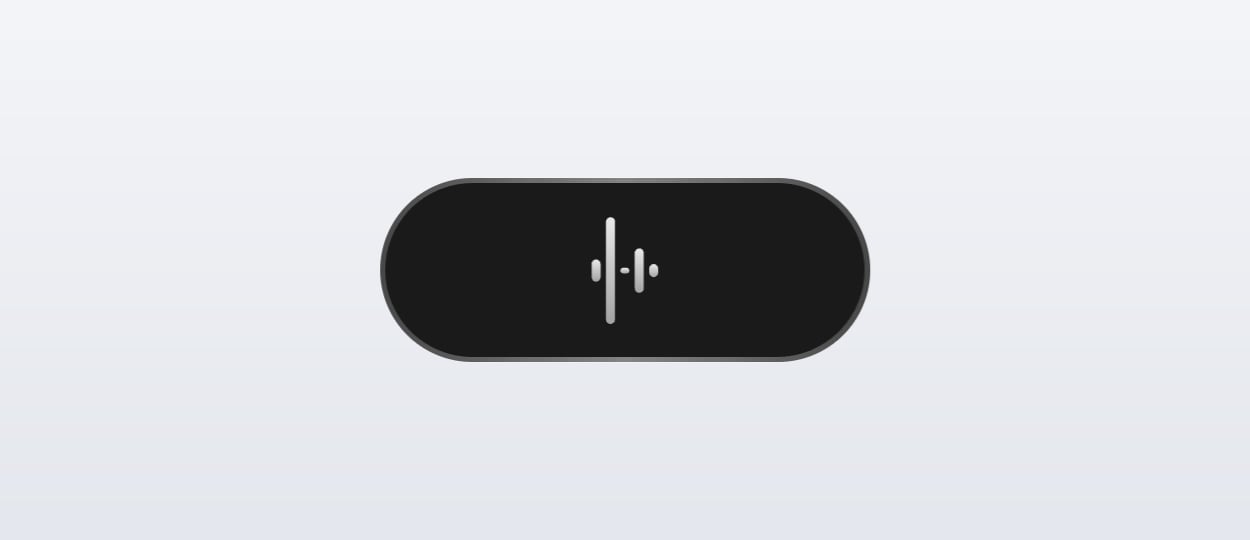
A live waveform driven by your microphone input.
Recording: the waveform moves with your voice.
Paused
The waveform stops moving and the pill switches to its paused styling. The pause button becomes a play button.
Paused: the waveform is frozen and the pause button has become a play button.
Processing
The waveform is replaced by the blinking Vowen mark while the transcription is produced. When the recording was meeting audio, the pill says “Creating notes” instead.
Processing: the blinking Vowen mark stands in for the waveform while the transcript is produced.
Resuming
Shown when a recording is being picked back up after an interruption.
The pill can also carry small badges while recording:
The icon of the app you are dictating into.
The icon of the tone that will be applied, when a tone is active.
A sparkle when AI enhancement is on and no tone is active.
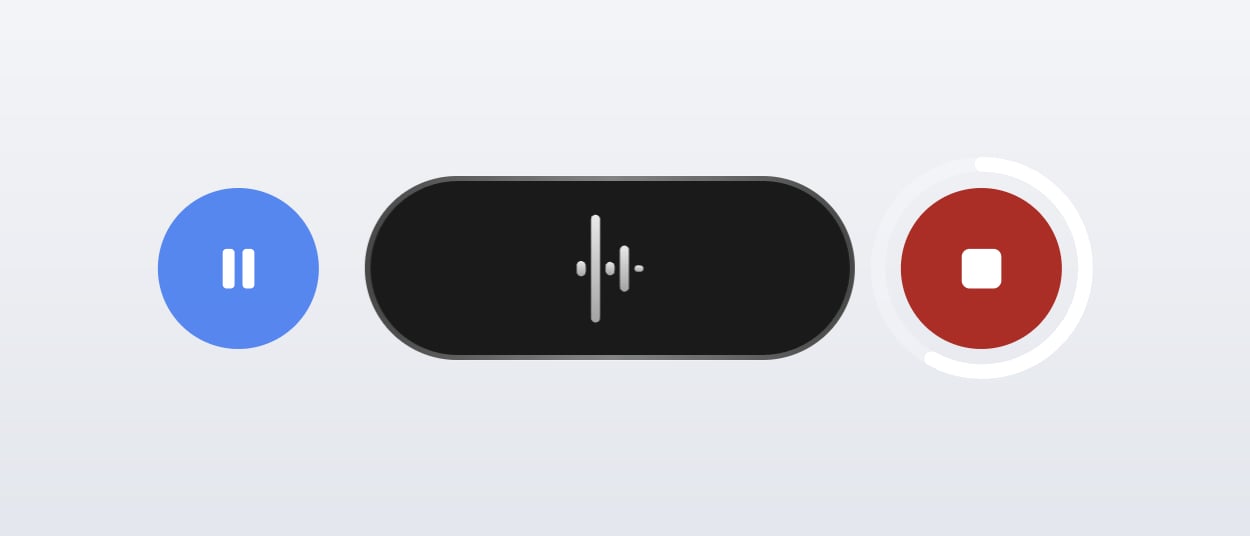
Pause and stop buttons flank the pill whenever the recording is one you are not holding a key for: hands-free recordings, screen recordings, and toggle-style dictation or command-mode recordings.
Pause on one side of the pill, stop on the other.
Holding the stop button for about half a second cancels the recording and discards it instead of transcribing. A progress ring fills around the button while you hold. Hold-to-cancel is available for dictation and command mode, not for screen recordings or meeting audio.
Keep holding stop and a ring fills around it. When the ring completes, the recording is discarded.
Settings > Recording > Show idle pill is off by default. Turn it on to keep a thin bar parked at the screen edge whenever nothing is recording. Hover it and it expands into a row of round buttons.
Hovering the idle pill expands it into the tone chip, dictate, command mode and new note buttons.
The expanded row contains, left to right:
Tone chip
Only present when you have at least one enabled tone. The icon shows which tone the next dictation would use, taking your per-app and per-website tone rules into account.Clicking it opens a menu with Automatic at the top (with the tone that matching currently resolves to shown underneath), then every tone you have configured, then a Manage tones action that opens the Tones page.Picking a tone pins it, so it keeps applying to later dictations until you switch back to Automatic. The chip is marked while a tone is pinned so it cannot linger unnoticed.
Dictate
Starts a hands-free dictation immediately, on the same path as the hands-free hotkey. Its tooltip shows your dictation hotkey, and that hotkey also stops the recording.
Command mode
Starts a command-mode recording as a toggle, so you do not have to hold a key. Stop it from the indicator’s stop button.
New note
Clicking starts a meeting note with your default summary template.Hovering the button for a moment opens a template menu listing the built-in Meeting Notes template plus your own, with a check next to your default. Picking one starts the note with that template for this session only. A Manage templates action at the bottom opens the Notes settings.
The template menu that opens on hover, with a check beside your default template.
The idle pill only appears when nothing else is happening. It stays hidden while a recording, a transcription, a confirmation banner, an error, or a pending correction is on screen.
In Notch style there is no separate idle pill. The notch bar itself is the idle affordance. It stays parked at the cut-out, and hovering expands it sideways into the same four buttons, drawn natively with SF Symbols. The tone and template menus are native macOS menus rather than DOM dropdowns, but the contents match the pill exactly.
The meeting notes indicator is configured separately. In the Notes settings, under Recording Defaults, Show floating indicator while recording hides it. Turning that off also disables the meeting panel, because the panel shortcut is only registered while the indicator is enabled.
Real-time transcription preview needs a streaming-capable model. On anything else the row is blurred out with an explanation.