
This is Ask AI on a meeting note. The same conversation surface exists on manual
transcriptions, documented separately in Ask AI for transcriptions. Meeting
notes add live questions during recording, context cards, and summary editing.
Where it lives
Open any note from the Notes page. The tab row across the top of the note is:
The composer is docked below the note on every tab, not just Ask AI. Type a question while you are
reading the Summary, press Enter, and Vowen brings the Ask AI tab forward with the answer. It is the
same box, the same draft and the same conversation wherever you ask from.
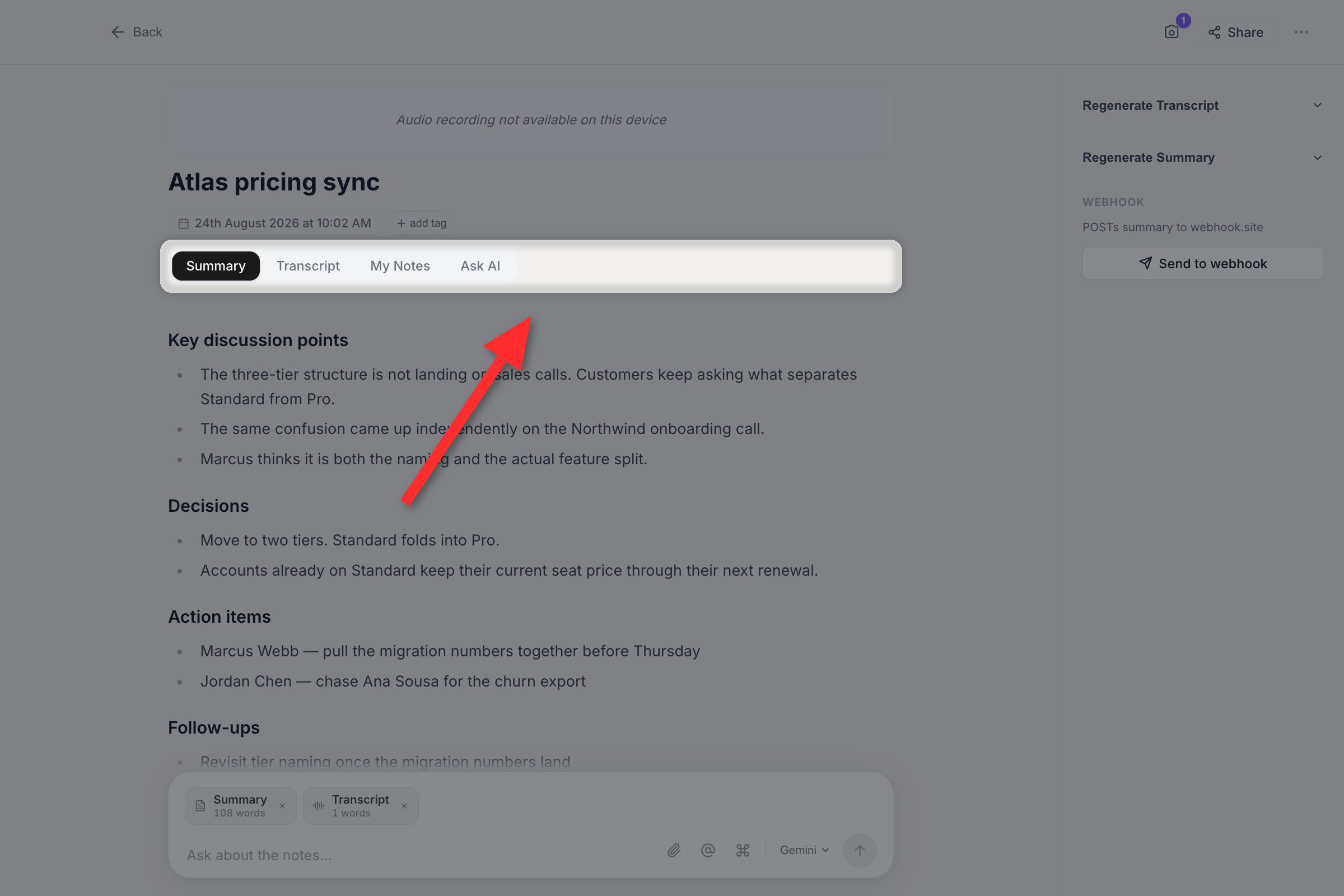
Ask AI is the fourth tab on a note, beside Summary, Transcript and My Notes.
Asking a question
1
Open a note and start typing
The composer sits under the note on every tab. Enter sends, Shift+Enter adds a newline.
2
Or pick a starter
An empty conversation offers five starters: Summarize the key points, What decisions were
made?, List the action items, What is still unresolved? and Draft a follow-up
email. Clicking one sends it immediately.
3
Read the answer
Answers stream in. A jump-to-bottom button appears if you scroll away mid-stream.
Composer shortcuts
- Type
/at the start of the box to open the command menu. It holds the same five starters. - Type
@at a word boundary to attach a context source. - The button on the right of the toolbar shows which AI provider will answer. Click it to switch.
Saved conversations
Every conversation is kept. On the Ask AI tab, the note’s right sidebar gains a Chats section listing them newest first, grouped as Today, Yesterday, Previous 7 days and Older.Starting a new conversation
Starting a new conversation
The plus button in the Chats header opens a fresh conversation and puts the caret in the
composer. The unsaved conversation shows up in the list as New conversation until you ask
something.
Renaming
Renaming
Hover a row and click the pencil. The title is edited in place: Enter commits, Escape cancels,
and clicking away commits as well. Titles are capped at 64 characters. Clearing the field hands
the title back to being derived automatically from your first question.
Deleting
Deleting
The trash icon on a row asks for confirmation, then removes the conversation permanently.
Searching
Searching
Once a note has five or more conversations, a search box appears above the list. It matches on
the conversation title and on the last message.
Where they are stored
Where they are stored
Conversations are stored with your Vowen data, separately from the
note itself. Each is scoped to one note, so one note’s conversations never appear on another.
Deleting the note deletes its conversations. Vowen keeps up to 100 conversations per note and
240 messages per conversation, dropping the oldest beyond that.
Context cards
Above the composer, small cards show exactly what the assistant can read for the next question.- Summary and Transcript are both attached by default.
- A card only exists if the note actually has that content.
- Each card shows its size: word count for the summary, block count for the transcript.
- Click the X on a card to detach it. Detaching the transcript is the usual reason to do this, on a long meeting where you only want the assistant working from the summary.
- Click Add context, or type
@, to attach something back.
Attachments
The paperclip button attaches one image or PDF to the next question. The file picker acceptsimage/* and .pdf, with a 10 MB limit. Images need an AI model that can read images.
Attachment contents are sent with the question but are not written to disk with the conversation.
Reopening an old conversation shows that a file was attached, and its name, but not the file itself.
Reasoning
When the model streams its reasoning, Ask AI shows a collapsible block above the answer, labeled Thinking while it runs and Thought for 4.2s once it finishes. It stays open while the reasoning is the only thing happening and collapses when the answer lands. Click the header to reopen it. Nothing here turns a reasoning mode on. The block appears only for models that already emit reasoning as part of their response, such as DeepSeek, OpenRouter and Gemini. Models that do not emit it render no block and cost nothing extra.Editing the note by asking
Ask AI can change two things about the note: its summary and its title. Ask for a change in plain language:- “Translate the summary to English”
- “Make the notes shorter”
- “Rewrite the summary as bullet points”
- “Rename this note to Q3 pricing review”
The transcript is read-only
The transcript is the record of what was actually said, and Ask AI can never write to it. Ask it to edit the transcript and it will say so plainly and offer to change the summary instead. If you need to change the transcript, edit it directly on the Transcript tab.Notes on summary rewrites
The summary must already exist
The summary must already exist
Summary editing is offered only when the note has a summary and is not still recording. On a
note with no summary yet, use the Regenerate button on the Summary tab instead.
Citations survive a rewrite
Citations survive a rewrite
If your summary carries citation anchors, the assistant is told to
carry every one across unchanged, and is given them as an explicit checklist. Anchors it invents
are stripped before the new summary reaches the note, so a rewritten summary can never gain a
timestamp pill that points at a moment nobody chose. An anchor on a line the rewrite deletes
goes with it.
How it works under the hood
How it works under the hood
Editing is not provider tool calling. The model writes the complete new value between in-band
markers of the form
<<<VOWEN_EDIT:summary>>> ... <<<VOWEN_EDIT:end>>>, and Vowen filters that
block out of the stream as it arrives, so you never see the markers. This is why editing works
on every provider Vowen supports, including ones with no function-calling channel and the
non-streaming fallbacks. A block the model never finishes, because it was cut off or you pressed
stop, is discarded rather than half-applied.Asking during the meeting
Ask questions while a meeting is still recording, from two places:- The hover card on the floating recording indicator, on its Ask AI tab.
- The meeting panel, on its Ask tab, opened with
Cmd+\on macOS orCtrl+\on Windows.
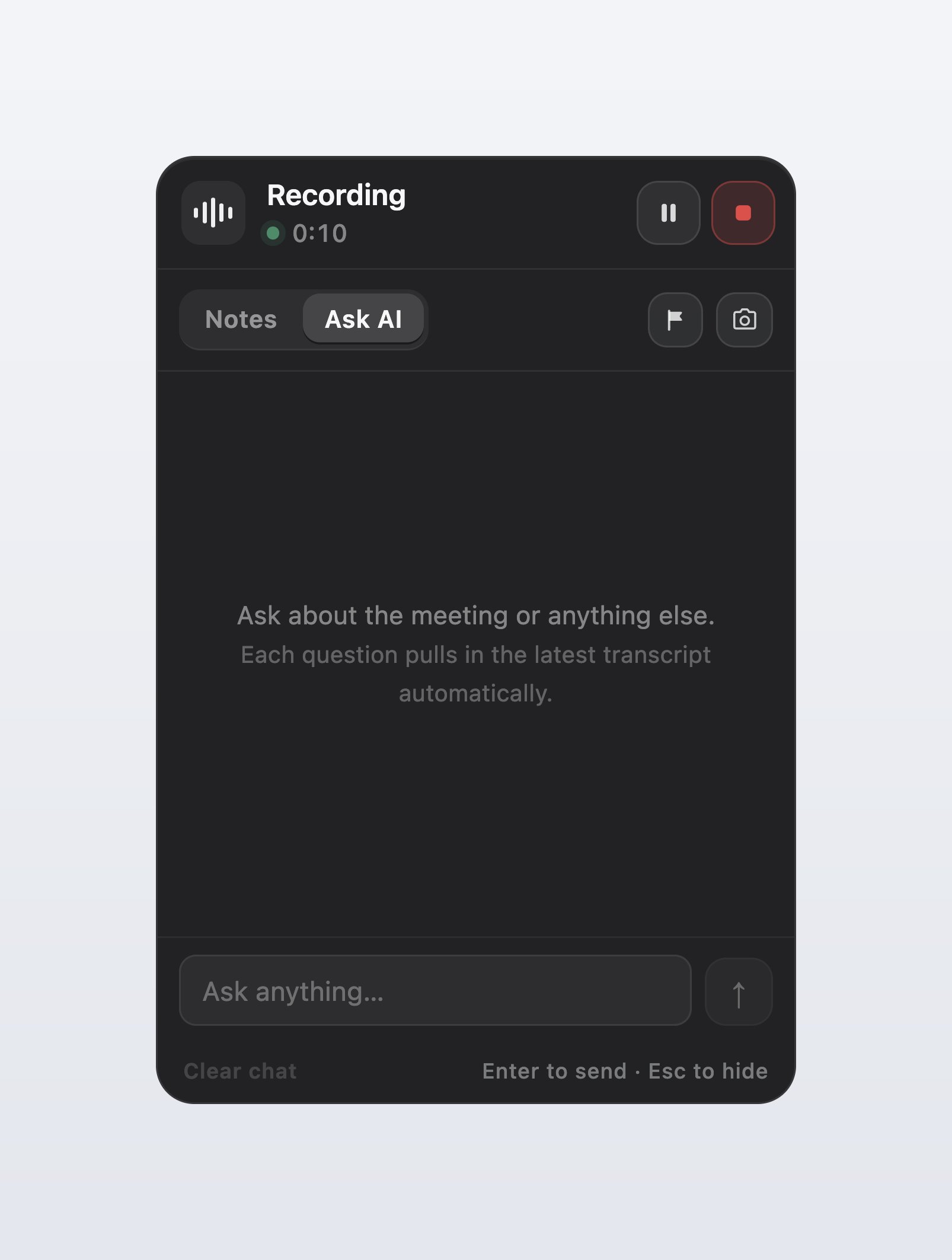
The Ask AI tab on the indicator's hover card, waiting for a question about the meeting so far.
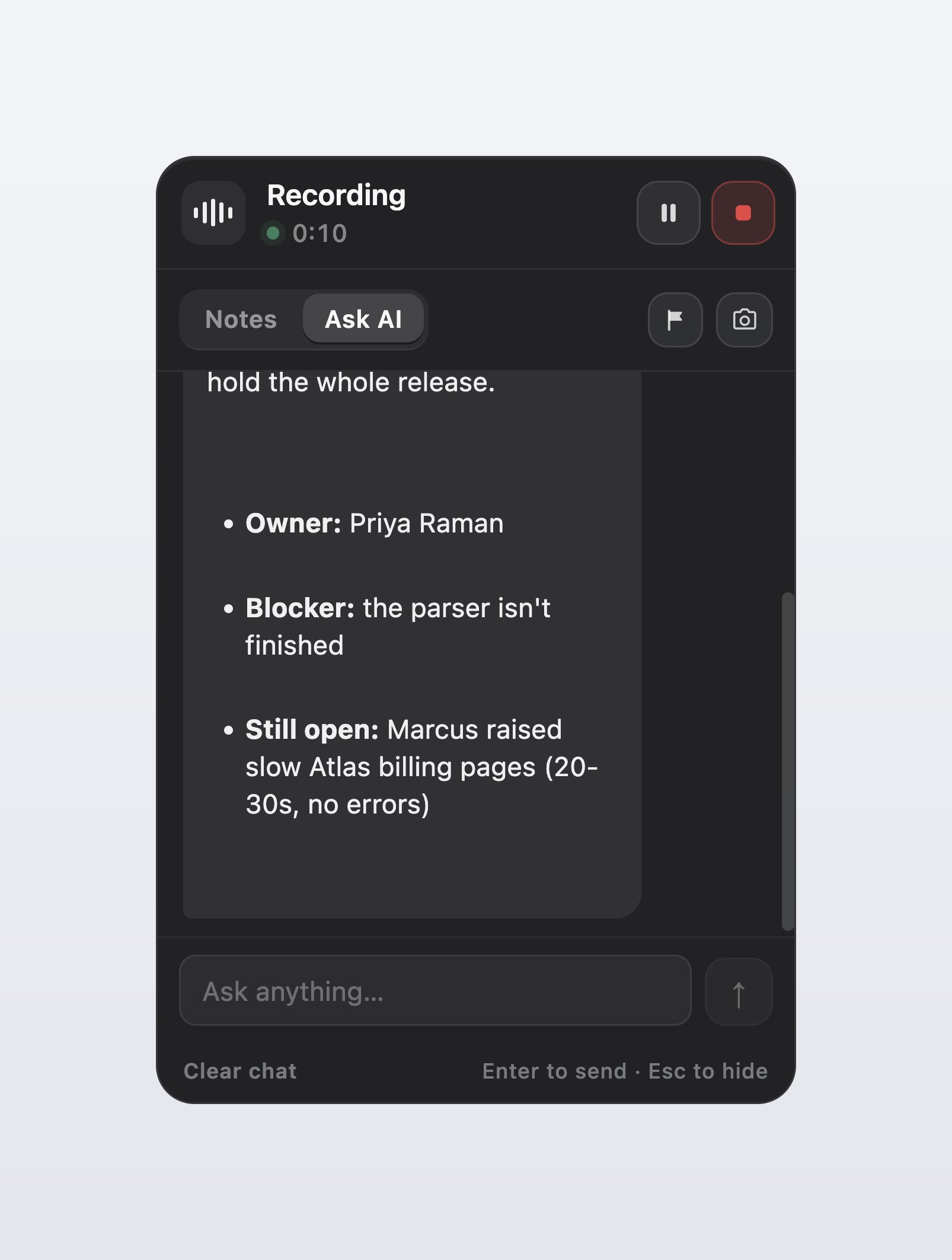
An answer streaming into the hover card, drawn from the transcript up to the moment the question was asked.
The note detail page does not offer Ask AI while that note is still recording. During a recording
it shows the live transcript instead. Ask from the panel or the indicator.
Live Ask without real-time transcription
Live Ask works without a streaming transcription engine. For every meeting, Vowen runs a second 16 kHz mono recorder alongside the main one and buffers its audio to a temporary file. When you ask a question and no live transcript is available, Vowen transcribes only the span of audio since your last question and appends it before answering. Two questions ten minutes apart cost exactly one transcription of those ten minutes, never a re-run of the whole meeting. The buffer file is deleted when the meeting ends. Spans shorter than about 1.5 seconds are left alone and roll into the next one, so a question asked moments after the previous one does not send a fragment of a word to the model.The Ask AI tab is offered whether or not real-time transcription is on. With it off, a short banner
on the Transcript tab explains what is happening: “Real-time transcription is off — this fills in
each time you ask a question.”
The Catch up button
On the note detail page, while that note is recording, the recording bar carries a Catch up button whenever the catch-up buffer is in use. It runs the same transcription a question would trigger, without you having to ask one, so the live pane fills in on demand. While it runs the button reads Catching up… and is disabled. Catch up exists only on the note detail page’s recording bar. The meeting panel and the floating indicator show the explanatory banner instead and fill in when you ask a question.Requirements
Ask AI is a Pro feature, on both the note page and live during a meeting. It also needs an AI
provider configured under Configure your AI in the sidebar. With no provider set up, the tab
shows “No AI provider configured”.