
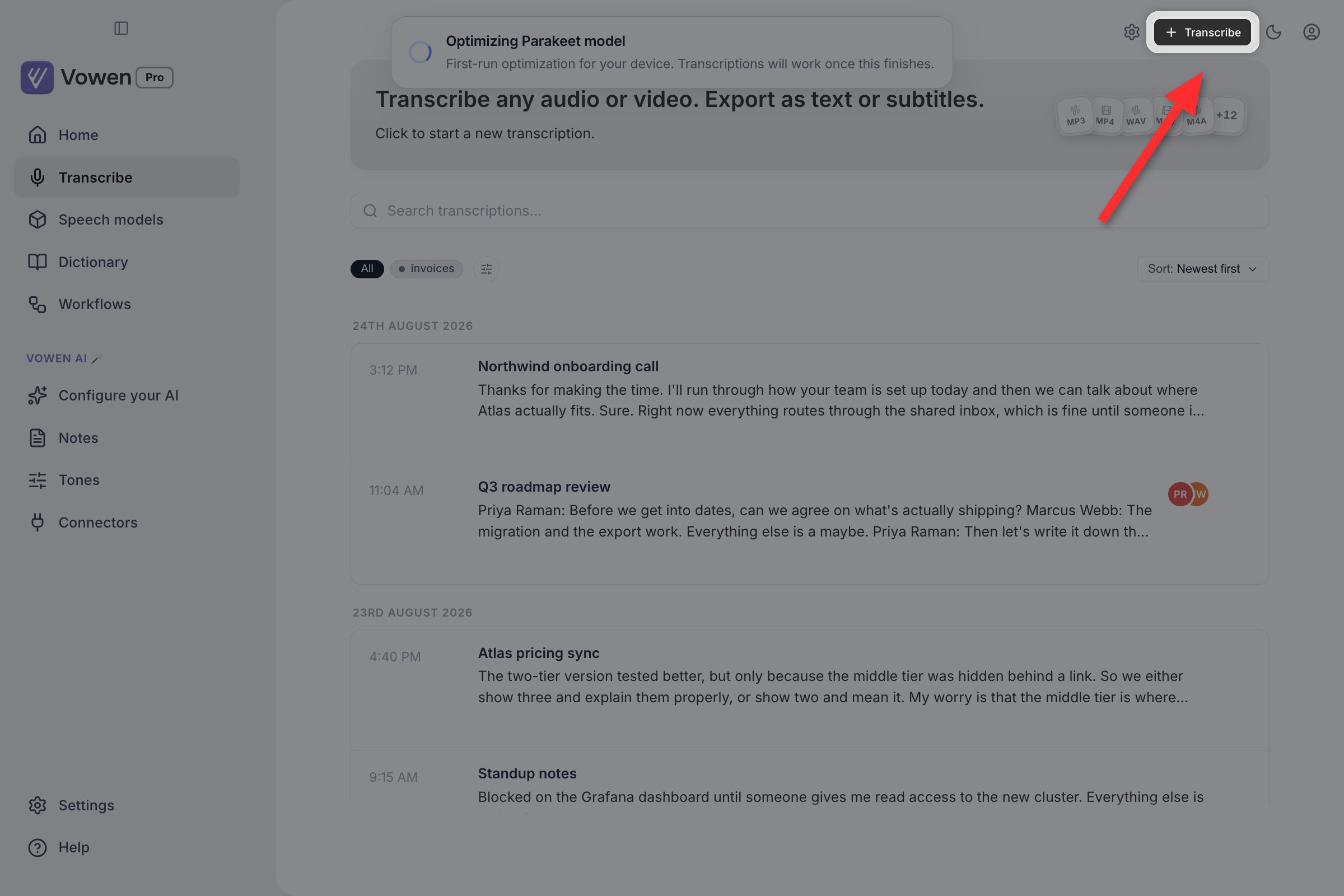
The Transcribe button sits at the top right of the window. The gear beside it opens Transcribe settings.
Transcribing a file
Open the Transcribe dialog
Pick a model
Set language and speaker options
Add your file
Click Transcribe
[MM:SS] badges where the model provides them, and you can edit, copy, regenerate or export it.Transcribing several files at once
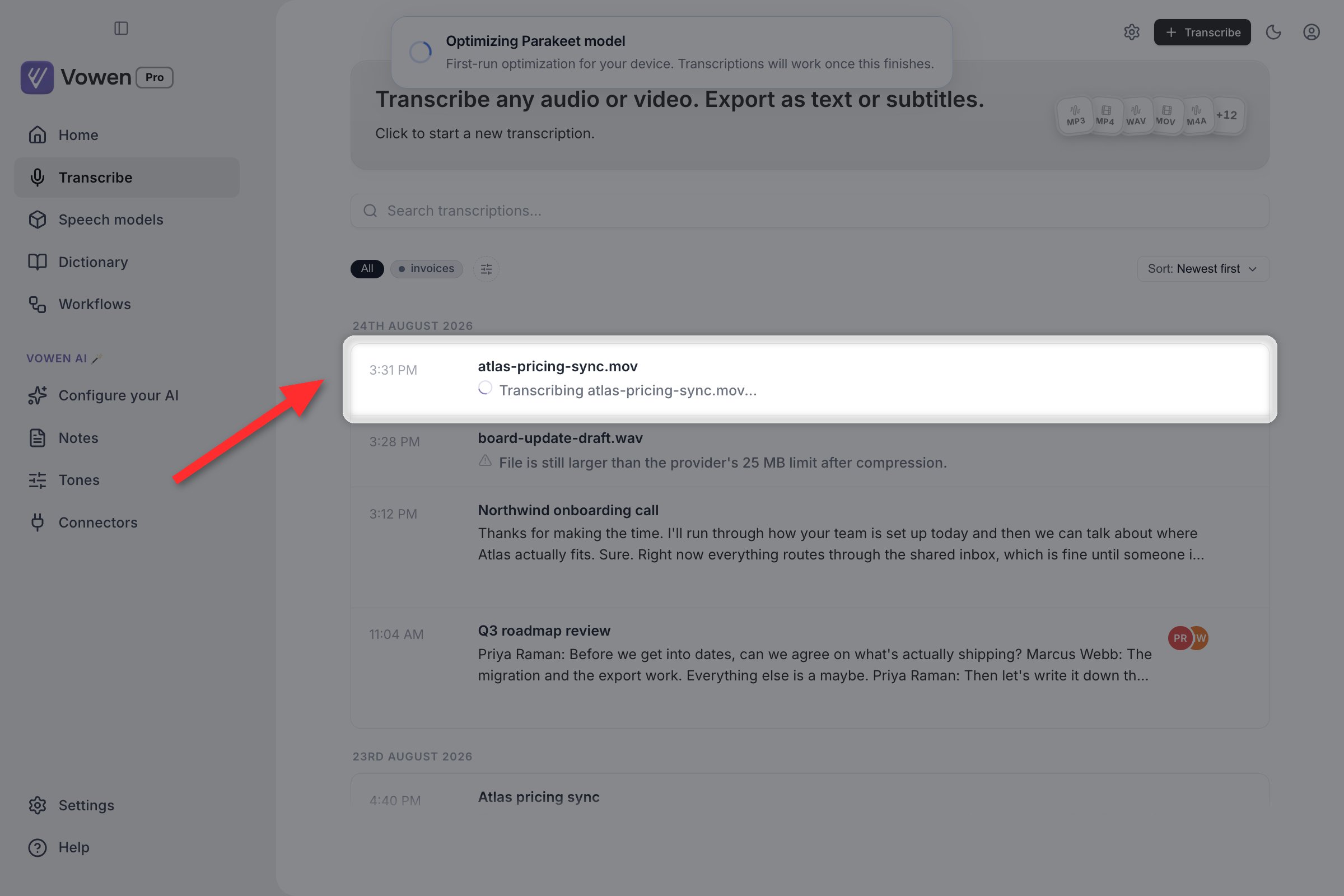
A queued file shows a spinner and its filename while it runs.
Transcribe settings
The gear icon in the Transcribe toolbar opens a settings modal with three tabs.Defaults
Defaults
- Transcription Model, or leave it on “Same as dictation”, which follows whatever your dictation model is.
- Language
- Identify Speakers, plus Merge speaker segments and Number of speakers once it is on
- Add Timestamps
- Notify me when complete, which shows a banner when a transcription finishes
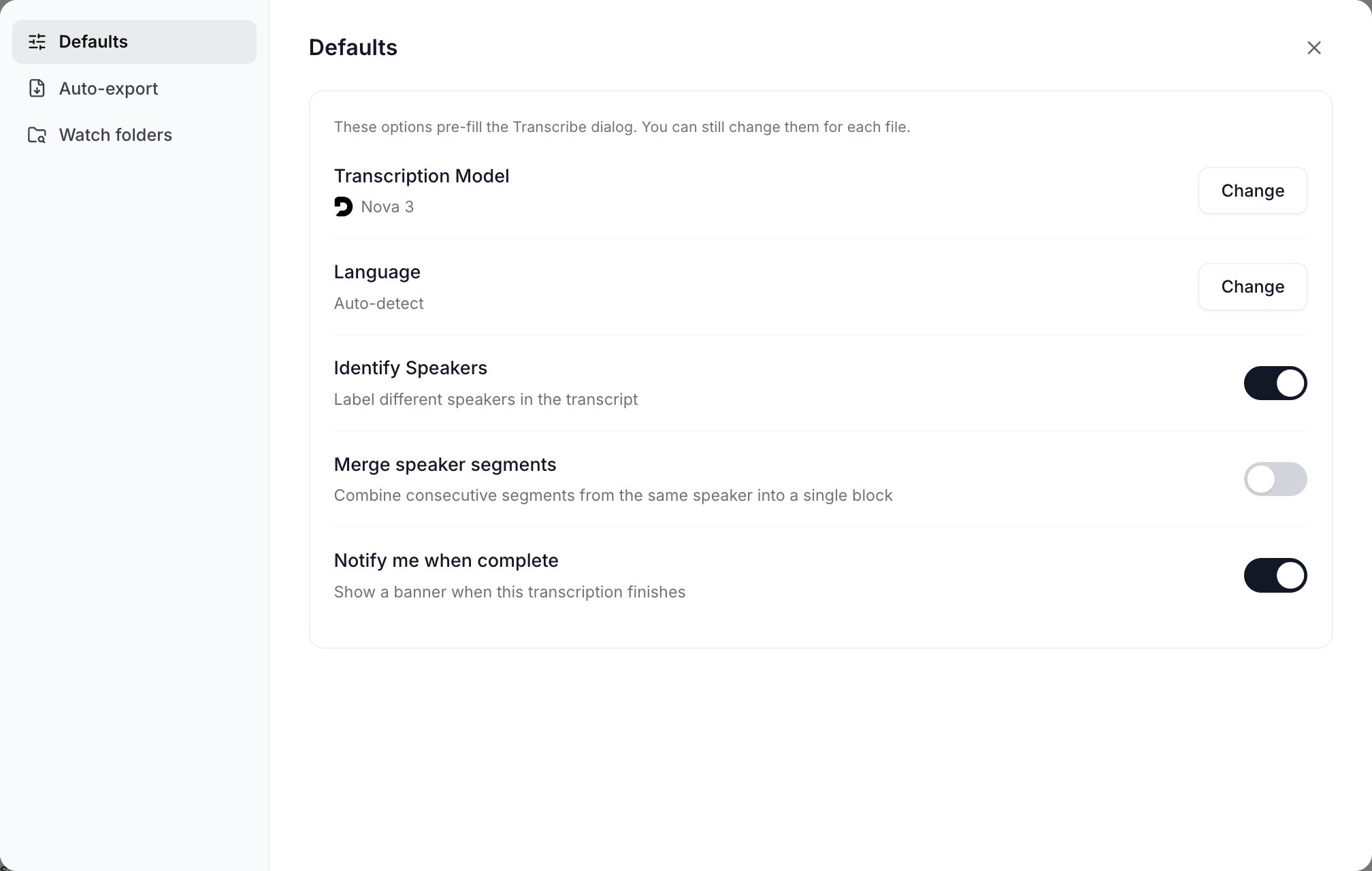
The Defaults tab pre-fills the Transcribe dialog. Per-run changes never write back here.
Auto-export
Auto-export
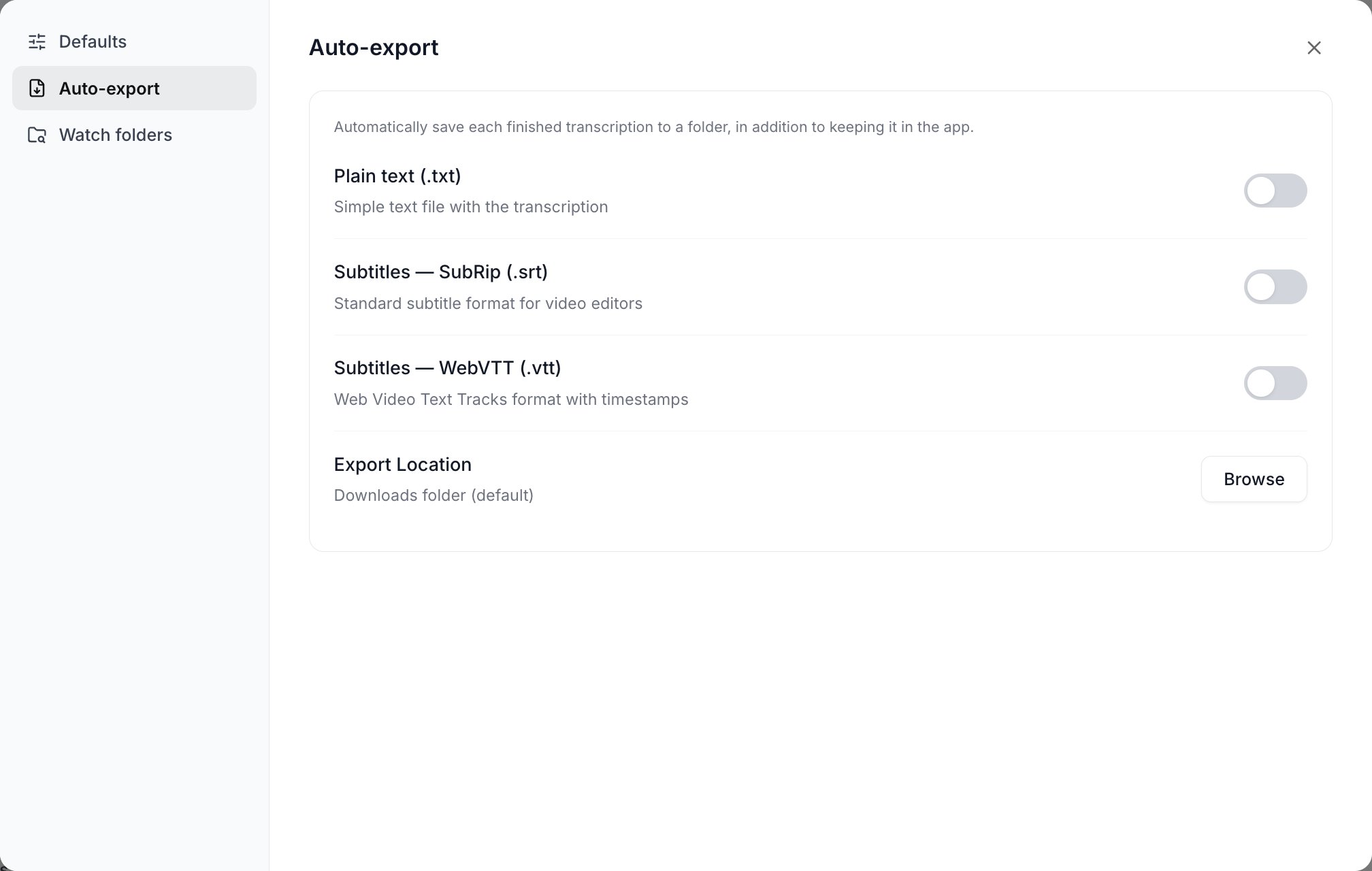
Auto-export writes every finished transcription to a folder as well as keeping it in the app.
Watch folders
Watch folders
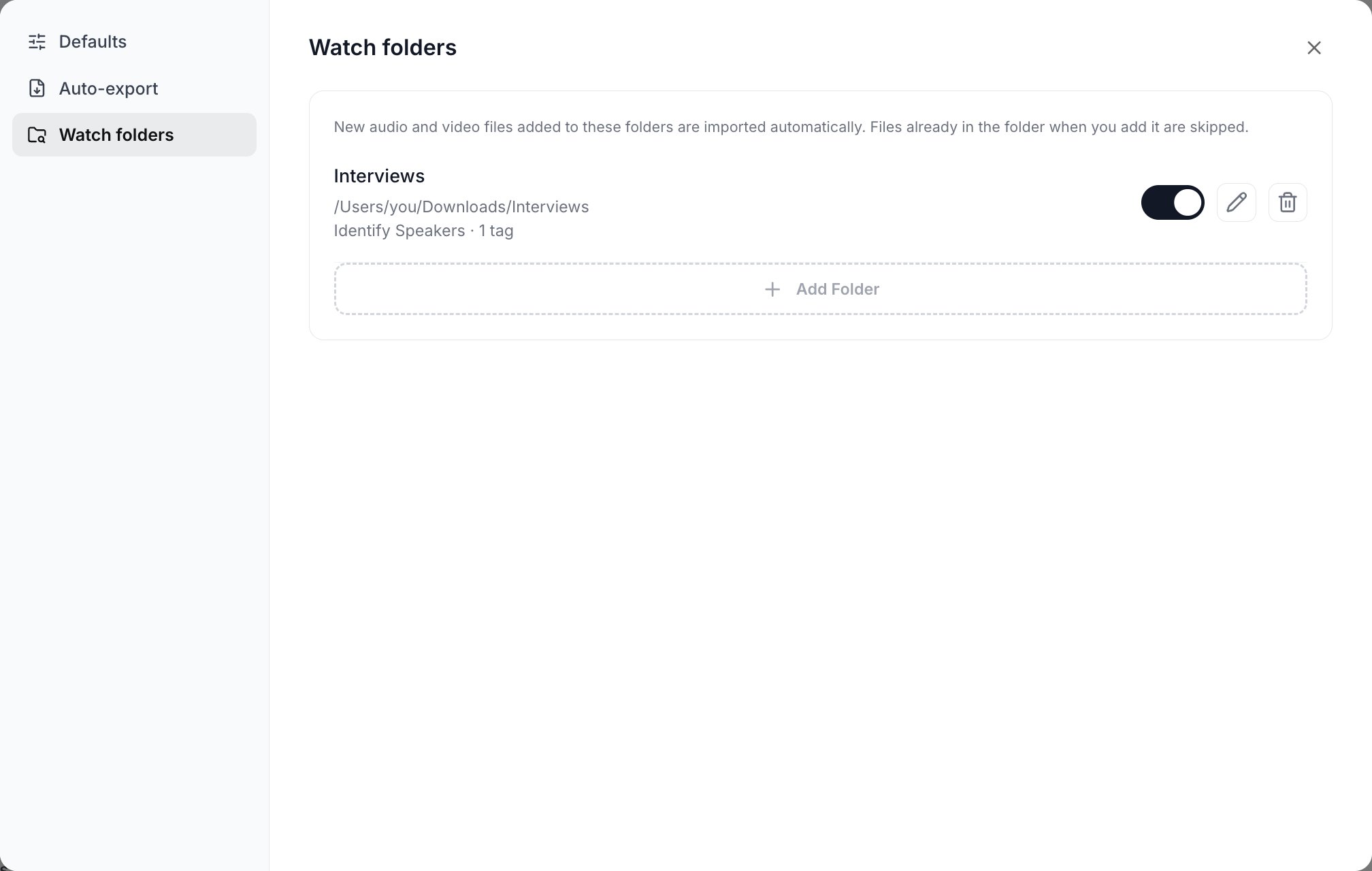
Each watched folder carries its own rules. Add Folder appends another.
Supported formats
Audio:mp3, wav, m4a, aac, ogg, flac, wma, opus
Video: mp4, mov, avi, mkv, flv, wmv, webm, mpeg, mpg
For video files, Vowen extracts the audio track before transcription.
Timestamps
Local Parakeet (V2, V3 and Japanese) and Whisper produce per-segment timestamps, shown as time badges you can click to jump the audio. Most cloud models do too. Two exceptions: Parakeet Mandarin returns plain text with no timings, and Nemotron streams the file through its live engine, which also produces no timings. Neither can offer subtitle export.File size and duration limits
Vowen compresses and chunks large files for you. What it does depends on the provider.Regenerating a transcription
Open a completed transcription and the sidebar shows a Regenerate Transcript panel listing every model you have configured, grouped by Local and Cloud.- Open the transcription detail page.
- Pick any model from the panel.
- For diarization-capable models, toggle Identify Speakers.
- Click Regenerate Transcript.
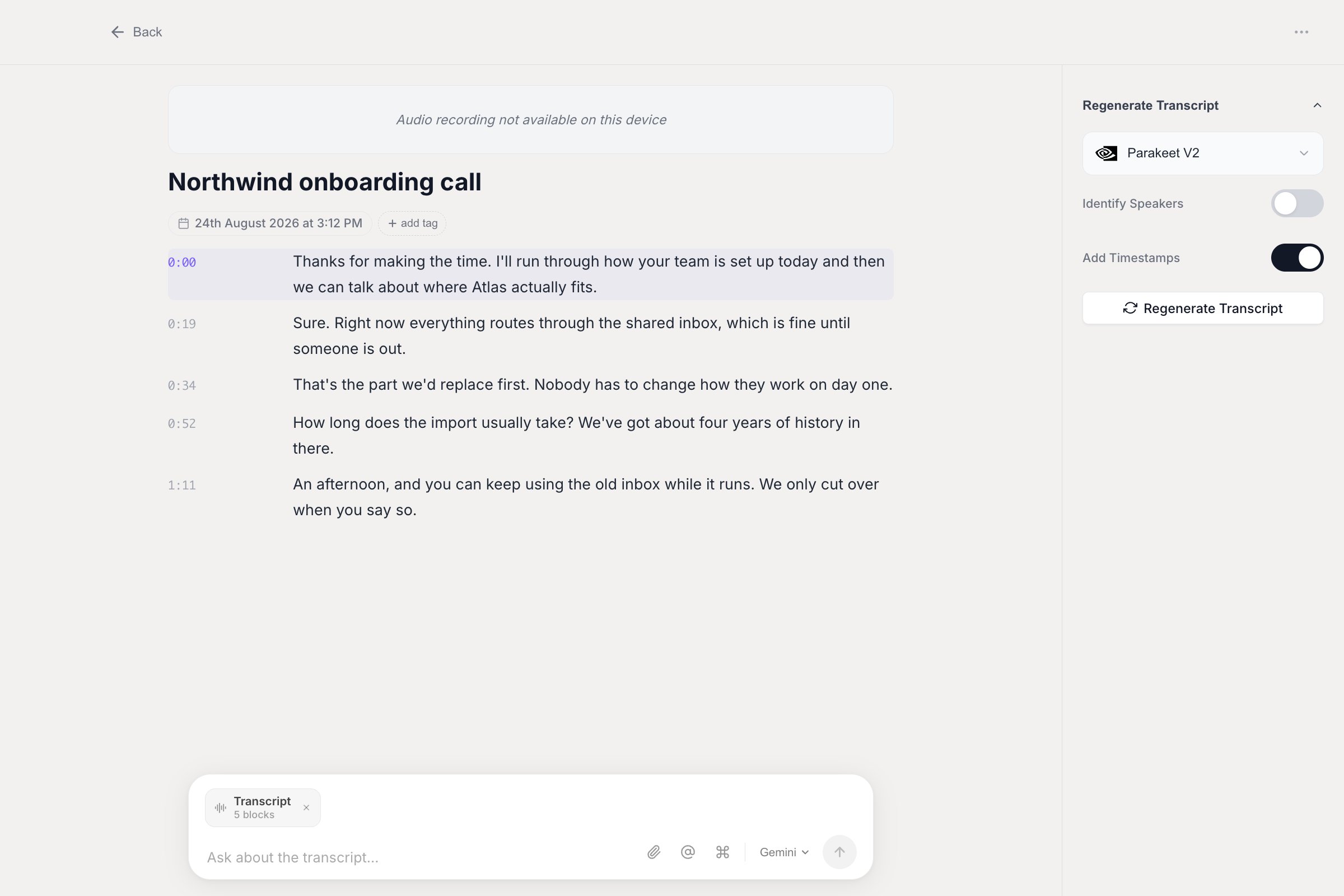
A transcription's page: the text with timestamps on the left, the Regenerate Transcript panel on the right, and Ask AI along the bottom.
Export
Open a transcription and click Export. The dialog shows a live preview and lets you choose: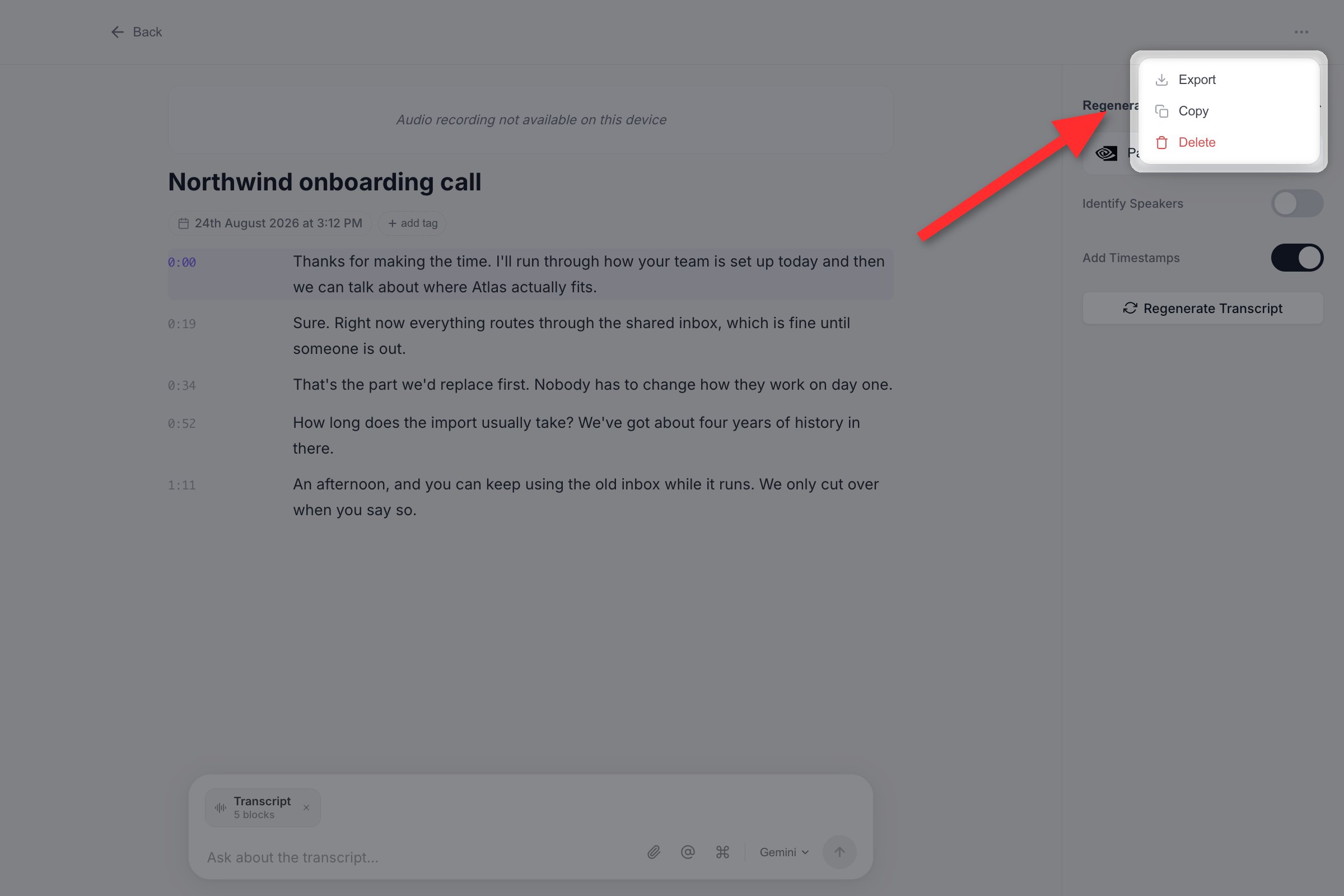
Export lives in the detail page's menu, alongside Copy and Delete.
Renaming
A transcription’s title defaults to the file’s name. Open it and edit the title field at the top of the detail page; changes save automatically and the list updates.Organizing with tags
Manual transcriptions have their own tag system, separate from meeting-note tags.- Add tags to any card with add tag. Create a new coloured tag or reuse an existing one.
- Use the tag filter bar above the list, with a Match: Any / All toggle when two or more tags are selected, plus sorting by Newest, Oldest or Recently tagged.
- Use the search box to find a transcription by name.
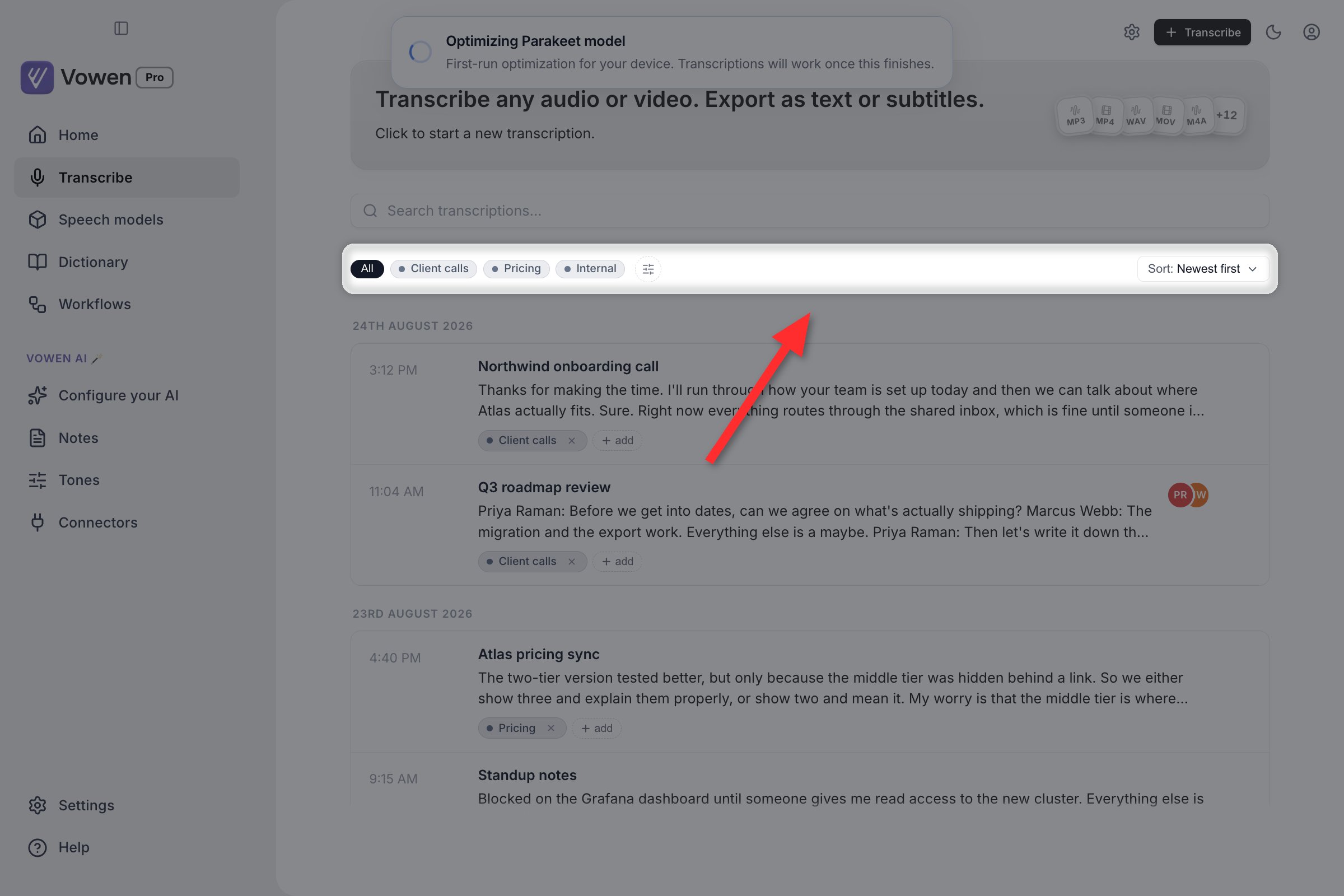
The tag filter bar above the list. Match Any / All appears once two tags are selected, and the sort control sits at the right.
Multi-select and bulk actions
Hover a finished card to reveal its checkbox. As soon as one is ticked, a bulk-action bar appears at the bottom of the window with: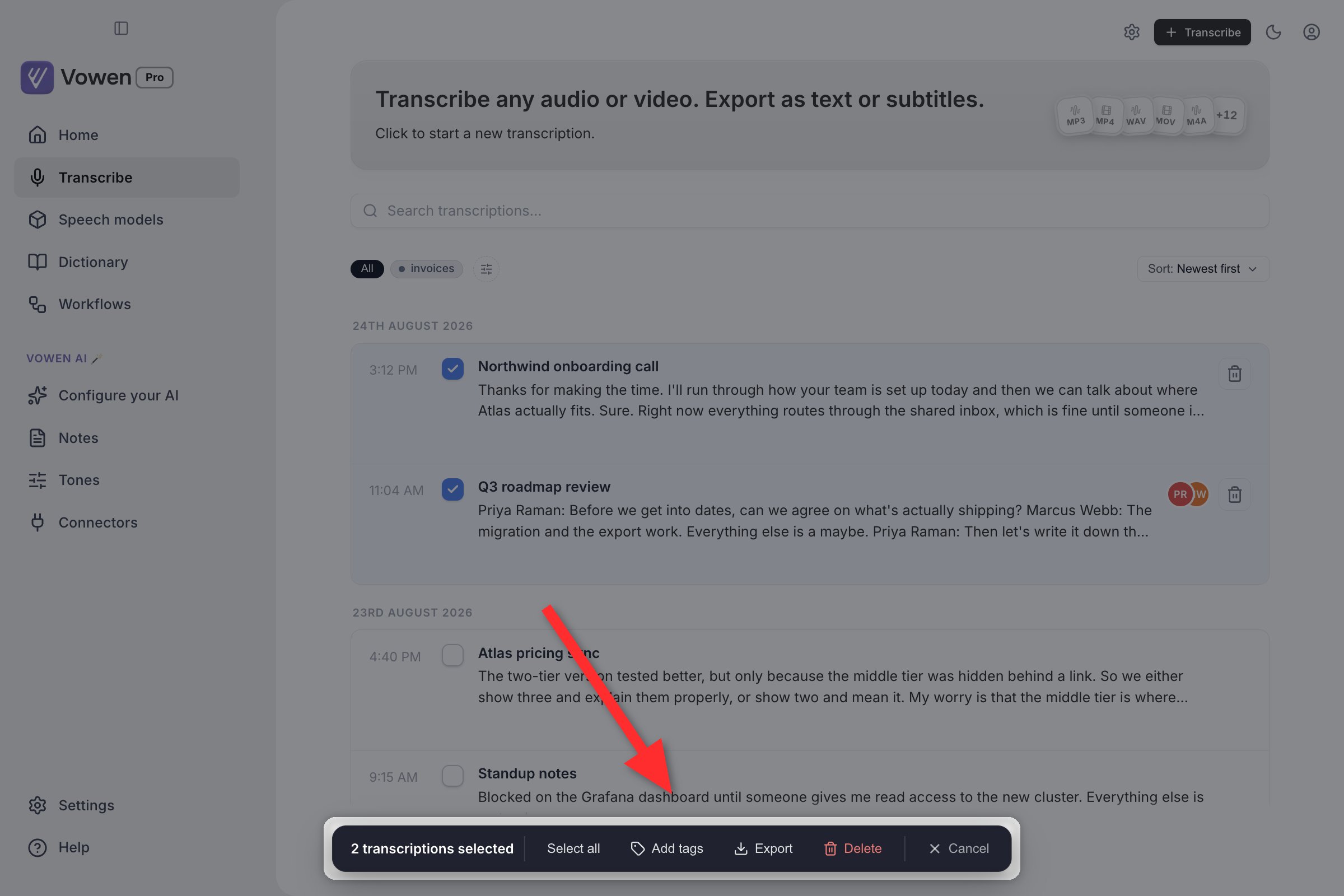
Tick two or more rows and the bulk bar appears with the actions that apply to all of them.
Batch export
The Export action exports everything you selected in one go. Pick Markdown, Plain Text or PDF, plus SubRip and WebVTT when every selected transcript carries segment timing. Batch export is Pro.Editing a transcript
Open any completed transcription (or meeting note) to edit it segment by segment:- Edit text. Click into a segment and type. Undo and redo with
Cmd/Ctrl+ZandCmd/Ctrl+Shift+Z. - Split a segment. Open the segment’s
⋯menu, place your cursor at the cut point, and choose Split at caret. The split snaps to the nearest word boundary and timestamps are interpolated. - Delete a segment. From the same menu.
- Reassign a line to a speaker. On diarized transcripts, move a single line to a different or new speaker. To fold two speakers together entirely, use Merge Speakers.
Finding text in a transcript
PressCmd+F (macOS) or Ctrl+F (Windows) inside a transcript to open the find bar. It searches case-insensitively across the whole transcript, highlights every match, and shows a current/total counter. Enter goes to the next match, Shift+Enter the previous (both wrap), Esc closes.
Playing back the audio
When a transcription has a saved audio file, a waveform player appears at the top of the detail page:- Play/Pause, plus Back 10s and Forward 10s.
- Scrub by clicking or dragging anywhere on the waveform.
- Click a segment’s timestamp to jump the audio there and start playing.
- The current segment is highlighted and scrolled into view as audio plays, paused while you are editing.