
These are the global recording shortcuts. For shortcuts that only work inside the Vowen window (command palette, search, back/forward, note tabs), see In-App Shortcuts.
Default Shortcuts
Command Mode Shortcut triggers Command Mode, not plain dictation.
Paste Last Transcription re-pastes your most recent transcription into the focused app without
re-recording, which helps when a paste landed in the wrong window. It is off by default, so turn it
on in Settings > Shortcuts before using it.
Meeting Panel is the only shortcut not configured on the Shortcuts page. It lives in the Notes
settings modal under Recording Defaults, directly below the floating recording indicator toggle.
Vowen only registers the shortcut while a meeting-notes session is running and the indicator is
enabled. See the meeting panel for what it opens.
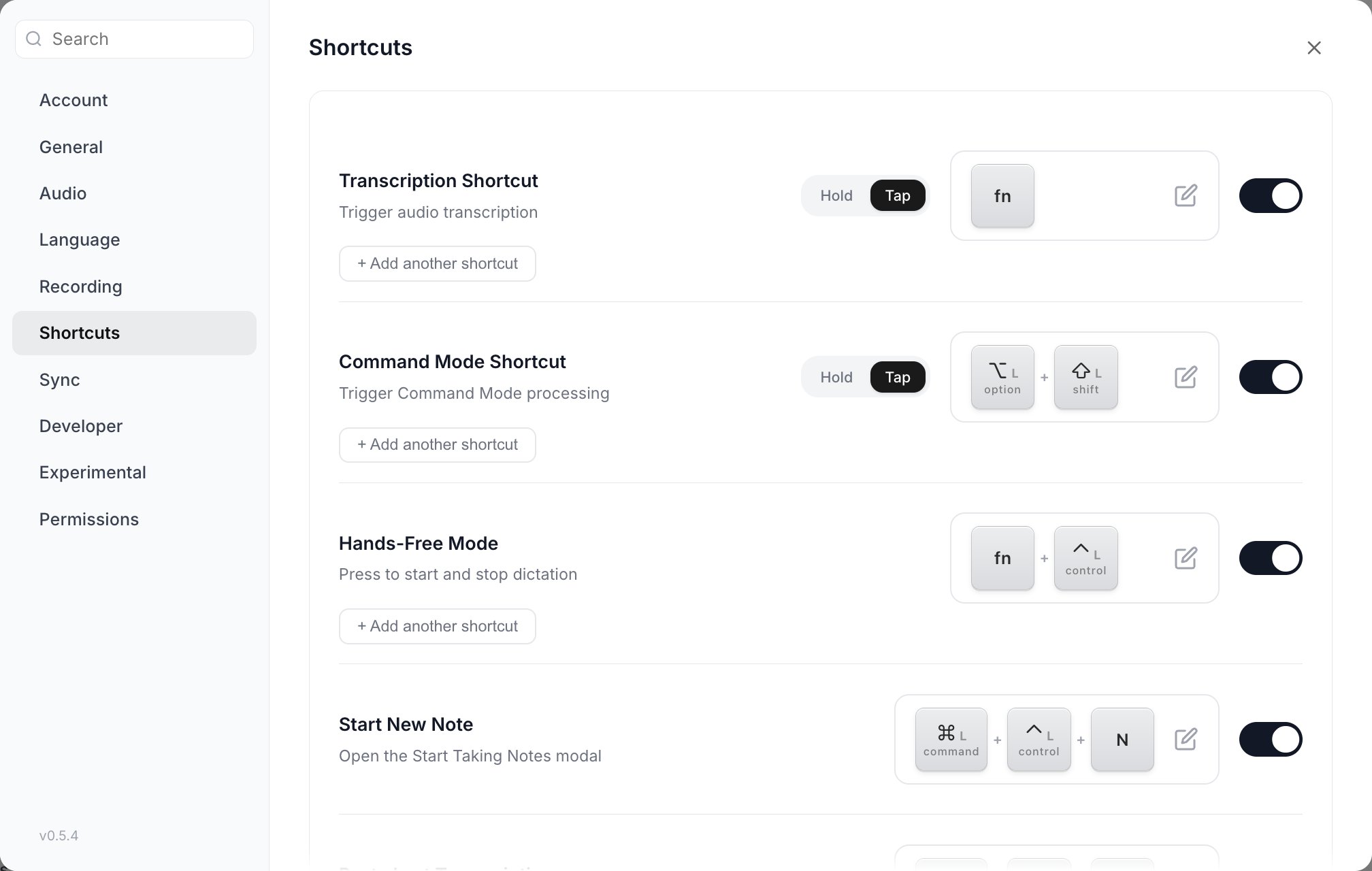
Settings > Shortcuts. Every rebindable action is one row: its keys, its Hold/Tap pill, an edit button and an on/off toggle.
Customizing Shortcuts
1
Open Settings > Shortcuts
The Shortcuts section lists every rebindable action.
2
Click the key display box
A recorder dialog opens. Vowen suspends its own hotkeys while it is open, so pressing your
transcribe combo binds it instead of starting a recording.
3
Press the combination you want
Keys are captured by physical position, not by the character they produce.
4
Save
The new binding takes effect immediately. If the combination is already taken, the dialog
refuses it and tells you so (naming the tone, when a tone owns it).
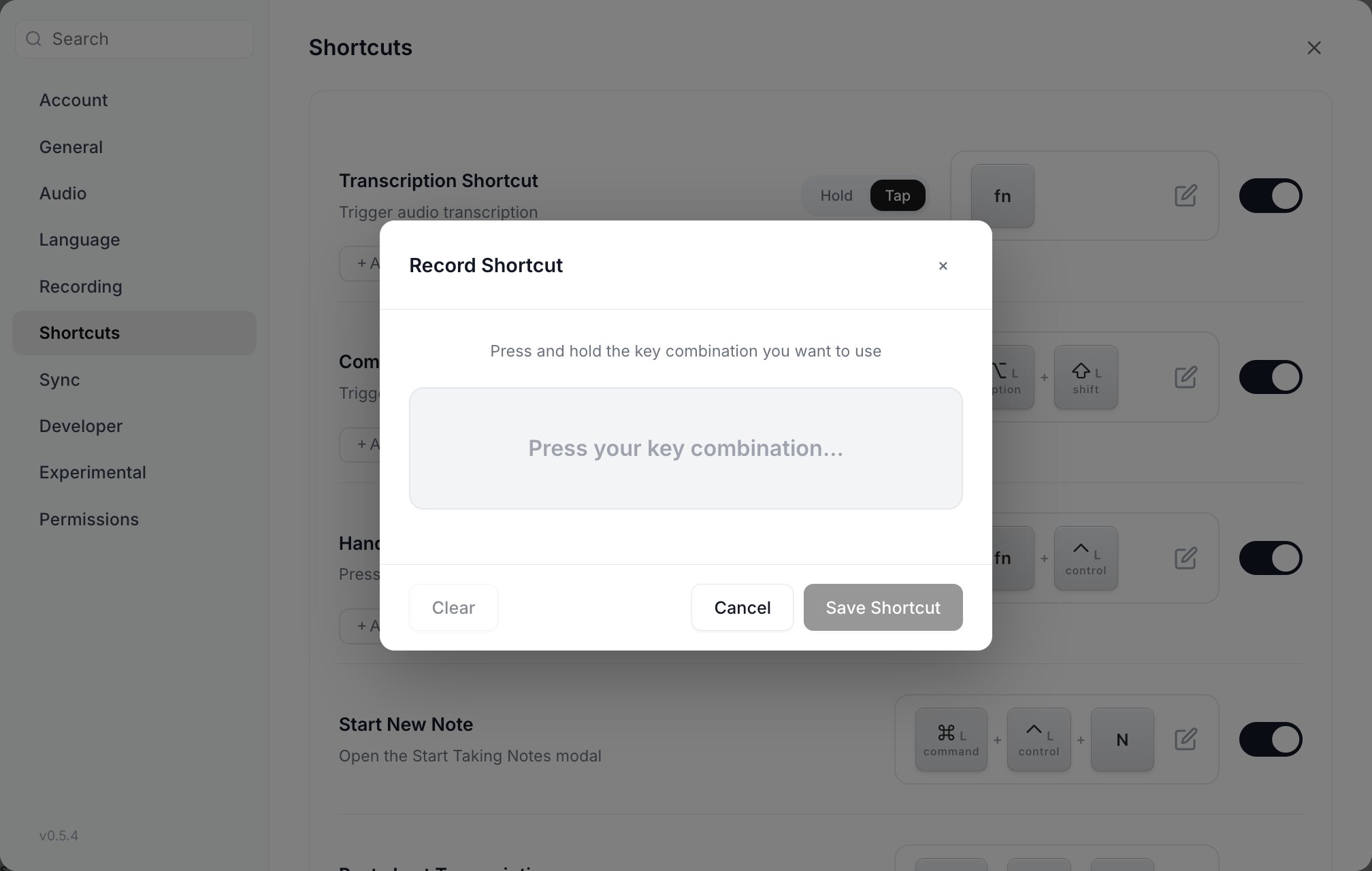
The recorder waits for a combination rather than reading one key at a time — hold the keys down together, then Save Shortcut.
Hold vs Tap Mode
Transcription and Command Mode carry a Hold / Tap pill next to the key display.
The pill appears only on Transcription and Command Mode. Hands-Free Mode does not get
one, since it is already a toggle by definition, and Start New Note, Paste Last Transcribed and
Cancel Recording are single-action shortcuts with no mode.
Each alternative shortcut carries its own Hold/Tap pill, so the same action can be push-to-talk on
one binding and tap-to-toggle on another.
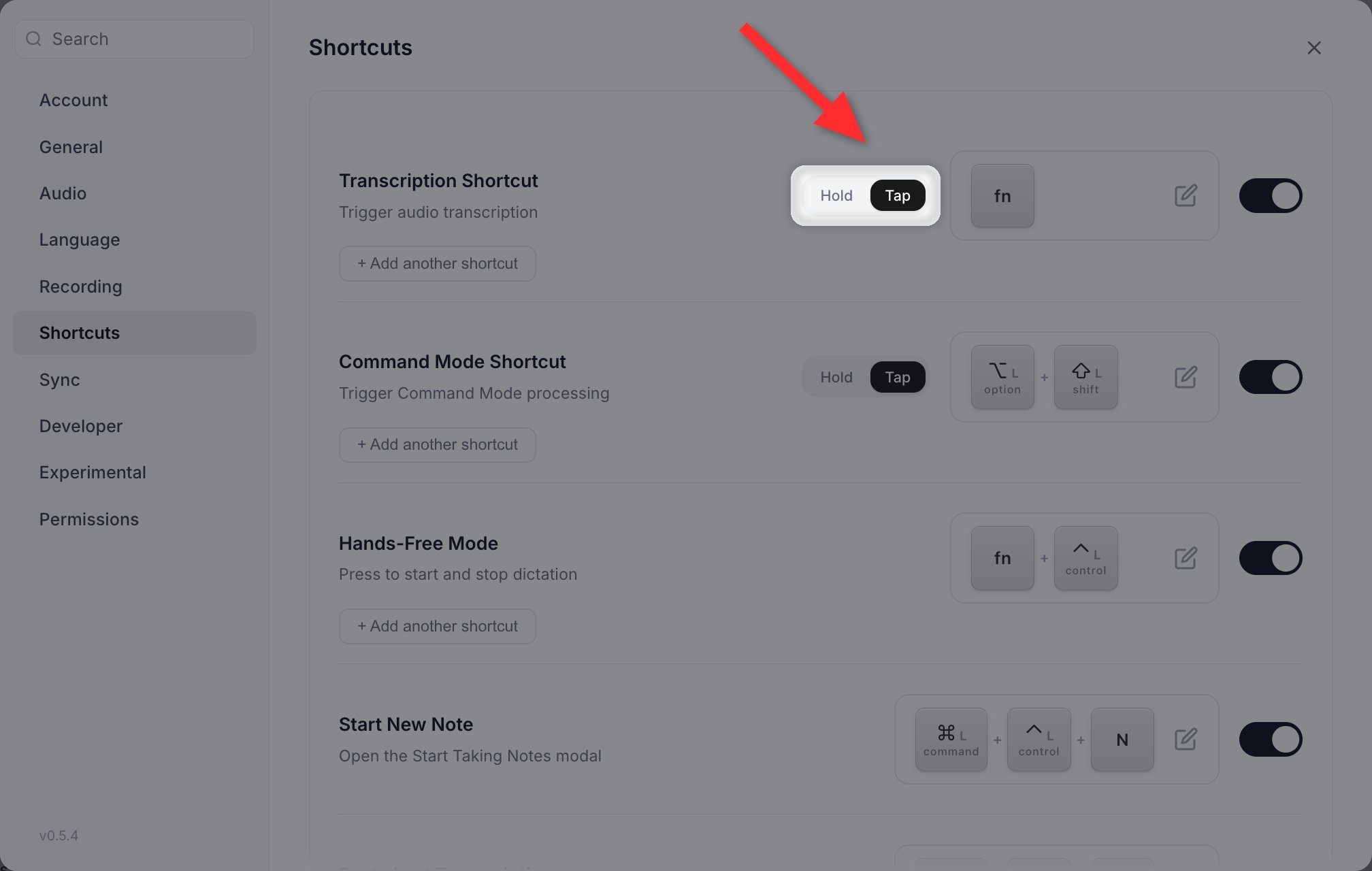
The Hold and Tap pill sits between the action name and its keys.
Alternative Shortcuts
Adding multiple shortcuts for the same action is a Pro feature. The free plan supports one shortcut per action.
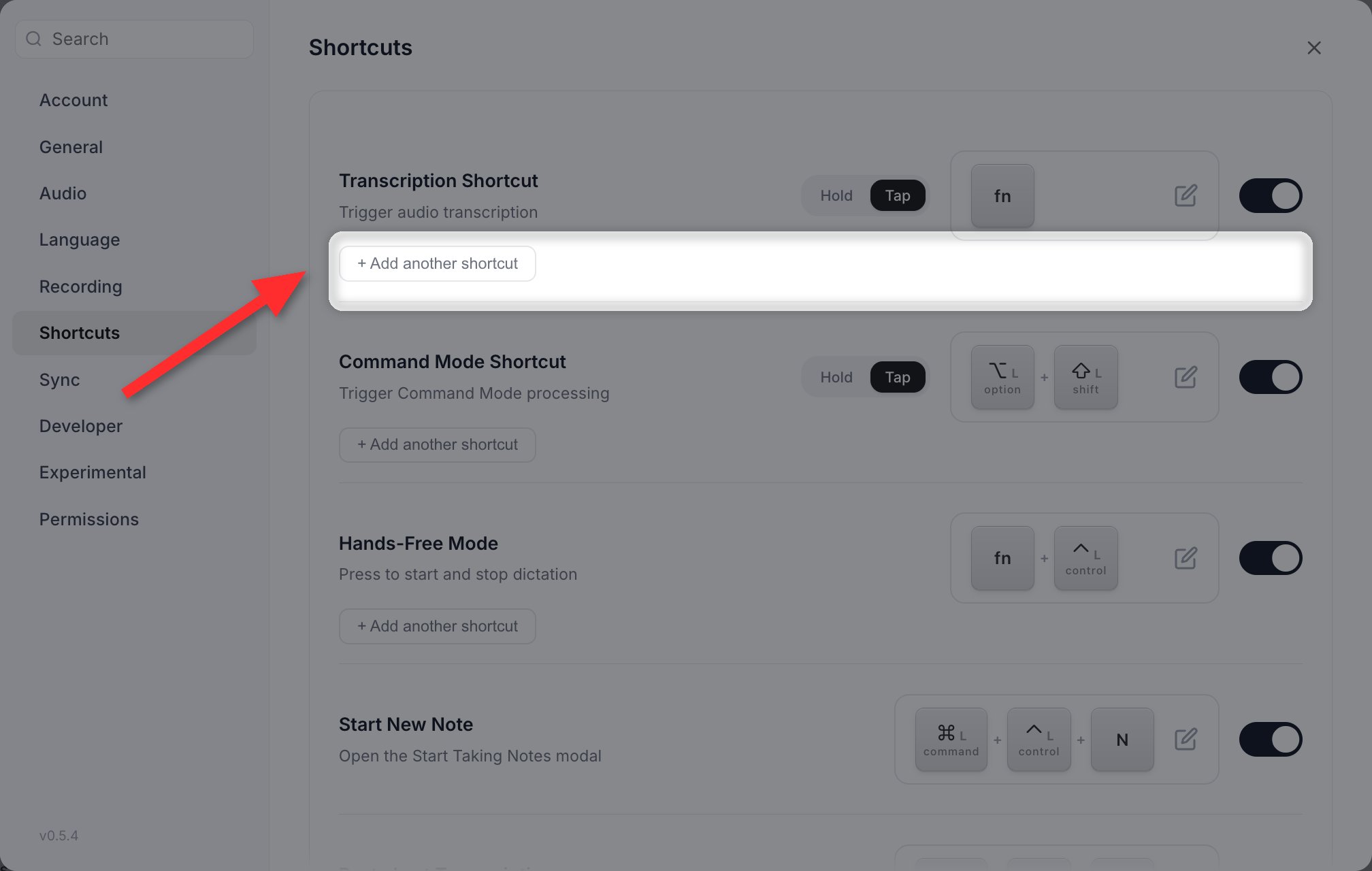
Add another shortcut sits directly under the row it belongs to, so each action can carry more than one binding.
- Main transcription:
Fn - Alternative transcription:
Ctrl + Space
Per-Shortcut AI Override
The AI setting is a two-sided chip labeled Enhance with AI / Off, shown to the left of the key display box. It appears only on alternative shortcuts. The primary Transcription and Hands-Free rows have no AI control at all, and Command Mode has none anywhere because it always goes through the AI provider. New alternatives are created with AI off, so an alternative you add is a raw-text shortcut until you flip the chip. That chip is how the “one key for raw text, one key for polished text” pattern works. See Shortcut Patterns.Supported Keys
Modifier keys
Modifier keys
- Control (left and right distinguished)
- Shift (left and right distinguished)
- Alt / Option (left and right distinguished)
- Command / Windows (left and right distinguished)
- Fn (macOS only)
Regular keys
Regular keys
- Letters
AtoZand digits0to9 - Function keys
F1throughF24 - Punctuation:
-=[]\;'`,./ - The ISO 102nd key, the extra key found on ISO keyboards (left of
1on Mac ISO boards, next to Left Shift on PC ISO boards). It types§on UK Mac,ºon Spanish,<on German and French PC layouts. - Arrows: Up, Down, Left, Right
- Navigation: Home, End, Page Up, Page Down, Insert
- Whitespace and editing: Space, Tab, Enter, Backspace, Delete
Mouse-bound shortcuts follow the same Hold and Tap modes as keyboard shortcuts. In the default
Hold mode a mouse button is push-to-talk: recording stops when you release it. Set the shortcut to
Tap and the button starts recording on the first press and stops on the next, ignoring the release.
Keyboard Layouts
Vowen captures shortcuts by physical key position, so a binding keeps working when you switch layouts. What changes is the drawing. Vowen reads your active keyboard layout from the operating system and translates the key caps in Settings, so a key stored asQ shows as A on AZERTY, and
the ISO 102nd key shows the character your layout actually types. The display updates live when you
switch layouts.
If you already had Vowen installed before the non-QWERTY keyboard work landed and you use a
non-QWERTY layout, a one-time “Some shortcuts may need to be updated” modal appears after
updating. It lists every configured shortcut as Vowen now reads it so you can confirm it still
matches what you expect. Dismissing it either way (Looks good or Something’s off) marks it
seen and it never returns. Fresh installs never see it.
Hands-Free Mode
Press the hands-free shortcut once to start recording, press it again to stop.- Upgrade mid-recording: while a regular push-to-talk recording is running, completing the hands-free combination on top of it converts the recording to hands-free. You can then release everything and keep talking.
- Cancel: press the Cancel Recording shortcut (Escape by default) to discard the active recording without transcribing it.
Cancel Recording
Cancel Recording is a real rebindable row, enabled by default and bound to bareEscape. Turning
its toggle off disables cancel-by-shortcut entirely; recordings can still be stopped normally. Once
you change the binding, a reset arrow appears next to it that restores plain Escape.
Cancelling a toggle-started recording (hands-free, or a Tap-mode shortcut) can be undone. Vowen
offers a resume so an accidental Escape does not lose what you were saying. Hold-to-record sessions
end with the key release and are never resumable.
Left vs Right Modifier Keys
Vowen distinguishes between left and right modifier keys, so you can set:Left Alt + Spacefor transcriptionRight Alt + Spacefor Command Mode
Conflict Resolution
If two shortcuts share a common prefix (for exampleFn and Fn + Control), Vowen waits a 500ms
grace period before deciding which one you intended. The more specific shortcut wins if it
arrives inside that window.
Vowen refuses exact duplicates at binding time rather than resolving them at runtime. Global
shortcuts, their alternatives, per-tone shortcuts and the Meeting Panel shortcut all draw on one
shared namespace and are checked against each other, so a tone can never
silently shadow your transcribe key.
Custom Utility hotkeys are checked against the global
shortcuts and against other utilities when you create them, but the Shortcuts page does not check
back against utilities. If you rebind a global shortcut onto a combination a utility already uses,
re-open the utility and give it a different key.