
Changing it
- In Settings
- During onboarding
1
Open Settings
Click Settings in the left sidebar footer.
2
Go to Language
Select the Language section.
3
Change UI Language
The first row is UI Language. Pick from the dropdown. It has a search box, so you can type instead of scrolling.
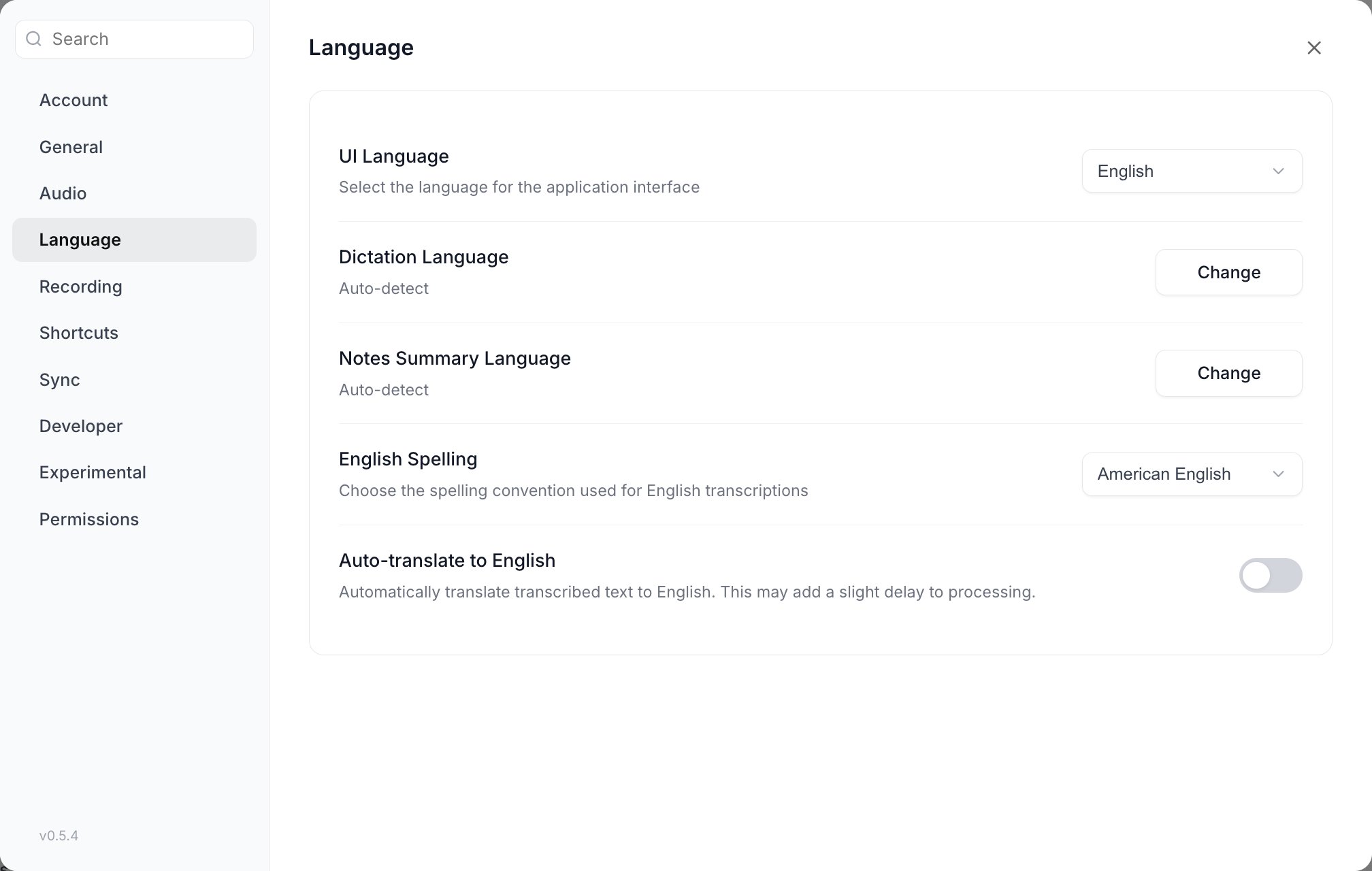
UI Language is the first row of Settings > Language, and is independent of the language you speak.
Supported languages
The dropdown lists each language under its own name, never an English label, so you can find yours without reading English.
Dates and times throughout the app follow your choice as well. Portuguese formats dates the Brazilian way, and Chinese (Simplified) the mainland way.
The choice is one of the preferences that Cloud Sync carries between your devices, so setting it once covers your other machines.
Three different language settings
The three are independent. Changing one does not change the others.1. Interface language: what the app's own text is written in
1. Interface language: what the app's own text is written in
Buttons, menus, settings labels, the tray, notifications, dialogs.Where: Settings > Language > UI Language, or the language button in the onboarding toolbar.It has no effect on transcription accuracy and no effect on what any AI model produces.
2. Dictation language: what you speak
2. Dictation language: what you speak
The language the speech model expects to hear.Where: Settings > Language > Dictation Language.The available options depend on the speech model you have selected, because different models support different languages. Some models fix the language outright. With those, the picker is greyed out and explains why, and the row shows the language the model actually uses rather than whatever you had stored. If you switch to a model that does not support your saved language, Vowen resets you to Auto-detect rather than sending a language the model cannot transcribe.Full detail: Languages.Dictation language can also be overridden in two narrower places, both of which otherwise inherit this setting: per tone, and in the Notes recording defaults.
3. Summary language: what meeting summaries are written in
3. Summary language: what meeting summaries are written in
The language the AI writes your note summaries in, regardless of what language the meeting was held in.Where: Settings > Language > Notes Summary Language.The default is Auto-detect, which means the summary matches the language of the transcript. Because it is not tied to your speech model, this picker always offers the full catalog.It can also be set per template, in the template editor, including on the built-in Meeting Notes template. Resolution order: the template’s own override, then your global Notes Summary Language, then Auto-detect.See Summaries.
Two related rows live in the same Settings > Language section but are not language settings in this sense. English Spelling picks American or British spelling and only appears when your dictation language is English or auto-detecting. Auto-translate translates your dictation into English and is a Pro feature.
Untranslated strings
Translations are per language file. If a string has not been translated yet in the language you picked, the main app window shows the raw internal key instead of English text, for examplecommand_palette.placeholder. There is no per-string fallback to English in the app window.
Menus, dialogs and notifications produced by the app outside the main window do fall back to English for a missing string.
If you see something that looks like a dotted identifier where a label should be, that is a missing translation, not a broken install. Switching UI Language to English restores the text while it is fixed.