
Settings
Paste or direct insertion
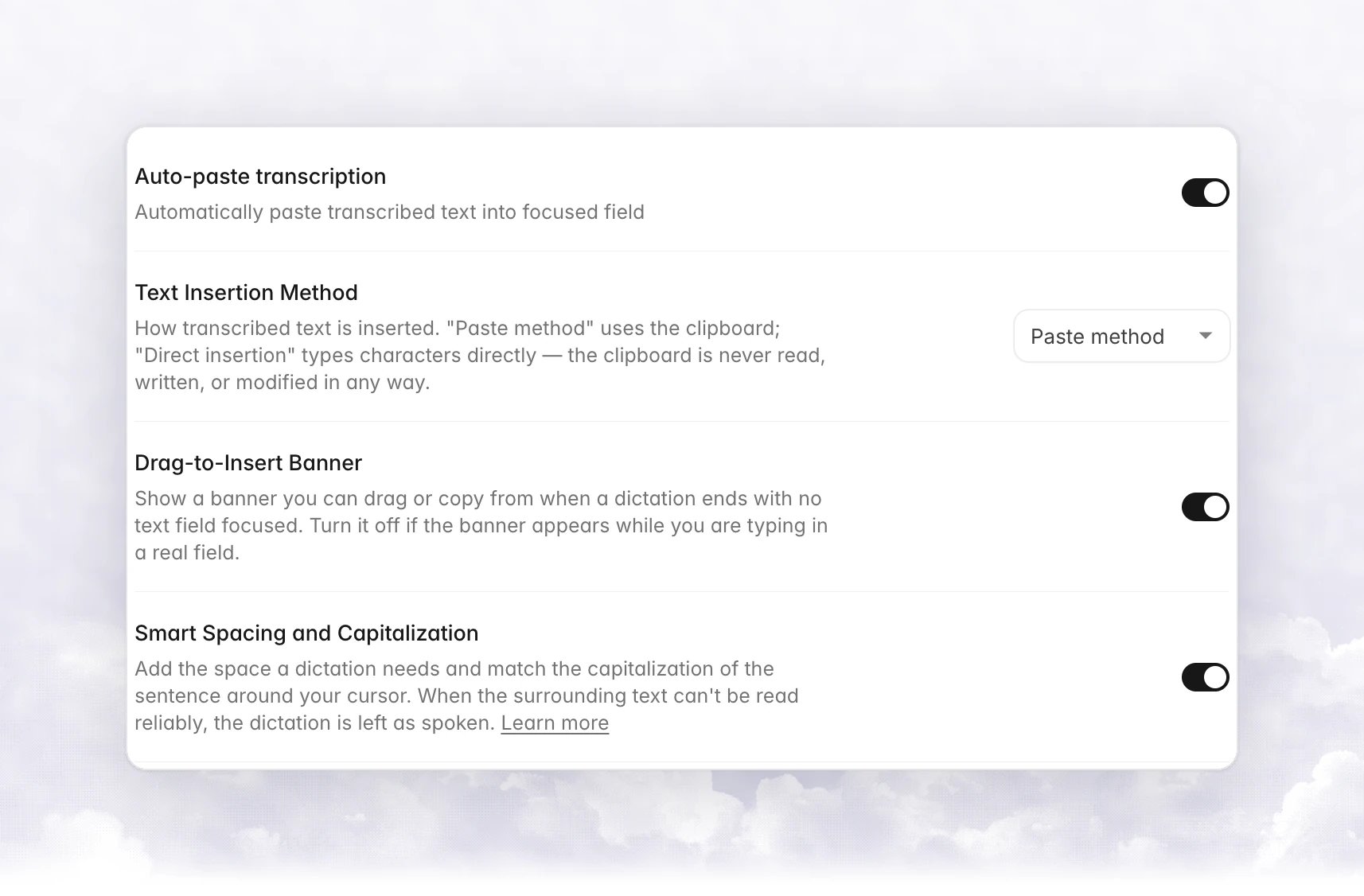
Paste method copies the text to the clipboard and presses Cmd + V (Mac) or Ctrl + V (Win). It is the fastest method and keeps formatting such as rich text from threads. With Restore clipboard after paste on, your clipboard is back to what it was a moment later. Direct insertion types the text character by character. The clipboard is never read, written or changed. Use it when an app blocks pasting, such as some remote desktops and virtual machines. On Windows it shows as Direct insertion (Beta) and may have issues on non-standard keyboard layouts. Change it in Settings › General › Text Insertion Method.Clipboard
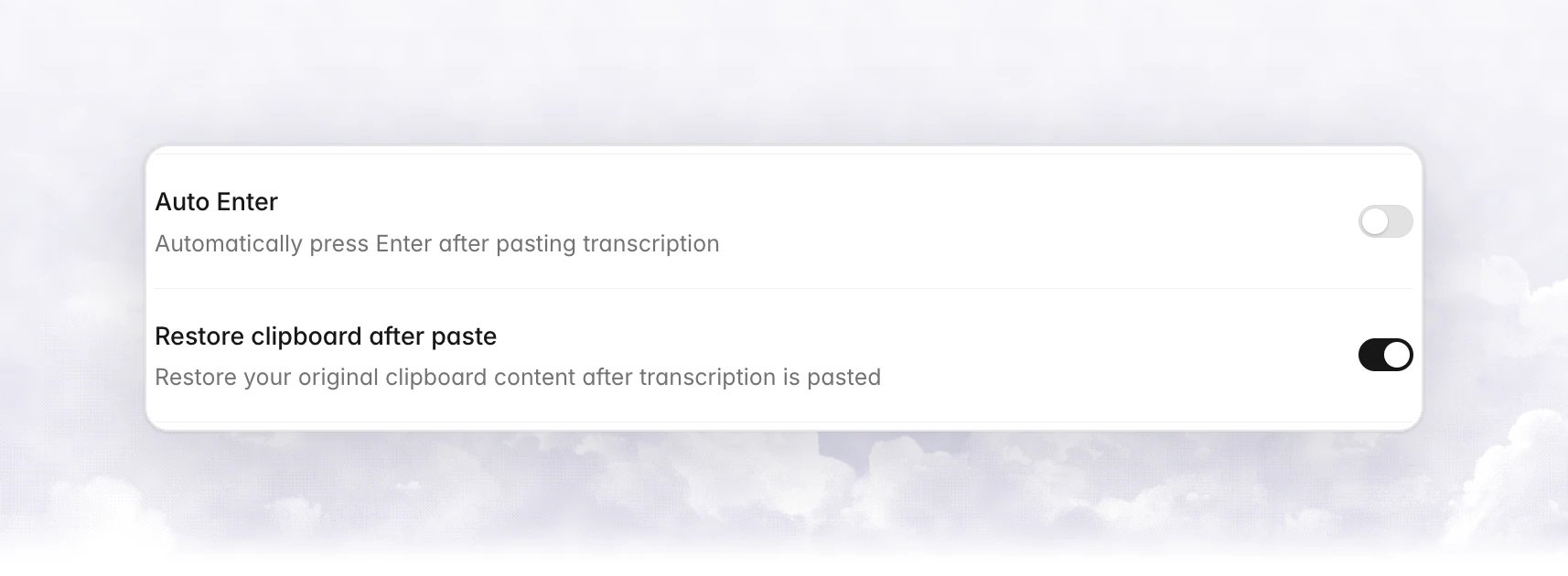
- Restore clipboard after paste puts your previous clipboard content back. Turn it off if you want the dictation to stay on the clipboard.
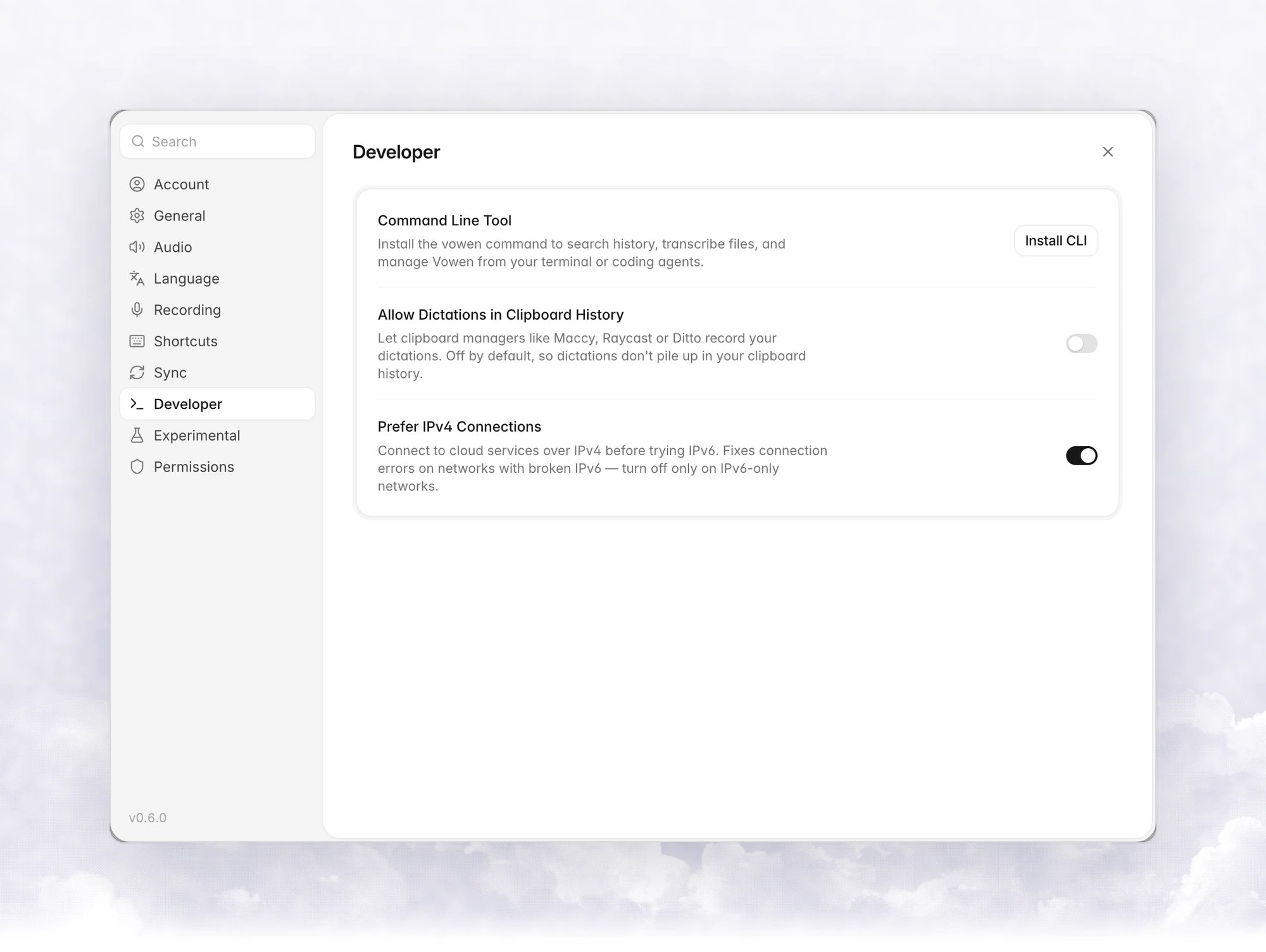
- Allow Dictations in Clipboard History, in Settings › Developer, is off by default so dictations don’t pile up in clipboard managers. Turn it on if you want them there.
When no text field is focused
On macOS, if a dictation ends and nothing can receive text, such as a Finder window or a web page with no field selected, Vowen shows a Drag to insert card next to the recording indicator instead of pasting blind.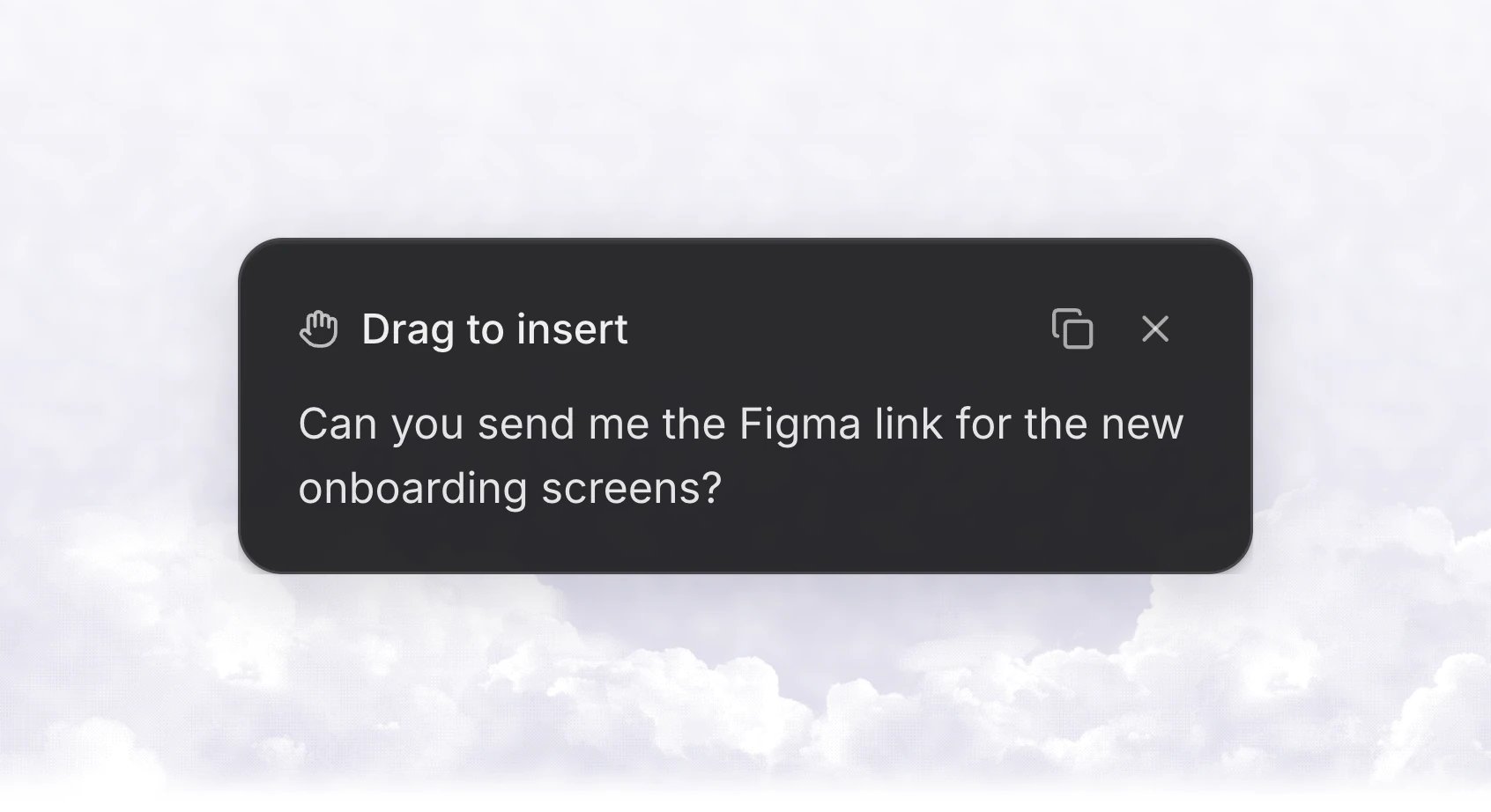
- Drag the card into any app to drop the text there.
- Click Copy to put the text on the clipboard.
- Click Dismiss to close it.
Apps that use containers instead of text fields
Coming in the next update.
Smart spacing and capitalization
Coming in the next update as a setting. In the current release it is turned off.
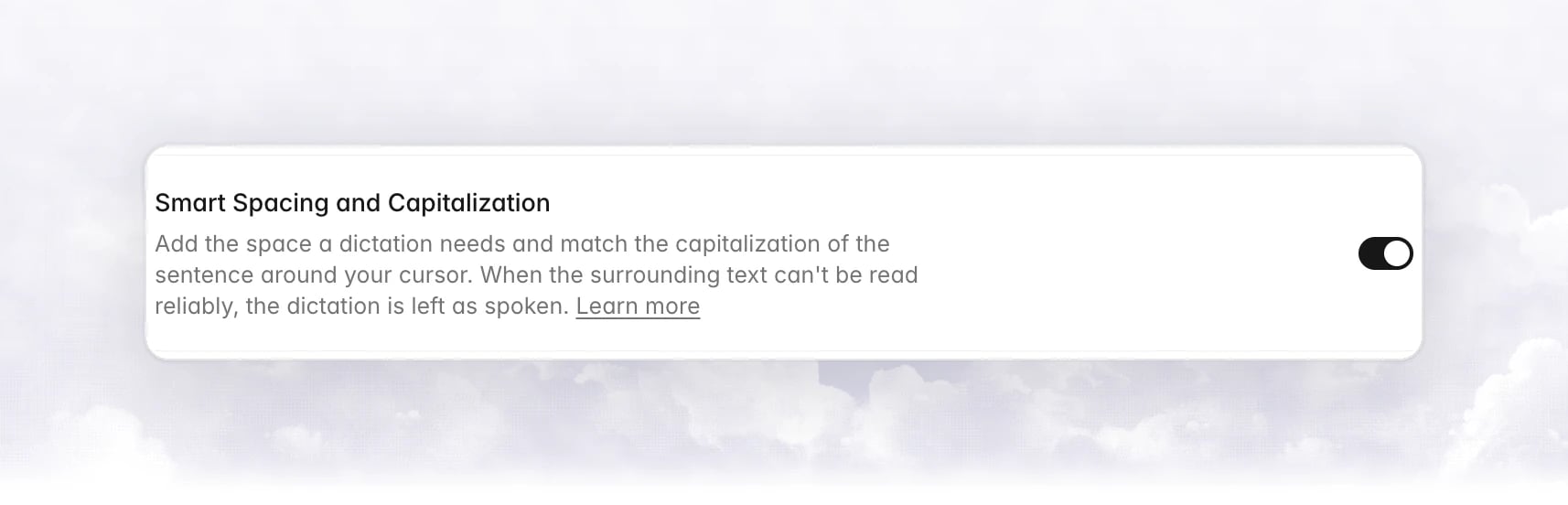
^ marks the cursor.
Turn it on or off in Settings › General › Smart Spacing and Capitalization. It is on by default on macOS and off by default on Windows. The setting is per device and isn’t synced. The surrounding text is read on your computer with Accessibility (macOS) or UI Automation (Windows), used for this one decision, and not sent anywhere.
Vowen leaves the dictation as spoken when it can’t decide:
- Terminals. Terminal, iTerm2, Ghostty, Warp, Windows Terminal and others report their scrollback instead of the line you are typing, so nothing changes there.
- App switches. If you start recording in one app and stop in another, nothing changes.
- Lowercasing needs a clear mid-sentence cursor. The first word is only lowercased after a letter, a number, a comma or a semicolon. After an emoji, a colon, a dash, a closing quote or an inline image, the capitalization is kept.
- Names and mixed-case words such as iPhone or github.com keep their capitalization.
- Redictating a whole message keeps its capitalization and final punctuation.
- Languages without spaces between words, such as Chinese, Japanese and Korean, don’t get spaces added.