
AI Enhancement is a light cleanup pass that runs after transcription. It fixes spelling, grammar, and formatting, then gets out of the way.
API key required. AI Enhancement runs on a third-party provider (OpenAI, Anthropic, Google Gemini, Groq, and six others). Connect your own key under Configure your AI in the sidebar, then turn on Enhance transcription with AI on the Configuration tab. Groq and Google Gemini both offer generous free tiers that cover most daily use; other providers may require a paid plan.
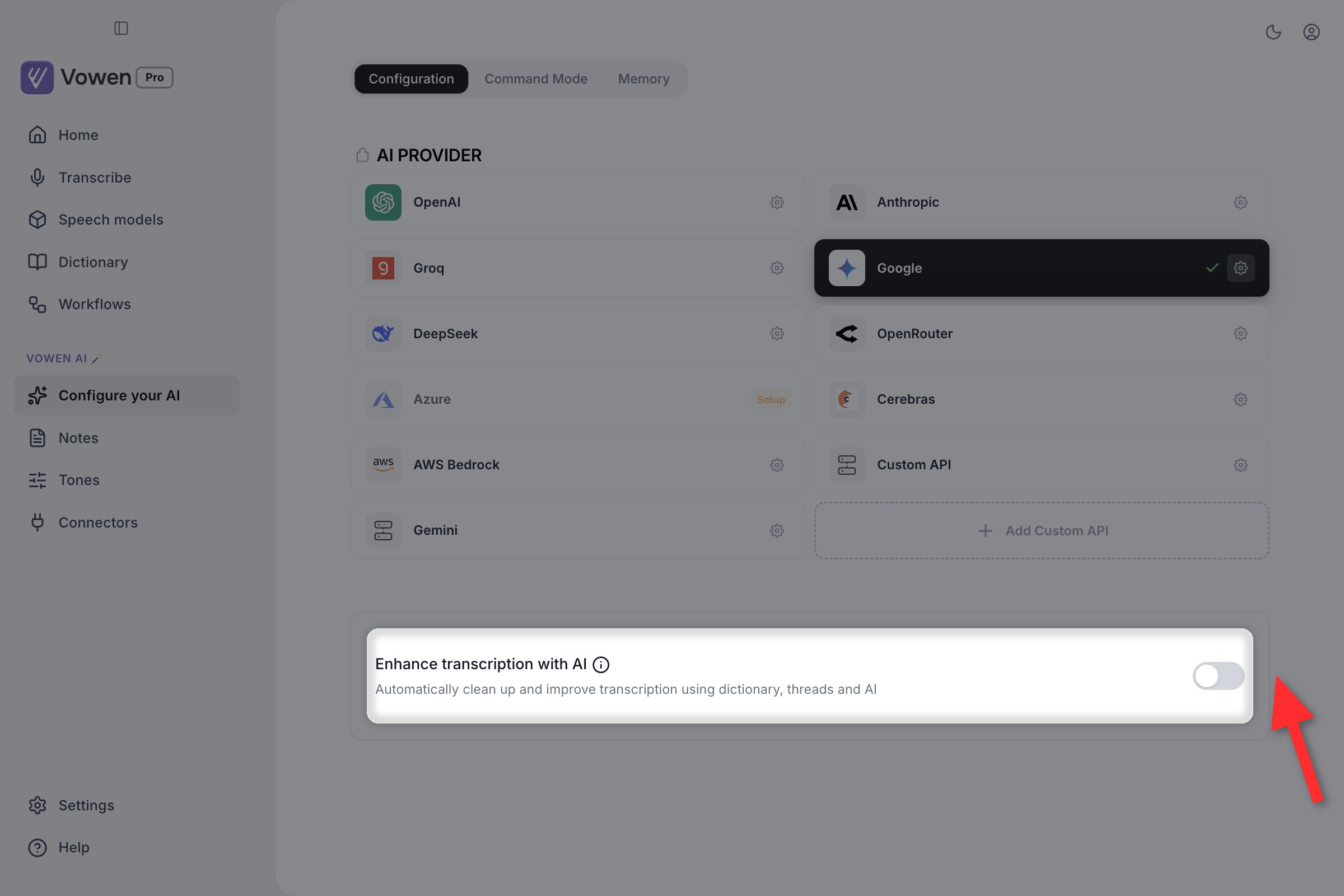
Enhance transcription with AI is the switch that turns all of this on. It sits below the provider grid on the Configuration tab.
What it does
Cleanup
Spelling and grammar
”i think wee should go tommorow”
↓
“I think we should go tomorrow.”
Punctuation and capitalization
”hey are you free tomorrow”
↓
“Hey, are you free tomorrow?”
Self-corrections
”let’s meet at 3 actually 4”
↓
“Let’s meet at 4.”
Formatting
Spoken numbers to digits
”three thousand dollars”
↓
“3000 dollars”
Phone numbers
”five five five one two three four”
↓
“555-1234”
Spoken formatting commands
”price colon ten dollars”
↓
“Price: 10 dollars”
Structure
List formatting
”buy milk call mom send report”
↓
1. Buy milk
2. Call mom
3. Send report
2. Call mom
3. Send report
Email structure
”hi sarah thanks for the update regards john”
↓
Hi Sarah,
Thanks for the update.
Regards,
John
Thanks for the update.
Regards,
John
Paragraph splitting
”we met today anyway tomorrow we ship”
↓
We met today.
Anyway, tomorrow we ship.
Anyway, tomorrow we ship.
Two things remove filler words, and they are not the same list.Vowen’s output filter runs first, on every transcription, with or without an AI provider connected. It strips a fixed short list of sounds only:
uh, um, uhm, umm, uhh, uhhh, hmm, mmm, mh, ehh, hm, plus the German äh, ähm, and öhm. Phrases like “you know” and “like” are not in it. Toggle it in Settings > General > Remove filler words.AI Enhancement then removes fillers more broadly, including “like” and “you know”, while deliberately keeping personality markers such as “I think”, “I mean”, and “And then that’s it”.How it works
When you record with AI Enhancement enabled, your speech moves through three stages. AI Enhancement is the middle one.Step 1
Transcription
Your speech is transcribed by your selected local or cloud model. Filler words are stripped by Vowen’s output filter, and any matching Threads are applied.
Step 2
AI Enhancement
The cleaned transcription is sent to your AI provider, which fixes errors and applies formatting without rewriting your sentences. Your custom instructions, if you have set any, apply here too.
Step 3
Auto-Paste
The polished output is pasted into whatever app has focus, using your selected text insertion method.
Voice formatting commands
Speak any of these and Vowen applies the symbol or formatting instead of writing the words.Punctuation
period
.comma
,question mark
?exclamation point
!colon
:semicolon
;Line breaks
line break, new line
↵new paragraph
↵↵Quotes
quote
”apostrophe
’Symbols
asterisk
*ampersand
&percent sign
%ellipsis
…slash
/at sign
@hashtag
#Brackets and dashes
open / close parenthesis
( )open / close bracket
[ ]open / close brace
dash, hyphen
-em dash
—Math and special
plus
+minus
-equals
=degree sign
°degrees celsius
°CVowen also converts spoken email addresses (“john at gmail dot com” becomes
[email protected]) without needing an explicit command.Per-shortcut override
Each dictation shortcut carries its own AI setting, shown as a two-sided pill in Settings > Shortcuts:
Keep one shortcut for raw transcription (code, AI prompts) and another for polished output (writing). Leave your main shortcut on Enhance with AI and set a second one to Off, or the other way round. Any key combination works, and you can bind mouse buttons too.
The pill appears on the transcription and hands-free shortcuts only. The Command Mode shortcut has no AI setting of its own, because Command Mode always runs on your AI provider.
The AI pill on your primary shortcut is free on every plan. Adding a second, alternate shortcut to the same action requires Pro.
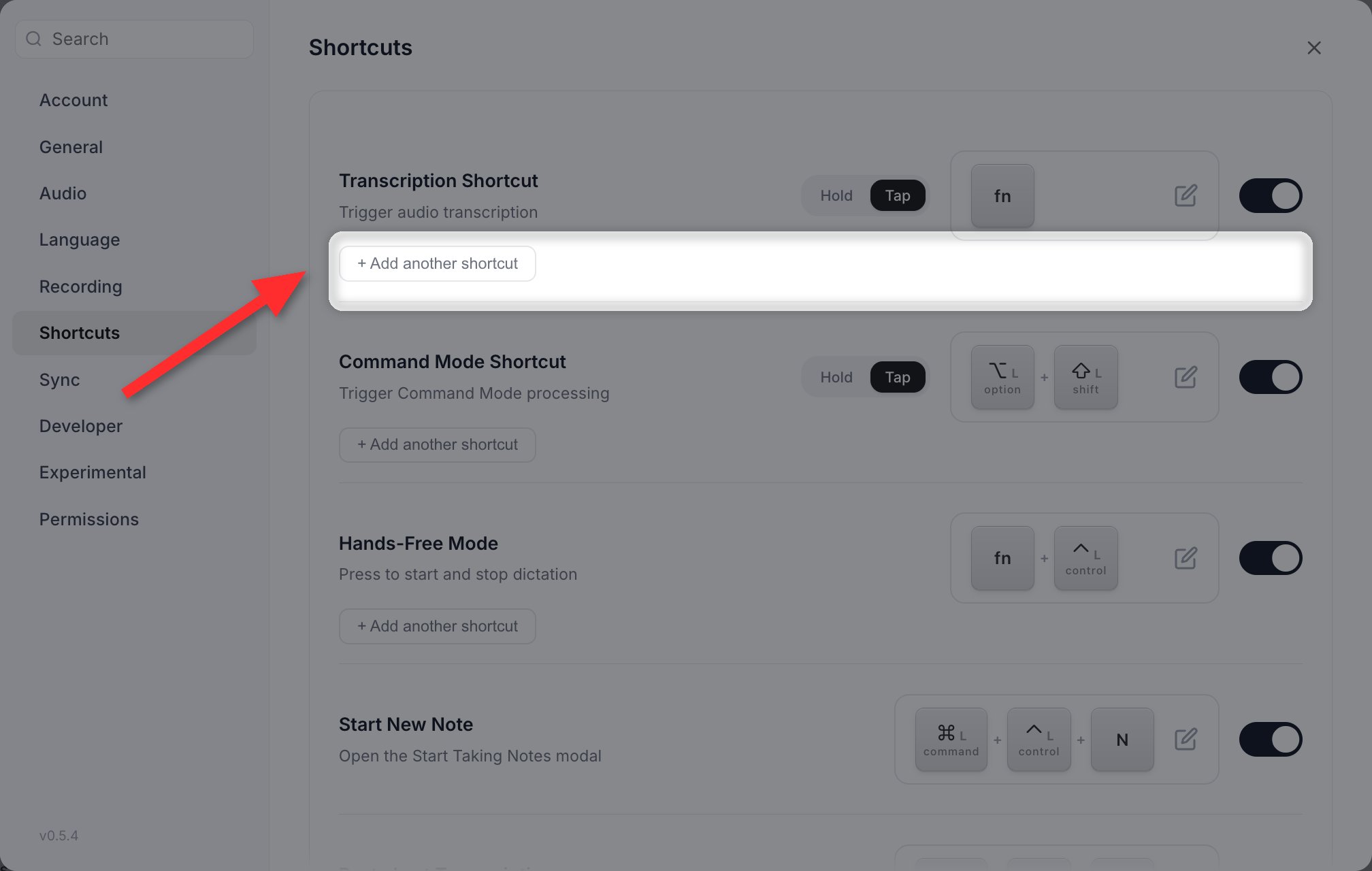
Every shortcut row carries its own controls in Settings > Shortcuts. The AI pill appears on alternative shortcuts.
Custom instructions
Directly beneath Enhance transcription with AI on the Configuration tab, there is a Custom Instructions toggle. Turn it on and a text area appears where you can write rules that apply to every AI Enhancement pass. Click Save Changes to apply them.Custom Instructions for dictation are free on every plan. (Custom instructions for meeting-note summaries are a separate, Pro-only setting inside Notes.)
- “Always use Oxford commas”
- “Write in active voice”
- “Keep paragraphs to two or three sentences”
- “Output everything in lowercase”
How a custom instruction shapes the output
The rule you set
”Write in passive voice with a formal, report-style tone.”
You say
”planned obsolescence is when companies make products that break on purpose so people keep buying new stuff and it’s really wasteful because everything ends up in landfills and it’s bad for sustainability”
↓
AI Enhanced output
”Planned obsolescence refers to the practice by which products are deliberately designed by manufacturers to fail prematurely. As a result, consumers are compelled to make repeated purchases, and discarded items are accumulated in landfills, undermining broader sustainability efforts.”
Pass screen as context BETA
Speech recognizers mangle names they have never heard. Pass screen as context gives the enhancer a second chance at them. When you start dictating, Vowen reads the names visible in the window in front of you and offers them to the AI as possible corrections for words it may have misheard.- Appears as a nested row under Enhance transcription with AI on the Configuration tab, and only when a provider is connected.
- macOS only. There is no Windows or Linux equivalent yet.
- Off by default, and opt-in on purpose. It sends words from whatever window is in front to your AI provider. That is the same provider already receiving your dictation, but a screen is not a dictation, so it is your call rather than a default.
- Uses Accessibility, not Screen Recording. No screenshot is taken and no new permission prompt appears.
- It only ever runs when AI Enhancement runs. With enhancement off, nothing is read.
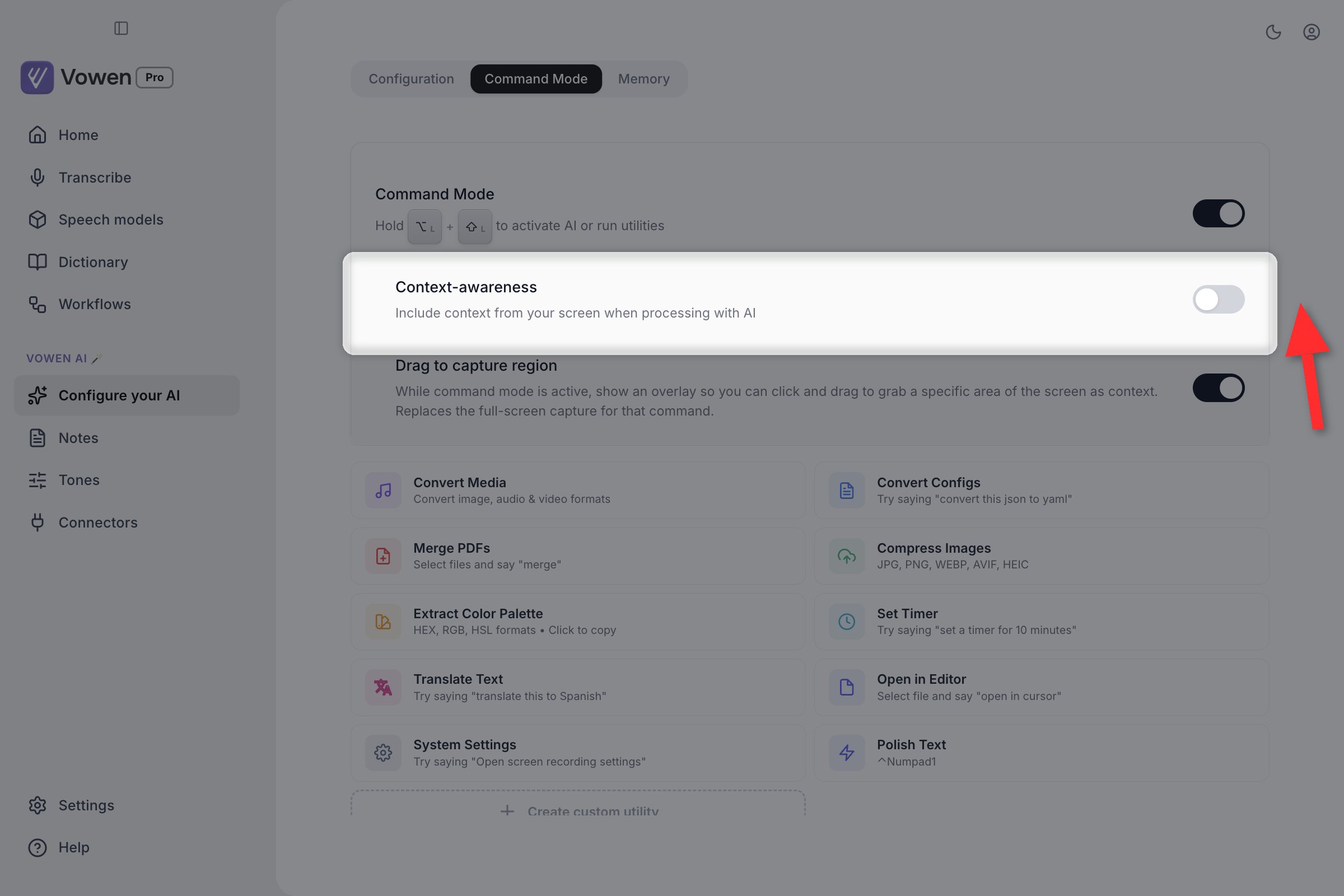
Context-awareness, on the Command Mode tab of Configure your AI. Off by default.
When enhancement fails
Your words are never lost. If the enhancement call fails for any reason (the provider is down, the key is rejected, the request is rate-limited, the response is unusable), Vowen keeps the pre-enhancement transcript and pastes that instead.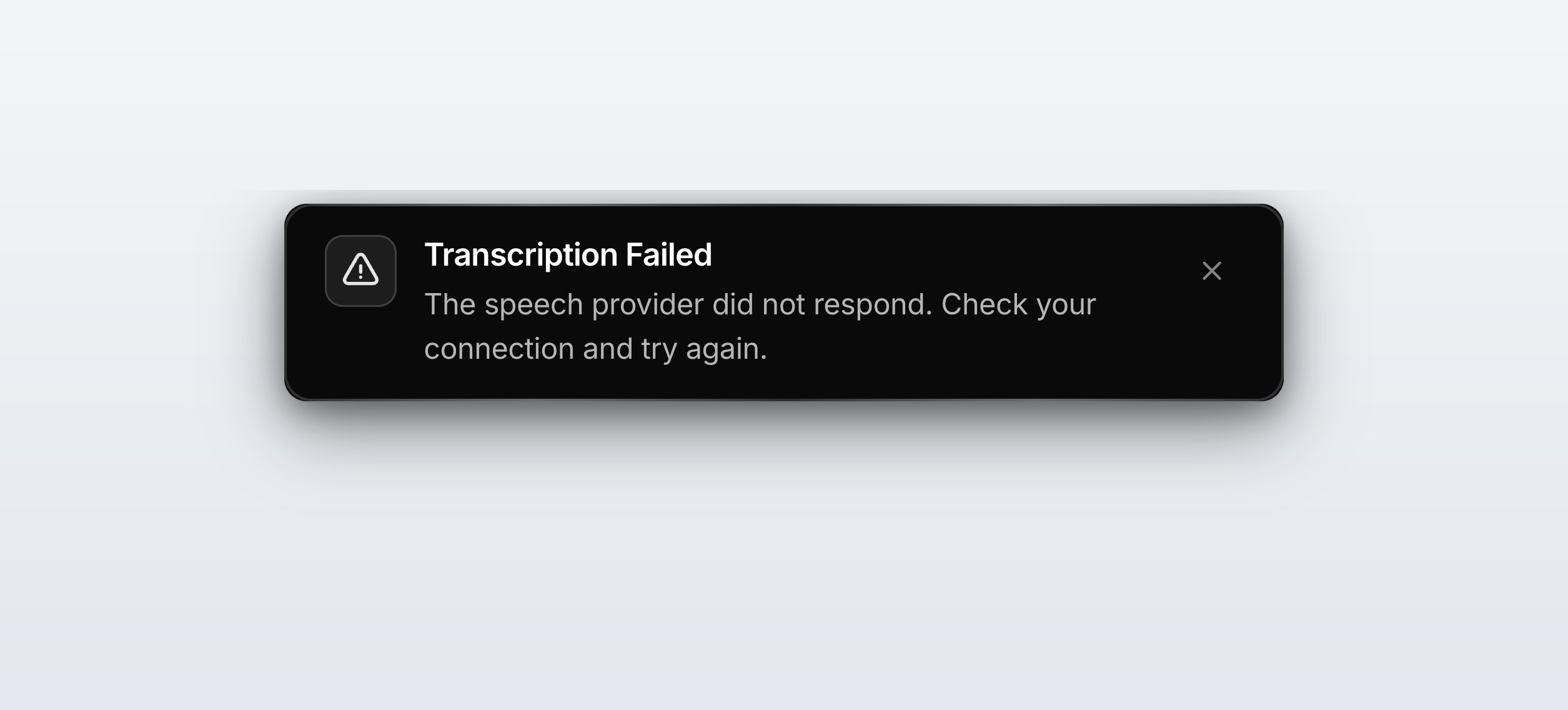
A failure surfaces as a banner. Your raw transcription is kept and inserted anyway.
Empty responses
Empty responses
A provider can succeed but come back with no usable text, most often a reasoning model that spends its whole budget thinking and never answers. Vowen treats that as a failure, so you get your raw transcript and a banner instead of an empty document.
Replies addressed to you
Replies addressed to you
Cheap and fast model tiers sometimes read a short imperative dictation as an instruction addressed to them and answer it. Say “Use this template below” and you could get back “I don’t see any transcript content to clean. Please provide the actual transcript…” pasted verbatim into your document.Vowen recognises that kind of reply and throws it away, carefully enough that a genuine dictation about transcripts is not mistaken for one. You get your own words, never an apology addressed to you.
Speed
Reasoning effort is the single biggest lever on how long enhancement takes, and Vowen sets it for you. There is no user-facing control. Enhancement is deterministic cleanup, not a reasoning task, so Vowen asks each model for the lowest amount of thinking it will accept. Measured on Gemini 3.6 Flash, leaving thinking at its default cost 9,279ms per dictation versus 1,337ms at the minimum. It was also less accurate. The thinking-on model truncated a 305-word dictation to a median of 153 words, where every other model returned 93 to 96 percent of the input.More examples
Example 1: Email structure
You say:“Hi Donna comma new line I’m writing to follow up on our meeting yesterday period I wanted to confirm the next steps period new paragraph Regards comma new line John”You get:
Example 2: Numbered list
You say:“I need three things first buy groceries second call mom and third finish the report”You get:
Example 3: Phone number
You say:“my office number is plus one eight hundred five five five zero one zero one extension two three four”You get:
Example 4: Email address
You say:“send the report to alex at example dot com”You get:
Best practices
- Match your model to your need. For light cleanup, the smallest tier is fast and accurate: GPT-5.4 Nano, Gemini 2.5 Flash-Lite, GPT-OSS 20B on Groq, or Claude Haiku 4.5. For complex custom instructions, step up to GPT-5.4, Claude Sonnet 4.6, or Gemini 3.5 Flash.
- Speak naturally. AI Enhancement is built to handle filler words, false starts, and casual phrasing. You do not need to over-articulate.
- Use formatting commands sparingly. Let auto-detection handle normal sentences. Reach for explicit commands only when you need a specific symbol or paragraph break.
- Keep custom instructions short and specific. “Use Oxford commas” works better than “Make my writing better”.
- Set up Per-app Tones for repeated context switches. If you want different behavior in different apps (formal in email, casual in Slack, off in code editors), Per-app Tones is more sustainable than toggling the global setting.
- Choose latency-conscious providers. If AI Enhancement feels slow, switch to Groq or Cerebras. Both serve large models at sub-second latency on the free tier.
Languages
AI Enhancement runs in the same language as the transcription. Most providers handle major world languages well, but the smallest, cheapest tier of any provider can produce uneven results in low-resource languages. For best non-English results:- Pair a multilingual speech model (Whisper Large v3, Groq Whisper) with a capable multilingual AI model such as Claude Sonnet 4.6, GPT-5.4, or Gemini 3.5 Flash.
- Avoid
.enspeech models for non-English input. - Set your language explicitly in Settings > Language instead of relying on auto-detect.
Running into issues with AI Enhancement? See AI & API Issues for symptom-driven fixes.
Set up an AI provider
Connect Groq, OpenAI, Anthropic, Gemini, or any of 10 supported providers.