
Opening Vowen
- Click the Vowen icon in the menu bar (macOS) or system tray (Windows) and choose General Settings
- Press
Cmd+,(macOS) orCtrl+,(Windows) from the tray menu accelerator
The Sidebar
The main window sidebar has three parts.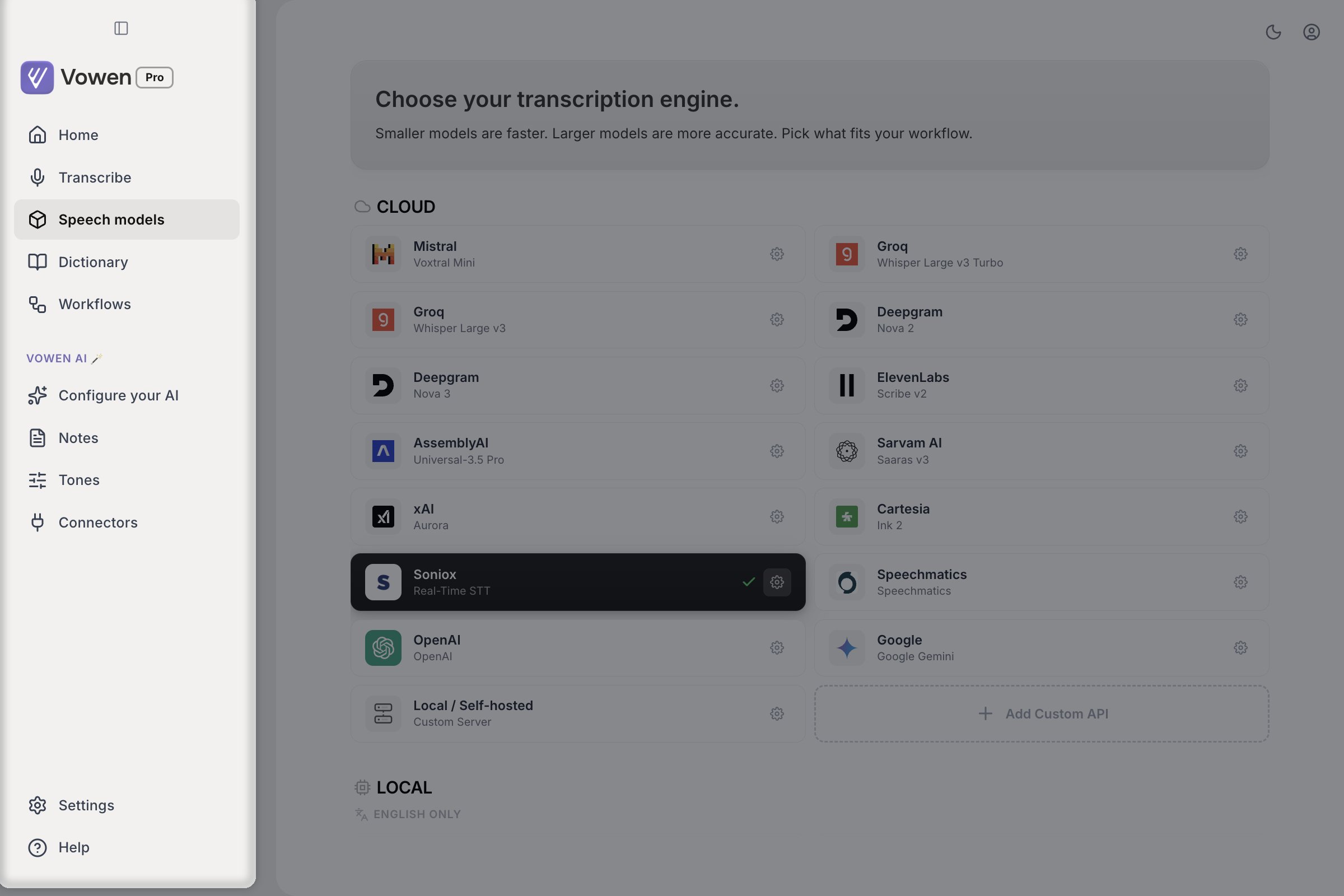
The sidebar: five primary pages, the Vowen AI group, then Settings and Help at the bottom.
The Settings Modal
Clicking Settings in the sidebar footer opens a modal with its own sidebar. There are exactly ten sections.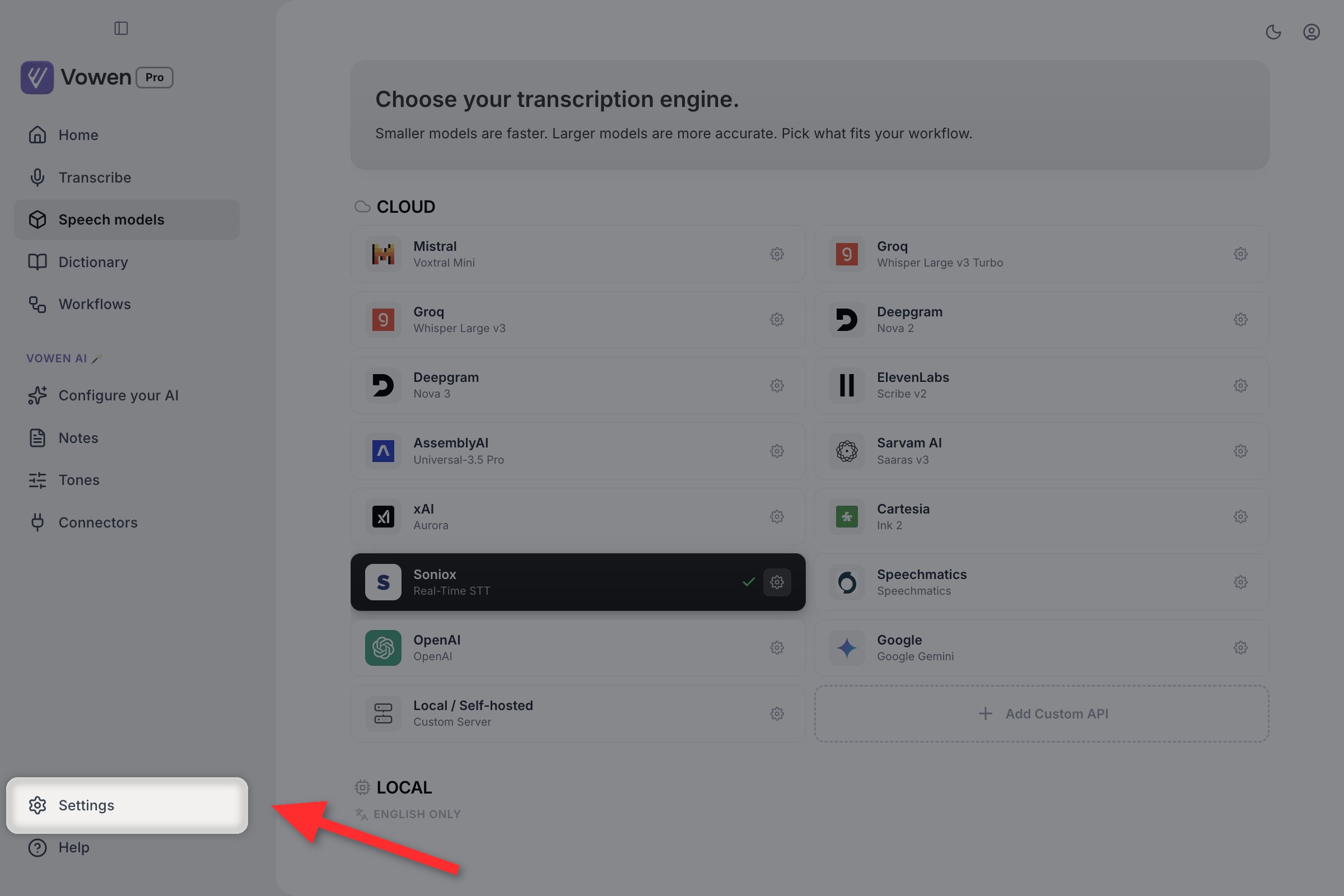
Settings sits at the very bottom of the main window sidebar, below every feature page.
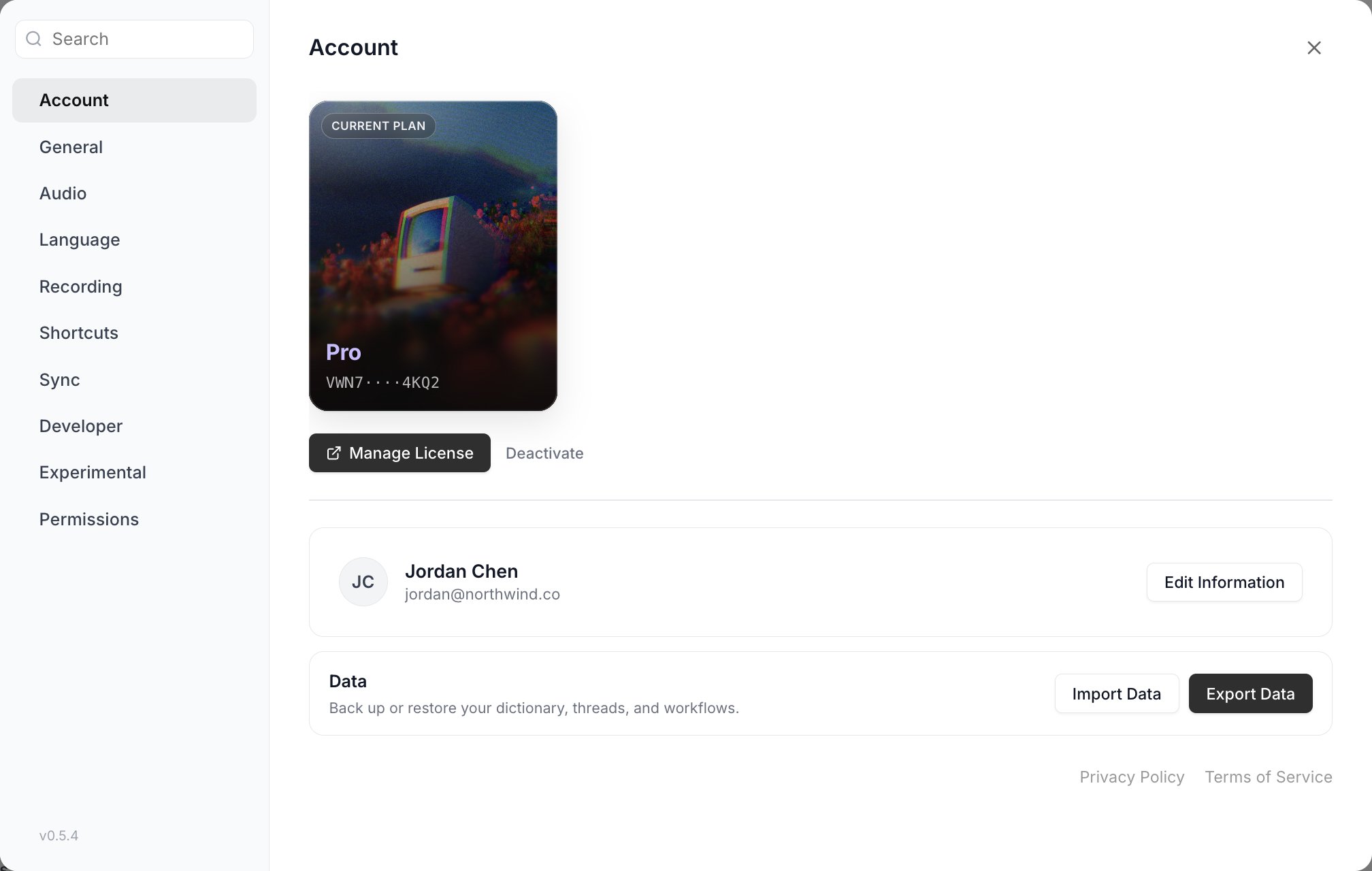
The Settings modal, opened on Account. The ten sections run down the left, with the search field above them and the app version at the bottom.
Section by Section
Account
Account
- Plan card: your current plan, licence key (masked) if activated, and buttons to buy, activate, manage, or deactivate a licence.
- Profile card: your name and email. The name you set during onboarding lives here.
- Data card: Import Data and Export Data. Import/Export is a Pro feature.
General
General
- Software Updates: description plus a Check for Updates button
- Open at Login: launch Vowen when you log in
- Hide Dock Icon (macOS only): run as a pure menu bar app
- Start Minimized to Tray (Windows only)
- Auto-paste transcription: paste into the focused field automatically
- Text Insertion Method: Paste method or Direct insertion. Greyed out when auto-paste is off
- Auto Enter: press Enter after pasting. Greyed out when auto-paste is off
- Restore clipboard after paste
- Sound Effects: audio feedback when recording starts and stops
- Save transcriptions to history: word count and activity are tracked either way
- Remove filler words
- Auto-add corrections to Dictionary (Pro, Beta): needs at least one AI provider connected
- Resource efficient mode: only shown for local Whisper models, and for Parakeet on Windows
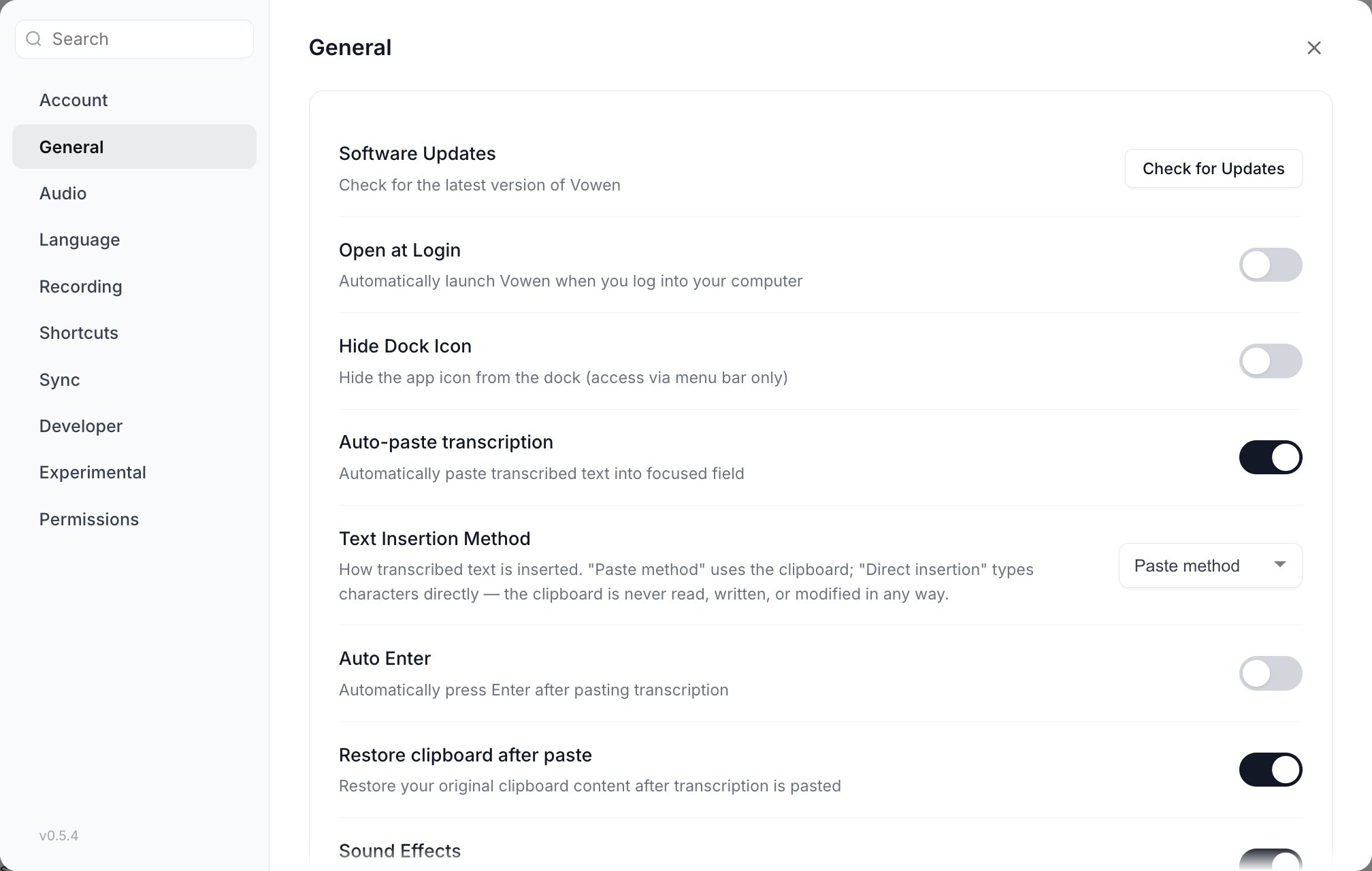
Settings > General.
Audio
Audio
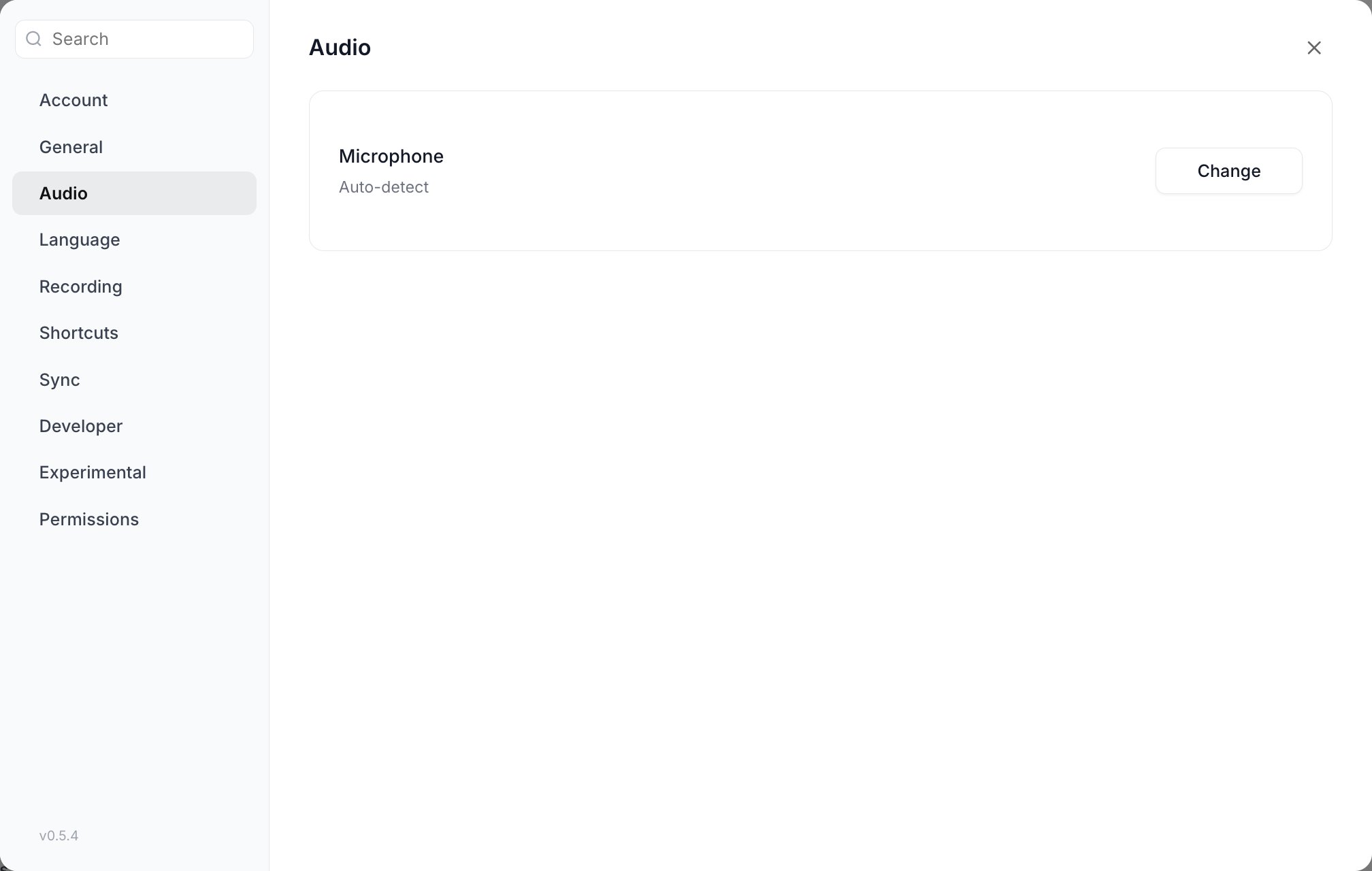
Settings > Audio. Change opens the microphone picker and ranking list.
Language
Language
- Interface language: Vowen’s own UI. 18 languages ship with the app
- Dictation language: the language you speak. The available list depends on the model you have selected
- Summary language: the language meeting note summaries are written in
- English spelling: British or American conventions
- Auto-translate to English (Pro): only shown when the model is not English-only
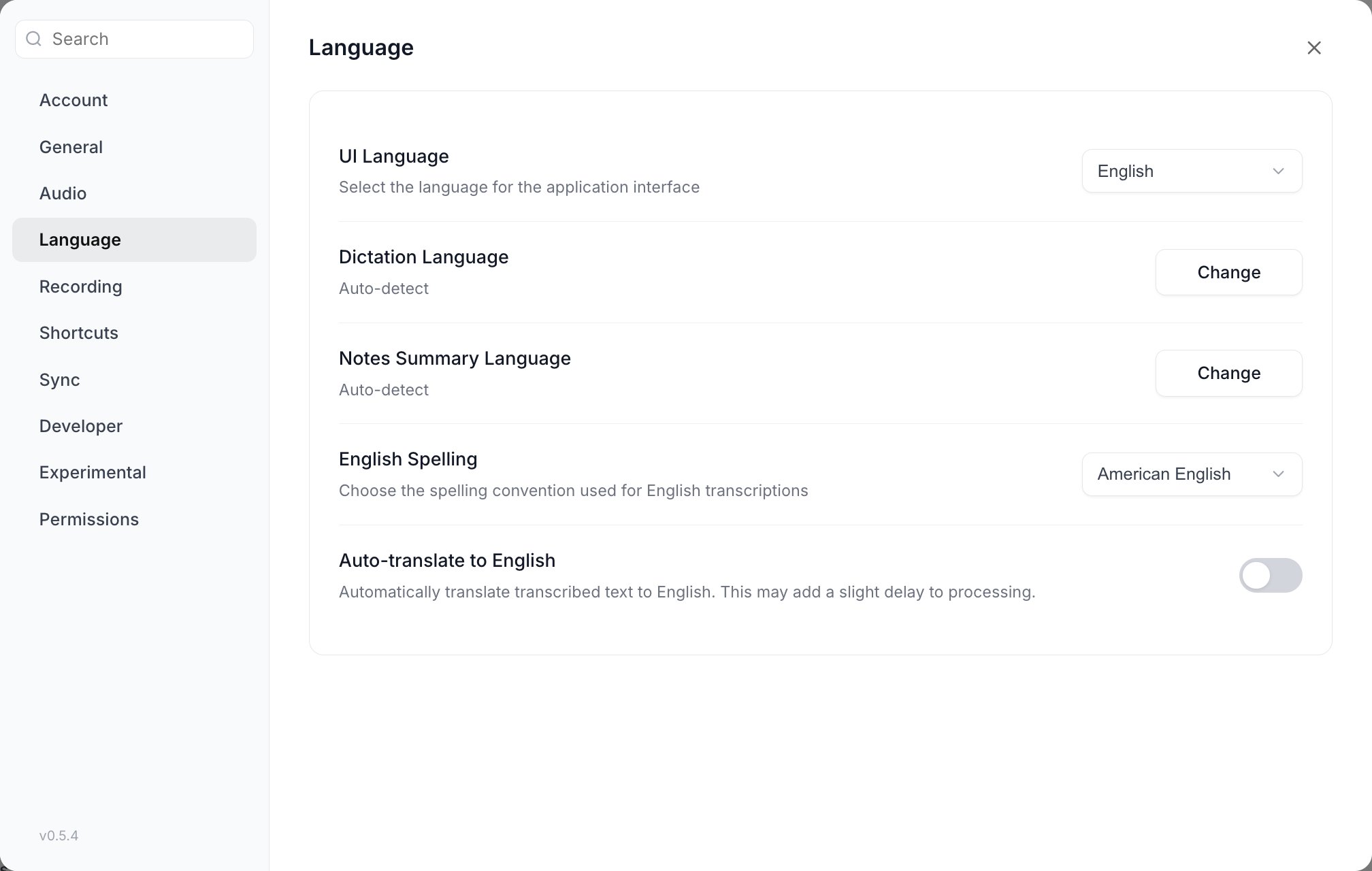
Settings > Language holds three separate language settings.
Recording
Recording
- Indicator style (macOS only): Pill or Notch
- Recording Indicator Position: Top, Bottom, or Don’t show
- Show idle pill: off by default
- Save audio recordings: keeps
.wavfiles in~/Documents/Vowen Recordings - When recording starts: do nothing, mute system audio, or pause playback (Pro)
- Real-time transcription preview (Pro): only available on streaming-capable models
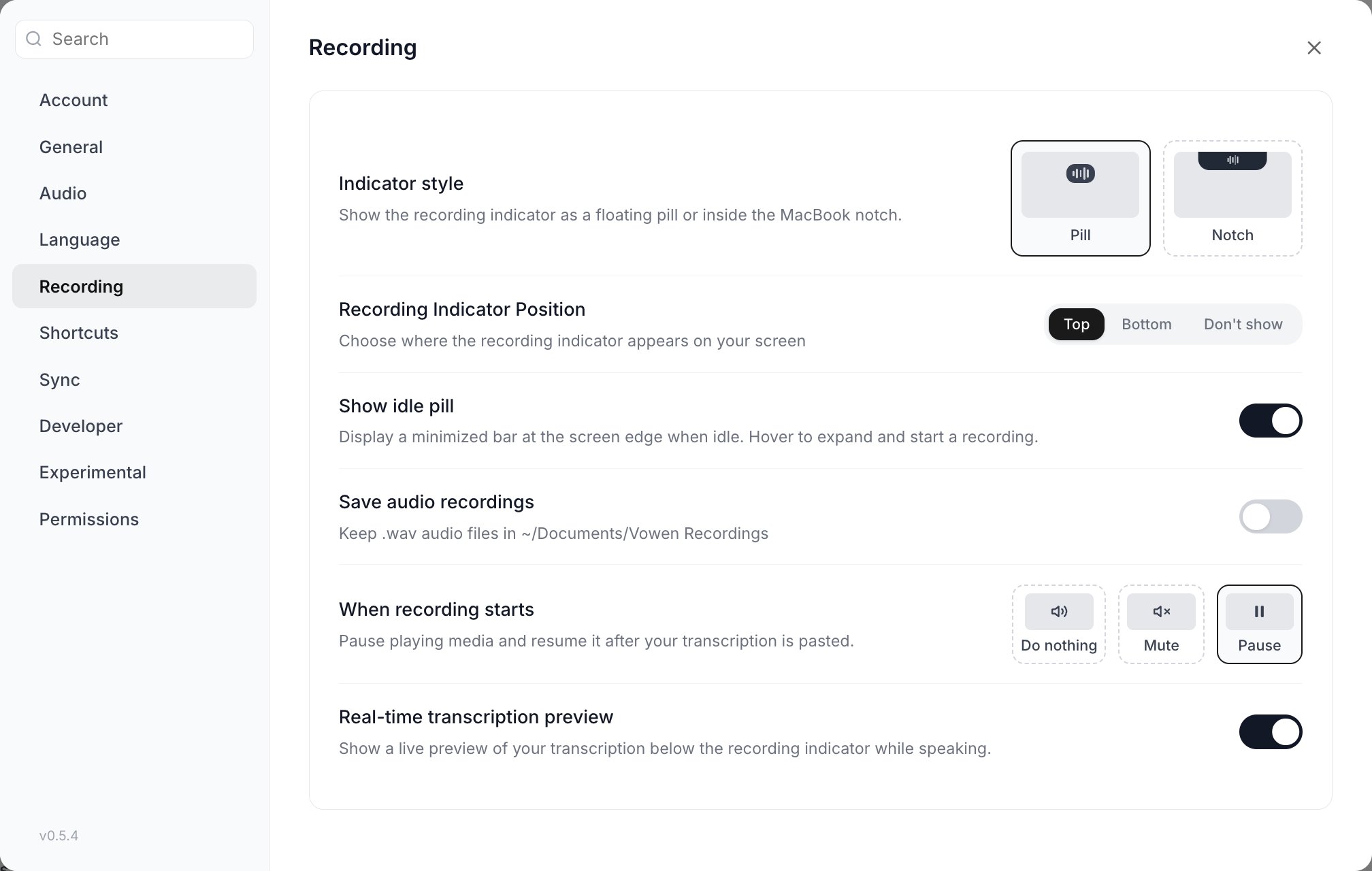
Settings > Recording.
Shortcuts
Shortcuts
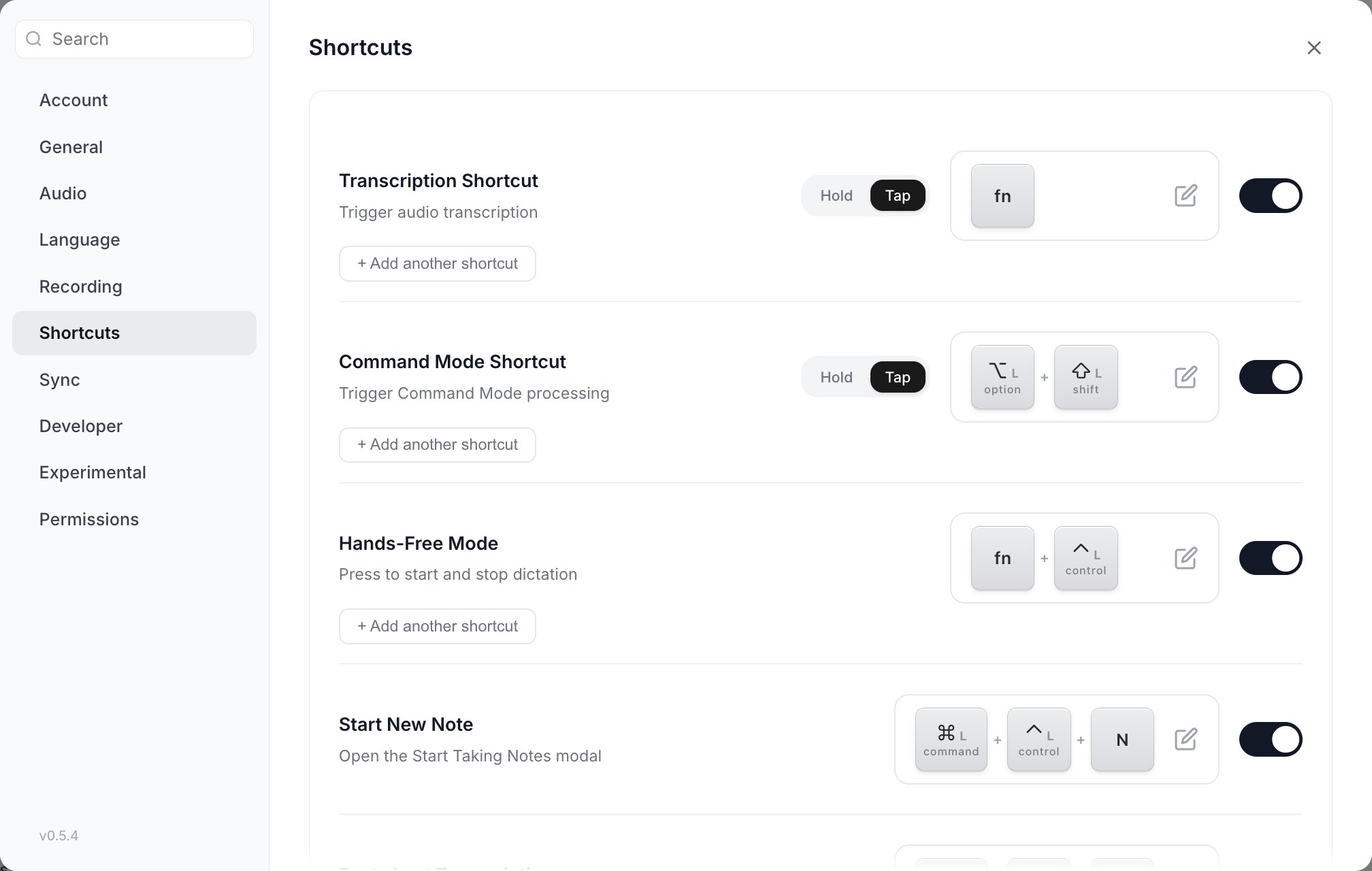
Settings > Shortcuts. The section id is hotkeys; the label is Shortcuts.
Sync
Sync
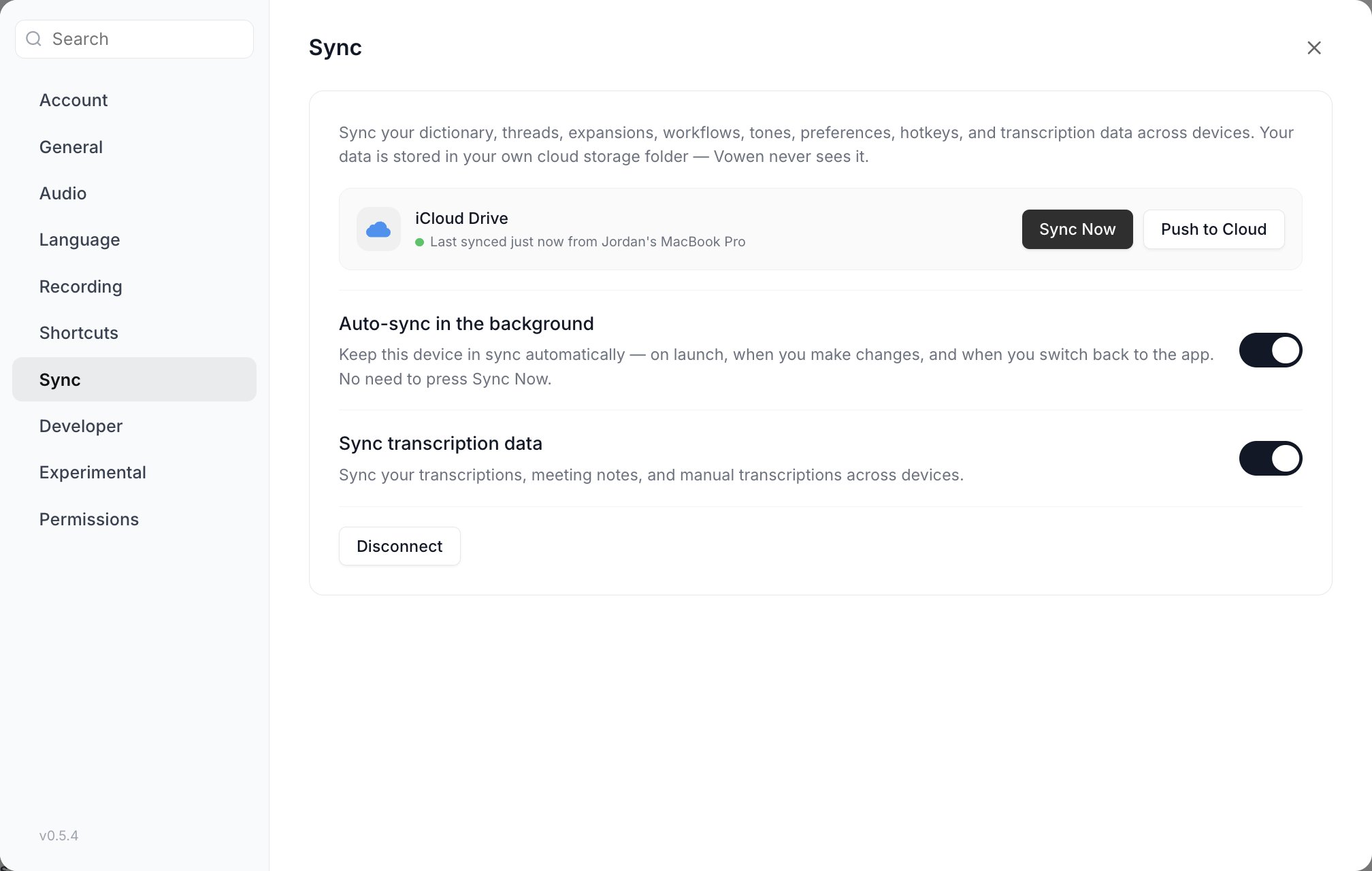
Settings > Sync.
Developer
Three settings, all aimed at people who want to script Vowen or who are debugging a connection problem.Command Line Tool
Command Line Tool
vowen command so you can drive Vowen from a terminal or from an agent. The row shows the installed version and path once it is in place, and offers Install, Update, and Uninstall buttons. Vowen checks for a newer CLI release when the section opens and turns the Update button primary when one is available.See the CLI documentation for what the command can do.Allow Dictations in Clipboard History
Allow Dictations in Clipboard History
Prefer IPv4 Connections
Prefer IPv4 Connections
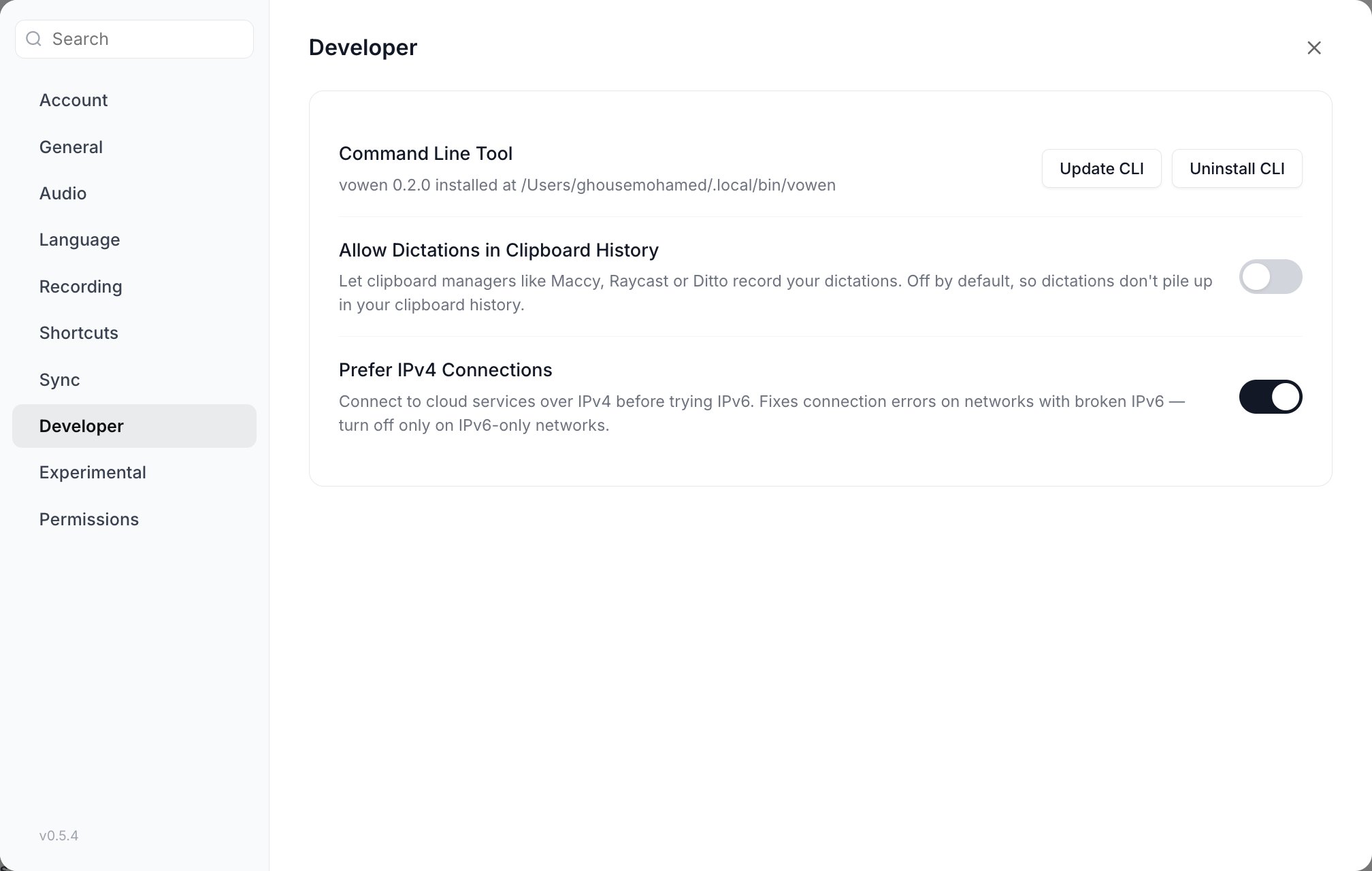
Settings > Developer.
Experimental
Features in active development. The section header tells you to enable these only if you are hitting a specific problem.Enable Connectors
Enable Connectors
Enhanced silence detection
Enhanced silence detection
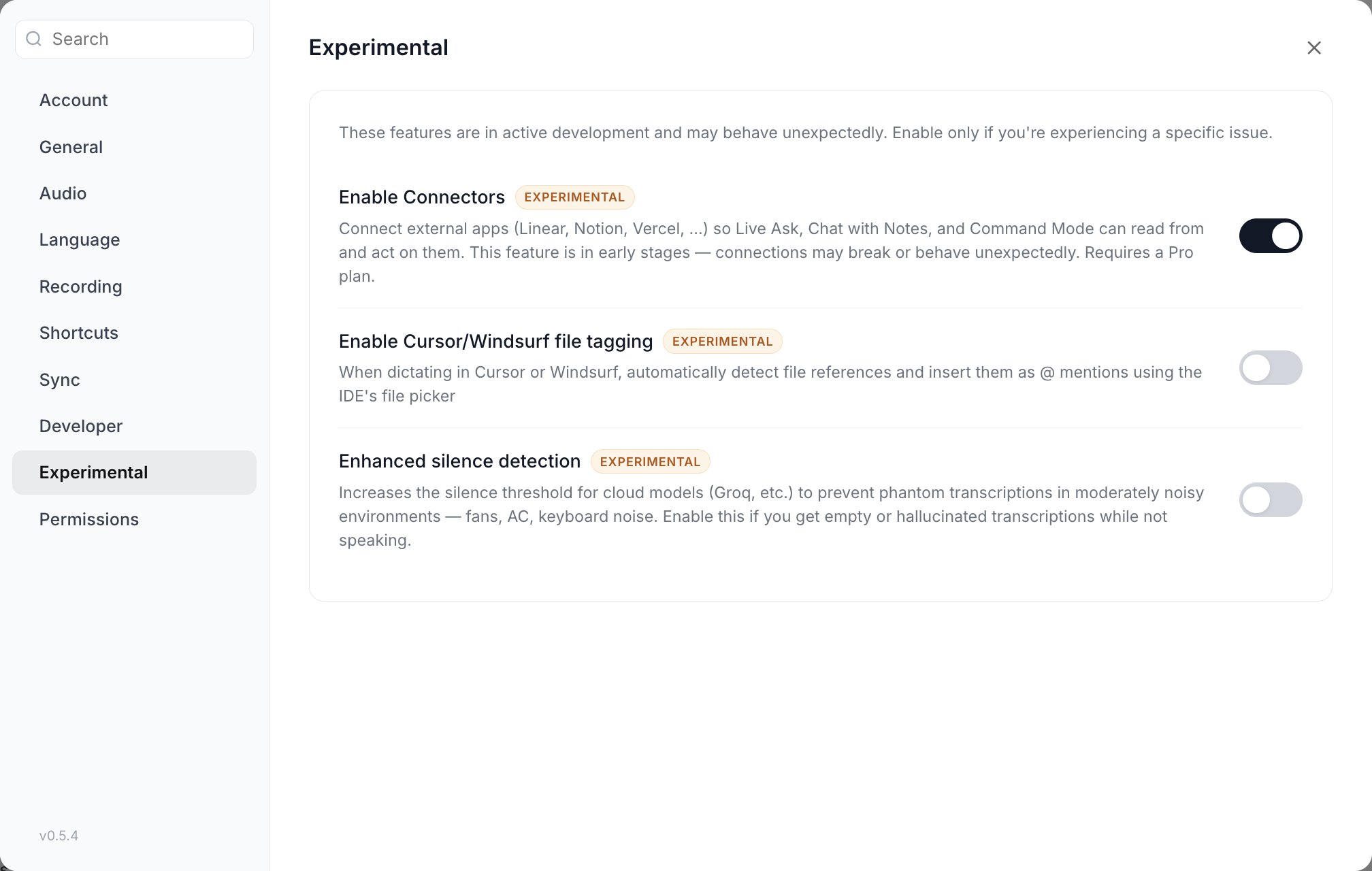
Settings > Experimental.
Permissions
A live status list of the system permissions Vowen uses, with a button beside each one that opens the right pane of System Settings. This is the fastest way to check whether a permission actually stuck after you granted it. See Permissions for what each one is for.Searching Settings
The Settings modal has a search field above its section list. Rather than a flat list of results, it renders the real settings sections filtered down to the rows that match, so every control looks and behaves exactly as it does when you browse to it. You can toggle a setting straight from the search results.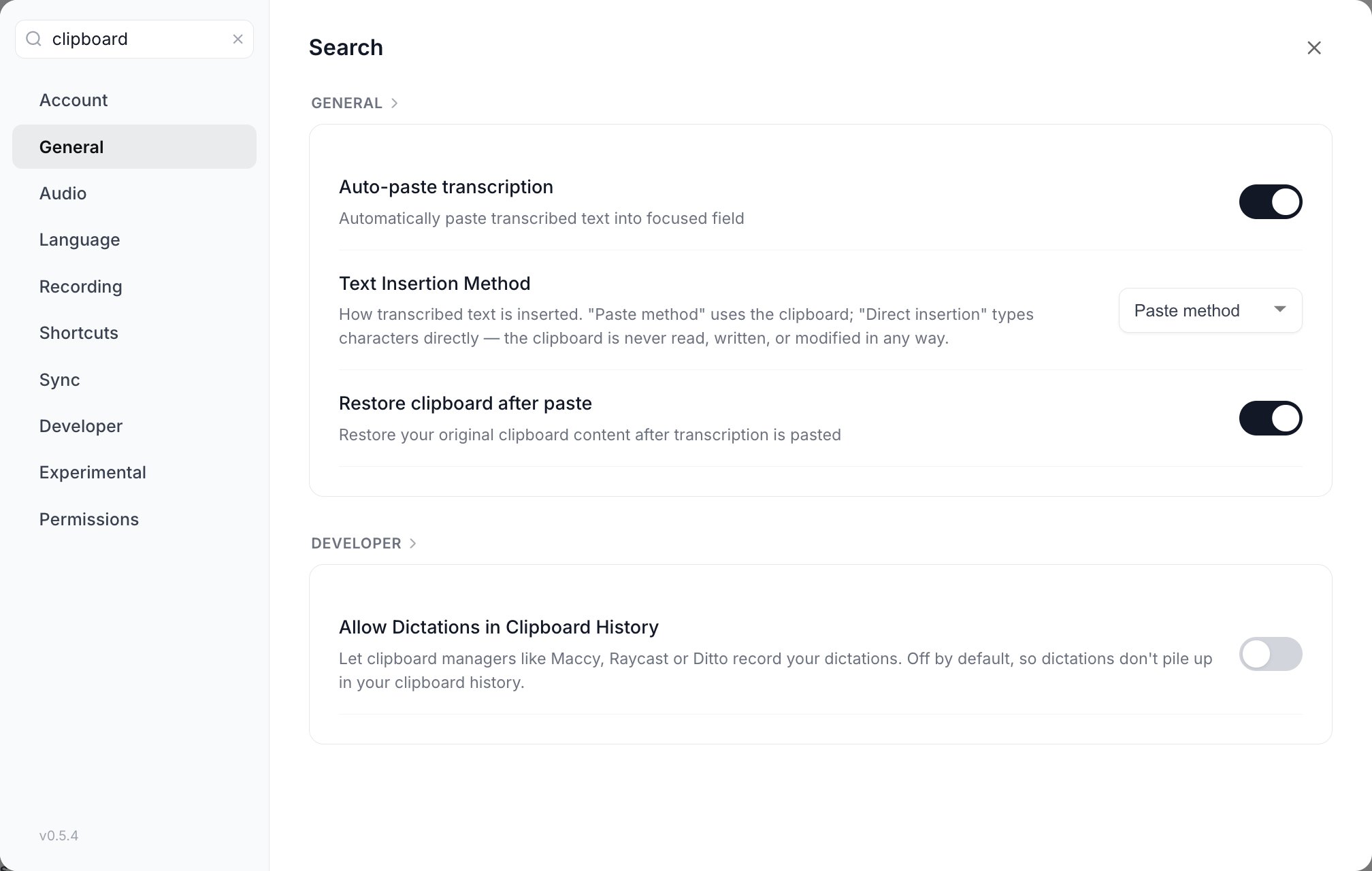
Searching "clipboard" pulls matching rows out of General and Developer at once — and the toggles are live, so you can flip one without leaving the results.
- Matching is English-only. Vowen searches the row text and a set of English synonyms, regardless of your interface language. Searching “microphone” works even if your UI is in German; searching “Mikrofon” does not.
- All of your typed words have to match somewhere in the row.
- Matching a section’s own name (“recording”, “sync”) shows every row in that section.
- Permissions is deliberately excluded from search. Those are system grants, not settings, so they never appear in results. Click the Permissions item in the sidebar to reach them.
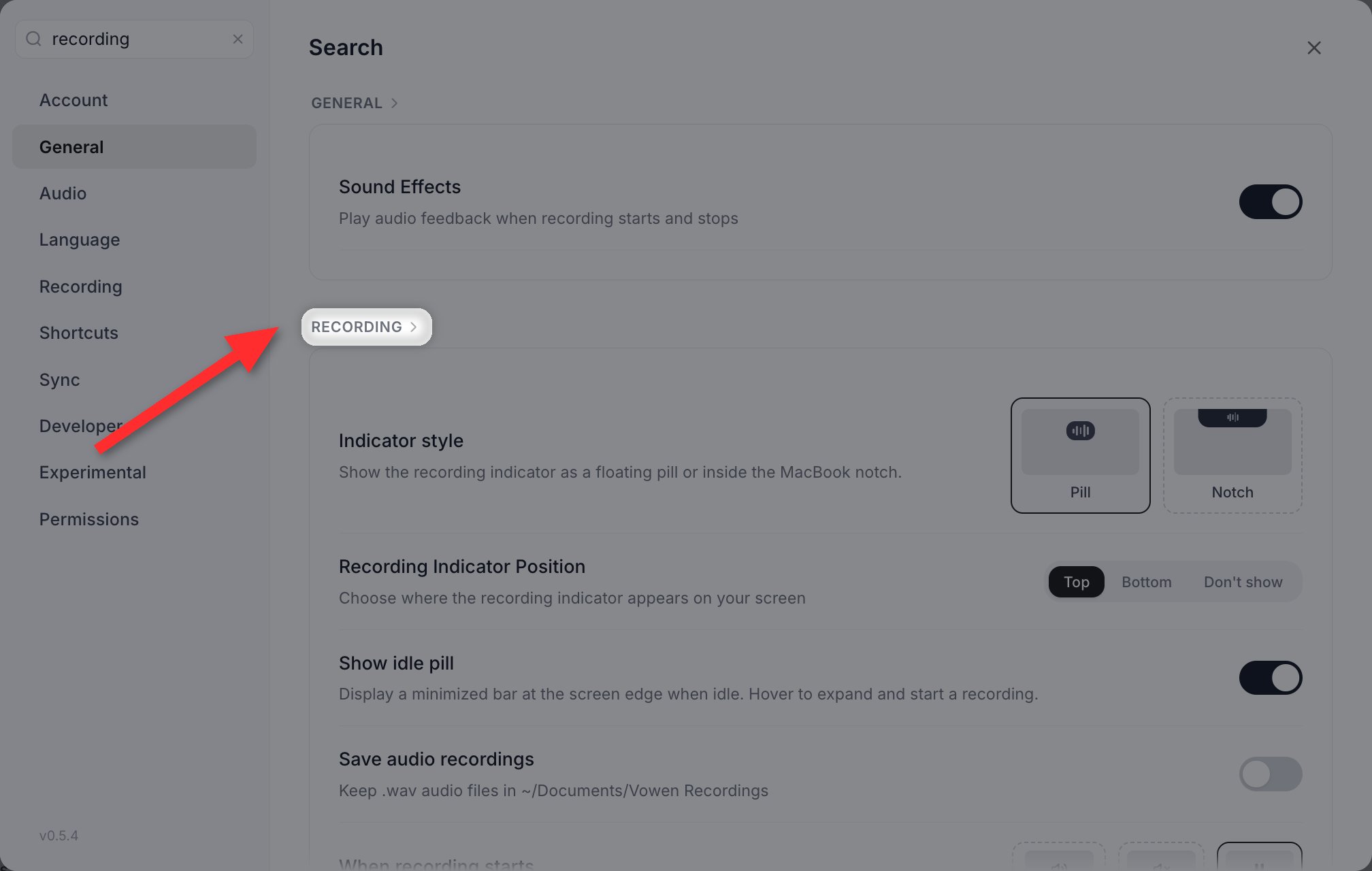
Because "recording" is a section name, the whole Recording section comes back. Click the RECORDING header above the results to jump there.
Command Palette
PressCmd+K (macOS) or Ctrl+K (Windows) anywhere in the main window to open the command palette. It searches sidebar pages by name or by what you call them (“voice log” finds Home, “api key” finds Configure your AI), and it searches your content as well.
See Command palette.
Menu Bar and System Tray
Vowen lives in your menu bar on macOS and your system tray on Windows. The menu holds a lot more than the settings shortcut. Always present:- General Settings (
Cmd+,/Ctrl+,) - Speech Models submenu: every installed local model plus every configured cloud model, with the active one checked
- Language submenu: the dictation languages your current model supports
- Microphone submenu: “Default microphone / Same as system” plus every connected device
- Transcribe File
- Dictionary
- Voice Shortcuts
- Keyboard Controls
- AI Setup
- Notes
- Tones
- History
- Contact Us
- Privacy Policy
- Copy Last Transcription
- Quit Vowen (
Cmd+Q/Ctrl+Q)
- Auto-translate to English: a checkbox, hidden for English-only models and when the effective language already resolves to English. Pro.
- Start Meeting Notes: when nothing is recording
- Pause Meeting Notes / Resume Meeting Notes and Stop Meeting Notes: while a meeting note is being recorded
- Stop Recording: while a screen recording is running
Theme
Vowen has Light and Dark themes. The toggle is the sun/moon button in the main window toolbar, in the top right beside the AI provider chip and the account icon. There is no theme row in Settings.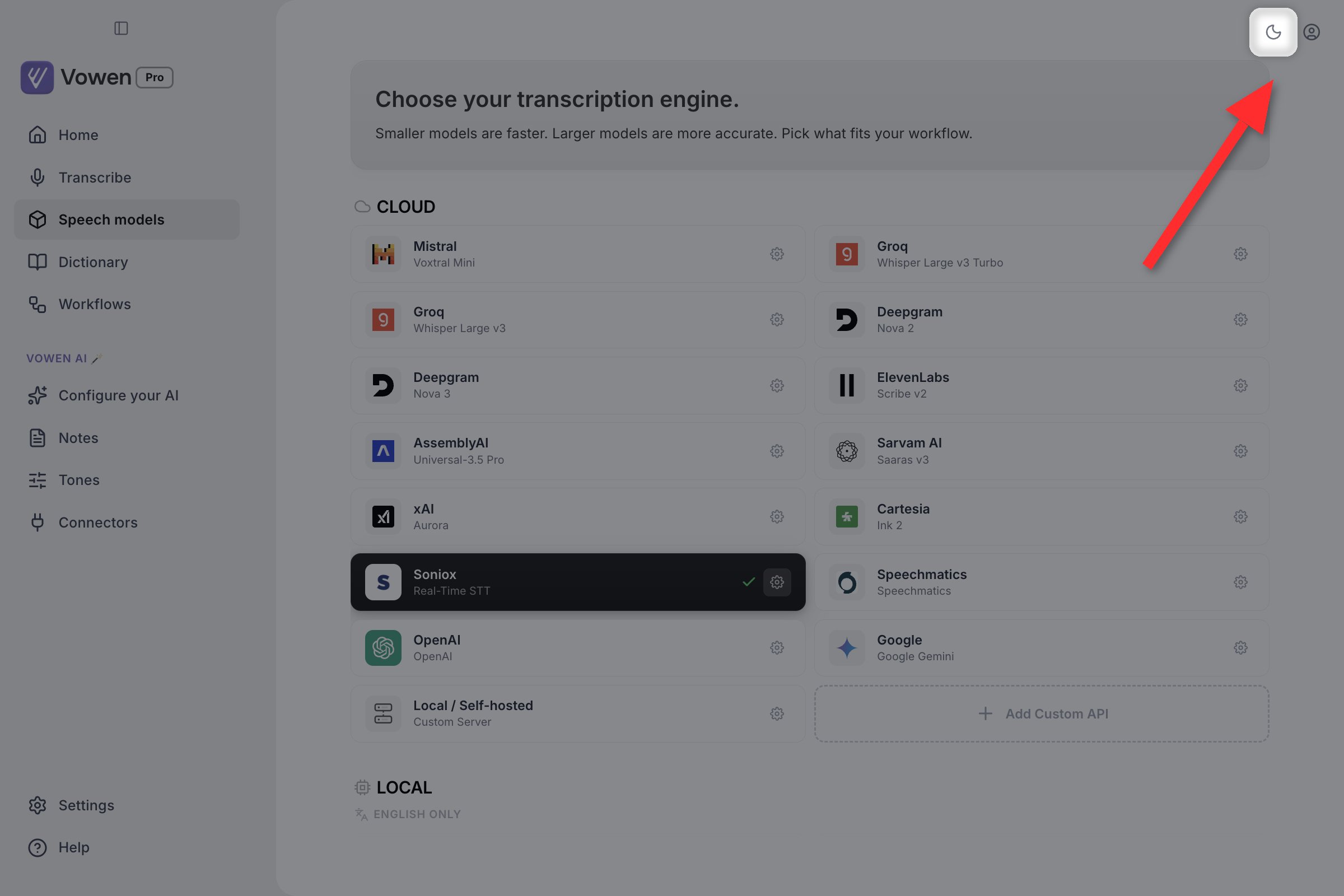
This is the whole theme control: the sun/moon button in the main window toolbar.
Text Insertion
Vowen can deliver your transcription using either the paste method (simulatesCmd+V / Ctrl+V) or direct insertion (types each character as if you were typing it). Choose in Settings > General > Text Insertion Method.
The paste method is fast but touches your clipboard; enable Restore clipboard after paste in the same section to put your previous clipboard contents back. Direct insertion is the right choice in apps that block standard paste.
See Text Insertion Methods for the full explanation.