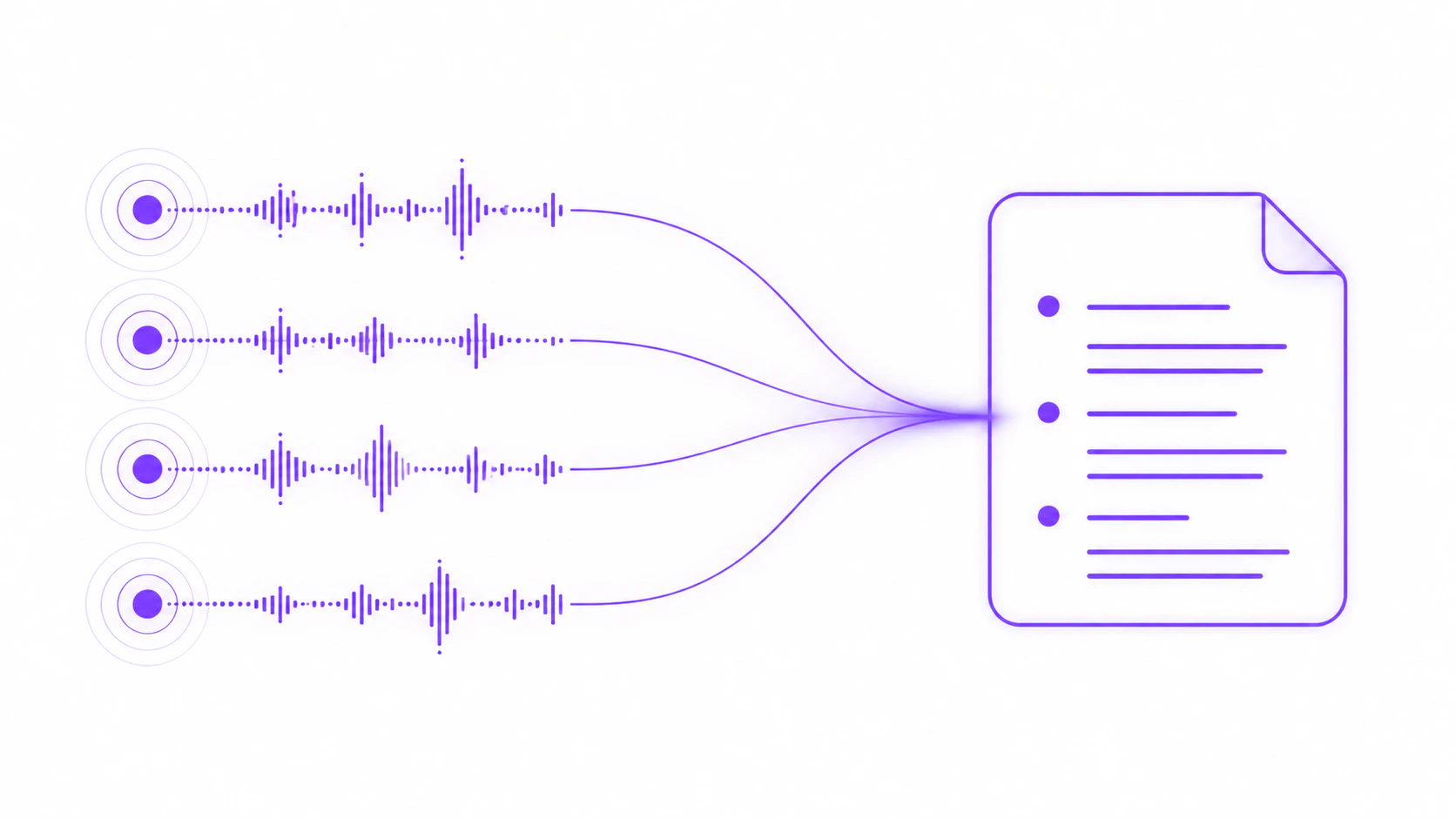
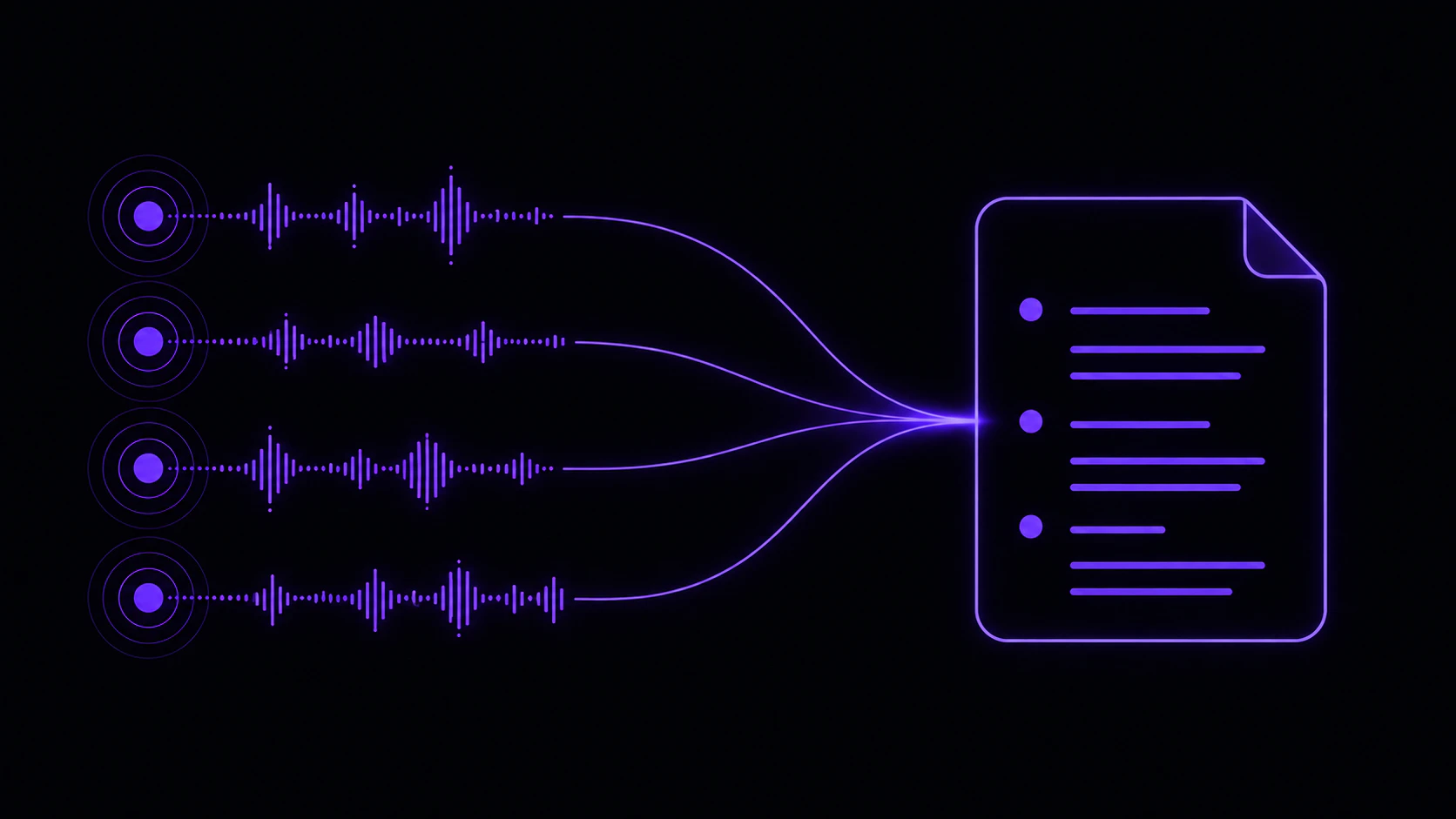
Record and summarize meetings without a bot joining the call.
Meeting Notes works on the Free plan, with a cap of 10 saved notes. The Pro plan lifts that cap and unlocks meeting detection, real-time preview, custom templates, Ask AI, sharing, watch folders and more. See the plan matrix.
AI provider required. Meeting Notes uses your configured AI provider to generate summaries, action items, and decisions from each recording. Set one up under Configure your AI in the sidebar.
Meeting Notes records system audio (what others say) and your microphone (what you say) during any meeting or call. After the meeting, it:
Transcribes the full conversation
Generates an AI summary
Identifies speakers, on-device or in the cloud (see diarization)
Extracts action items and key decisions
No bot joins the call. No banner appears to other participants. It works with any app that produces audio: Zoom, Teams, Meet, Slack Huddles, Discord calls, and more.
macOS only. Vowen prompts for it the first time you start a recording.
2
Configure an AI provider
Open Configure your AI in the sidebar and connect a provider. See AI setup.
3
Check your recording defaults
Open the Notes page and click the gear (“Notes settings”). The Recording Defaults tab holds the microphone, transcription model, language, Identify Speakers, AI summary provider and default template. Your choices persist to the next recording.
The gear in the Notes page toolbar opens Notes settings.
4
Start recording
Click Start Taking Notes on the Notes page, or use any of the other ways to start.
5
Have your meeting, then stop
Vowen transcribes and summarizes automatically once you stop.
Turn on Identify Speakers for any meeting with more than one person. With diarization on, action items in your summary get attributed to specific people instead of appearing as a generic list.
Everyone is capped at 100 stored meeting notes, on every plan. When you save the 101st note, the oldest one is dropped automatically. Export anything you need to keep. The audio files in Documents/Vowen Recordings are not deleted by this, only the note entries.
Free users cannot delete meeting notes, so the 10-note limit cannot be recycled by clearing out old ones. Upgrading to Pro restores deletion.
Add tags to any completed note from its card. Click add tag, then create a new tag or reuse an existing one. Tags are shared across all notes and can be given colors. Manage them (rename, recolor, delete) from the tag bar above the list. Deleting a tag only removes it from your notes. It never deletes the notes themselves.A template can also carry tags, in which case notes recorded with it are tagged from the moment they are created rather than after the summary lands.
A tag filter bar. Click All to clear filters, or click tags to filter by them. With two or more tags selected, a Match: Any / All toggle decides whether a note needs any of the selected tags or all of them.
A search box that matches note titles and summaries.
A People filter. Once you have named speakers in your notes, this dropdown lists everyone who has appeared and filters the grid to notes that include any of the people you pick. It only shows up when at least one named person exists. Generic Speaker 1 labels do not count.
A Sort dropdown: Newest first (default), Oldest first, Recently tagged, Title A to Z, or Title Z to A.
The filter bar above the notes grid: People on the left, All to clear tag filters, your tags beside it, and Sort on the right.
Notes are also grouped under date headings so you can scan by when they happened.
Notes where you have named speakers show an avatar stack of attendees on the card, with overlapping colored initials that fan out on hover and a “+N” badge when there are more than fit. Hover any avatar to see the full name. As with the People filter, attendees come from the human names you have assigned to diarization speakers.