
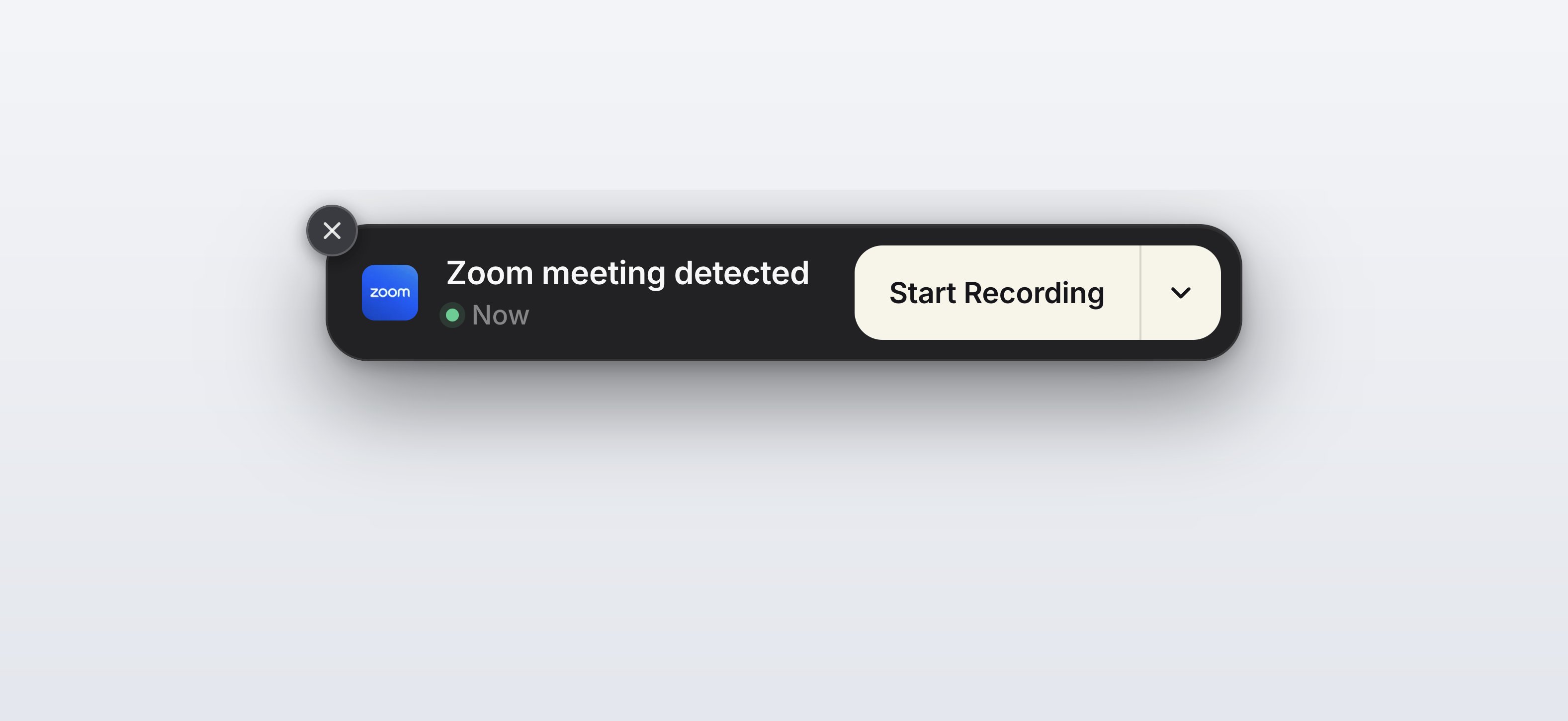
The detection banner. Start Recording begins on your default template; the chevron picks a different one for this call only.
The detection banner
When a trigger app takes the microphone and keeps it, a compact card appears near the recording indicator. It carries the detected app’s logo, a title reading “Zoom meeting detected” (or the app that was matched), a live status line, and a split Start Recording button.- Click Start Recording to begin taking notes with your default summary template.
- Click the chevron beside it to open a pop-over listing every summary template, with your default ticked. Picking one starts the recording on that template.
- Click the X, or press Escape, to dismiss.
Choosing a template from the banner applies to that recording only. It does not change your
default template. This is different from the chevron on the Start Taking Notes button on the
Notes page, which does rewrite your default.
Trigger apps
Six apps ship as triggers. Each one has its own toggle under Trigger apps in Notes settings > Meeting Detection, and each is on unless you turn it off.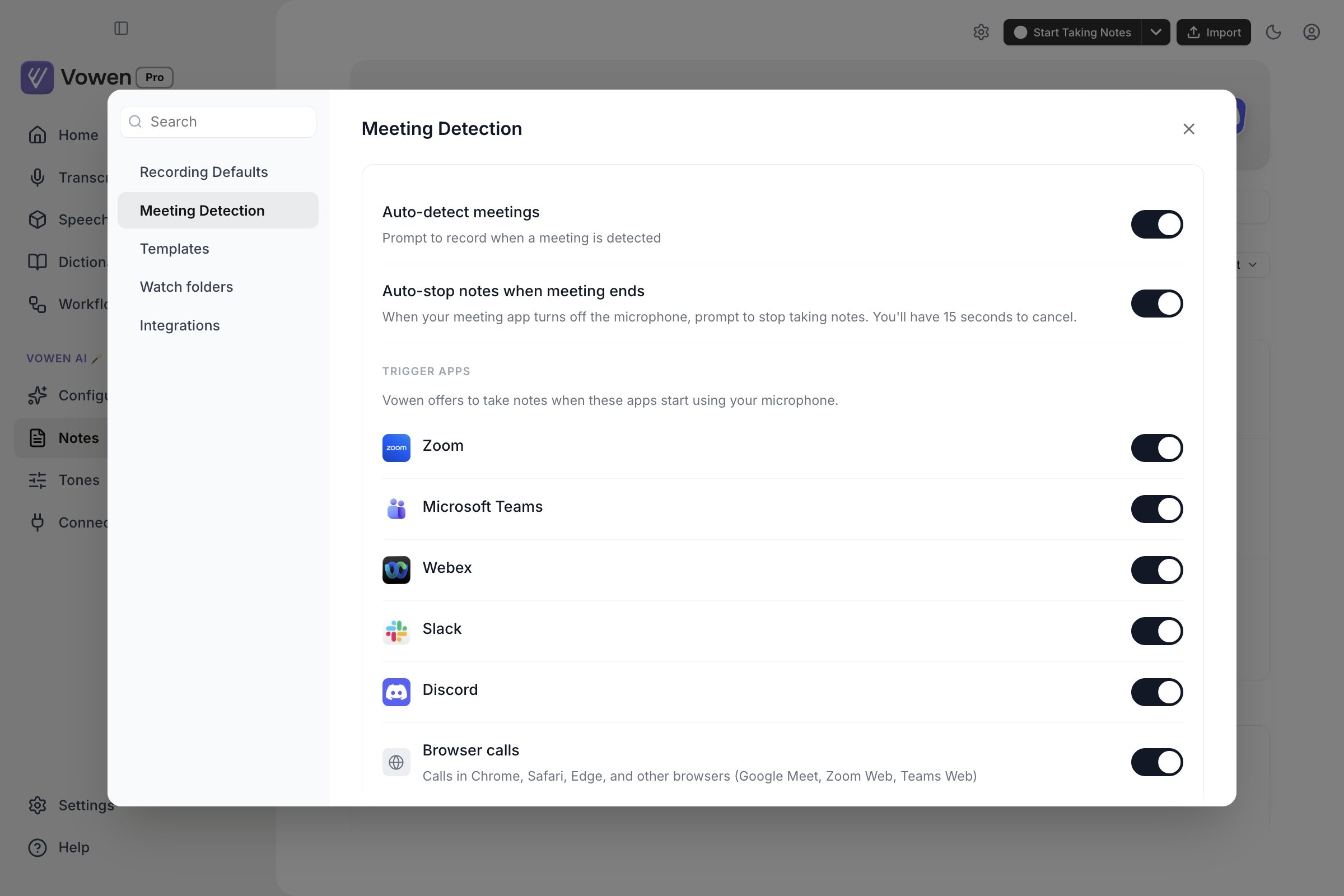
Meeting Detection lists every app Vowen watches. Each can be turned off on its own.
Browser calls is one entry rather than one per site. Vowen sees that the browser has the microphone,
not which tab is using it, so Google Meet, Zoom Web, Teams Web and anything else in a browser all
arrive through this single toggle. Chrome, Chromium, Safari, Firefox, Edge, Brave, Arc, Vivaldi and
Opera are all recognized.
FaceTime is deliberately not a trigger app. Its background services hold the microphone even when
FaceTime is not open, so it cannot be detected without constant false positives.
Adding your own
Click Add app under the trigger list to pick any installed application. Added apps get their own row, tagged Added by you, with a toggle and a remove button.Apps that are not on the list
Detect other apps controls what happens when an application Vowen does not recognize starts using the microphone. It is on by default, which shows the banner anyway. Turn it off to restrict detection strictly to the apps in the list. System components that open the microphone alongside whichever app actually asked for it, such as the macOS Siri voice trigger, are never counted as an unknown app.Vowen never detects itself
Dictating in Vowen, running command mode, or recording meeting notes does not raise a detection banner. Vowen’s own processes are excluded on both sides of the detector: they are ignored when looking for a meeting starting, and never watched for a meeting ending. Vowen’s microphone helpers are excluded too, which is why the level meter in the app no longer produces a phantom “meeting detected” card. This exclusion is not a setting and cannot be turned off.Auto-stop when the meeting ends
Auto-stop notes when meeting ends, also in Notes settings > Meeting Detection, watches the other direction. While you are taking notes, Vowen tracks the microphone processes the meeting app had when you started. When they all release the microphone and stay released, the meeting is over.1
A banner appears
An Ending meeting notes card shows the meeting app’s logo, a countdown reading Ending in
15s, and a progress strip along the bottom edge.
2
Choose, or do nothing
End now stops immediately and skips the rest of the countdown. Keep taking notes, or the
X on the corner, cancels the stop and carries on recording. Cancelling re-arms the watch, so it
can fire again later in the same session.
3
Otherwise it stops itself
If the countdown runs out, notes stop exactly as if you had pressed stop on the indicator, and
the summary is generated normally.
Auto-stop only fires while notes are actively recording and not paused, and only once per prompt.
Brief microphone blips and audio device switches are debounced, so changing your headphones
mid-call does not end the recording.
Requirements and limitations
Plan
Plan
Auto-detect meetings, auto-stop and the trigger app list are all Pro. The Free plan sees the
upgrade prompt.
Permissions
Permissions
Detection reads which processes hold the microphone. If macOS has not granted Vowen the
permissions it needs, detection cannot see anything. Check
Settings > Permissions.
How responsive it is
How responsive it is
Vowen requires the microphone to stay in use for a couple of seconds before it decides a call has
started, so a notification sound or a quick device test does not raise a banner. On Windows, the
fallback path scans the process list on a slower cadence than macOS, so the banner can take a
little longer to appear.