
AI provider required. Summaries are generated by your configured AI provider. Set one up under Configure your AI.
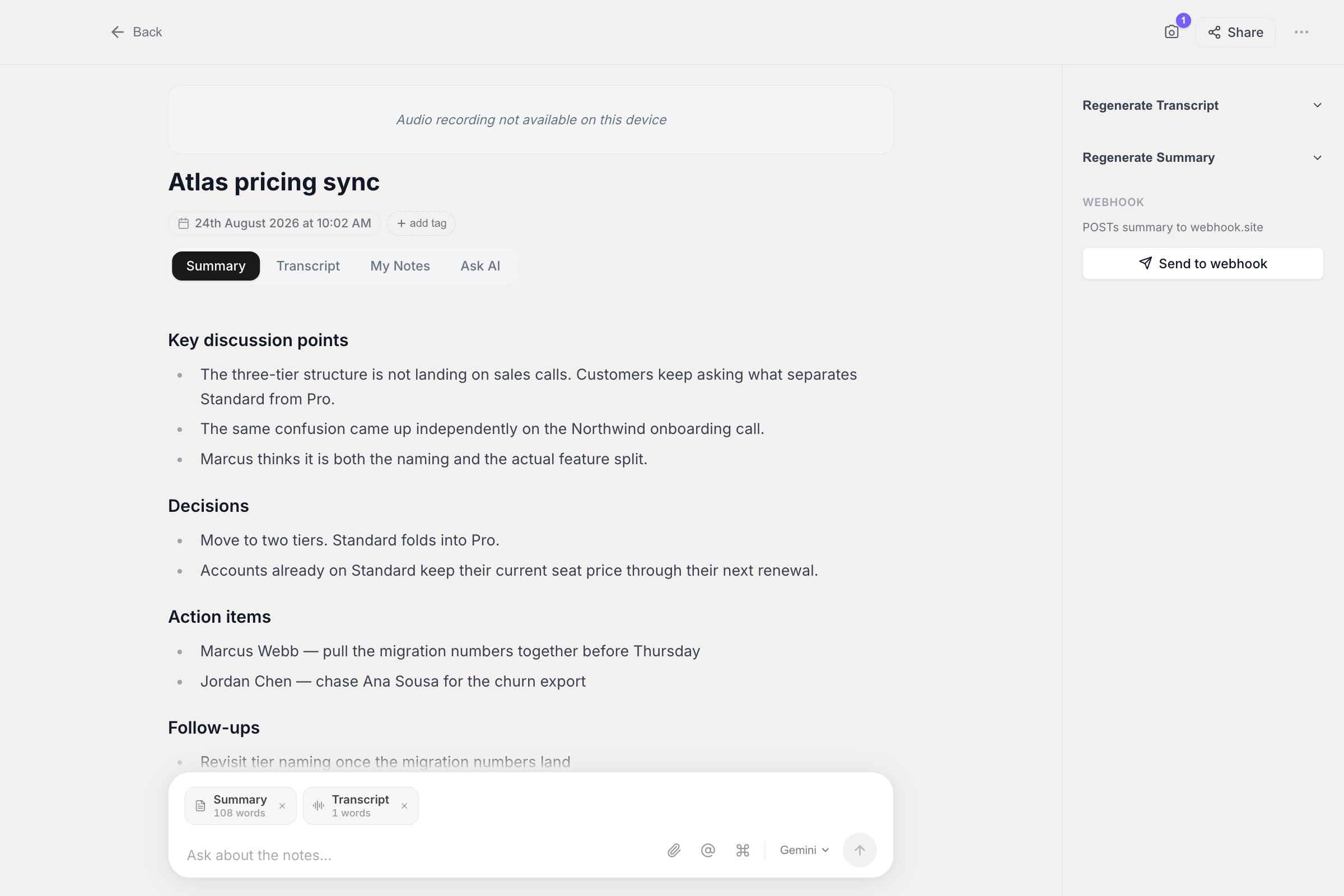
A finished summary: the sections your template asked for, with the note's other views a tab away.
How summaries work
After a meeting recording is transcribed, Vowen sends the transcript to your AI provider and asks for a structured summary. With the default Meeting Notes template, that includes key discussion points, decisions made, action items with owners (when speakers are identified) and follow-ups. Alongside the transcript, Vowen also sends:- Anything you typed on the Notes tab during the meeting, as user-supplied context
- Every moment you marked as important, with an instruction to give those points extra weight
- Any screenshots you captured, as vision context
Vowen titles each note for you. Do not write
TITLE: in your own template prompt. Doing so produces a duplicated header in the finished summary. The in-app hint in the template editor still asks for it. Ignore that hint, it is out of date.Custom templates
Templates control the structure of every summary. Vowen ships a large built-in library covering meeting recaps, action items, executive briefs, stand-ups, retrospectives, sales calls, user interviews, one-on-ones, lecture notes and more, and on Pro you can write your own. Templates also carry settings beyond the prompt, including whether to capture system audio, which tags to apply, the summary language, and whether to generate an AI summary at all.Templates
The full library, writing your own prompts, and every per-template setting.
Summary citations
Summary citations are a Pro feature. It is opt-in and off by default.
A template can opt out of citations independently of the global setting. The shipped Follow-Up Email Draft template does, because timestamp pills would ruin a send-ready email.
[12:04] timestamps.
Claude Code and Codex as summary providers
As well as the usual API-key providers, Vowen can use Claude Code or Codex as the summary provider. Unlike every other option, these are detected on your machine rather than connected with an API key. If the CLI is installed and runs, Vowen offers it in the provider list. There is no key to paste, because you are already signed in to the CLI itself. If one you have just installed does not show up, give it a moment and check that it runs from your terminal. Both agents run with their own tools turned off, so they only ever see the summary Vowen asks them to write, and cannot touch anything else on your machine.Regenerating a summary
If a summary is not quite right, regenerate it from the right sidebar of the note:1
Open the note
Click it in the Notes list.
2
Open the Regenerate Summary section
It is in the right sidebar. If the note has no summary yet, the section reads Generate Summary instead.
3
Pick a provider, model or template
The section holds an AI provider grid and a template grid.
4
Click Regenerate Summary
The current summary is replaced by the new one.
When a summary fails
Vowen retries a failed summary automatically before giving up.- The automatic pass after a recording makes 3 attempts, waiting 2 seconds after the first failure and 4 seconds after the second (a linear backoff).
- Regenerating a summary by hand makes 2 attempts, with a single 2-second wait.
- HTTP status 400, 401, 403, 404, 413 or 422
- An unsupported or unconfigured AI provider
- CLI agent problems, such as the binary not being found on the machine, the CLI not being signed in, or it failing to start
Documents/Vowen Recordings, so nothing is lost.
For transcription failures rather than summary failures, switch to a more accurate model such as Deepgram Nova 3 or AssemblyAI Universal-3.5 Pro and regenerate the transcript.
Working with a note
Open a meeting note from the Notes list to review, edit and reprocess it.Tabs
A note has up to four tabs:
The My Notes tab only appears when the note has context notes on it, or while you are already on it.
The tab shortcuts are keyed to the physical key positions, including the numeric keypad, so they work on layouts such as AZERTY where the unshifted number row does not produce digits.
Cmd+3 always goes to Ask AI, even when My Notes is showing in third position. My Notes has no shortcut of its own.The My Notes tab and its Regenerate button
This tab holds whatever you jotted on the indicator or panel during the meeting. It stays editable afterwards. The Regenerate summary from notes button re-runs the whole summary with your edited notes as framing context, then drops you back on the Summary tab. It saves any pending edits to your notes first, so you never regenerate against a stale version. It needs a transcript to work.Editing the summary
The summary is a rich block editor. Click into it and type, and edits save automatically.- Type
/anywhere to open the block menu: Text, Heading 1, Heading 2, Heading 3, Bulleted list, Numbered list, To-do list, Quote, Code block, Divider and Image. The menu filters as you type and is keyboard-drivable with the arrows, Enter and Tab. - Insert an image by URL, or by picking, dragging or pasting a local file. Local images are copied into Vowen’s own storage so they stay with the note even if you move or delete the original.
Find and replace
Both the summary and the transcript support find and replace, using the same bar.Cmd+F/Ctrl+Fopens findCmd+Shift+F/Ctrl+Shift+Fopens it with the replace row already showing- Replace (or
Enter) replaces the current match. The All button (orShift+Enter) replaces every match.
Editing the transcript
Each transcript line has a Segment actions menu with:- Reassign this line to, listing the other speakers plus a New speaker option
- Split at caret, which breaks the segment at your cursor position. Place the caret inside the text first.
- Merge with line above, disabled on the first line
- Delete segment
Speaker names
If you recorded with diarization on, the right sidebar lists the speakers asSpeaker 1, Speaker 2 and so on. Type a real name over any of them. Vowen suggests names as you type, drawn from every speaker name you have ever entered across your notes and transcriptions.
Names are not saved as you type. Click Save Changes in the sidebar to persist them. The button reads Saved and is disabled once there is nothing pending.
See diarization for merging two labels that turned out to be the same person.
The audio player
The note’s audio player has:- Playback speed in seven steps: 0.5x, 0.75x, 1x, 1.25x, 1.5x, 1.75x and 2x. Press
<and>to step through them. Pitch is preserved, so voices do not distort. Your chosen speed is remembered across notes. - Skip controls that jump backward and forward by 10 seconds
Exporting
Exporting is a Pro feature.
- Summary or Transcript as PDF, plain text (.txt) or Markdown (.md), with an optional title and date header
- Transcript as subtitles, SubRip (.srt) or WebVTT (.vtt), one cue per spoken segment with speaker names where available. Only offered when the transcript has per-segment timing.
- Audio as MP3, M4A (AAC) or WAV, with a quality option. An estimated file size is shown first.
Where notes are stored
Meeting notes are stored locally, in Vowen’s own folder:- macOS:
~/Library/Application Support/Vowen/ - Windows:
%APPDATA%\Vowen\
- Its title, and whether you edited it by hand
- The date and time it was recorded, and the day it is grouped under
- The full transcript, with per-segment timings
- The AI summary, or the error that stopped one being generated
- A reference to the audio file
- The names you assigned to diarized speakers
- The text from the My Notes tab
- The screenshots captured during the meeting
- The moments you marked as important, each with an excerpt when live transcription was running
- The tags applied to the note
- Its public share link, and whether you have revoked it
Ask AI conversations are not stored on the note. They are kept separately, alongside it. Deleting a note deletes its conversations with it.