
Speaker diarization is a Pro feature, available in Meeting Notes and manual transcriptions.
What is diarization?
Speaker diarization identifies and labels the different speakers in a recording. Instead of a single block of text, your transcript shows which person said each part, and your summary can attribute action items and decisions to specific people.Supported models
On-device (macOS and Windows)
Vowen ships its own speaker pipeline, so you do not need a diarization-capable cloud provider. It runs entirely on your machine.- macOS runs speaker identification on your Mac, using a model built for Apple silicon.
- Windows runs speaker identification on your machine too. The first time you diarize, Vowen downloads a roughly 30 MB model bundle. Nothing is sent anywhere.
Linux has no on-device speaker pipeline. On Linux, diarization requires one of the cloud models below, and the on-device options are not offered.
Cloud models
These providers identify speakers server-side.The Models page shows these full names. The model pickers in the record and transcribe dialogs abbreviate some of them, so AssemblyAI’s may appear simply as “Universal” and Soniox’s as “STT v5”.
OpenAI switches models when you turn speakers on
OpenAI switches models when you turn speakers on
With Identify Speakers off, OpenAI transcription uses
gpt-transcribe. Turning it on switches the request to gpt-4o-transcribe-diarize, which is a different model that accepts neither custom vocabulary hints nor a language setting. Both are dropped for that transcription.Gemini's diarization is prompt-induced, not native
Gemini's diarization is prompt-induced, not native
Gemini is a general multimodal model with no diarization flag. Vowen induces speaker labels by asking for them in the prompt and parsing them back out. This usually works, but if the model returns plain text without labels the transcript comes back undiarized rather than failing.
Groq never returns speaker labels
Groq never returns speaker labels
Groq has no diarization of its own. When you ask for speakers with a Groq model, Vowen strips the diarization flag from the request entirely and instead asks Groq for segment timings, then runs those segments through the local Pyannote pipeline to assign speakers.Two consequences follow:
- Groq diarization does not work on Linux, because the local pipeline it depends on does not exist there. The option is not offered.
- Speaker quality with Groq comes from Vowen’s on-device model, not from Groq.
Nemotron refuses outright
Nemotron refuses outright
Nemotron produces no token timings, so it cannot diarize at all. Asking it to fails with “Speaker diarization is not supported by Nemotron.” Pick a different model for any recording where you want speakers.
Enabling diarization
The toggle is labeled Identify Speakers, with the description “Label different speakers in the transcript”. It appears wherever a transcription is configured:- Notes settings > Recording Defaults, which sets the default for every meeting you record
- Transcribe settings > Defaults, and again on the per-file transcribe dialog
- The Regenerate Transcript section in a note’s or transcription’s right sidebar, to re-run an existing recording with speakers on
- Watch folder rules
Number of speakers
Below the toggle is Number of Speakers, described as “Pin a known count to improve accuracy on short clips”. The options are Auto-detect (the default) and a fixed count from 2 to 6.Merge speaker segments
Merge speaker segments combines consecutive segments from the same speaker into a single block, so a long uninterrupted answer reads as one paragraph instead of a dozen short lines. It is off by default and lives next to the diarization settings on both Notes settings > Recording Defaults and Transcribe settings > Defaults. The setting is shared between meeting notes and the Transcribe page.Merging is applied when the transcript is built, so it only affects new transcripts. Turning it on will not reflow transcripts you already have. To apply it to an existing recording, turn it on and then regenerate the transcript.
Mapping speaker names
After transcription, speakers are labeled generically asSpeaker 1, Speaker 2 and so on. Rename them from the speakers panel in the right sidebar:
1
Open the note or transcription
The speakers panel appears in the right sidebar whenever the transcript has more than one speaker.
2
Type a real name over the label
As you type, Vowen suggests names drawn from every speaker name you have ever entered, across both meeting notes and manual transcriptions, plus the other speakers already named in this transcript. Pick one with the mouse or with the arrow keys and Enter.
3
Click Save Changes
Names are held locally until you save. The button reads Saved and is disabled once there is nothing pending.
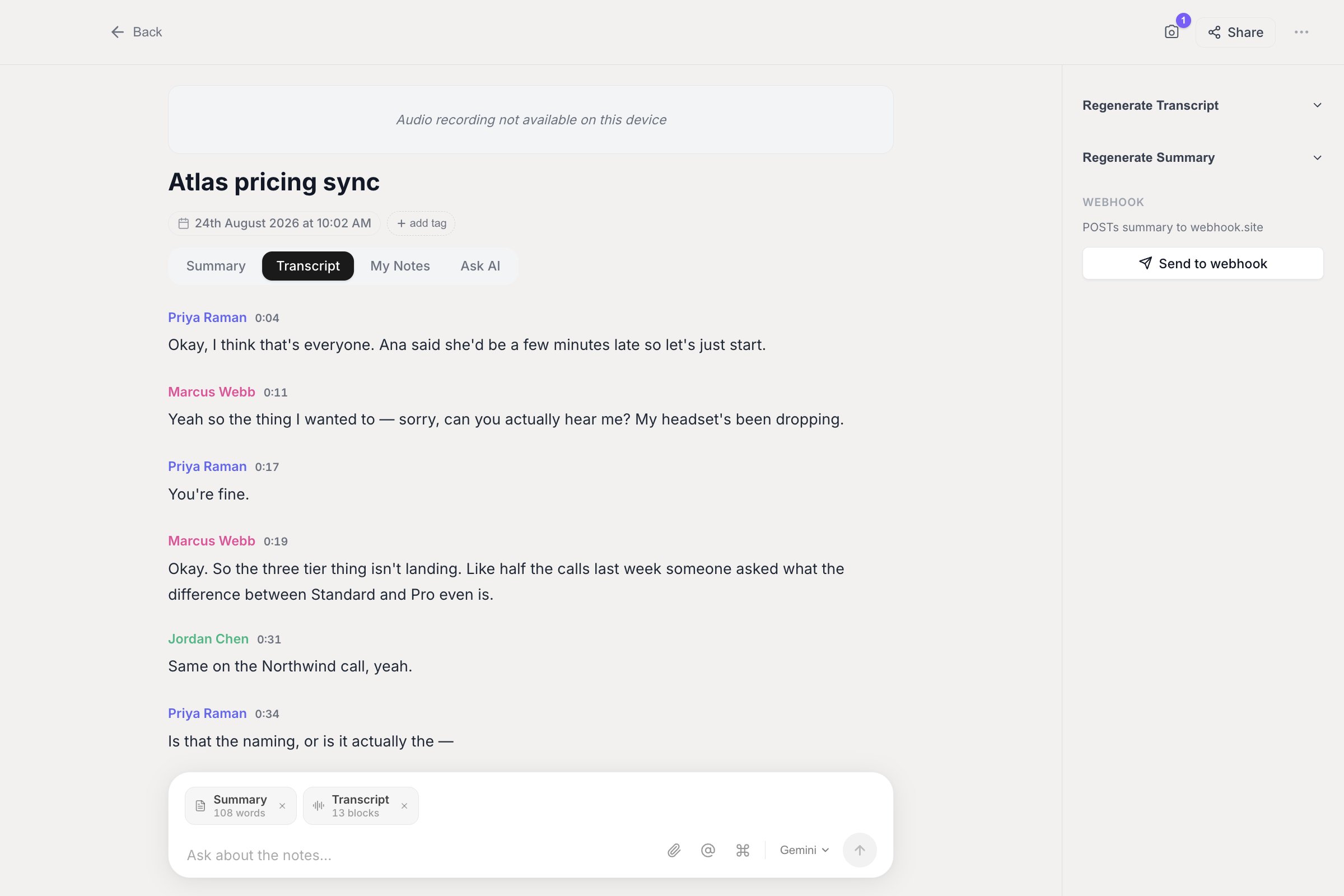
With Identify Speakers on, the Transcript view labels every turn. Rename a speaker once and each of their turns updates.
Merging two speakers
One real person sometimes gets split across two labels, soSpeaker 2 and Speaker 4 turn out to be the same person. Collapse them into one:
1
Open the completed transcript or meeting note
The speakers panel is in the right sidebar. The merge option only appears when there are at least two speakers, and not while a recording is still in progress.
2
Open the menu on the speaker you want to fold away
Each speaker row has its own menu button, labeled “Merge this speaker into another speaker”.
3
Under Merge into, pick the speaker to keep
If there is nobody to merge with, the menu reads “No other speakers”.
4
Confirm
Every line from the source speaker is reassigned to the target, and the transcript text, segments and label map are rewritten together.
Tips for better speaker separation
- Use a good microphone. Clear audio helps the model distinguish speakers.
- Avoid talking over each other. Overlapping speech is the hardest case for every engine.
- Longer meetings give the model more data to work with than short clips do. If you must diarize a short clip, pin the speaker count.
- Vendors that ship diarization as a first-class feature, such as Deepgram, AssemblyAI and Speechmatics, tend to handle hard cases better than ones where it is inferred.
- On macOS and Windows, try the on-device pipeline before paying for a cloud provider. It costs nothing per minute and keeps the audio on your machine.