
The Pro plan unlocks the Obsidian integration so meeting notes flow into your vault automatically.
Overview
Vowen writes each finished meeting note into your Obsidian vault as plain Markdown files with YAML frontmatter. Nothing is appended to a daily note, and no plugin is required. Vowen writes files directly into the vault folder on disk, and Obsidian picks them up.Setup
1
Open the integration
Go to Settings > Meeting Notes > Integrations and click Configure Obsidian.
2
Pick your vault
Set the Vault Path to the directory your Obsidian vault lives in. Browse opens a folder
picker.
3
Choose a parent folder
Folder is the folder inside the vault that Vowen writes into. It defaults to
Vowen. A live
hint shows where notes will land, for example MyVault/Vowen/.4
Choose what to save
Under What to save, enable the Summary, the Transcript, or both. Both are on by
default, and at least one must stay enabled. Turning the last one off switches the other back on.
5
Optionally keep notes synced
Turn on Keep notes synced if you want later edits to reach the vault. See
Keeping the vault up to date.
6
Save
Click Save. Disconnect clears the vault path and resets every option.
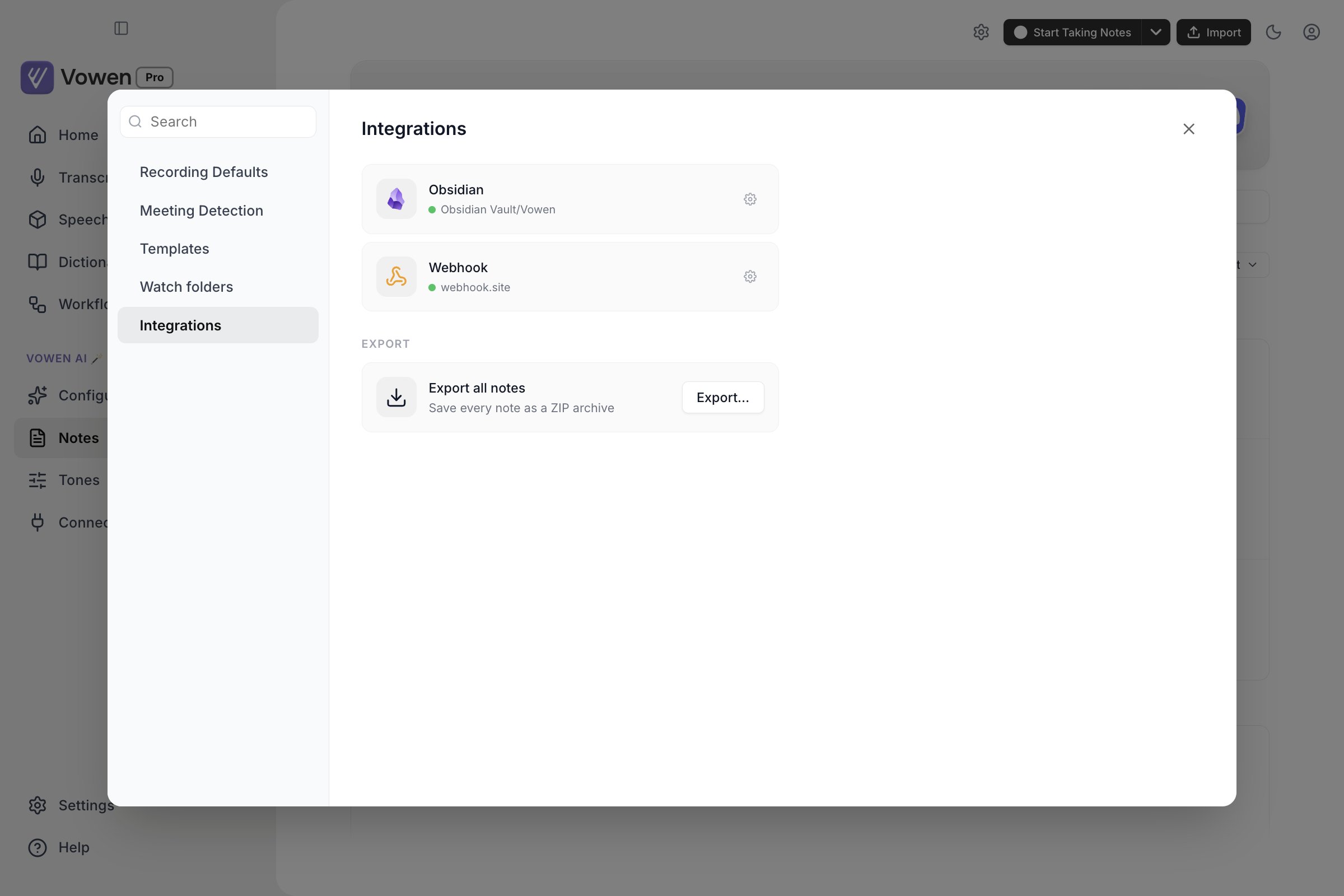
Obsidian is configured on the Integrations tab of Notes settings. The gear opens its vault and folder settings.
How it works
When a meeting note finishes, Vowen creates a dedicated folder for that note inside your chosen parent folder and writes the content as Markdown files: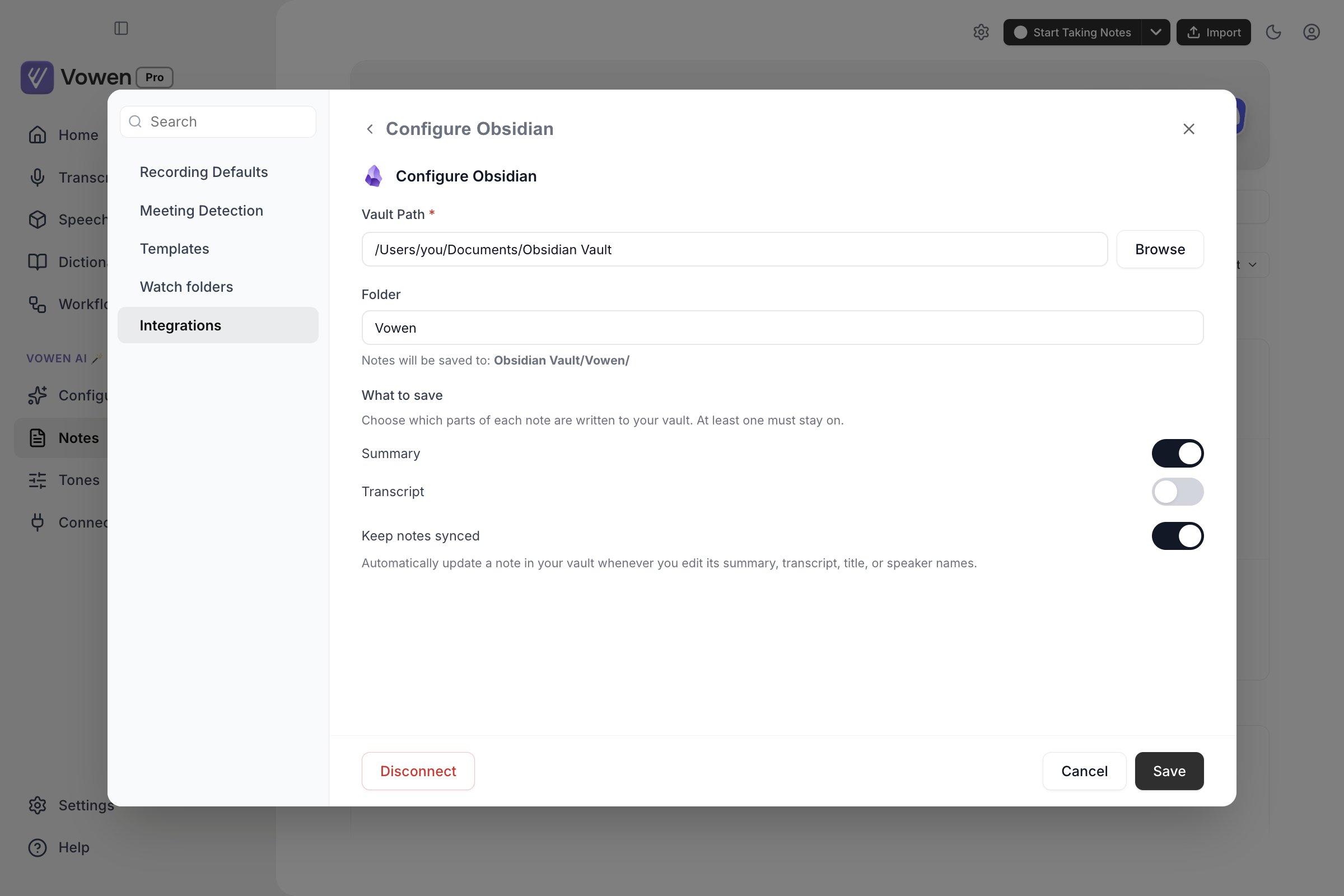
The Obsidian panel: which vault, which folder, what to save, and whether later edits keep syncing.
Folder names
The folder name is the note’s local date, a space, then the note title:- The date comes from the note’s own timestamp and is formatted in local time, deliberately, so an evening meeting in a negative-UTC zone does not roll forward to the next day
- Characters that are illegal in a path (
/ \ ? % * : | " < >) are replaced with- - If the folder name is already taken, Vowen creates
... (1),... (2), and so on
Files
summary.md holds the summary; transcript.md holds the full transcript with any speaker names you
assigned. A file is written when that content exists and you kept it enabled under
What to save.
There is one override. If the side you chose is empty, Vowen writes the other side instead, so the
sync is never a silent no-op. Pick summary only, and a note that has a transcript but no summary
still gets its transcript written. A note with neither a summary nor a transcript is skipped
entirely.
Frontmatter
Every file starts with YAML frontmatter:
Vowen strips its internal citation markers out of the summary before writing, so vault copies never
contain them.
Keeping the vault up to date
Vowen writes a note to the vault once, when the note finishes. Edits you make afterwards do not reach the vault unless you take one of the two routes below.Keep notes synced (automatic)
Turn on Keep notes synced in the Configure Obsidian screen. It is off by default. Once on, Vowen re-writes the vault copy whenever you edit a note’s:- summary
- transcript
- title
- speaker names
Sync with Obsidian (manual)
Open any meeting note and click Sync with Obsidian. Vowen writes the note’s current state to the vault right away and confirms with a toast. Useful after editing a summary, renaming a note or its speakers, or changing the What to save options. Manual sync does one thing automatic sync does not. If Vowen has no record of a folder for this note, manual sync adopts an existing folder that already matches the canonicalYYYY-MM-DD Title
name instead of creating a numbered duplicate, which is what lets notes exported before Vowen
started tracking folder paths get updated in place. Automatic sync at note creation deliberately
does not do this, so two genuinely different meetings with the same name on the same day stay in
separate numbered folders.
Driving Obsidian workflows
Because the frontmatter carriessource, type, and template, and the transcript ships as its own
file, you can key Templater, QuickAdd, or Dataview flows off any of those values.
A Dataview query over the summaries, for example:
type distinguishes the two files inside each folder, so filter on it unless you want each note
counted twice.
Use cases
- Meeting archive: every call lands in the vault as searchable Markdown with a date-sorted folder
- Template routing: post-process notes by
templatename with Templater or QuickAdd - Research notes: dictate observations into notes and have them indexed by Dataview
- Handoff: share the vault folder rather than exporting a note one at a time