
Local transcription runs on your device and makes no network call. Everything below is what does leave your machine, where it goes, and where Vowen stores your data on disk.
What runs locally
What leaves your machine
Audio and text sent to a cloud transcription or AI provider go directly from your machine to that provider. Vowen does not proxy or store them.
Analytics
Vowen sends product analytics to PostHog in released builds. There is currently no way to turn it off. No setting, no flag, no environment variable. What is sent. An identifier for your installation, your app version, and which platform and OS version you are on. Events record how you use the app: changing your transcription model, downloading a model, triggering a voice shortcut, finishing a meeting note or a Command Mode run, and being active on a given day. Crashes and errors are reported too. Your name and email are attached to every event. Onboarding asks for a name and will not let you continue without one. Whatever name and email you set are sent with every analytics event and every error report. What is not sent. Transcription text, audio, meeting notes, summaries, API keys, and microphone device names are never included.API key storage
Your API keys are encrypted on your machine and stored with your Vowen settings. They are not saved as individual Keychain or Credential Manager entries, so searching Keychain Access will not find them. Keys are never sent to Vowen. They go only to the provider they belong to. The same protection covers your cloud transcription keys, your webhook signing secret and custom headers, and connector tokens.Pass screen as context
macOS only. Opt-in. Off by default. When enabled, and only while AI enhancement is running, Vowen reads the text of the window you are focused on, through the Accessibility permission you have already granted. It does not take a screenshot and does not need Screen Recording permission. It does not send that text to your AI provider. Only names it finds on screen that match what you just said are passed along, so a colleague’s name or a product name visible in front of you comes out spelled correctly. The toggle is in Configure your AI, nested under “Enhance transcription”. It only appears once enhancement is on and a provider is connected.Command Mode screenshots
Command Mode can attach a screenshot of your primary display to the request it sends your AI provider. The default is off, and there are checkboxes for it in Configure your AI and on the Command Mode page. When it is on, an image of your whole primary display is sent to the provider along with your command. Vowen does not keep a copy once the call is done.Auto-translate
Auto-translate to English does not always run on your own machine.- Local Whisper models translate natively, inside the model, offline.
- Cloud models and Parakeet cannot translate themselves, so Vowen sends the transcribed text to Google Translate after transcription and pastes the result.
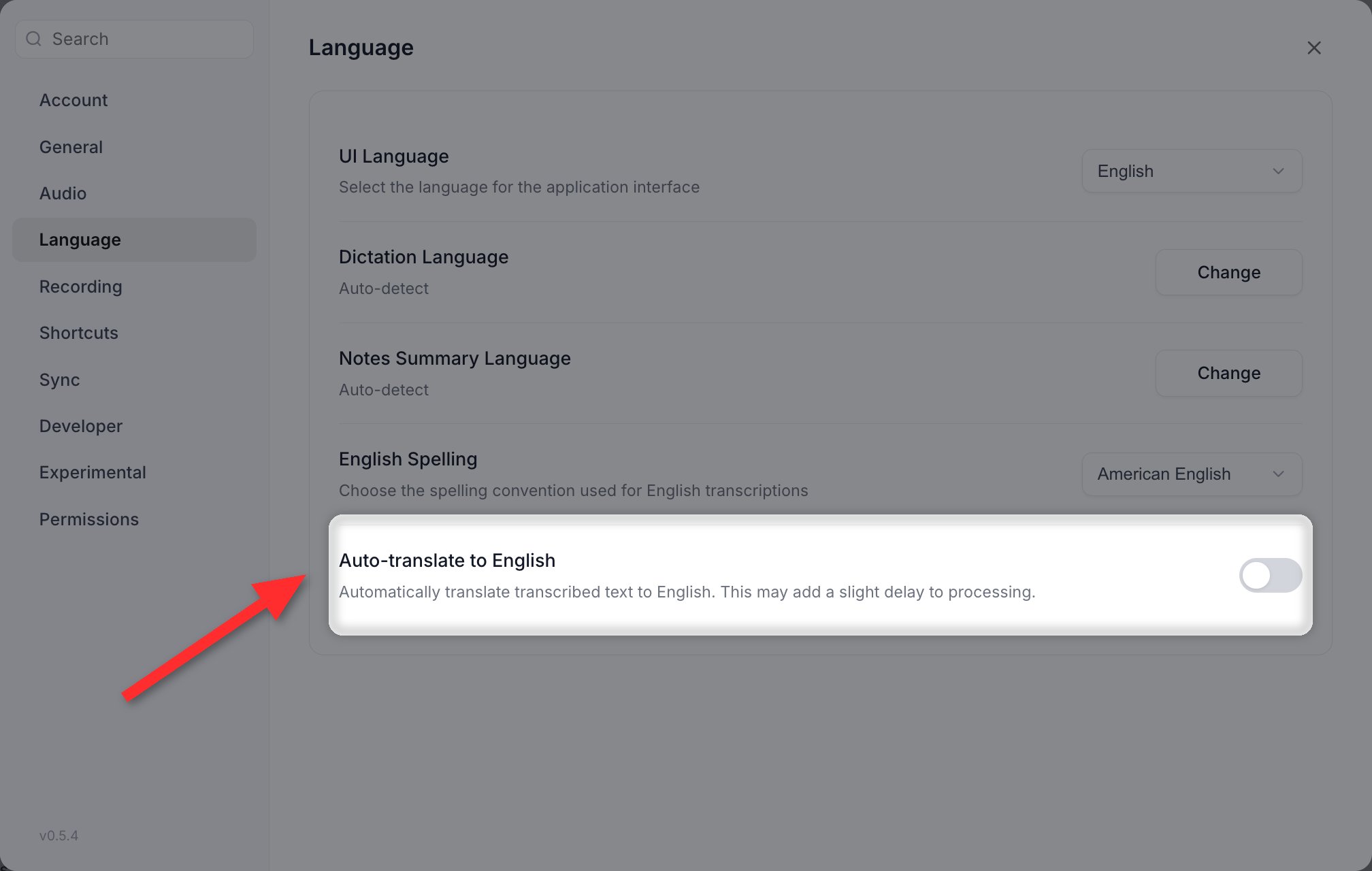
The toggle in Settings > Language. Note that nothing here tells you Google Translate is involved for cloud models and Parakeet.
Public share links
Publishing a meeting note to a share link uploads a fixed set of fields to Vowen’s share service, where anyone with the link can read them without a password. Published: the note title, its date, the summary, the transcript segments with their timings, speaker labels and per-segment speaker names, and tag names. A social preview image built from the title and summary is uploaded with it. Never published: the audio recording, the video recording, screenshots, your “My Notes” content, Ask AI conversations, marked important moments, speaker voice fingerprints, your Obsidian folder path, and the summary template you used. Share pages ask search engines not to list them. Revoking a link takes the page down. The note is stored unencrypted on the service and needs no password to read, so treat a share link as publishing, not as private sharing. See Sharing notes.Where your data lives
Everything Vowen stores locally sits under a single folder:- macOS:
~/Library/Application Support/vowen/ - Windows:
%APPDATA%\vowen\
- Saved audio recordings go to
~/Documents/Vowen Recordings/, if Save audio recordings is on in Settings > Recording. - The command line tool, if you installed it from Settings > Developer.
Vowen is not fully offline
Even with only local models and no cloud provider configured, Vowen makes network requests:- It checks for a new version every 6 hours against Vowen’s asset host, and again whenever you press Check for Updates
- It fetches a model catalog at startup, so new AI models appear without a release
- It sends analytics to PostHog, as described above
Related
Permissions
What each system permission is used for
Cloud sync
Sync through your own storage account
Sharing notes
What a public share link publishes
Models and engines
Which engines run locally