What Vowen does to the rest of your machine while you dictate: system audio, live preview, silence detection, and the clipboard.
Dictation touches more than the text field you are typing into. These settings decide what happens to your music, your clipboard, and your screen while a recording is running.
Controlling system audio requires Pro. On the free plan only Do nothing is selectable; the other two cards carry a Pro badge.
Settings > Recording > When recording starts is a three-way choice, shown as picture cards. It is available on macOS and Windows.
This setting governs dictation only. It is not applied when you record a meeting note, because a meeting needs the other participants to stay audible. See Meeting Notes recording for what Vowen does with audio during a meeting.
Card
What it does
Do nothing
Leaves system audio untouched while recording.
Mute
Silences all system audio while recording and restores the volume afterwards.
Pause
Pauses playing media and resumes it after your transcription is pasted.
When recording starts, in Settings > Recording: do nothing, mute system audio, or pause playback.
Mute silences your output. Whatever was playing keeps playing, you just cannot hear it, and the volume is put back when the recording ends. Pause stops the track where it was, so it picks up from the same point afterwards.
Not every app responds to a pause. If you have chosen Pause and something is making noise that ignores it, Vowen mutes your output instead for that recording, so you still get a quiet microphone.
Vowen always undoes exactly what it did, not what you chose. A recording that fell back to muting is unmuted rather than “resumed”, which is why a Pause recording sometimes restores your volume rather than your playback position.
If Vowen quits or crashes mid-recording while your system is muted, the next launch restores your volume for you.
Settings > Recording > Real-time transcription preview shows a live preview of your transcription below the recording indicator while you are still speaking.
With the preview on, your words appear under the indicator as you speak.
The toggle is greyed out, with the message “Configure a real-time capable model to use this feature”, unless your active speech model can stream. Streaming-capable models are:
Cloud models (require a configured API key)
Nova 2 and Nova 3 (Deepgram), Scribe v2 (ElevenLabs), Universal-3.5 Pro (AssemblyAI), Voxtral Mini (Mistral), Saaras v3 (Sarvam AI), Real-Time STT (Soniox), Aurora (xAI), Ink 2 (Cartesia), Speechmatics, OpenAI, and Google Gemini.A cloud model only counts as streaming-capable once it is actually configured. Selecting it without saving credentials leaves the toggle greyed out.
Local models
Parakeet V3 and Parakeet V2, and Nemotron EN and Nemotron Multilingual.Local streaming preview is macOS only. On Windows, Parakeet cannot drive the live preview, so the toggle stays greyed out for local models there.Nemotron streams natively and its partial results already carry punctuation and capitalisation, so its preview reads as finished text rather than a running lowercase stream.
This is not the same setting as the meeting notes preview. Show real-time transcription preview in the Notes settings, under Recording Defaults, streams live text into the meeting notes page while a meeting is being recorded. It is Pro, and it follows the transcription model chosen for meetings rather than your dictation model. Turning one on does not turn the other on.
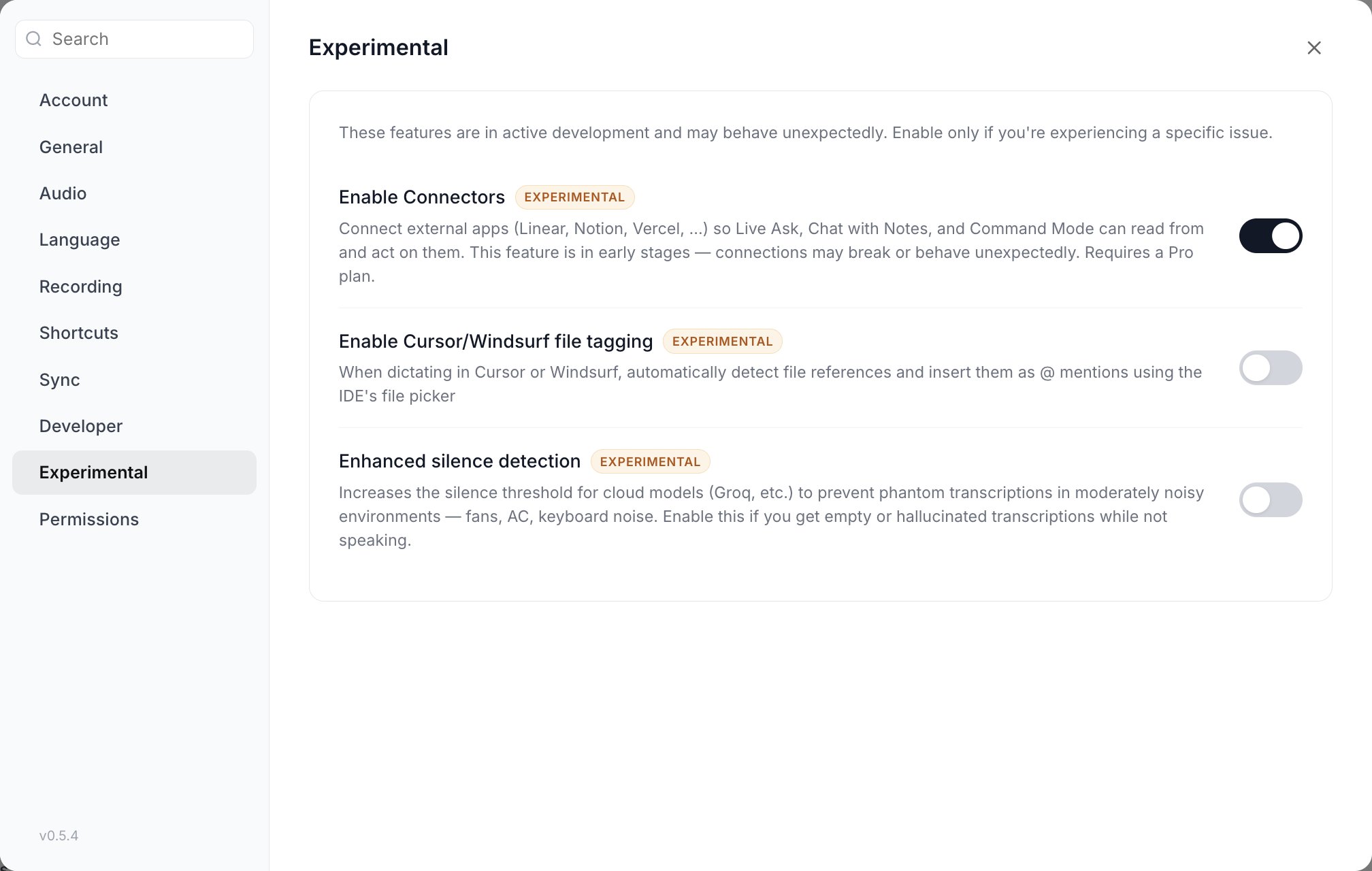
Enhanced silence detection lives in Settings > Experimental, and applies to cloud models.
These two controls live in Settings > Experimental, not Settings > Recording.
Cloud speech models sometimes invent text from room noise: fans, air conditioning, a keyboard. Enhanced silence detection raises the silence threshold applied before audio is sent to a cloud model, so quiet noise is treated as silence instead of speech.Turn it on if you get empty or hallucinated transcriptions when you were not speaking.Switching it on reveals a second row, Sensitivity, a slider from 1x to 5x with a default of 2x. It multiplies the base threshold. At 2x, audio has to be twice as loud as the measured baseline before it counts as speech.
Increase it if phantom transcriptions still get through.
Decrease it if real speech starts getting skipped.
This affects cloud models only. Local models run their own voice detection.
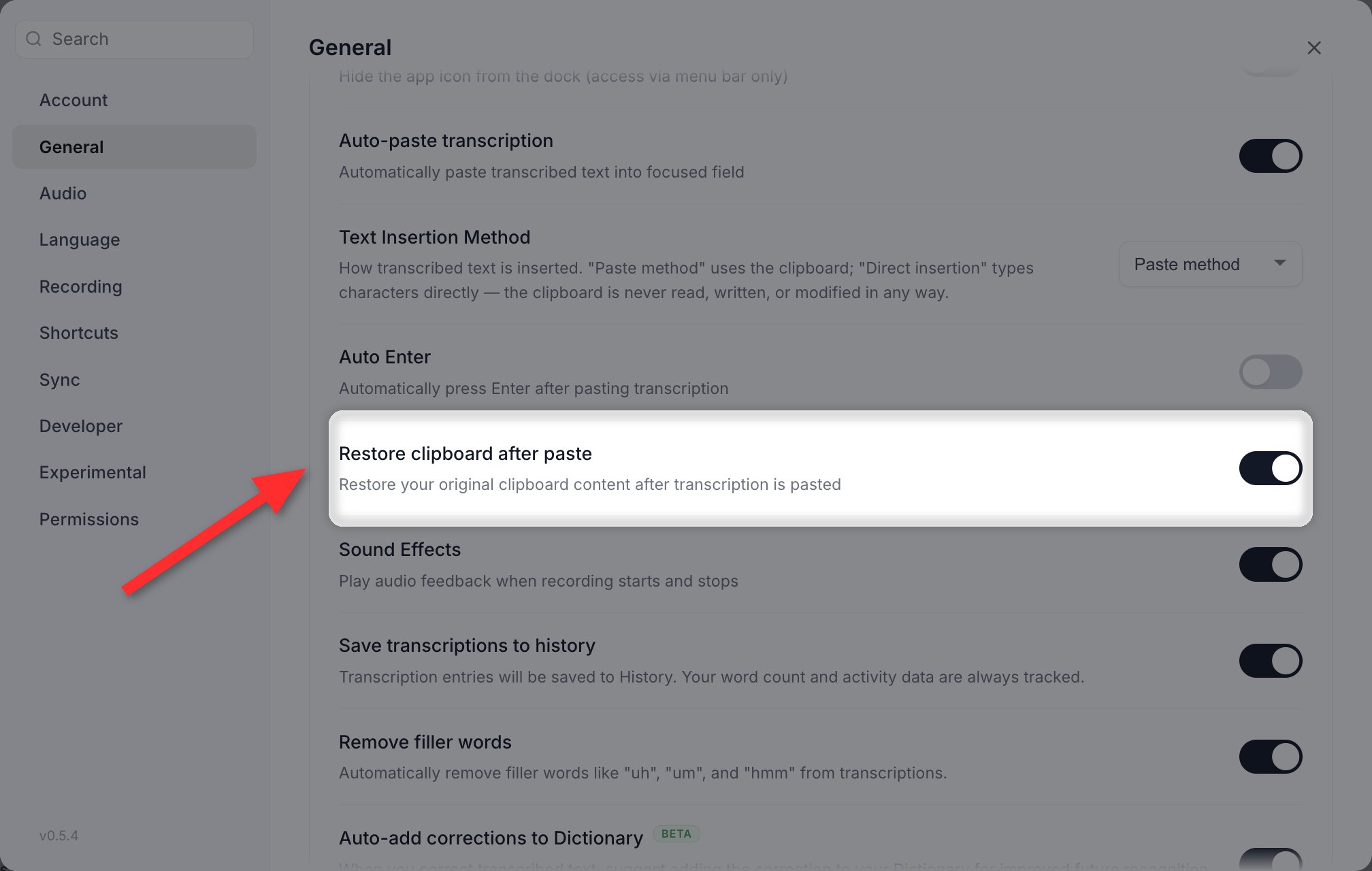
Settings > General > Restore clipboard after paste puts your original clipboard contents back after a transcription is pasted, so dictating does not cost you whatever you had copied.
Restore clipboard after paste, in Settings > General.
This is on by default. There is nothing to switch on.
Vowen pastes by putting text on the clipboard, so clipboard managers such as Maccy, Raycast, or Ditto would otherwise record every dictation you make. They do not, because Vowen marks the clipboard entry as transient.Settings > Developer > Allow Dictations in Clipboard History is the switch that changes this, and it is off by default. Leave it off to keep dictations out of your clipboard history. Turn it on if you would rather be able to fish an old dictation back out of your clipboard manager.
Vowen keeps its own record of your dictations in the Voice Log, so turning this on is rarely necessary just to recover text.