> ## Documentation Index
> Fetch the complete documentation index at: https://docs.vowen.ai/llms.txt
> Use this file to discover all available pages before exploring further.

# Quickstart

> Get up and running with Vowen in under 2 minutes.

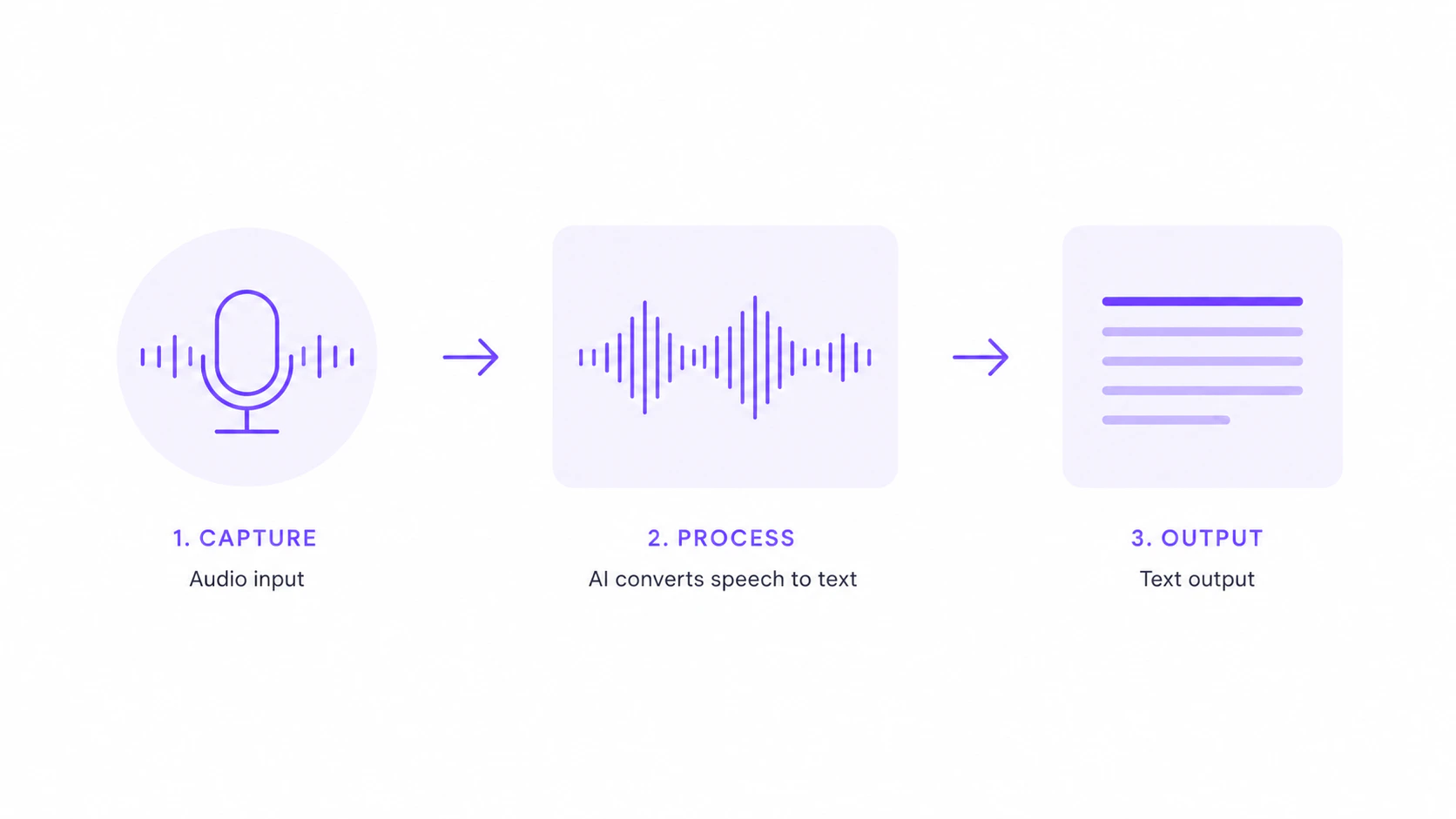
<img className="block dark:hidden" style={{ marginTop: "-1rem" }} src="https://mintcdn.com/vowen/2NLLQOm5sszam2ni/images/transcription-flow-light.png?fit=max&auto=format&n=2NLLQOm5sszam2ni&q=85&s=c4979a1c7b036298e93079dd44d3f442" alt="How Vowen transcription works" width="1672" height="941" data-path="images/transcription-flow-light.png" />

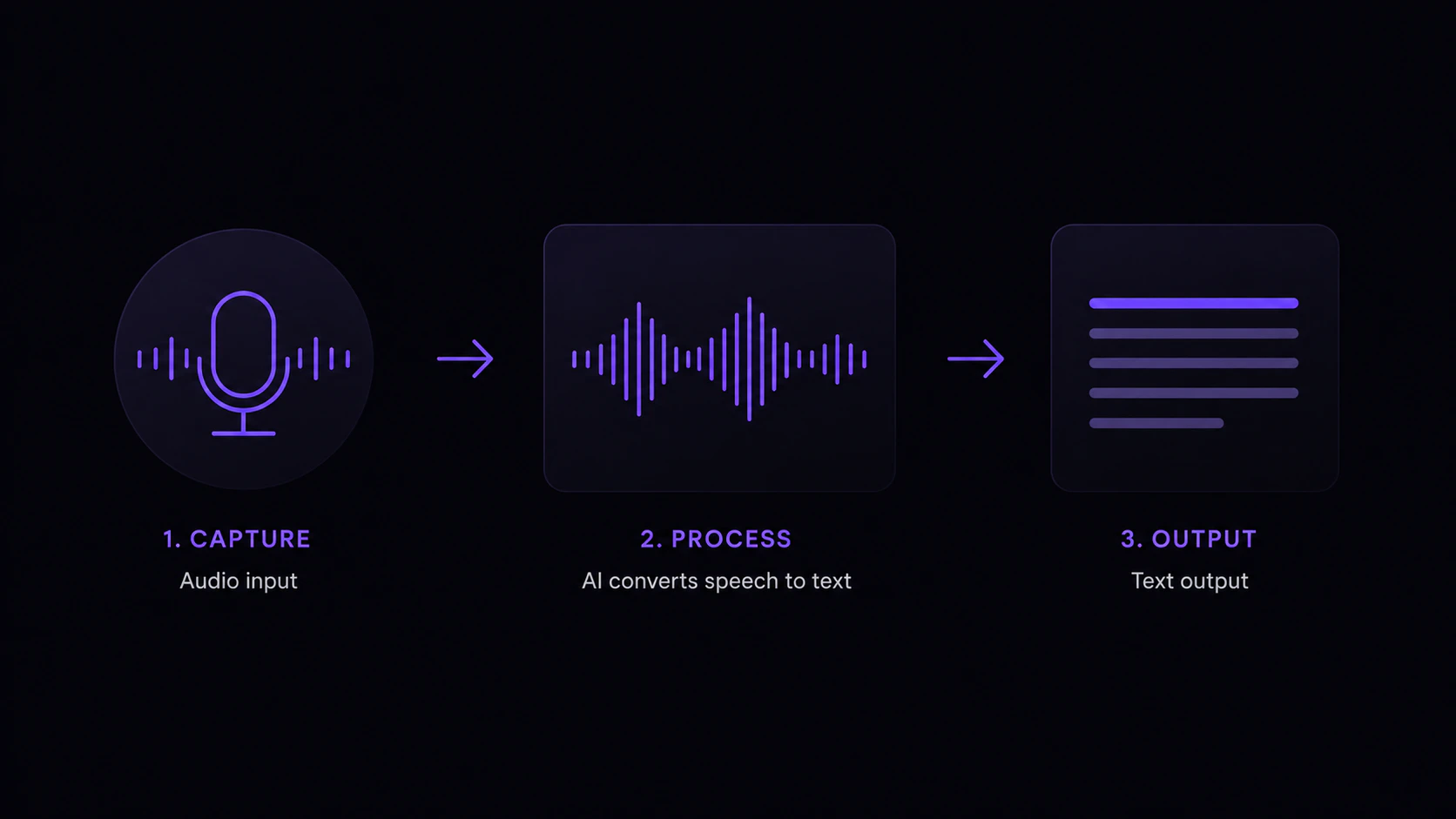
<img className="hidden dark:block" style={{ marginTop: "-1rem" }} src="https://mintcdn.com/vowen/2NLLQOm5sszam2ni/images/transcription-flow-dark.png?fit=max&auto=format&n=2NLLQOm5sszam2ni&q=85&s=80eb82c9fd371f257006d4655d2d425c" alt="How Vowen transcription works" width="1672" height="941" data-path="images/transcription-flow-dark.png" />

## 1. Download and Install

<Tabs>
  <Tab title="macOS">
    1. Download the latest `.dmg` from [vowen.ai](https://vowen.ai)
    2. Open the DMG and drag Vowen to your Applications folder
    3. Launch Vowen from Applications
  </Tab>

  <Tab title="Windows">
    1. Download the latest `.exe` installer from [vowen.ai](https://vowen.ai)
    2. Run the installer and follow the prompts
    3. Launch Vowen from the Start menu or desktop shortcut

    <Note>Windows may show a "Windows protected your PC" warning since the app is not yet code-signed. Click "More info" then "Run anyway" to proceed.</Note>
  </Tab>
</Tabs>

## 2. Grant Permissions

On first launch, Vowen will guide you through granting the necessary permissions.

<Tabs>
  <Tab title="macOS">
    * **Microphone:** required for recording your voice
    * **Accessibility:** required for auto-pasting text into apps

    <Tip>Screen Recording permission is optional and only needed for Meeting Notes.</Tip>
  </Tab>

  <Tab title="Windows">
    Permissions are handled automatically by the OS. No manual steps needed.
  </Tab>
</Tabs>

## 3. Your First Transcription

<Steps>
  <Step title="Hold the shortcut">
    **macOS:** Hold the `Fn` key
    **Windows:** Hold `Ctrl + Shift`

    <div className="mt-3 flex gap-2 rounded-lg border border-violet-500/25 bg-violet-500/5 p-3">
      <div className="shrink-0 text-sm leading-none pt-1 text-violet-500 dark:text-violet-400">↳</div>

      <div className="text-sm leading-relaxed text-zinc-600 dark:text-zinc-400">
        <a href="/features/shortcut-patterns" className="font-semibold text-violet-700 hover:text-violet-600 dark:text-violet-300 dark:hover:text-violet-200">Want a different setup?</a> Pick your own shortcut, add a hands-free toggle, or use a mouse button. See clever patterns like promoting push-to-talk into hands-free without lifting a finger.
      </div>
    </div>
  </Step>

  <Step title="Speak">
    Say whatever you want transcribed. Speak naturally. Vowen handles filler words and formatting.
  </Step>

  <Step title="Release">
    Let go of the shortcut. Your transcribed text will be automatically pasted into whatever app has focus.
  </Step>
</Steps>

<Check>That's it! You're now using Vowen to control your computer with your voice.</Check>

<Note>Everything in this quickstart is free. Vowen also has a [Pro plan](/pricing) that lifts caps on Command Mode, Tones, Memory, Workflows, Manual Transcriptions, and unlocks features like Custom AI Instructions, Speaker Diarization, Real-time Preview, and Cloud Sync.</Note>

<div className="my-6 flex gap-3 rounded-xl border border-violet-500/30 bg-violet-500/10 p-4">
  <div className="shrink-0 pt-0.5 text-violet-500 dark:text-violet-400">
    <svg width="20" height="20" viewBox="0 0 24 24" fill="none" stroke="currentColor" strokeWidth="2" strokeLinecap="round" strokeLinejoin="round">
      <path d="m21.64 3.64-1.28-1.28a1.21 1.21 0 0 0-1.72 0L2.36 18.64a1.21 1.21 0 0 0 0 1.72l1.28 1.28a1.2 1.2 0 0 0 1.72 0L21.64 5.36a1.2 1.2 0 0 0 0-1.72Z" />

      <path d="m14 7 3 3" />

      <path d="M5 6v4" />

      <path d="M19 14v4" />

      <path d="M10 2v2" />

      <path d="M7 8H3" />

      <path d="M21 16h-4" />

      <path d="M11 3H9" />
    </svg>
  </div>

  <div className="text-sm leading-relaxed text-zinc-700 dark:text-zinc-300">
    <strong className="text-violet-700 dark:text-violet-300">Want polished output without effort?</strong> Connect an AI provider (Groq, Gemini, OpenAI, Anthropic, and 6+ more) and Vowen will:

    <ul className="mt-2 space-y-1">
      <li>Fix grammar and punctuation while keeping your voice intact</li>
      <li>Convert spoken numbers to digits ("three thousand" becomes "3000")</li>
      <li>Format lists, emails, and phone numbers automatically</li>
      <li>Apply spoken commands ("new paragraph", "make this a bullet list")</li>
    </ul>

    <a href="/ai-features/ai-enhancement" className="mt-3 inline-block font-semibold text-violet-600 hover:text-violet-500 dark:text-violet-400">Learn about AI Enhancement →</a>
  </div>
</div>

## What's Next?

<CardGroup cols={2}>
  <Card title="Pick a Transcription Model" icon="microchip" href="/transcription/models">
    Compare local and cloud models to find the best fit
  </Card>

  <Card title="Set Up AI Enhancement" icon="wand-magic-sparkles" href="/ai-features/ai-setup">
    Connect an AI provider for polished output
  </Card>

  <Card title="Customize Shortcuts" icon="keyboard" href="/features/shortcuts">
    Change shortcuts to fit your workflow
  </Card>

  <Card title="Try Command Mode" icon="terminal" href="/ai-features/command-mode">
    Give voice commands to AI
  </Card>
</CardGroup>