
vowen binary is a separate download from the desktop app. There are three ways to get it, and they all end up with the same binary in the same place.
The Vowen desktop app must be installed too. The CLI has no transcription engine of its own, it drives the app. See how the CLI connects.
Option 1: install from settings
The easiest path, and the one that keeps working when you change machines.1
Open Settings > Developer
Open the Settings modal from the sidebar footer, then pick the Developer section.
2
Find Command Line Tool
The first card is Command Line Tool. If the CLI is not installed yet, it shows a single Install CLI button.
3
Click Install CLI
Vowen fetches the release manifest from
assets.vowen.ai, downloads the archive for your platform, verifies its SHA-256 against the manifest, unpacks it, and writes the binary into a per-user bin directory.4
Confirm it worked
The card switches to reading
vowen <version> installed at <path>. Open a new terminal and run vowen status.- The checksum is enforced, not advisory. If the downloaded bytes do not match the SHA-256 in the manifest, the install aborts with “Checksum verification failed — refusing to install” and nothing is written.
- The archive is unpacked in-process. Vowen never shells out to
tarorunzip. On Windows, a GNUtarfrom Git for Windows, MSYS2, Cygwin, or Strawberry Perl often wins the PATH lookup, reads-f C:\...as a remotehost:pathspec, and cannot read ZIP at all. Extracting inside the app removes that whole class of problem.
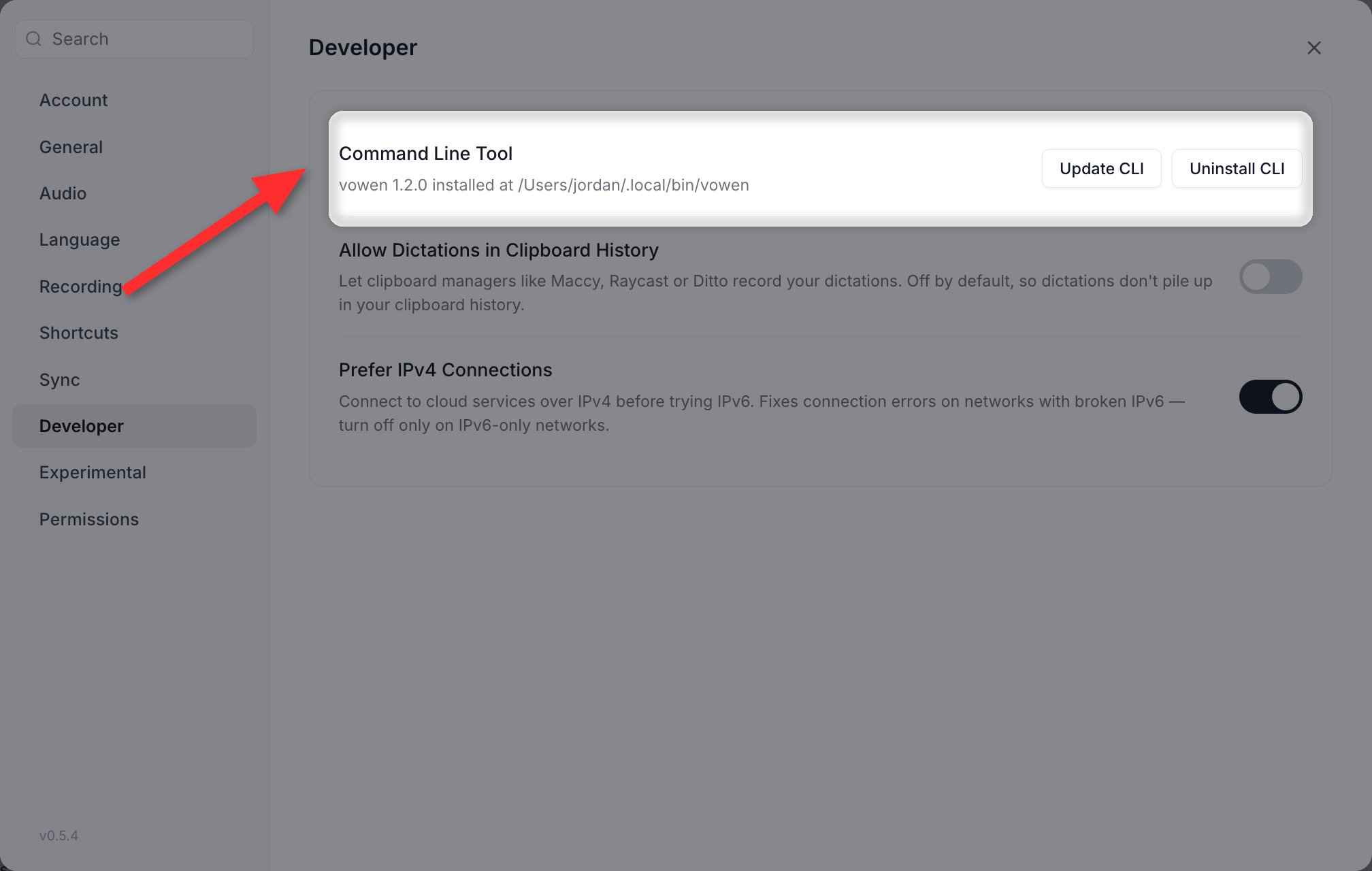
Settings > Developer shows whether the command line tool is installed, and where it went.
Option 2: curl (macOS)
assets.vowen.ai/cli/latest.json, downloads the universal macOS binary, verifies it against the published checksums.txt, installs it, and then runs vowen --version to confirm the binary actually executes before declaring success.
Two environment variables change its behavior:
This script is macOS-only. Run on anything else, it stops and points you at the PowerShell installer.
Option 3: PowerShell (Windows)
vowen-<version>-windows-x64.zip, compare its SHA-256 against checksums.txt, extract it, unblock the file, add its directory to your user PATH, and run vowen --version to prove the binary works.
Where the binary lands
Both the in-app installer and the shell scripts follow the same policy, so it does not matter which one you used.
vowen doctor prints the path it is running from if you are ever unsure.
The in-app installer also treats anything already on your PATH as installed. If you previously ran the shell installer with a custom VOWEN_CLI_BINDIR, the settings card finds that copy rather than dropping a second binary somewhere else.
Updating
The CLI versions independently of the app, so “update” means “fetch whatever the release manifest currently points at”, not “match the app version”.- From settings
- From the terminal
Open Settings > Developer > Command Line Tool. When a newer release exists, the card shows “Update available:
<yours> to <latest>” and the Update CLI button becomes the primary action. Clicking it always goes to the network.Uninstalling
- From settings
- Manually
Settings > Developer > Command Line Tool > Uninstall CLI. This removes every copy it knows about, including ones discovered on your PATH and any
.old leftovers from a Windows update.Troubleshooting
Windows: 'the binary would not run' after a successful download
Windows: 'the binary would not run' after a successful download
The full message is: “Installed to
<path>, but the binary would not run. This is almost always antivirus quarantine — allow that file in Windows Security, then click again.”The download succeeded and the checksum matched, so the file is intact, but something on the machine is preventing it from executing. Both installers run vowen --version after writing the file so this gets caught here, instead of surfacing later as a confusing 'vowen' is not recognized in your terminal.To fix it:- Open Windows Security > Virus & threat protection > Protection history and look for a recent quarantine or block on
vowen.exe. - Restore it, or add an exclusion for
%LOCALAPPDATA%\Vowen\bin. - Run the installer again.
macOS: 'the binary would not run' after a successful download
macOS: 'the binary would not run' after a successful download
The macOS variant of the same check reports: “Installed to
<path>, but the binary would not run. Check that <dir> is not mounted noexec.”This shows up when the install directory sits on a volume mounted with noexec, which strips the ability to execute anything stored there regardless of file permissions. Reinstall into a normal location:'vowen: command not found': PATH is not picking it up
'vowen: command not found': PATH is not picking it up
The binary installed fine, your shell just cannot see it.macOS. If the installer fell back to Then open a new terminal, or Add
~/.local/bin (because /usr/local/bin was not writable), that directory may not be on your PATH. The installer prints a warning when it detects this. Add it to your shell profile:source the profile you just edited.Windows. The PATH entry is added to your user environment, which existing terminals do not re-read. Close and reopen your terminal. If it still is not found, confirm the directory is present:%LOCALAPPDATA%\Vowen\bin manually if it is missing.Either way, you can always invoke the binary by full path to confirm it is really installed:Run vowen doctor
Run vowen doctor
doctor never launches the app, so what it reports is the true current state.CLI versionprinted but nothing else. The binary works and the problem is the connection, not the install.App: not reachable (is Vowen running?). Either the app is closed, or the CLI connection has been turned off. Start the app and try again; if it is already running, see How it connects.- No
Server fileline. The app has not written its discovery file, which normally means it has not started since the CLI API was enabled. Status check: FAILED. The port answered but the request did not. This usually means a stale server file from an unclean quit; restarting the app rewrites it.
Checksum verification failed
Checksum verification failed
The download did not match the published SHA-256, and the installer refused to write it. Nothing was installed, so there is nothing to clean up.This is nearly always a corporate proxy or content filter rewriting the response body. Retry on a different network, or download the archive listed in
assets.vowen.ai/cli/latest.json directly and check it against checksums.txt yourself.Next steps
Command reference
Every command and flag, with examples
MCP server
claude mcp add vowen -- vowen mcp