
Vowen checks three system permissions: Microphone, Accessibility and Screen Recording. Only Microphone is checked on Windows, and there it always reports as granted. See Windows below for what that means in practice.
The Permissions section is deliberately excluded from settings search. These are system grants rather than settings, so searching for “microphone” will not surface this section. Open it from the sidebar of the settings modal instead.
Accessibility permission (macOS)
Symptoms
- Shortcuts do nothing at all
- Text does not auto-paste
- A “Drag to insert” card appears after every dictation instead of the text landing in your app
- An “Accessibility permission required” message appears
Fix
1
Open System Settings
Go to System Settings > Privacy & Security > Accessibility.
2
Remove and re-add
If Vowen is already in the list, remove it with the minus button. Then re-add it with the plus button and select Vowen from Applications.
3
Restart Vowen
Fully quit Vowen (right-click the menu bar icon, then Quit) and relaunch it. This is required after changing Accessibility permission.
Microphone permission
Symptoms
- Recording starts but no audio is captured
- Transcription comes back empty, or as “Thank you” on a local model
Fix
- Go to System Settings > Privacy & Security > Microphone and make sure Vowen is on
- Check that the correct input device is selected in Settings > Audio
- Test the same microphone in another app to confirm the hardware is working
Screen Recording permission (macOS)
Symptoms
- Meeting Notes cannot capture system audio
- Command Mode cannot see your screen when context-awareness is on
- The region capture overlay produces a blank or black image
- A “Screen recording permission needed” message appears
Fix
- Go to System Settings > Privacy & Security > Screen & System Audio Recording
- Turn Vowen on
- Restart Vowen
Screen Recording is used by more than Meeting Notes. It also backs the Command Mode screenshot (off by default, at Configure your AI > Command Mode > Context-awareness) and the region capture overlay. Vowen never captures your screen without an explicit action on your part, but the permission is not Meeting-Notes-only.
Automation and Apple Events (macOS)
Vowen ships thecom.apple.security.automation.apple-events entitlement and uses AppleScript through System Events to read the frontmost app’s name, window title and bundle identifier. That is what makes per-app and per-website Tones match.
The first time this runs, macOS shows a dialog asking whether Vowen may control System Events. If you dismiss or deny it, tone matching silently stops working. Dictation still runs, but the app-specific tone never activates.
To restore it, go to System Settings > Privacy & Security > Automation, find Vowen, and turn on System Events. If Vowen does not appear in that list at all, see the reset command below.
Permission granted but still not working
Work through these in order.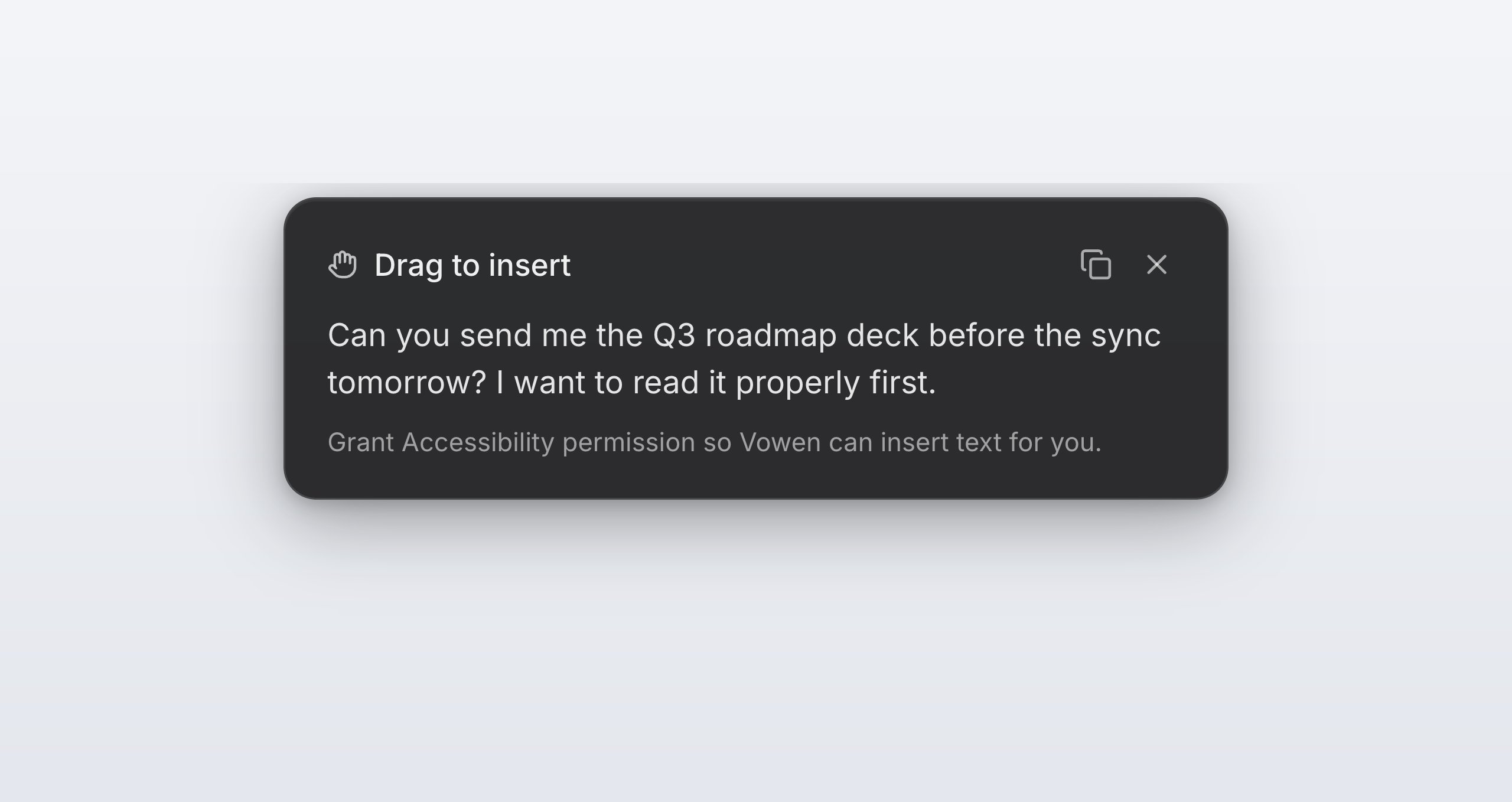
With Accessibility missing, Vowen cannot paste, so it hands you the text and says why.
1
Fully quit Vowen
Not just closing the window. Right-click the tray or menu bar icon and choose Quit.
2
Wait a few seconds, then relaunch
Relaunching too quickly can leave the old process holding the grant.
3
Remove and re-add the permission
Follow the Accessibility steps above. This works for Microphone and Screen Recording too.
4
Restart your Mac
Some permission changes are only picked up after a full restart.
5
Reset the permission with tccutil
Last resort. Open Terminal and run the line for the permission you are fixing, then re-grant it from System Settings.
Running
tccutil reset with no identifier resets that permission for every app on your Mac. Always include com.vowen.app.Permission not appearing in the list
If Vowen does not show up in the permission list at all: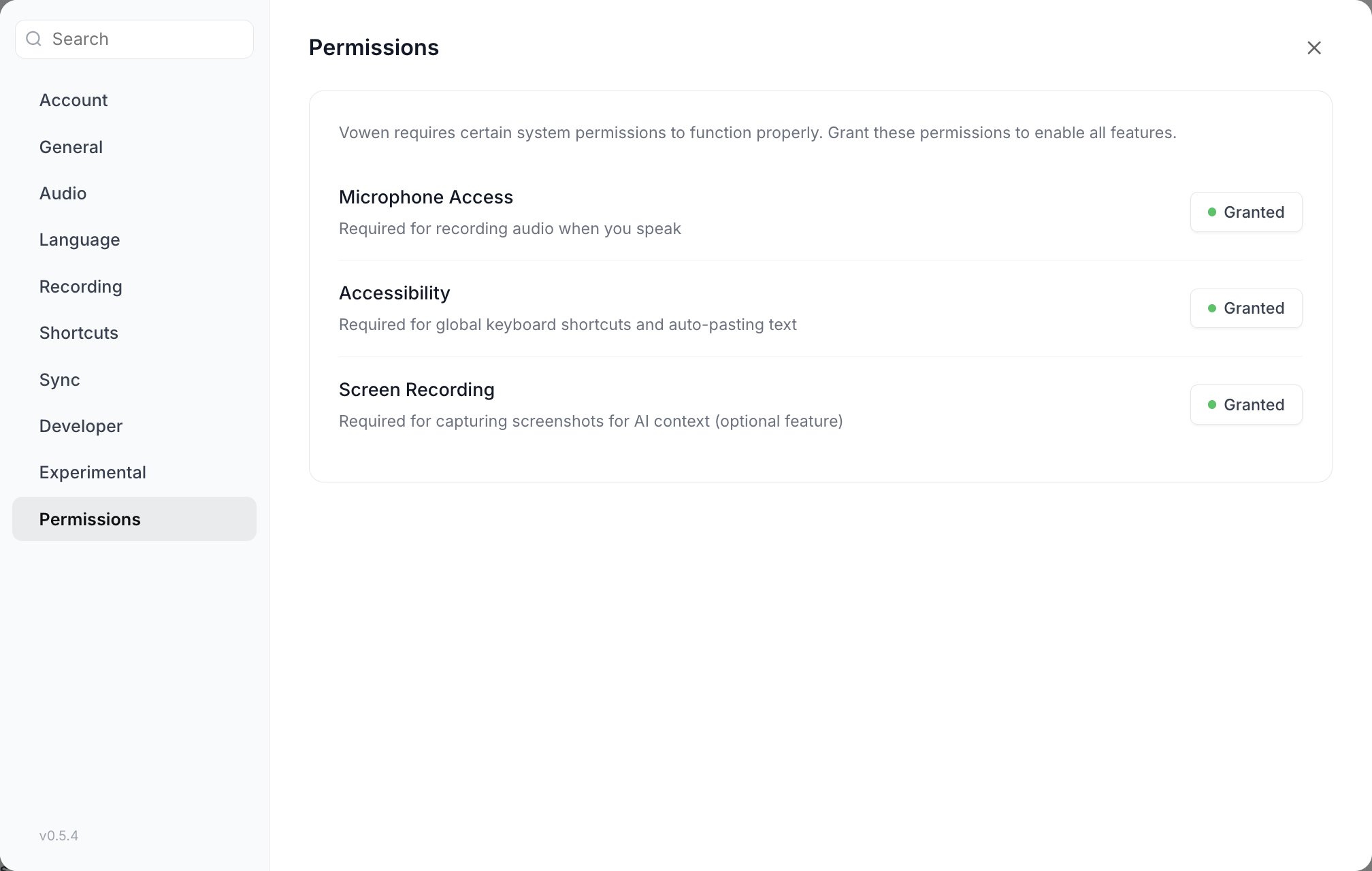
Settings > Permissions shows what Vowen currently has, with a button that opens the right pane of System Settings.
- Make sure you have launched Vowen at least once. macOS only lists apps that have asked.
- Drag Vowen from
/Applicationsdirectly into the permission list. - On macOS Tahoe (26 and later), Screen Recording is listed as Screen & System Audio Recording, not “Screen Recording”.
- If you moved the app after granting a permission, macOS may still be tracking the old copy. Move Vowen back to
/Applications, reset withtccutilas above, and grant it again.
Windows
Windows has no Accessibility or Screen Recording permission model equivalent to macOS, and Vowen requests neither. Global shortcuts, auto-paste, screenshots and system audio capture all work without a grant. The microphone is the exception. If your recordings on Windows come back empty:- Open Windows Settings > Privacy & security > Microphone
- Turn on Microphone access and Let desktop apps access your microphone
- Confirm the right device is selected in Settings > Audio
- Check that no other app has taken exclusive control of the device
Related pages
Permissions setup
What each permission is for and how to grant it the first time.
Shortcut problems
When the permission is granted but shortcuts still do not fire.